
EMSP: Outbound Roaming explained
Explains how outbound roaming works when Monta acts as your EMSP: how drivers charge on external networks, how pricing works, and how to set your own prices with price agreements.
Updated 3 November 2026
Where do I manage outbound roaming?
In Hub, go to EMP / Fleet > Outbound roaming (/roaming/outbound).
On Managed, tabs are Overview, Connections, Parties, Tariffs, Settlement, and Sessions.
- Sessions has a Partner column (name and party ID).
- Settlement is a live tab. Opening it in the page works. A cold
?tab=settlementdeep-link can bounce to Operator wallet. - A per-CPO row opens a modal with session P/L.
- Tariffs shows Apply tariff, a library, and New tariff. This article does not say Apply tariff has been run.
Self-managed on this page has Export CDR batch and no Tariffs or Settlement tabs.
Outbound roaming means your drivers can charge on external networks using their Monta account. This article explains how it works when Monta acts as your EMSP.
How outbound roaming works
- Your driver arrives at a charge point on an external network.
- They open the Monta app and start a session at the external charge point.
- Monta sends an authorisation request to the external network (CPO) via OCPI.
- The CPO starts the session and reports energy and duration back to Monta.
- Monta charges the driver using their Monta Wallet.
Which networks are available?
Monta has roaming agreements with many networks across Europe. The available networks depend on your operator account settings and your country.
Your drivers can see available roaming charge points on the Monta map.
Pricing for outbound roaming
The external network sets the price for their charge points. Monta adds a platform fee. Drivers see the total price before starting a session.
To charge your drivers a different price, set up a price agreement. Drivers covered by an agreement pay the price from that agreement instead. See Set your own prices with price agreements.
Set your own prices with price agreements
A price agreement sets what your drivers pay at the chargers of roaming partners and other Monta operators. You choose who it covers, the price and the dates. You need to be a member of your operator with permission to manage bilateral agreements.
If you don't see Apply price adjustment in the Applied view of the Tariffs tab, price agreements may not be available for your account yet.
Every agreement has these settings:
- Name: 1 to 255 characters. Two agreements can share a name.
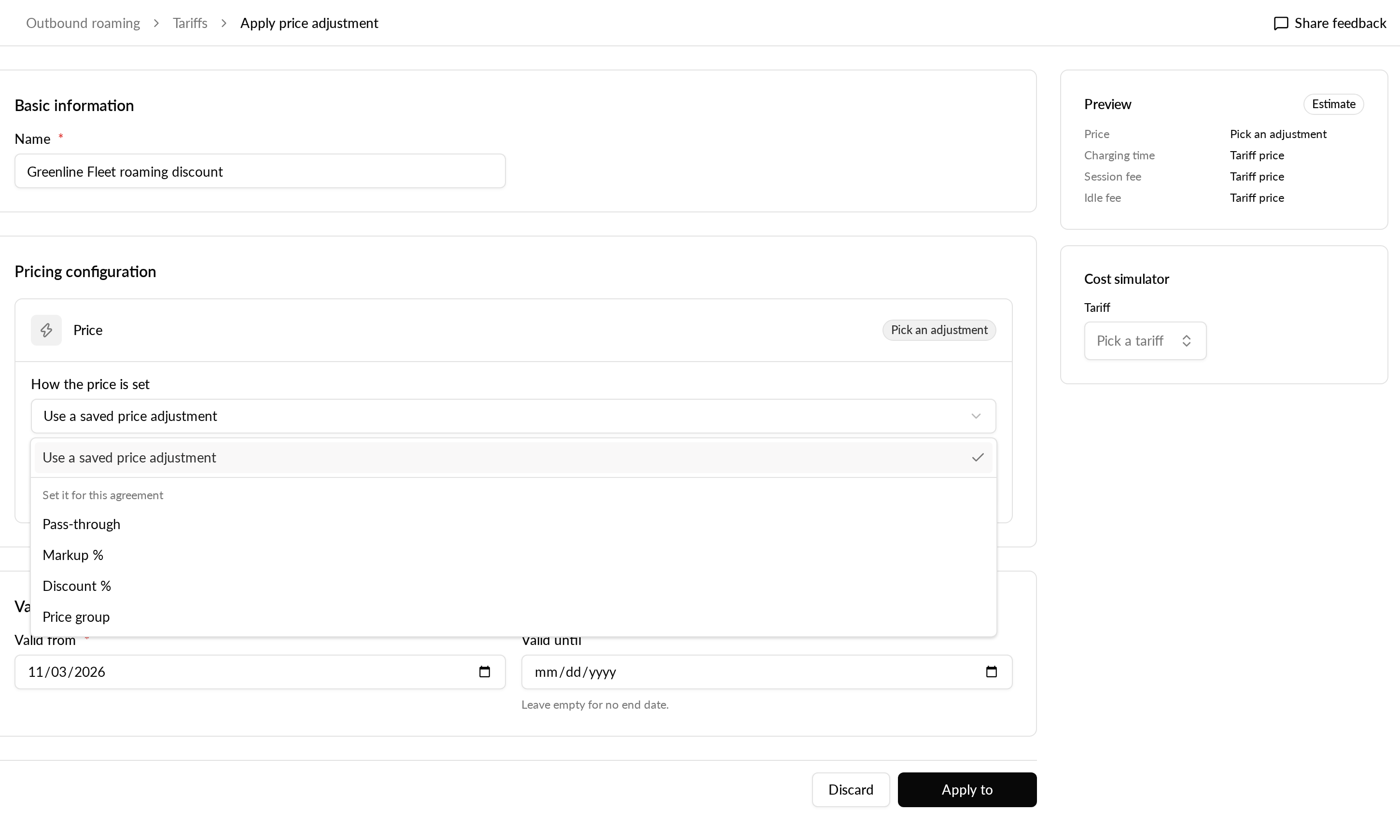
- Price: pick a saved price adjustment, or set the price on the agreement. See the options below.
- Parties: the roaming partners and Monta operators it applies at. Choose All parties or pick them one by one. A party covers every tariff it sends you, including new ones.
- Accounts: the drivers it covers. Choose All accounts or pick accounts, and turn on Personal drivers to include them. You can only pick your own accounts, not those of your sub-operators.
- Validity: a start date is required. The end date is optional, and the agreement stops applying on that date.
These price options change what your drivers pay at a roaming partner:
- Markup % adds a percentage to the partner's price.
- Discount % takes a percentage off the partner's price. You pay the difference.
- Price group replaces the partner's price with the rates of one of your own price groups, one for AC and one for DC, or one for both. The price group must be in the same currency as the charger. Otherwise the driver pays the partner's price.
- Pass-through keeps the partner's price. Drivers pay what the partner charges.
A percentage applies to the whole price: energy, time, session and idle fees.
Create a price agreement
-
In Hub, go to EMP / Fleet > Outbound roaming and open the Tariffs tab.
-
Open the Applied view and select Apply price adjustment.
-
Enter a name, choose the price, and enter the start date in Validity. The end date is optional.
-
Select Apply to.
-
In Pick parties, choose All parties or select the roaming partners and Monta operators.
-
In the next step, choose All accounts or select accounts. Turn on Personal drivers to include personal drivers.
-
Finish the dialog.
Hub confirms with a message that starts with "Price adjustment applied". The agreement now shows in the list on the Tariffs tab.
When agreements overlap
Several agreements can cover the same driver at the same charger. The agreement you created most recently sets the price. Editing an older agreement does not make it newer.
Before you save, Hub lists each older agreement that your agreement takes over. This is a warning, and you can still save.
Which price a session gets
The price from your agreement is fixed when the session starts. If you change the agreement during a session, the change applies to the next sessions, not to the session already running.
One exception: a session started with a charge card at a charger Monta has not imported yet is priced when the partner's charge record arrives. It then uses the agreement as it is at that time, and only price group agreements apply to it.
See your roaming margin
Once you set your own outbound roaming prices, the Settlement view shows what that pricing is actually earning you. Pick a month and see, grouped by roaming partner, what your drivers paid you, what the CPO cost you, and the margin left over, down to the individual session and charge.
In Monta Hub, go to Roaming > Outbound Roaming > Managed and open Settlement.
The three summary cards
The cards at the top of the view summarise the whole month:
- EMSP Wallet: what your drivers paid you over the period, with the total sessions and kWh behind it.
- Pending CPO cost: what the roaming CPOs are expected to charge you for those sessions, based on what they've reported so far.
- Net margin (forecast): what's left after CPO cost and Monta's fee, with Margin % (the margin as a share of what your drivers paid) and Avg / kWh (the average margin you made on each kWh delivered).
It says forecast because CPO costs arrive on the CPOs' own CDRs, which can land days after the session. The margin firms up as those costs come in.
The partner breakdown
Below the cards is one row per roaming partner, so you can see which relationships earn and which cost you:
- Sessions and kWh: the sessions and energy confirmed by that CPO's CDRs. A charge with no CDR yet counts towards neither.
- Driver paid: what your drivers' Wallets were charged at that partner's charge points.
- CPO cost: what that CPO charges you for the same sessions.
- Margin: driver paid, less CPO cost, less Monta's fee. It can be negative, and the view marks whether a partner is making or losing you money.
Open a partner to see its sessions, and a session to see the individual charge, so any figure can be traced back to what produced it.
Why a figure shows a dash
A dash (-) means Monta doesn't have the data to state that figure yet. It does not mean zero.
This is most often because the CPO hasn't sent the CDR for a session yet, so there is no cost to report against it. A genuine zero is shown as 0. Figures are also left as a dash rather than added together when a partner's sessions span more than one currency.
Settlement is an always-current read, so figures fill in as the missing data arrives. A month can still change after it has ended.
Partners shown as "Unknown"
Some charges can't yet be attributed to a specific roaming CPO, because the session's CDR hasn't arrived or doesn't identify the operator in a way Monta can resolve. Rather than hiding these charges or spreading them across the named partners, they're grouped into a single Unknown partner.
Unknown behaves like any other row. Open it to see exactly which sessions sit behind it. Charges move out of Unknown to their named partner once the missing CDR data arrives.