
Set a date for "Be ready at" when you start a charge
Choose the day and time your car must be ready when you start a Smart charging session from the one tap sheet, up to 28 days ahead.
Updated 3 November 2026
This article is for drivers who start a charge with Smart charging in the Monta app. You will set the day and the time by which your car must be ready, so you can plan ahead for tomorrow or after a weekend.
Before you start
- Update the Monta app to version 2.101.0 or later.
- Use the one tap sheet, the single screen where you set up and start a charge. It is a beta feature and may not be available to you yet. If it is, turn on One tap charge at your charge points or One tap charge at public charge points under Beta features in the app settings (Me > Settings > Beta features). If you don't see the Beta features row or these switches, one tap isn't available to you yet.
- Use a charge point that offers Smart charging. If it doesn't, the Be ready at row does not appear.
Set the day and time
-
Open the charge point in the Monta app to open the one tap sheet.
-
Check that Charging type shows Smart charging. If not, select Charging type and choose Smart charging.
-
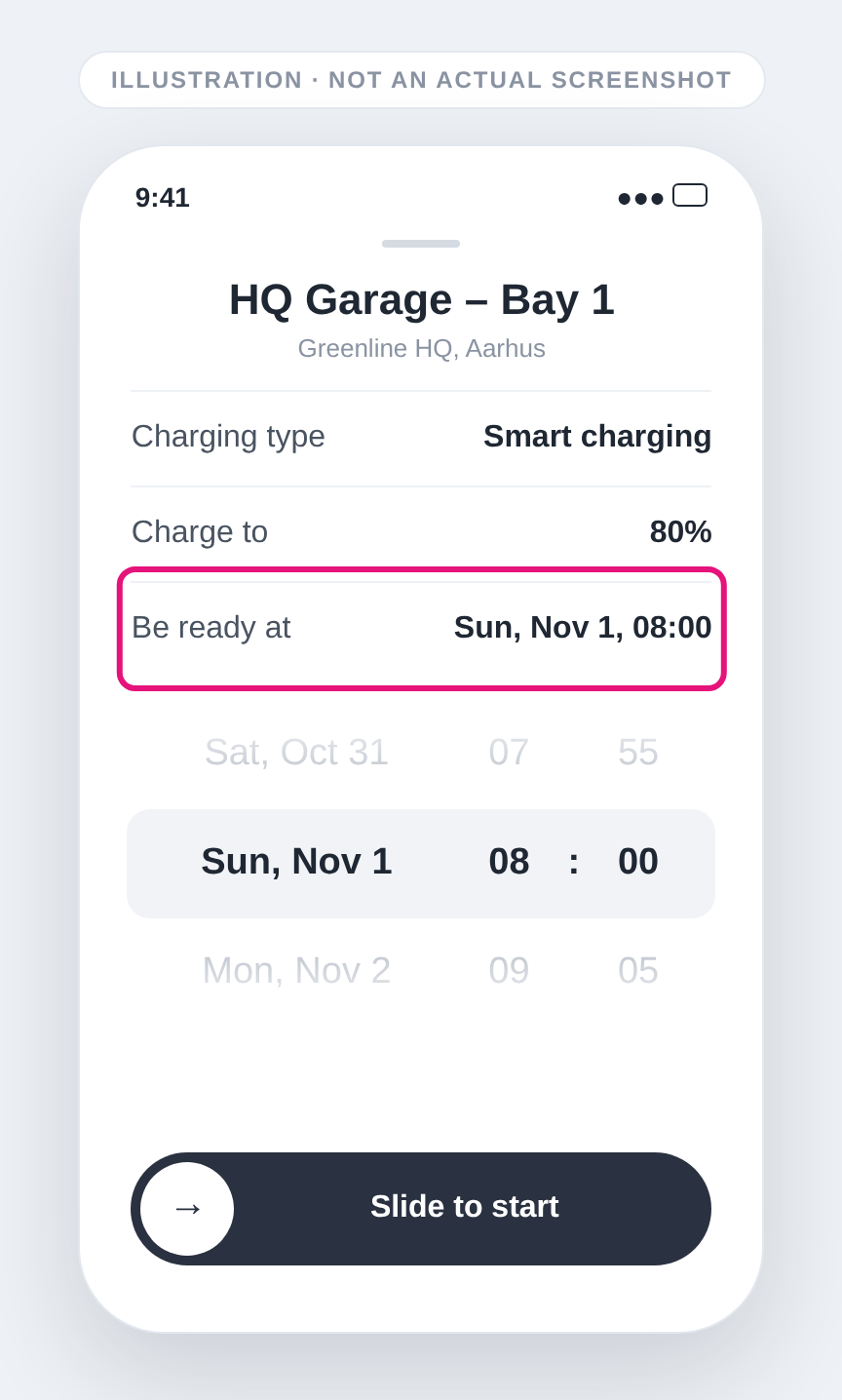
Select Be ready at. A wheel opens with the day and the time.
-
Scroll the wheel to the day you want, then to the time. Times move in steps of 5 minutes.
-
Drag the Slide to start control to the end.
When it worked, the Be ready at row shows the day and the time, for example "Tomorrow, 08:00". For a day further out, the row shows the weekday and the date, for example "Sun, Oct 18, 22:45".
What to know
- You can pick any day up to 28 days ahead. The wheel does not offer dates beyond that.
- You can't pick a time in the past. If the time you chose has passed while the wheel was open, the app moves it to the next time that matches.
- The app remembers only the time of day you used last, not the date. Each time you open the sheet, the day starts as the next time that time of day occurs. Check the day before you start.
- Be ready at works only with Smart charging. To start at a set time instead, choose Scheduled charge under Charging type.