
How do I manage energy locations in the Hub?
Find an energy location in the Hub, check its live state and change its settings.
Updated 11 November 2026
This article is for operators who manage energy locations in the Hub. You will find a location, see what it is doing right now and change its settings.
An energy location is a physical place with one or more charge points. It is the top-level container: nodes, EVSEs (electric vehicle supply equipment), charge intents and meters all belong to a location. Energy locations used to live in the Energy Portal (energy.monta.app). They are now in the Hub.
For first-time setup, see How do I set up energy management for a location in the Hub?.
Location settings
To change a location's settings, open the location and select the Setup tab, then General. The settings include:
- Voltage (V): the supply voltage for the location.
- Timezone: used to apply scheduled charge intents and time-based limits.
- Country area: determines which energy market is used for price-optimised smart charging.
- Account: the account that owns the location.
- Comment: a free-text note about the location.
Charge intents, nodes, EVSEs and meters have their own sections on the Setup tab.
Fleet overview
In the sidebar, select Energy management, then open the Locations tab. Four cards above the table show totals for the operator selected in the operator selector:
- Locations: locations with energy management.
- EVSEs: EVSEs across all locations.
- Active charges: charges in progress right now.
- Current power: power allocated to active charges right now, in kW.
The cards do not follow the search or filters of the table below them. They update when you create, edit or delete a location. If the totals cannot load, an error message replaces the cards.
Live view of a location
To see what a location is doing now, open it and select the Details tab. The Live sub-tab opens first.
-
Use the selector under the tabs to pick a node or an EVSE. Selecting an EVSE shows the cards of its parent node.
-
Read the cards for the node. They refresh on their own every few seconds.
-
To hide idle chargers, select Only show charging.
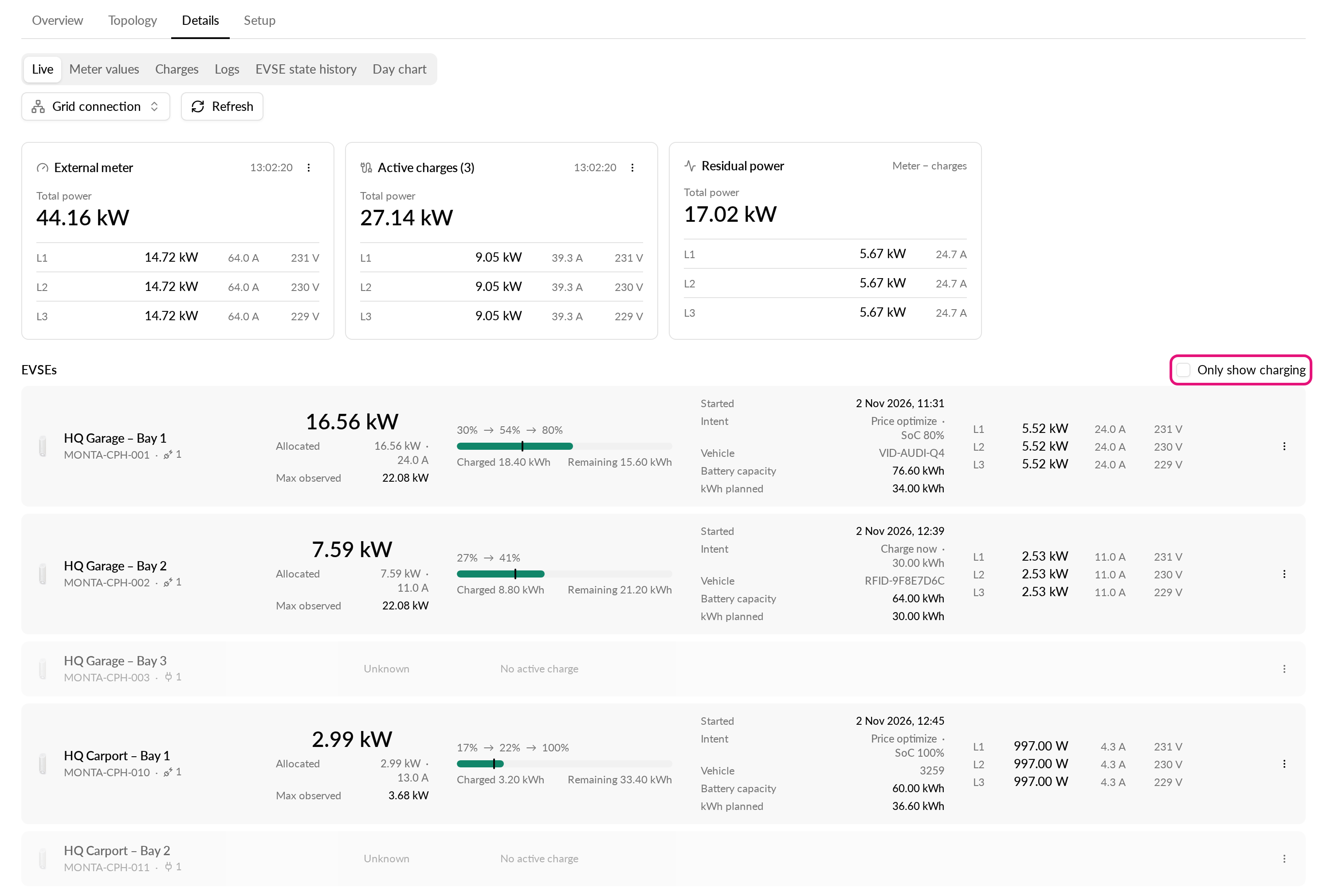
The node cards are:
- External meter: total power and per-phase readings. It appears only if the node has an external meter.
- Active charges: the combined load of all active charges under the node.
- Residual power: the load that is not charging. With a meter it is the meter reading minus the charges. Without one it is labelled Assumed, no meter.
Below the node cards, each EVSE has a row. It shows power, a state of charge (SoC) bar, charged and remaining energy, the start time, intent, vehicle, battery size and per-phase readings. EVSEs without an active charge are muted. Hover over a start time to see how long ago it was.
Use the More actions menu on a card to open settings in place. On a node, select Node settings. On an EVSE, select EVSE settings, Meter value history, Integration logs or Go to EVSE.
Other sub-tabs on Details show Meter values, Charges, Logs and EVSE state history.
Location comments
You can add a comment to a location in the Comment field on Setup > General. Use it for notes your team needs, such as outstanding configuration steps or maintenance context.
Finding a location
In Energy management, open the Locations tab and use Search energy locations above the table to find a location by name. Select a row to open it.