
How do I add and configure charge points in energy management?
Learn how to add EVSEs to a location in the Hub and set their phase setup, power and current limits, and load management.
Updated 11 November 2026
This article is for operators who set up energy management in the Hub. You add each charge point to a location as an EVSE (Electric Vehicle Supply Equipment), then set its limits.
Adding an EVSE
-
In the Hub menu, select Energy management.
-
In the Locations tab, select the location the charge point belongs to.
-
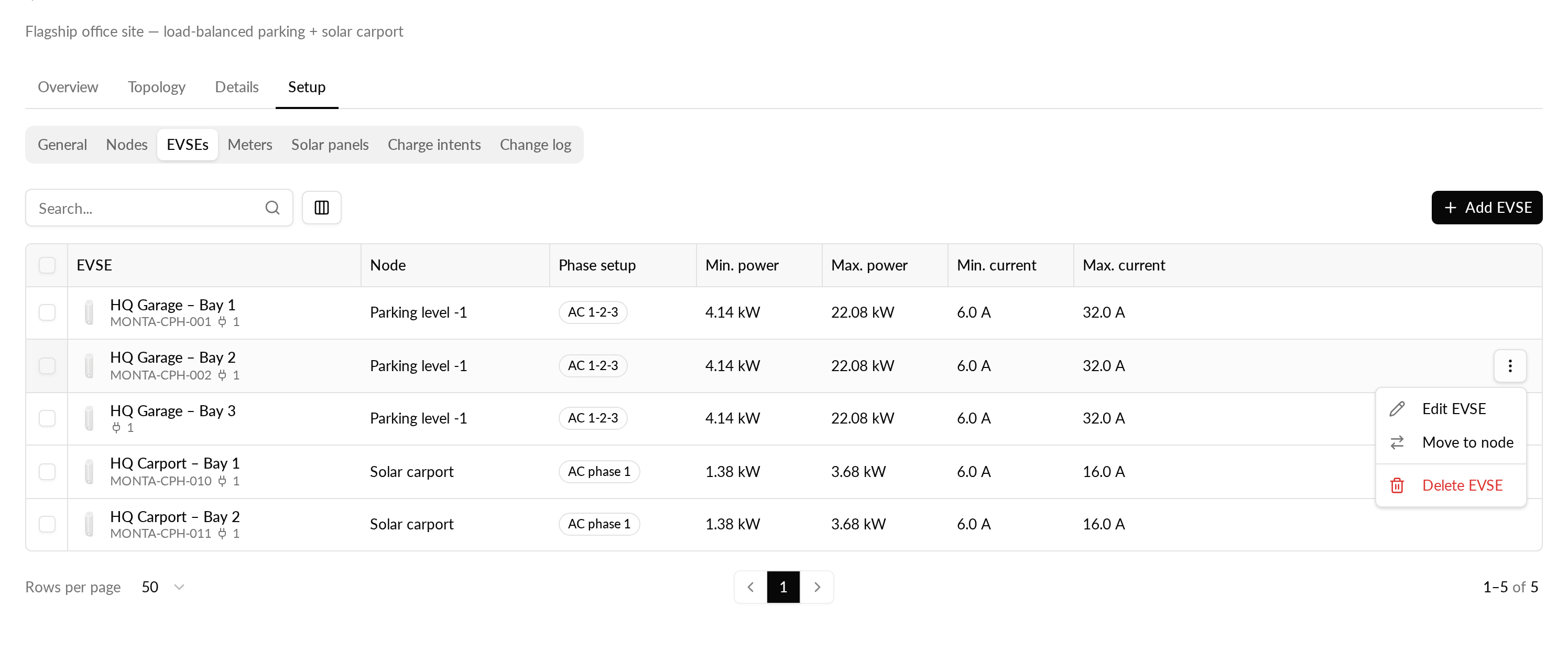
Open the Setup tab, then select EVSEs.
-
Select Add EVSE.
-
Select the charge point from your charge points. You can search the list. To add several at once, tick each one and select Attach N EVSEs.
-
In Configure EVSE, check the phase setup and the limits. Monta fills in the phase setup from the AC or DC type of the charge point, and the maximum power from its rating.
-
Select Attach.
The EVSE appears in the EVSEs table. You can also see it in the Topology tab.
EVSE configuration
To change an EVSE after you add it, open the menu on its row in the EVSEs table and select Edit EVSE. You can set:
- Phase setup: the phase configuration of the connector, for example single-phase or three-phase, AC or DC.
- Current limits: the minimum and maximum current in amperes.
- Power limits: the minimum and maximum power in kW.
- Allow zero current/power: whether load management may reduce the connector to zero.
- Disable load management: the EVSE reports meter values, but load management does not control it.
A minimum cannot be higher than its maximum, and limits cannot be negative. When you turn on Disable load management, the limit fields are greyed out because they no longer apply. Select Save changes to apply.
To change the same setting on several EVSEs, tick their rows and select Edit in the bar at the bottom of the table. Only the fields you tick are changed.
AC and DC charge points
You can add both AC and DC charge points. The phase setup is filled in from the charge point type, and you can change it in Configure EVSE or Edit EVSE.
Real-time status
The Overview tab of a location shows EVSEs Overview. Each EVSE shows whether it is Charging or has No active charge, and when it was last updated. Use Sort EVSEs by to put charging EVSEs first or to sort by name or power.
Move or remove an EVSE
Open the menu on the row of an EVSE in the EVSEs table:
- Move to node puts the EVSE under another node of the same location. It keeps its phase setup, limits and load management mode.
- Delete EVSE detaches the EVSE from the location. The charge point itself is not deleted, and you can add it to a location again.
EVSE charge intents
Charge intents for a location are managed in Setup, under Charge intents. That section lists the default, RFID, vehicle and EVSE charge intents for the location. The Edit EVSE dialog does not set intents.
For how to set intents, see How do I set up charge intents for energy management in the Hub?. For nodes and limits, see How do I set up nodes and limits for energy management in the Hub?.