
See which grid regions an EVSE or location sits in
Check which DSO, bidding area and TSO an EVSE or location belongs to, refresh them, and browse the zone map in Hub.
Updated 3 November 2026
This article is for operators who use Hub. You will see which grid regions an EVSE or a location sits in, refresh them after a move, and browse the zone map.
What grid regions are
Hub resolves each EVSE and location to the grid zones it sits in, using its GPS coordinates. A zone has one of three levels:
| Level | What it is |
|---|---|
| DSO | The distribution system operator that runs the local grid. |
| Bidding area | The electricity market zone, for example DK East. Spot prices are set per bidding area. |
| TSO | The transmission system operator that runs the high-voltage grid. |
DSO zones sit inside bidding areas, and bidding areas sit inside a TSO's grid. Not every country has all three levels. Denmark, for example, shows DSO and bidding area only.
Before you start
- The EVSE or location needs GPS coordinates. Without them, no zones can be resolved.
- The Re-sync button only appears if you can edit the EVSE or location.
See the regions of an EVSE or location
-
Open the EVSE or the location in Hub.
-
Select Settings, then General.
-
Find the Regions card.
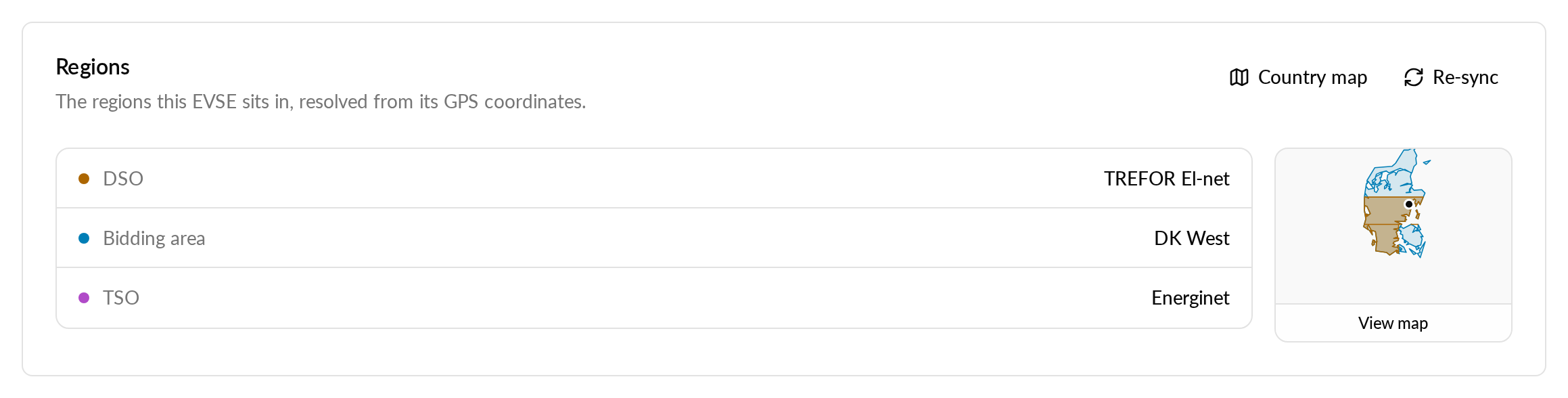
The card lists one row per level the country has. A level with no zone shows Not resolved. On an EVSE, the Overview tab also shows a Regions row. It lists the DSO and bidding area on one line, for example Radius Elnet A/S · DK East. Select it to open the zone map.
Refresh the regions
Zones are updated when you save new coordinates for an EVSE or location. If the card still shows old zones, select Re-sync.
- Save the new coordinates first. The card asks you to save them before it can resolve the zones.
- On the Regions card, select Re-sync.
- Wait for the button to change from Re-syncing… to Up to date.
The card lists the new zones. If the sync fails, the card shows the error. If no zones are resolved yet, the card suggests Re-sync.
Browse the zone map
-
On the Regions card, select View map.
-
Turn the layers on or off under Layers. Each layer is one level.
-
Click any point on the map to list every zone there.
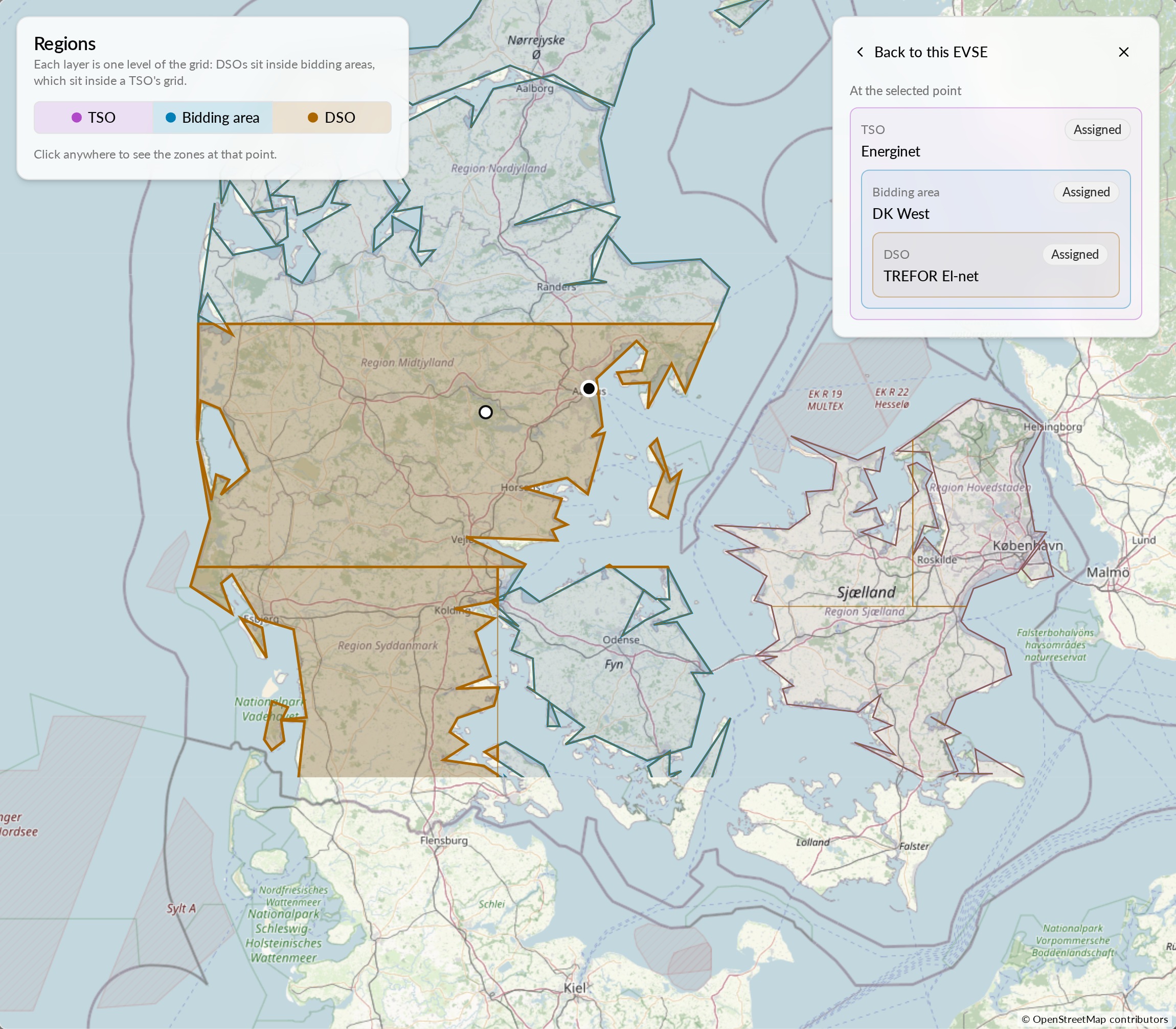
The zones that the EVSE or location belongs to are highlighted. They carry the Assigned badge in the list. If the EVSE or location has not been synced, the map lists the zones under its pin and shows Read from the map. Not saved yet. You can also select Re-sync inside the map.
The address of the open map can be shared. Anyone with access to the EVSE or location can use it to open the same map.
To see every layer of a country without a pin, select Country map on the card. Use the country switcher to look at another country.
Pick a spot-price zone on the map
The same map helps you choose a bidding zone for spot prices.
- Open Energy tariffs and select the Spot market tab.
- Select Map next to the bidding zone.
- Click a bidding area on the map.
The map selects that bidding area as the spot-price zone, and the price chart follows. The Map link is also in the spot price viewer in the price group editor. Northern Ireland has no outline on the map. Pick it from the zone buttons or the Bidding zone list.
If something looks wrong
| What you see | Cause | What to do |
|---|---|---|
| Add GPS coordinates to resolve the grid zones. | The EVSE or location has no coordinates. | Add coordinates, save, then select Re-sync. |
| No grid zones are resolved yet. | The zones were never resolved. | Select Re-sync. |
| Zone outlines aren't available for this country yet. | The country has no outlines. | Use the card. The list still works without the map. |
| A zone is wrong. | Zone borders are platform reference data. | You cannot edit borders in Hub. |