
Check webhook deliveries with webhook activity in Hub
See every webhook delivery Monta sends to your API keys' endpoints, check how your endpoint answered, and replay failed deliveries.
Updated 5 November 2026
Use Webhook activity in Hub to see the webhooks Monta sends to your API keys' endpoints. You can check what was sent, how your endpoint answered, and which deliveries are waiting to retry. It helps you find out why your integration did not receive an event.
Before you start
- You need access to the API page in Hub, where you manage Partner API keys.
- Your API key needs a webhook endpoint set up and webhooks turned on. Without one, there is nothing to show for that key.
Open webhook activity
-
In Hub, select Admin, then Developers, then API.
-
Select Webhook activity.
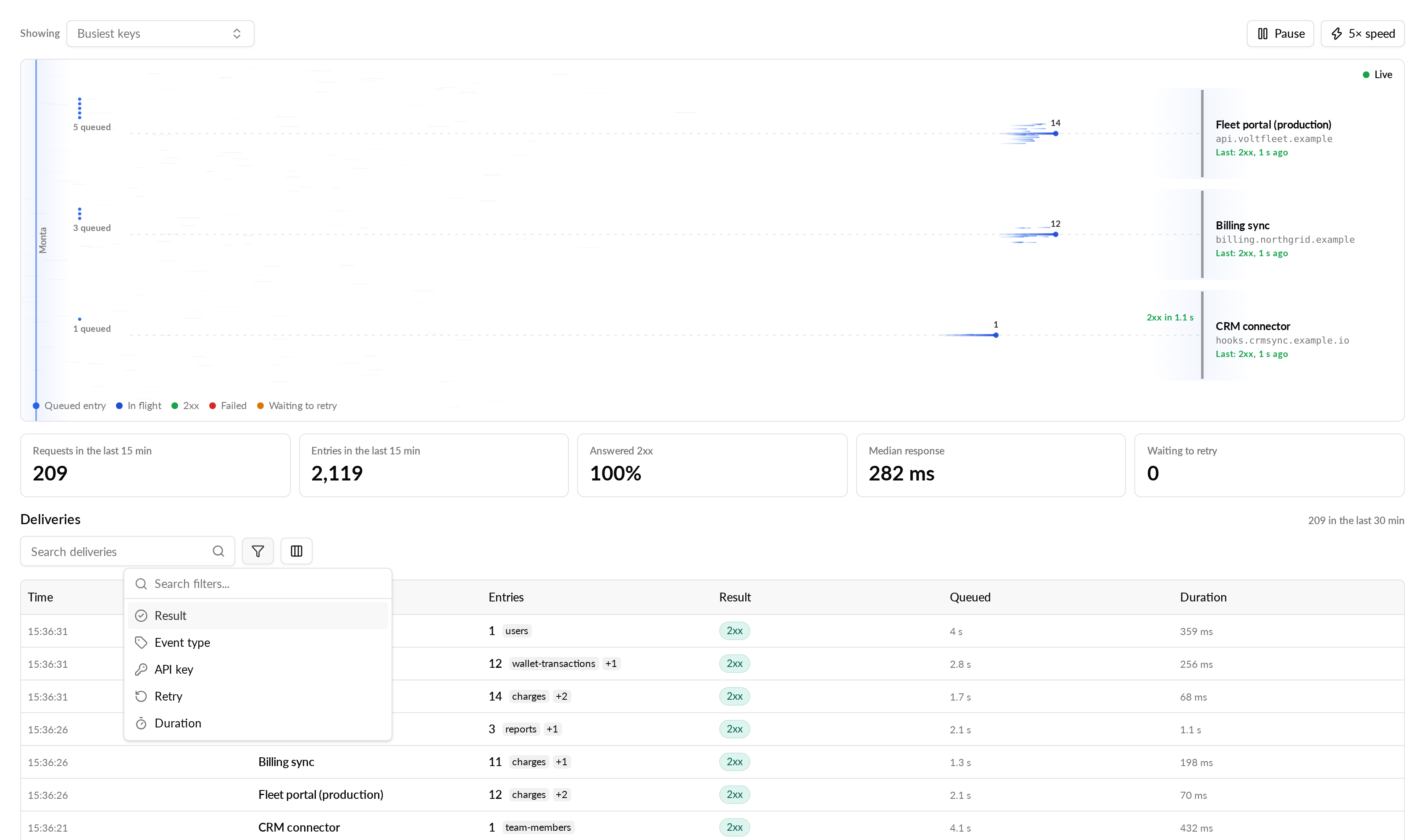
The page shows a lane for each API key, with requests moving towards the key's endpoint. By default it shows the six keys with the most traffic. To pick other keys, use the API keys to show selector, up to six. Select Show busiest keys to go back to the default.
To see one key only, open the key from the API page. Its page has a Webhooks section. Select Open webhook activity there to open the view for that key.
If a key has no endpoint set up, it shows No webhook configured. If webhooks are turned off for the key, it shows Webhooks disabled.
Read the statistics
The page shows these figures for the last 15 minutes:
- Requests in the last 15 min
- Entries in the last 15 min
- Answered 2xx
- Median response
- Waiting to retry
Find a delivery
The Deliveries table lists the deliveries from the last 30 minutes. Search by API key name, entry ID, event type or failure text. Then narrow the list with these filters:
| Filter | What it does |
|---|---|
| Result | Show Delivered (2xx), Failed or Sending deliveries. |
| Event type | Show one type of event. |
| API key | Show one key. |
| Retry | Show First tries only or Retries only. |
| Duration | Show deliveries by how long your endpoint took to answer. |
The Queued column shows how long a delivery waited before Monta sent it. It shows Scheduled retry for a retry whose wait could not be measured.
The page updates by itself. Select Pause to stop it, and Resume to start it again.
Check one delivery
Select a row to open the Delivery details. They show:
- To: the endpoint address, with credentials and query values hidden.
- Attempt: for example 3 of 8.
- Answer: for example an HTTP status such as HTTP 503, or No answer within 5 s.
- Waited in queue: how long the delivery waited before it was sent.
- Next try in: shown when Monta will try again.
- Entry payload: the data Monta sent.
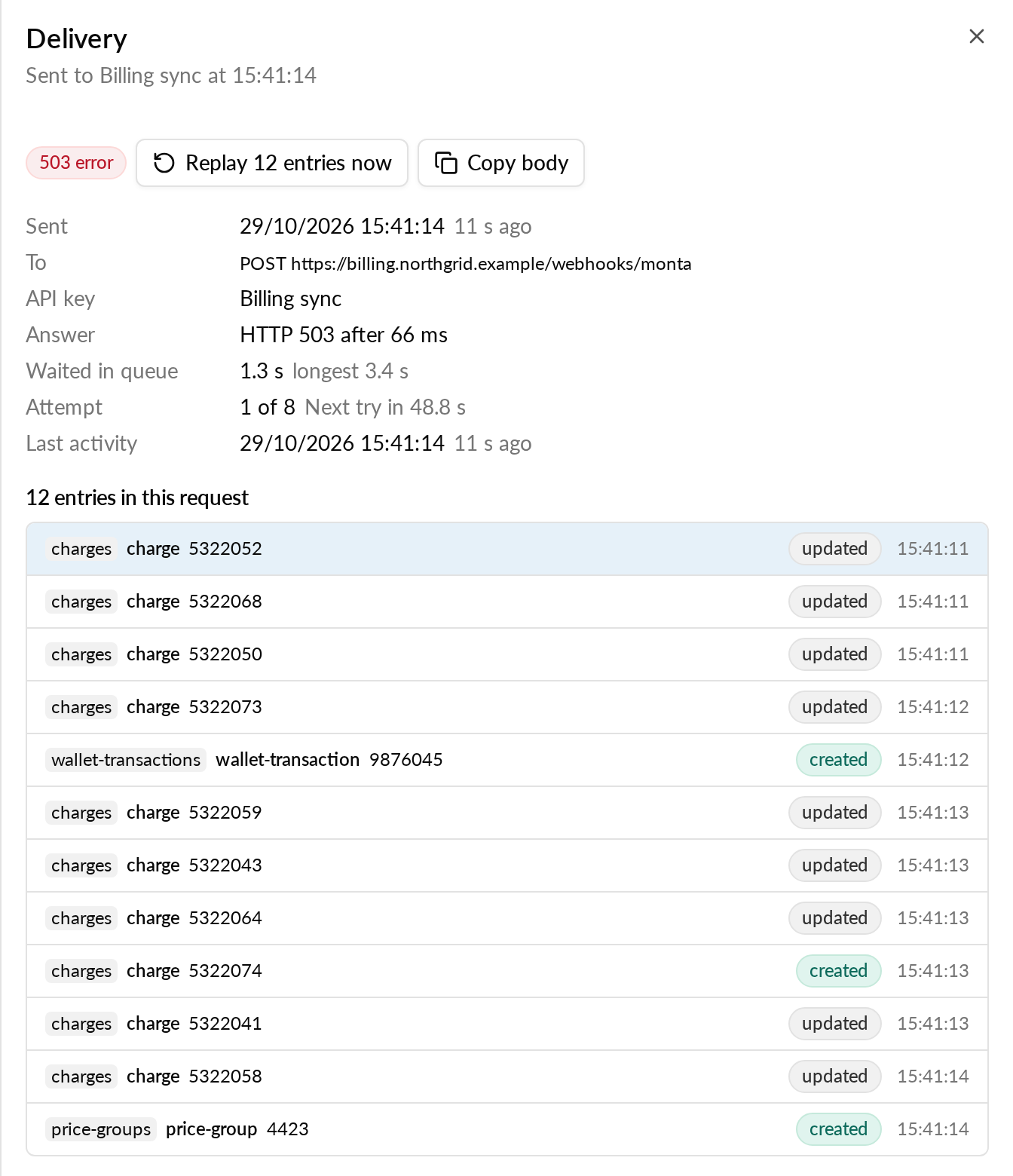
Select Copy body to copy the request body, for example to test your endpoint.
Replay failed deliveries
Monta retries a failed delivery automatically, up to 8 attempts. To send a failed delivery again yourself:
- Open the delivery from the Deliveries table.
- Select Replay 1 entry now. If the request holds several entries, the button shows their number, for example Replay 3 entries now.
A message confirms that the replay is queued. The entry goes out in the next cycle.
If something looks wrong
- Webhook activity couldn't be loaded: Hub tries again every few seconds. If the webhook service does not respond, Hub pauses reading. Select Retry to start again.
- No webhook deliveries in the last 30 minutes: your keys have not triggered an event in that time. Check that your endpoint and event types are set up.
- A busy key shows only its latest entries: the figures and deliveries do not include traffic from before the time shown in the note on the page.