
Post monthly charging revenue to QuickBooks
Connect your QuickBooks Online company from the Application Marketplace so Monta posts your monthly charging revenue there as one sales receipt.
Updated 16 November 2026
This article is for operators who keep their books in QuickBooks Online. You connect your company once from Hub, and each month's charging revenue then appears in QuickBooks without manual entry.
What the app does
After the end of each month (UTC), the app adds up that month's completed charges at your chargers. It posts the total to QuickBooks as one sales receipt.
The receipt:
- is numbered
MONTA-<operator>-YYYY-MM - is dated the last day of the month
- is booked on a customer named
Monta - has one line on an
EV chargingservice item, with the revenue, the number of sessions and the kWh
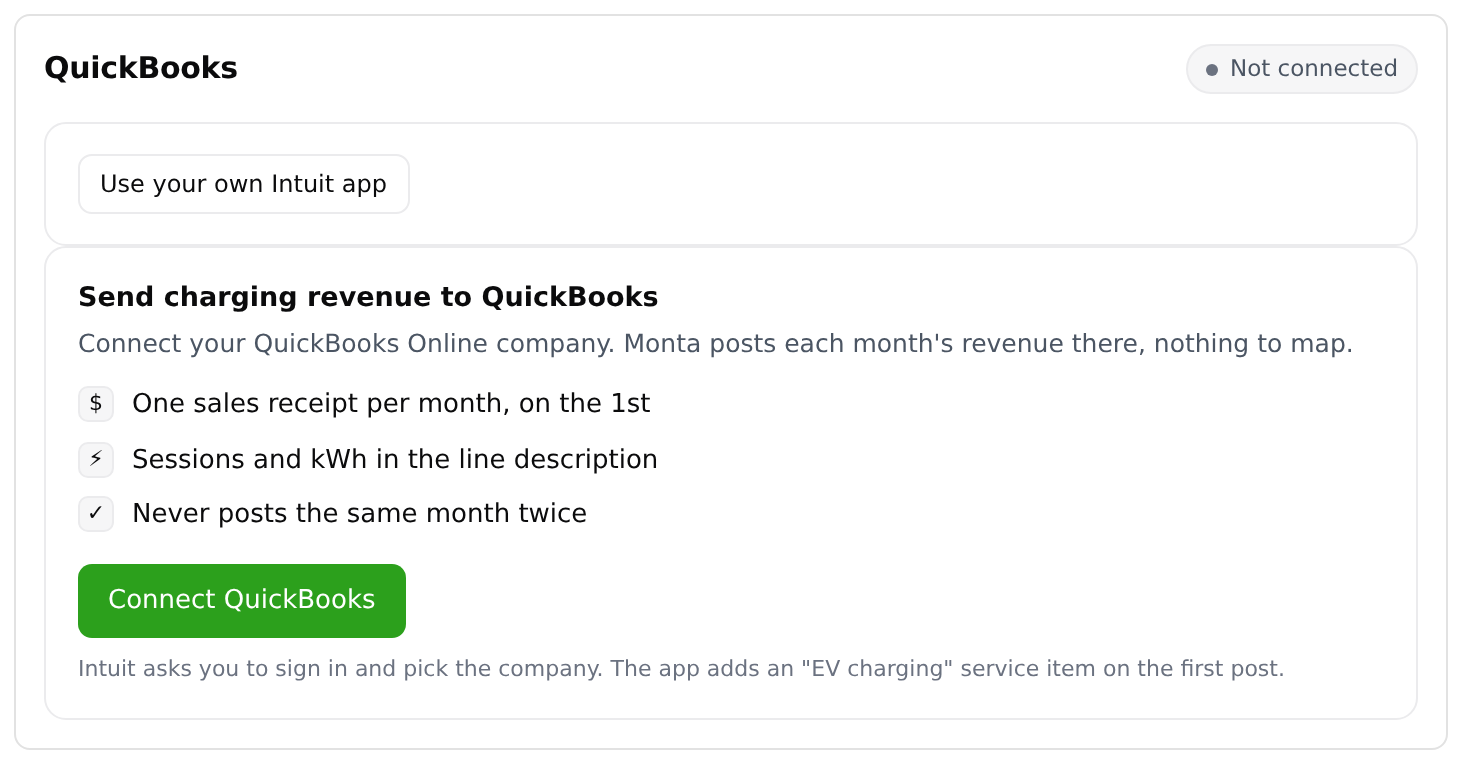
There is nothing to map. The app creates the Monta customer and the EV charging service item the first time it posts. It books the item on the first income account in your QuickBooks company.
What you need
- Access to the Application Marketplace in Hub.
- A QuickBooks Online company, and a QuickBooks login that can authorise apps for it.
- Pop-ups allowed for Hub in your browser. The sign-in opens in a new window.
Connect QuickBooks
-
In Hub, open Admin > Developers > Application Marketplace.
-
Open the QuickBooks app.
-
Select Connect. In the dialog, review the permissions the app asks for, then select Approve and connect.
-
On the app page, select Connect QuickBooks. A QuickBooks sign-in window opens.
-
Sign in to QuickBooks and choose the company that revenue should post to.
-
Authorise the app, then return to Hub.
The app page shows Connected within a few seconds. Under Posting monthly revenue to you see the name of your QuickBooks company.
If you do not see QuickBooks in the Application Marketplace, the marketplace may not be enabled for your operator yet. Ask your Monta contact.
What happens after you connect
- Hub checks every 6 hours whether last month's revenue is in QuickBooks. It posts the receipt on the 1st of the month, or on the first check after that.
- Last posted month on the app page shows the amount, the number of sessions, the kWh and the receipt number.
- A month without revenue is settled without a receipt.
- If a month was missed, for example during an outage, the next check posts it.
- Monta never posts the same month twice. If QuickBooks already holds a receipt with that number, the app uses it instead of creating another.
The app only posts charges in your QuickBooks company's home currency. Charges in other currencies are left out of the receipt.
Disconnect QuickBooks
- In Hub, open Admin > Developers > Application Marketplace.
- Open the QuickBooks app.
- Select Disconnect.
The app page shows Not connected. Monta ends its access to your QuickBooks company and stops posting. Receipts already in QuickBooks stay there.
Can I use my own Intuit app?
Most operators connect through Monta's Intuit app and need nothing else. If your finance team requires your own, select Use your own Intuit app on the app page. Enter the Client ID and Client Secret, and add the redirect URI that the page shows to your Intuit app.
Saving disconnects QuickBooks, because the current access belongs to the app you replace. Select Connect QuickBooks again to authorise through your own app.