
Send monthly charging revenue to Xero
Connect the Xero app in Hub so last month's charging revenue arrives in Xero as a draft sales invoice for your accountant to approve.
Updated 13 November 2026
This article is for operators who want their charging revenue in Xero without typing it in. You connect Xero once from the Application Marketplace in Hub. After that, each month's revenue is sent to your Xero organisation as a draft sales invoice.
The app sends data in one direction, from Monta to Xero. There is no field mapping to set up.
What you need
- A Xero organisation, and the code of the revenue account the invoices should be booked to (for example, 200).
- A Xero developer app. Monta does not provide a shared Xero app, so you create your own in the Xero developer portal and paste its credentials into Hub.
- The permission to install apps in Hub. If you cannot select Connect, ask an operator admin.
Connect Xero in Hub
- In Hub, go to Admin > Developers > Application Marketplace and open the Xero app.
- Select Connect, review the permissions, and select Approve and connect.
- In the Xero panel, select Add your Xero app. Keep this panel open: it shows the redirect URI you need in the next steps.
- In a new tab, sign in to the Xero developer portal at
developer.xero.comand create a new app. If Xero asks for the type of app, choose the web app option. - Add the redirect URI from Hub, shown under Your own Xero app. In production it is
https://xero.apps.monta.app/oauth/callback. - Copy the Client ID and Client Secret of your Xero app.
- Back in Hub, enter the Client ID and Client Secret, and select Save.
- Select Connect Xero. Xero opens in a new window. Allow pop-ups for Hub if your browser blocks it.
- In Xero, choose the organisation to connect and approve access.
The Xero app in Hub asks for these scopes: offline_access accounting.invoices accounting.contacts. The panel now shows Connected and the name of your Xero organisation.
Choose the revenue account
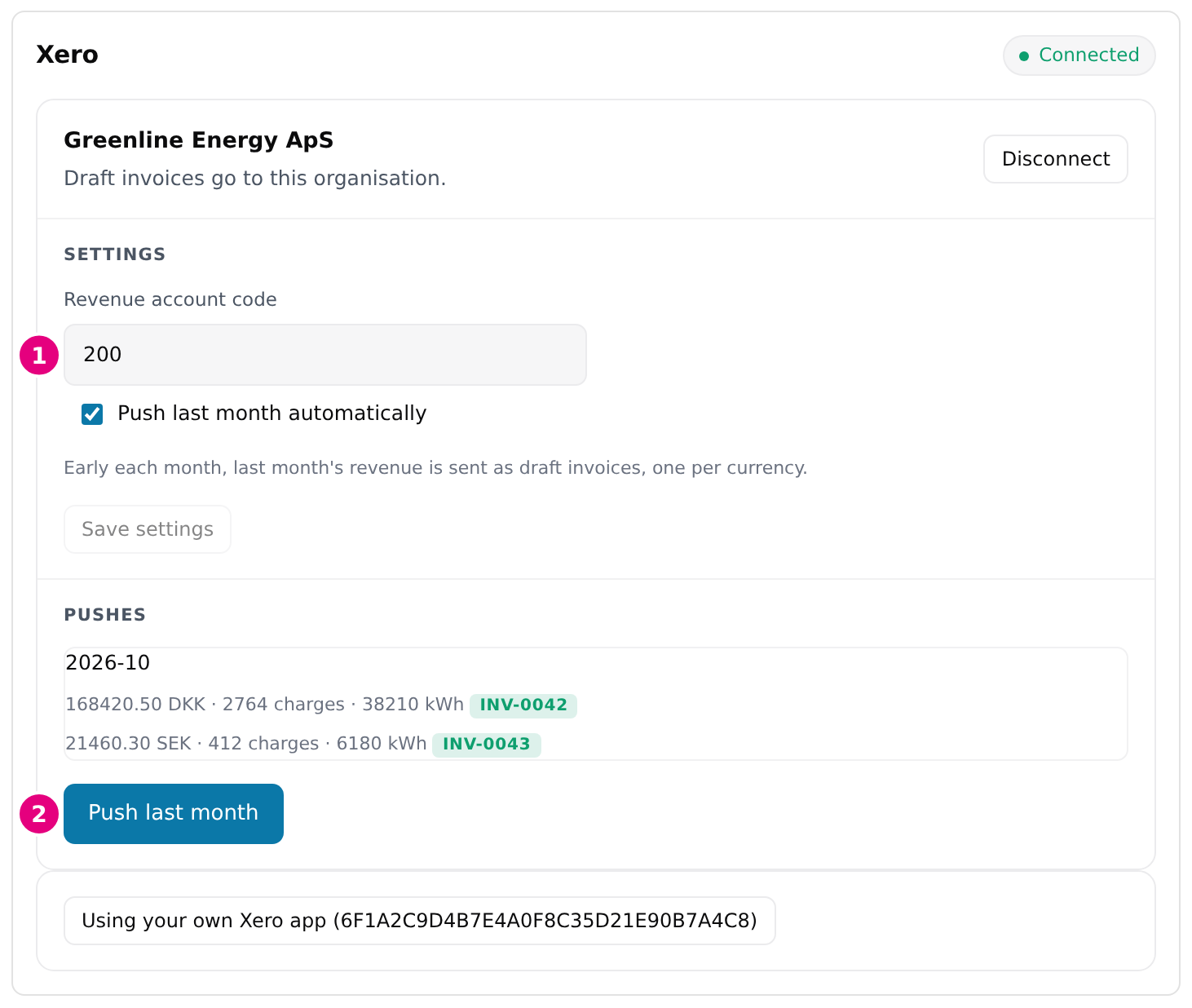
- Under Settings, enter the Revenue account code from your Xero chart of accounts.
- Optional: select Push last month automatically. Early each month, the previous month's revenue is then sent without any action from you.
- Select Save settings.
You must set the account code before the app can send anything.
Send last month's revenue
Select Push last month. The result appears under Pushes, with the amount, the number of charges and the energy in kWh for each currency.
The app creates one draft sales invoice for each currency, with these details:
- It counts the charges that completed in the month, in UTC, and adds up their prices. Charges without a price are skipped.
- The contact is Monta. Xero creates it if it does not exist.
- The reference is
Monta charging 2026-10 EUR, with the month and currency of the invoice. - The invoice is dated the last day of the month, with one line on your revenue account. Amounts include tax.
The invoice stays a draft until someone approves it in Xero. If an invoice with the same reference already exists in Xero, the app leaves it alone and shows already in Xero, so pushing again never creates a duplicate. If you delete or void a draft, you can push that month again.
Disconnect Xero
In the Xero panel, select Disconnect next to your organisation name. Automatic pushes stop. Invoices already in Xero stay there.
To remove the app from Hub, open its page in the Application Marketplace and select Uninstall.
Fix a problem
- Set the revenue account code before pushing. Enter the account code under Settings and save.
- Xero rejected the invoice. Check the revenue account code. The code must exist in your Xero organisation.
- The Xero connection has expired. Connect Xero again. Select Connect Xero and approve access again.
- Xero wasn't connected in time. Try again. Select Connect Xero again and finish the steps in Xero within 5 minutes.
For how to find and install other apps, see Find and connect apps in the Applications marketplace.