
Send teams and drivers to Salesforce with the Salesforce app
Connect your Salesforce org from the Application Marketplace in Hub and push your Monta teams and drivers into it as accounts and contacts.
Updated 16 November 2026
This article is for operators who want their Monta teams and drivers in Salesforce. You connect your Salesforce org once, then push your customers by hand or every hour.
What the Salesforce app does
The app sends data in one direction, from Monta to Salesforce. It never reads records out of Salesforce.
| In Monta | In Salesforce | Matched by |
|---|---|---|
| Team | Account | Account name |
| Driver | Contact, filed under their default team's account | Email address |
The app writes only standard Salesforce fields, so you do not need to add custom fields before you connect.
| Object | Fields the app writes |
|---|---|
| Account | Name, Billing City, Billing Postal Code |
| Contact | First Name, Last Name, Email, Phone, and the account |
What you need
- A role in Hub that lets you update your operator. Without it, Connect is disabled.
- A Salesforce org where you can create a connected app.
- Pop-ups allowed for Hub. The Salesforce sign-in opens in a new window.
Monta does not publish a shared Salesforce connected app. You create one in your own org and give its credentials to Monta.
Create a connected app in Salesforce
- In Salesforce, open Setup and go to App Manager.
- Create a new connected app (or a new external client app).
- Turn on Enable Authorization Code and Credentials Flow.
- Add the scopes
apiandrefresh_token. Leave PKCE (Proof Key for Code Exchange) required. - Add the callback URL shown on the Salesforce app page in Hub. Copy it from there.
- Save the app and copy its Consumer Key and Consumer Secret.
Connect Salesforce from Hub
-
In Hub, go to Admin > Developers > Application Marketplace.
-
Open Salesforce. It is in the CRM category.
-
Select Connect. In the dialog, review the permissions the app asks for, then select Approve and connect.
-
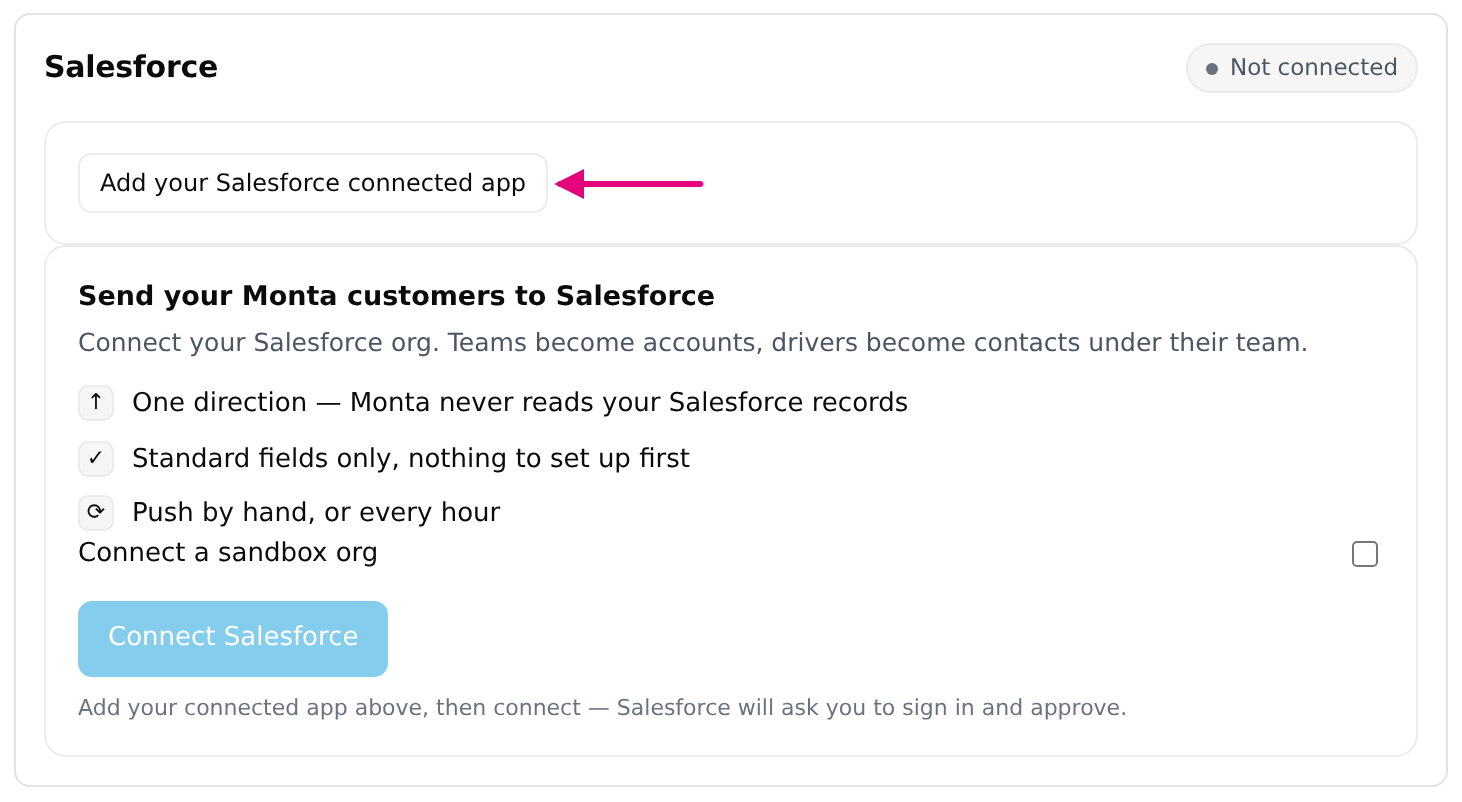
On the app page, select Add your Salesforce connected app.
-
Enter the Consumer Key and Consumer Secret, then select Save.
-
To connect a Salesforce sandbox org, turn on Connect a sandbox org.
-
Select Connect Salesforce.
-
Sign in to Salesforce in the window that opens and approve the connection.
When it worked, the app page shows Connected, and Pushing customers to shows your org's name. Saving a different connected app later disconnects Salesforce, so you connect again.
Push your customers
- To push now, select Push now.
- To push every hour, turn on Push every hour. It is off until you turn it on.
Last push shows how many accounts and contacts were new, updated or skipped. It also shows the number of records Salesforce refused, with the first reason.
What happens to your records
- A push reads up to 500 teams and 500 drivers.
- If a team name already exists as an account, the app updates that account. Otherwise it creates one.
- If a driver's email already exists as a contact, the app updates that contact. Otherwise it creates one.
- If you rename a team in Monta, the next push creates a second account, because accounts are matched by name.
- A driver without an email address is skipped. An email address longer than 80 characters is skipped too.
- A driver whose default team was not pushed gets a contact with no account.
Fix a connection that stopped working
If Salesforce revokes access or the session expires for good, a push fails with "Salesforce access was revoked or has expired. Connect Salesforce again in the app." Select Connect Salesforce again and approve the connection.
Disconnect Salesforce
- In Hub, open Salesforce in the Application Marketplace.
- Select Disconnect.
Monta deletes the stored connection and the last push summary, and asks Salesforce to end the access. The accounts and contacts already in Salesforce stay there. Monta does not delete them.
To see how apps work in general, read Find and connect apps in the Applications marketplace.