
Import your Geotab fleet into a Monta team
Connect your MyGeotab account in Hub and import the vehicles you choose into a Monta team, so charges are matched to them.
Updated 16 November 2026
This article is for operators who use Geotab to track a fleet. You will connect your MyGeotab account, pick a Monta team and import the vehicles you choose, so charges are matched to them.
What the Geotab app does
The Geotab app copies vehicles from Geotab into one Monta team. It works in one direction only:
- Geotab is the source. An import only adds vehicles to Monta.
- Removing a vehicle in Geotab never removes it from Monta.
- Each import starts when you start it. Nothing syncs on a schedule.
What you need
- A MyGeotab user that can view devices.
- The password for that user.
- The name of your MyGeotab database.
- A Monta team to import the vehicles into.
- Permission to update your operator in Hub. Without it, Connect is disabled.
You do not need to create anything in Geotab. The app signs in with your own MyGeotab user.
Connect Geotab
- In Hub, open Admin > Developers > Application Marketplace.
- Open the Geotab app.
- Select Connect, then review the permissions the app asks for and approve them.
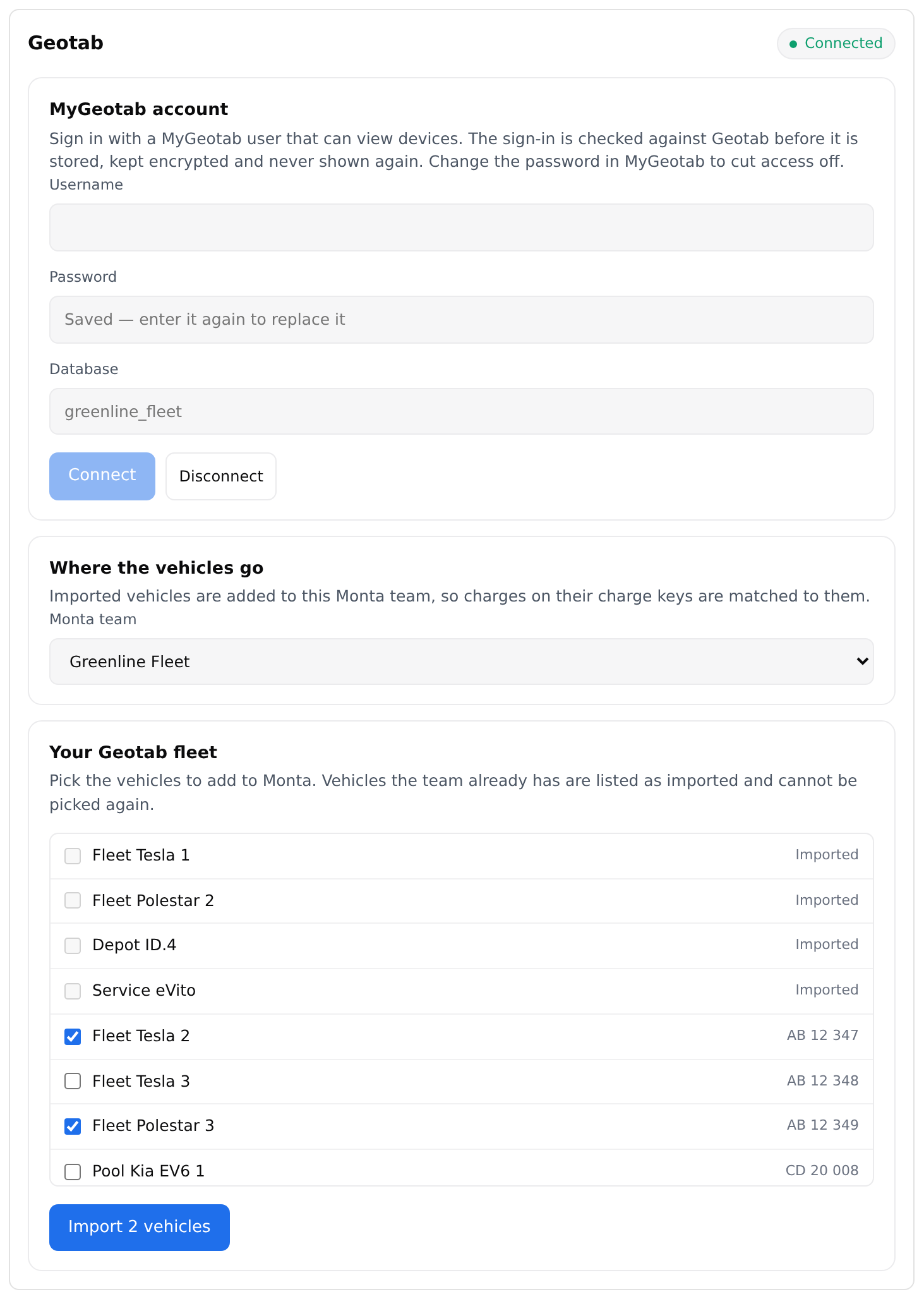
- Under MyGeotab account, enter your Username, Password and Database.
- Select Connect.
Monta checks the sign-in with Geotab before it saves it. If it works, the page shows Connected. If Geotab rejects it, check the username, password and database name and try again.
Monta stores the sign-in encrypted and never shows it again. The password field asks you to enter it again if you want to replace the saved one.
Pick a team and import vehicles
-
Under Where the vehicles go, choose a team in Monta team. Imported vehicles are added to this team.
-
Under Your Geotab fleet, tick the vehicles to add. Use Filter to search by name or plate.
-
Select Import. The button shows how many vehicles you picked.
When the import ends, the page shows a summary such as "2 imported, 1 skipped, 0 failed", followed by a message for each vehicle that was skipped or failed.
Vehicles the team already has are listed as imported and cannot be picked again. If you choose another team, the list updates for that team.
What the import creates
Monta matches a Geotab vehicle to an existing Monta vehicle by licence plate. If Geotab has no plate for it, Monta uses the name instead. Case and spaces are ignored. This match stops a second import from adding the same vehicle again.
Each new vehicle gets the name and licence plate from Geotab. Monta fills in the rest:
- Brand: read from the vehicle identification number (VIN) when Geotab has a valid one from a manufacturer Monta recognises. Otherwise the brand is "Unknown".
- Model: always "Unknown".
- Type: always "other".
Monta skips a vehicle that has neither a plate nor a name in Geotab. It also skips a second vehicle in the same import that has the same plate, or the same name when it has no plate.
Disconnect Geotab
- In Hub, open Admin > Developers > Application Marketplace, then open Geotab.
- Under MyGeotab account, select Disconnect.
Monta deletes the saved sign-in. Vehicles already imported stay in Monta. To remove the app from your operator as well, select Uninstall on the app page.
To cut off access from the Geotab side, change the password or remove the user in MyGeotab.
If something goes wrong
Geotab rejected the sign-in
The page shows "Geotab rejected the sign-in. Check the username, password and database name." Check all three values in MyGeotab, then connect again.
Geotab is rate limiting this account
Wait a few minutes and start the import again.
The Geotab database is unavailable
The page shows that the database is temporarily unavailable. Start the import again shortly.
A vehicle failed to import
The summary names the vehicle that Monta refused. The other vehicles in the import are not affected. Check the vehicle in Geotab and import it again.
Related: Find and connect apps in the Applications marketplace.