
Link your Samsara fleet to a Monta team
Connect Samsara in the Application Marketplace so your fleet's vehicles are added to a Monta team and kept up to date without manual entry.
Updated 16 November 2026
This article is for operators who use Samsara to manage a fleet and want those vehicles in a Monta team. You connect Samsara with an API token, pick the team, and Monta adds your vehicles on a schedule.
What the Samsara app does
Once connected and switched on, the app reads your Samsara fleet every hour.
- Adds vehicles: each run adds the vehicles that the Monta team does not have yet.
- Keeps names current: a vehicle renamed in Samsara is renamed in Monta on the next run.
- Never deletes: removing a vehicle in Samsara never removes it from Monta.
Data flows in one direction only. Samsara is the source, and Monta never writes back to Samsara.
What you need first
- A Samsara account where you can create an API token.
- Permission to install apps for your operator in Hub. Without it, the Connect button is not available.
- The Account ID of the Monta account that the vehicles should belong to. You find it in Hub, in the account's Settings tab.
Create an API token in Samsara
- In Samsara, open Settings and find the API Tokens section.
- Add a token and give it read access to vehicles.
- Copy the token. You paste it into Hub in the next section.
Monta does not register an application in Samsara and holds no Samsara credentials of its own. Access depends only on your token.
Connect Samsara in Hub
-
In Hub, open Admin > Developers > Application Marketplace.
-
Open the Samsara app.
-
Select Connect.
-
Review the permissions the app asks for, then select Approve and connect.
-
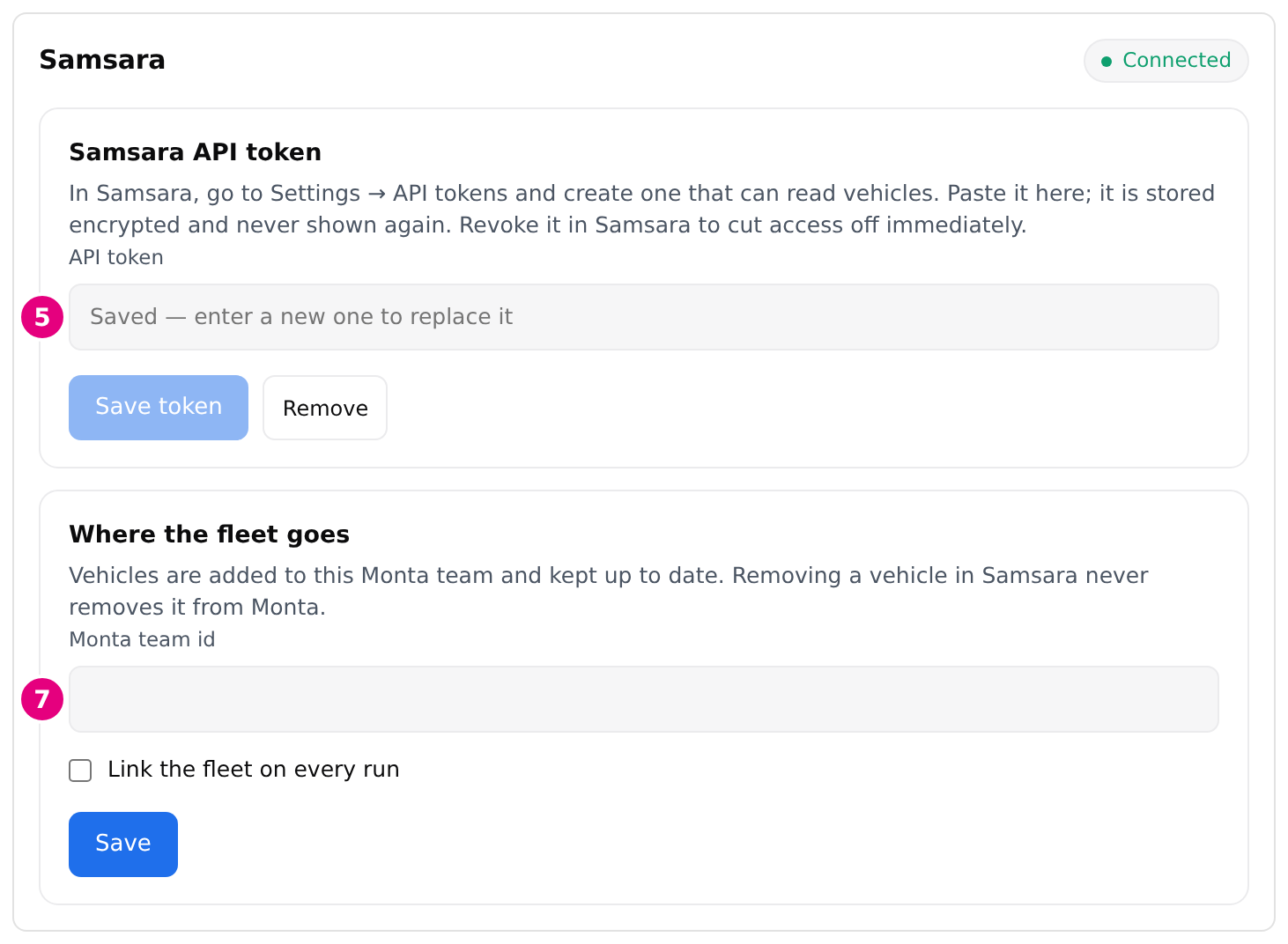
On the app page, paste your token into API token and select Save token.
-
Find the ID of the Monta account the vehicles should belong to: in Hub, open the account, select Settings, and copy the Account ID from the General card.
-
On the Samsara app page, enter that ID in Monta team id.
-
Select Link the fleet on every run, then select Save.
The app does nothing until a token, a team and Link the fleet on every run are all set. A wrong team therefore costs nothing while you set up.
The token is stored encrypted and is never shown again. To replace it, paste a new token and select Save token.
What happens after you connect
The first run happens within the hour. The app page then shows a Last run summary with the number of vehicles in Samsara and how many were added, updated and left unchanged.
To match vehicles, the app compares licence plates and ignores case and spacing. When a Samsara vehicle has no plate, it compares names instead. A new vehicle gets the plate and name that Samsara reports. A plate already in Monta is never overwritten.
The app skips two kinds of vehicle:
- A vehicle with neither a plate nor a name, because it could not be matched again on the next run.
- A second Samsara vehicle with the same plate, or the same name and no plate.
The Last run summary counts both.
Fix a rejected token
If Samsara refuses the token, the run fails with the message "Samsara rejected the API token. Add a new one in the app." This happens when the token was revoked or copied wrongly.
- Create a new token in Samsara as described above.
- Open the Samsara app page in Hub.
- Paste the new token into API token and select Save token.
Disconnect Samsara
You have two ways to stop the link.
- To pause it, clear Link the fleet on every run and select Save. The token stays saved.
- To remove the token only, select Remove next to Save token. Vehicles already in Monta stay.
To remove the app completely, open the Samsara app page in the Application Marketplace and select Uninstall, then confirm. This revokes the app's access to your operator data and deletes its credentials. You can reinstall it at any time.
Disconnecting never deletes vehicles from Monta. To stop access from the Samsara side, revoke the token in Samsara. Access ends immediately.