
See MaintainX work orders on a charging station in Hub
Connect MaintainX so each open alert becomes a work order, and follow its status on the charging station's Overview in Hub.
Updated 9 November 2026
This article is for operators who use MaintainX for maintenance. You connect MaintainX to Monta, so that each open alert on a charging station becomes a MaintainX work order. You then follow the status of that work order in Hub.
What you need
- A MaintainX plan with API access (Premium or Enterprise).
- A MaintainX API key. Create it in MaintainX under Settings › Integrations › API Keys.
- Access to the Application Marketplace in Hub.
Connect MaintainX
- In Hub, open Admin › Developers › Application Marketplace.
- Open the MaintainX app.
- Enter your MaintainX key in API key.
- If the key covers several MaintainX organizations, enter Organization id. Otherwise leave it empty.
- Select Connect MaintainX.
Monta checks the key before it saves it. The key is stored encrypted and is not shown again. When the connection works, the app shows Connected.
Choose which alerts create work orders
Under Work orders, set the following:
- Alert types: the alert types that create a work order, separated by commas, for example
charge_point_faulted. Leave it empty to create work orders for every alert on a charging station. - Priority: the MaintainX priority of new work orders. The options are NONE, LOW, MEDIUM and HIGH. The default is MEDIUM.
- Priority for an alert type: a different priority for that alert type.
Select the checkbox Raise work orders and sync their status automatically to start the sync.
How the sync works
- Each open alert on a charging station gets one work order. An alert never gets a second one.
- Alerts that do not belong to a charging station get no work order.
- Each sync creates up to 50 work orders. The rest follow in the next sync.
- The sync runs every few minutes. To run it at once, select Sync now.
- After a sync, the app shows how many work orders were raised, updated or failed.
If you disconnect and connect again, the sync starts over. Monta finds your existing work orders again, so no duplicates appear.
See work orders on a charging station
-
In Hub, open the charging station.
-
On the Overview tab, find the Tickets card below Open alerts.
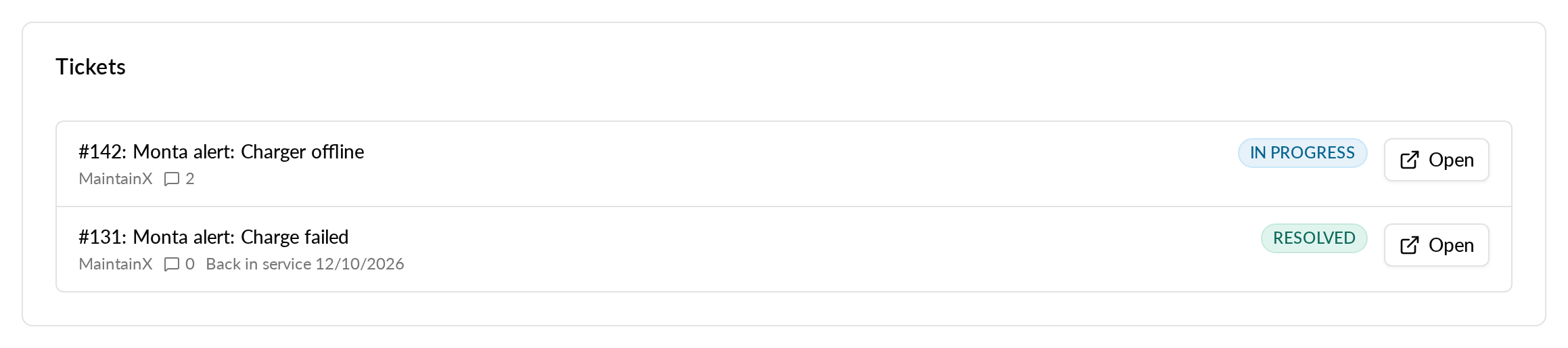
The card shows up to 20 work orders, newest first. Each row shows:
- The title and the name of the maintenance system, here MaintainX.
- The status: Open, In progress, On hold, Closed or Cancelled.
- The number of comments, when the work order has any.
- Back in service with a date, when the work order was completed.
- Open, a link to the work order in MaintainX. It opens in a new tab.
The card is read only. Comment text stays in MaintainX: Hub shows only the count.
| MaintainX status | Status in Hub |
|---|---|
| Open | Open |
| In progress | In progress |
| On hold | On hold |
| Done | Closed |
| Canceled or skipped | Cancelled |
Fix common problems
The card says "No tickets for this EVSE."
The charging station has no work order yet. A work order appears after the next sync, when the station has an open alert that matches your Alert types.
The card says "Tickets can't be shown right now."
Hub could not load the work orders. Reload the page. If the message stays, contact Monta support.
I do not see the MaintainX app
If you do not see the MaintainX app in the Application Marketplace, contact Monta support.