
Send Monta alerts to a Microsoft Teams channel
Connect the Microsoft Teams app in Hub so every new alert your alert rules raise is posted to one Teams channel.
Updated 13 November 2026
This article is for operators who want their Monta alerts in a Microsoft Teams channel. You connect the Microsoft Teams app once from the Application Marketplace in Hub, then pick the team and channel that receive alerts.
The app only delivers alerts. What raises an alert is set in your alert rules, which are shared by every delivery channel.
Before you start
- Set your alert rules first. In the Hub menu, select Operations > Alerts, then open the Alert monitoring settings page. See How do I use Alert monitoring in Monta Hub?.
- Use a Microsoft account that is a member of the team you want to post to. The team and channel lists show only what that account can see.
- Allow pop-ups for Hub in your browser. The Microsoft sign-in opens in a new window.
- Register an app in Microsoft Entra ID (the Microsoft sign-in service) for the connection. Monta does not provide a shared app registration, so you add your own. See "Add your Entra app registration" below.
- For the marketplace in general, see Find and connect apps in the Applications marketplace.
Add your Entra app registration
- In the Azure portal, open Microsoft Entra ID > App registrations and create a registration.
- Add the delegated Microsoft Graph permissions
Team.ReadBasic.All,Channel.ReadBasic.All,ChannelMessage.Sendandoffline_access. - Create a client secret and copy it.
- In Hub, select Developers > Application Marketplace, then select Microsoft Teams.
- Select Add your Entra app registration.
- Copy the redirect URI shown in the form and add it to your registration in the Azure portal as a web redirect URI.
- Enter the Application (client) ID and the Client secret, then select Save.
Saving a new registration disconnects Teams, because the existing sign-in belongs to the app you replace. Select Remove to delete the registration.
Connect a channel
-
On the Microsoft Teams app page, select Connect Teams. If Hub asks you to review permissions, select Approve and connect.
-
In the Microsoft window, sign in and approve the permissions.
-
Back in Hub, under Post alerts to, choose a team in Team.
-
Choose a channel in Channel.
-
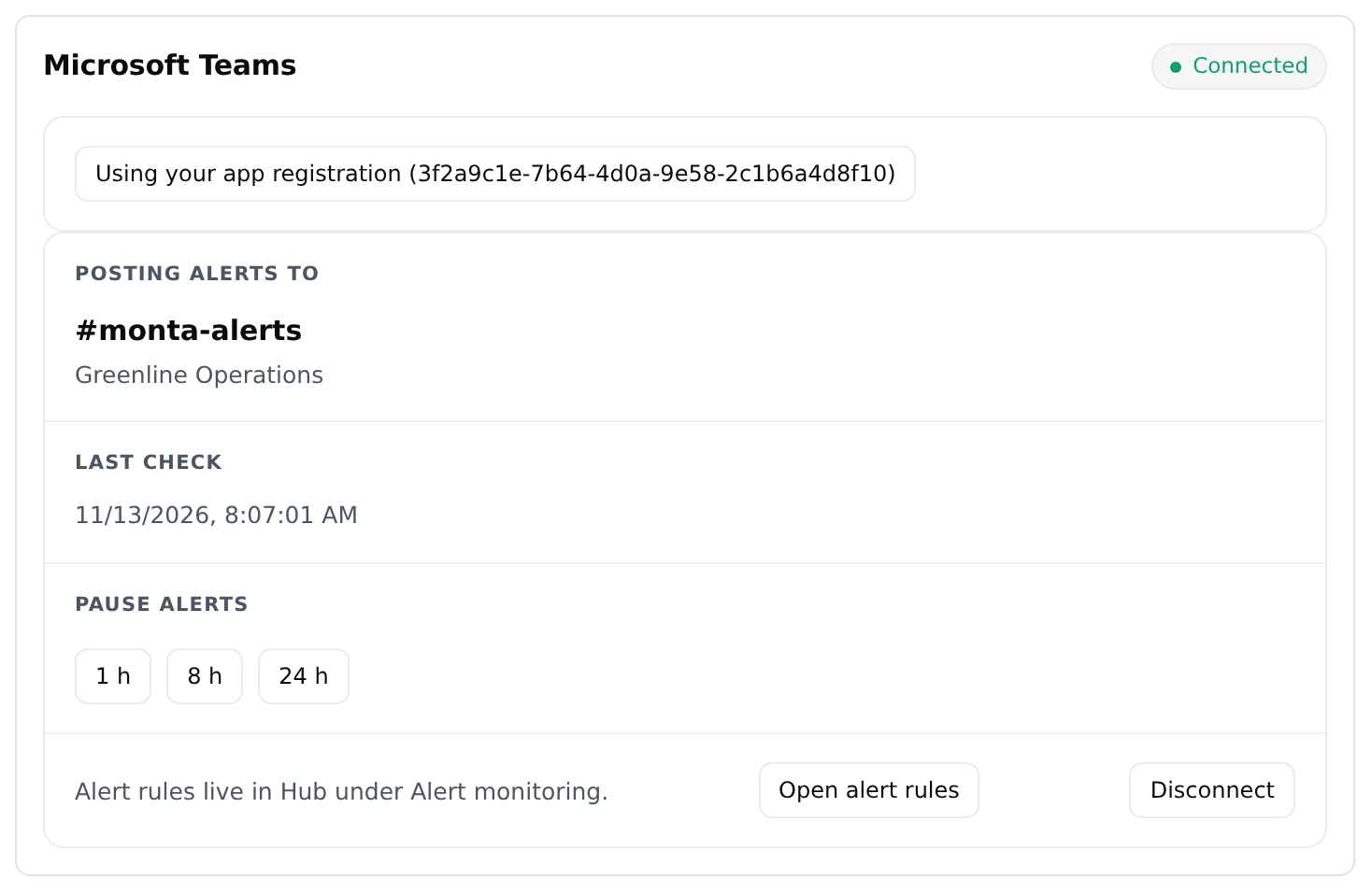
Wait for the card to show Connected. The channel name appears under Posting alerts to, with the team name below it.
Nothing is posted until you pick a channel.
What gets posted
The app checks for new alerts every 5 minutes. Last check shows when it last ran.
- The first check after you connect only records the alerts that are already open. It posts nothing, so the channel is not filled with old alerts.
- After that, each alert is posted once, with a link to it in Hub.
- Alerts of the same type are grouped in one message. A message lists up to 20 alerts and shows how many more there are.
- An alert that resolves and is raised again later is posted again.
Alerts are posted under the name of the person who connected the app, not under a bot. Posting stops if that person leaves your Microsoft tenant. Another member then connects the app again to resume it.
Pause alerts
Under Pause alerts, select 1 h, 8 h or 24 h. Nothing is posted during the pause. Alerts that are still open when it ends are posted then. To end a pause early, select Resume.
Change the channel
- Select Disconnect.
- Select Connect Teams and pick the new team and channel.
The first check after you connect again posts nothing, as described above.
Disconnect
Open the Microsoft Teams app page and select Disconnect. The card then shows Not connected, and Monta deletes the sign-in tokens it holds.
Microsoft does not let Monta revoke the consent you gave. To withdraw it, remove the app from your Microsoft account.
If you do not see the app or its features
- If Microsoft Teams is not listed in the Application Marketplace, it may not be available to your operator yet.
- If Connect Teams is disabled, add your Entra app registration first.
- If you do not see Alerts under Operations, Alert monitoring is not turned on for your operator yet.