
Send Monta alerts to a Slack channel
Connect the Slack app in Hub so every alert your alert rules raise is posted to a Slack channel with a link to it.
Updated 13 November 2026
This article is for operators who want Monta alerts in Slack. You connect one Slack channel from the Slack app in the Application Marketplace in Hub. Each new alert that your alert rules raise is then posted to that channel once, with a link to the alert in Hub.
What you need
- Access to the Application Marketplace in Hub.
- A Slack channel for the alerts, in a Slack workspace where you can add apps. If your workspace asks for approval of new apps, ask a Slack admin.
- Alert rules. The Slack app only delivers alerts that your rules raise. Set the rules on the Alert monitoring settings page first. See How do I use Alert monitoring in Monta Hub?.
- Pop-ups allowed for Hub in your browser. Slack opens in a new window.
Connect Slack
- In Hub, open Admin > Developers > Application Marketplace.
- Open the Slack app.
- Select Connect Slack.
- In the Slack window, choose the channel for your alerts and approve.
- Return to Hub and wait for the app to show Connected.
The app now shows the channel name under Posting alerts to. Under Last check, it shows when the app last looked for new alerts.
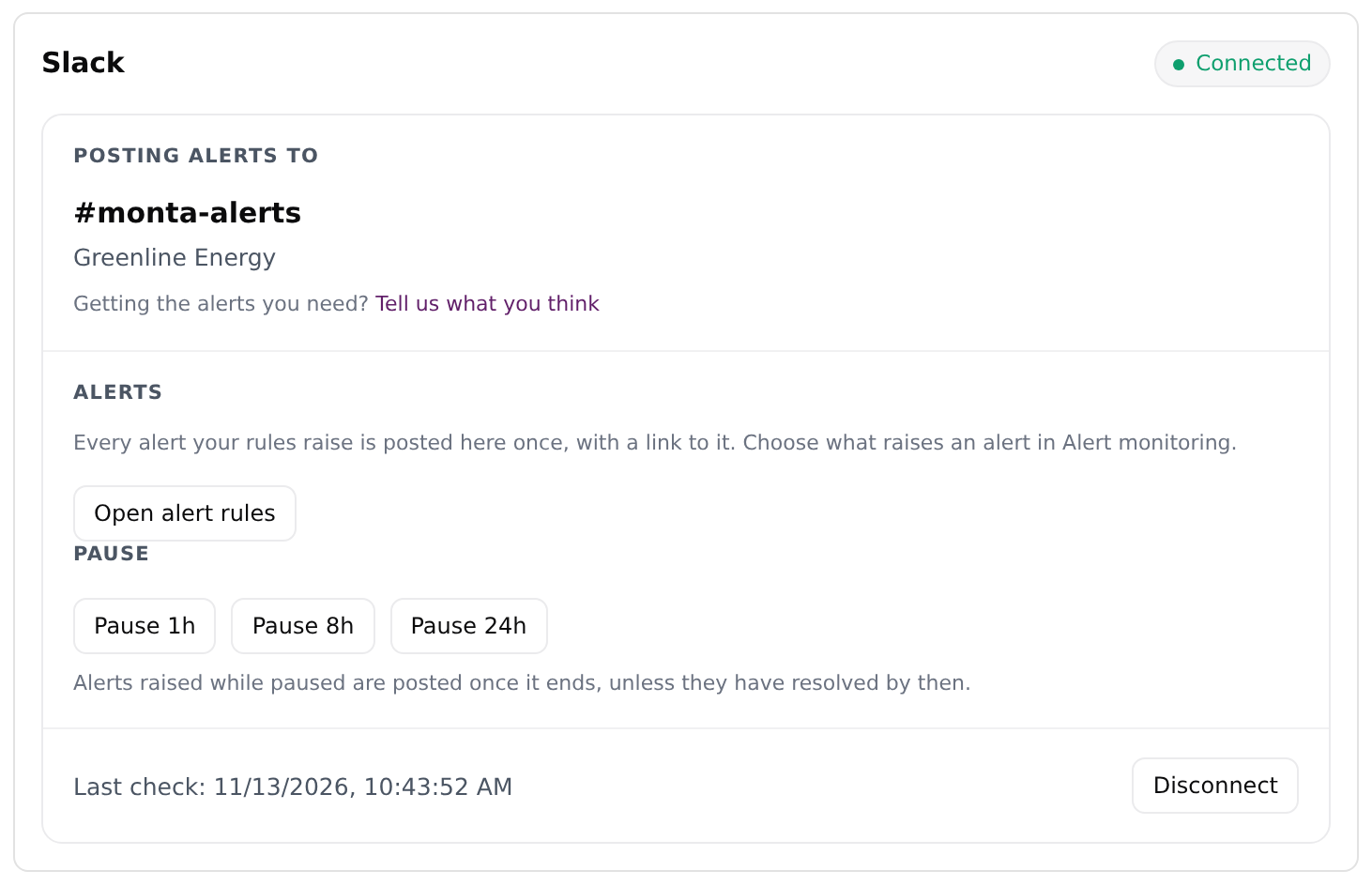
What happens after you connect
- The app checks for new alerts every 5 minutes.
- Each new alert is posted once, with a link to it in Hub.
- Alerts that are already open when you connect are not posted. Only alerts that are raised afterwards are.
- The app only reads your alerts. It does not change them in Hub.
To change what raises an alert, select Open alert rules in the Slack app, or open the Alert monitoring settings page in Hub. The rules are shared by every way your alerts are delivered, so a change there applies to Slack too.
Pause alerts
To stop posting for a while without changing your rules:
- Open the Slack app in the Application Marketplace.
- Under Pause, select Pause 1h, Pause 8h or Pause 24h.
The app then shows Paused until with the end time. Alerts that are raised during the pause are posted when it ends, unless they have resolved by then. To end a pause early, select Resume alerts.
Disconnect Slack
- Open the Slack app in the Application Marketplace.
- Select Disconnect.
The app then shows Not connected, and no more alerts are posted to the channel. To post to a different channel, disconnect and connect again.
Fix common problems
Nothing happens when I select Connect Slack
Your browser may have blocked the Slack window. Allow pop-ups for Hub and select Connect Slack again.
No alerts arrive in the channel
Check that the app is not paused. Then check your alert rules on the Alert monitoring settings page: the app posts only alerts that those rules raise. Alerts that were already open when you connected are not posted.
I do not see the Slack app
If you do not see the Slack app in the Application Marketplace, contact Monta support.