
Send your Monta data to Power BI
Connect the Power BI app in Hub so your charges, EVSEs and locations load into your own Power BI reports on a refresh schedule you control.
Updated 16 November 2026
This article is for operators who want to report on their Monta data in Power BI. You connect the app once in Hub, create a feed key, and add three feeds to Power BI as web sources. Power BI then pulls the data on its own refresh schedule. The app is read-only: it never changes anything in Monta.
Before you start
- You need a Power BI account and Power BI Desktop. The app does not set these up for you.
- You need permission to update your operator in Hub. Without it, the Connect button is disabled.
- If you do not see the Power BI app in your marketplace, it may not be available to your operator yet.
- For the marketplace in general, see Find and connect apps in the Applications marketplace.
What the app gives you
The app offers three feeds. Each one is a flat table with no field mapping to set up.
| Feed | What it holds | Columns |
|---|---|---|
| Charges | Charges created in the last 90 days | id, chargePointId, siteId, state, createdAt, startedAt, stoppedAt, kwh, price, currency |
| Charge points | Your EVSEs (electric vehicle supply equipment) | id, name, siteId, teamId, state, maxKw, brand, model, serialNumber, lastConnectedAt, createdAt |
| Sites | Your locations | id, name, teamId, chargePoints, activeChargePoints, maxKw, createdAt |
Prices are in major units of the charge's currency, for example 122.4. The Charges feed returns at most 20,000 charges.
Connect the app
- In the Hub menu, select Admin > Developers > Application Marketplace.
- Select Power BI.
- Select Connect.
- Review the permissions in the Connect Power BI window. The app reads your charges, EVSEs and locations.
- Optional: under Accounts or Sub-operators, choose who the app may read data for. Leave them empty to include all accounts.
- Select Approve and connect.
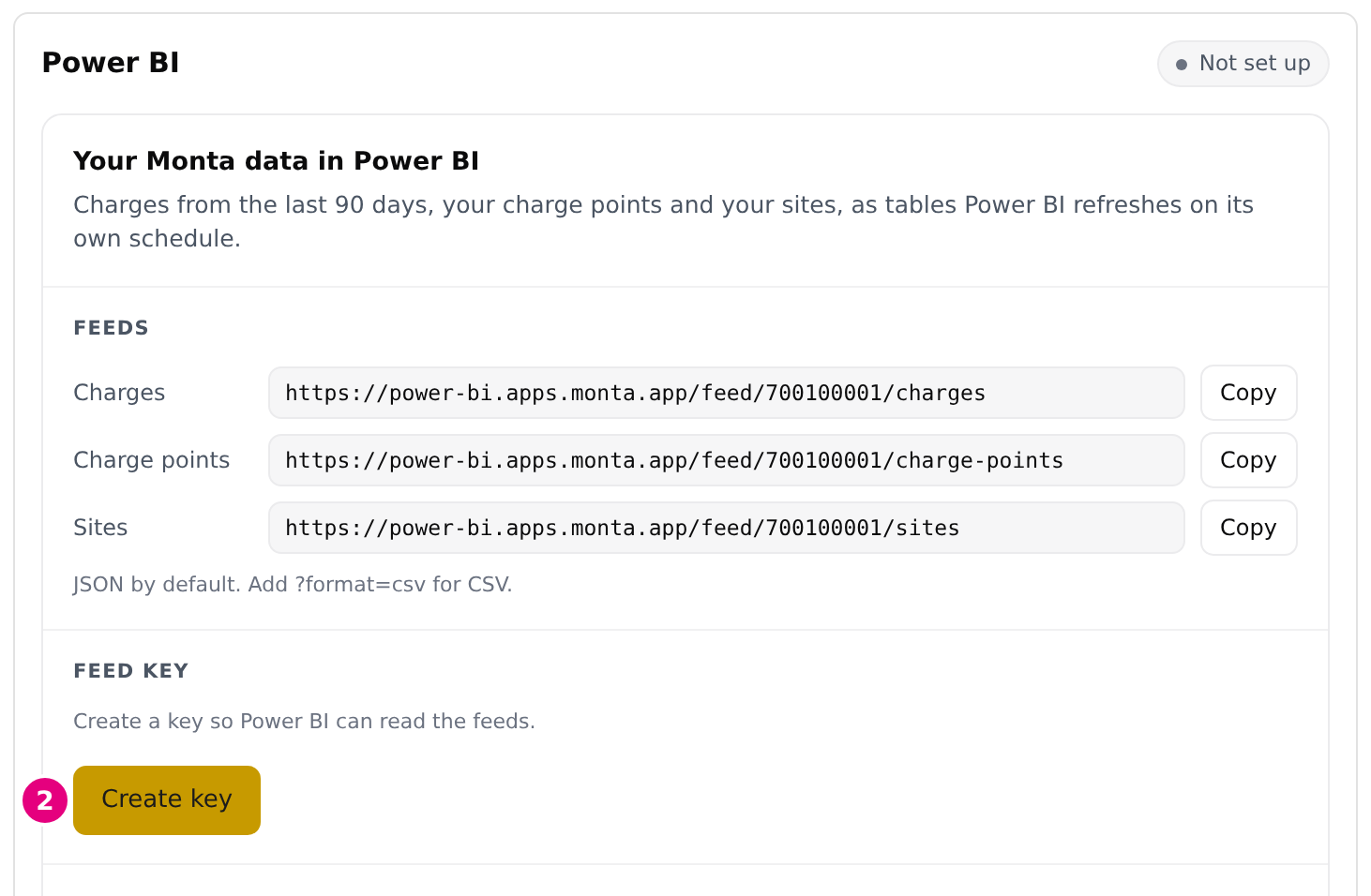
The app page now shows Connected, with the Power BI dashboard below it. The status next to the Power BI heading reads Not set up until you create a feed key.
Create a feed key
Power BI proves who it is with a feed key. Each connection has one key.
-
On the Power BI app page, find Feed key.
-
Select Create key.
-
Select Copy next to the key and save it somewhere safe.
The key is shown only once. If you lose it, rotate it (see below). The status then changes to Feeds on.
Add the feeds to Power BI
Under Feeds, the page lists the three feed URLs with a Copy button each. Repeat these steps for each feed.
- In Power BI Desktop, select Get Data > Web > Advanced.
- Paste the feed URL into the URL parts.
- Under HTTP request header parameters, enter
Authorizationas the header name andBearer <your key>as its value. - If Power BI asks for credentials, choose Anonymous.
- Load the table.
When all three feeds are in, publish the report. In the Power BI service, open the dataset settings and turn on scheduled refresh.
Feeds return JSON by default. Add ?format=csv to a feed URL to get CSV instead.
Rotate the feed key
Rotate the key if it leaks or you lose it.
- On the Power BI app page, under Feed key, select Rotate key.
- Select Rotate now, or Cancel to keep the current key.
- Copy the new key.
- Paste it into the Authorization header of each feed in Power BI.
The old key stops working at once. Power BI refreshes fail until you paste the new key.
What happens after you connect
- Power BI pulls the data each time it refreshes. Monta sends nothing on its own.
- Monta keeps the result of a pull for about 10 minutes, so a retried refresh does not start a second pull. Data can be up to 10 minutes old.
Disconnect the app
- In the Hub menu, select Admin > Developers > Application Marketplace, then Power BI.
- Select Uninstall.
- Optional: choose a reason and add a comment.
- Select Uninstall to confirm.
This removes the app's access to your data and deletes the feed key. Refreshes in Power BI then fail with an authorization error. You can connect the app again later, but you must create a new key.