
Show Field Service jobs in Google Calendar
Connect a Google account to Hub so every scheduled Field Service job appears in Google Calendar with a Google Meet link.
Updated 16 November 2026
This article is for operators who use Field Service (early access) and want their scheduled jobs in Google Calendar. You connect a Google account once, choose who is invited, and every scheduled job gets a calendar event with a video call link.
You need permission to update the operator in Hub to connect or disconnect an account. To change the calendar settings in Field service, you need permission to update the installer page.
What the app does
When you connect a Google account, Monta creates a calendar called Monta jobs in it. Monta then adds one event for each scheduled job, with a Google Meet link on every event.
- The event moves when you reschedule the job and updates when you rename it.
- The event is removed when the job is cancelled or deleted.
- The Meet link shows on the job page in Hub, in the Video call row.
- The Meet link shows on the technician page, as Join video call.
A job gets an event once it has a scheduled start and is sent to its partner or scheduled. A job that stays a draft gets its event when it is sent or scheduled.
Choose the account to connect
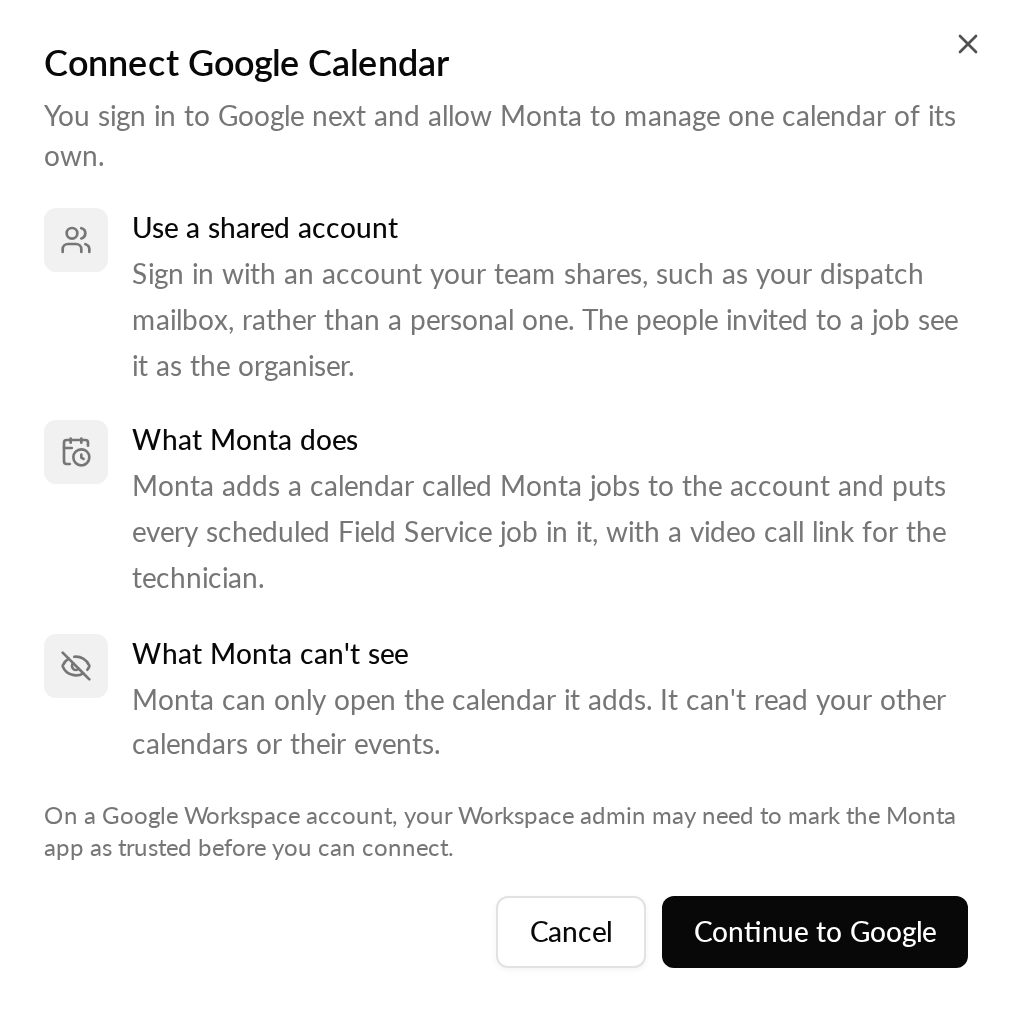
Connect a shared account, such as a dispatch mailbox, rather than a personal one. People invited to a job see this account as the organiser of the event.
If the account belongs to a Google Workspace, your Workspace admin may first need to mark the Monta app as trusted. Without that, Google can stop you at the consent screen.
Connect Google Calendar
-
In Hub, open Admin > Developers > Application Marketplace.
-
Open Google Calendar.
-
Select Connect Google Calendar. A dialog explains which account to use, what Monta does and what Monta can't see.
-
Select Continue to Google.
-
Sign in with the shared account and allow Monta to manage its own calendar.
Google returns you to the app page, which says whether the account is connected. The account appears under Connected accounts with its email address, its status and when it was connected. Monta creates the Monta jobs calendar in that account straight away.
If connecting fails, the page says why. Common causes are a connect link that expired (it works once and for ten minutes), cancelling on Google's screen, or clearing the calendar permission. Nothing is connected after a failure, so you can start again.
You can connect more than one account. Field Service writes to one of them, which you choose in the next section.
Set up calendar events in Field service
-
In Hub, open Field service, then the Settings tab.
-
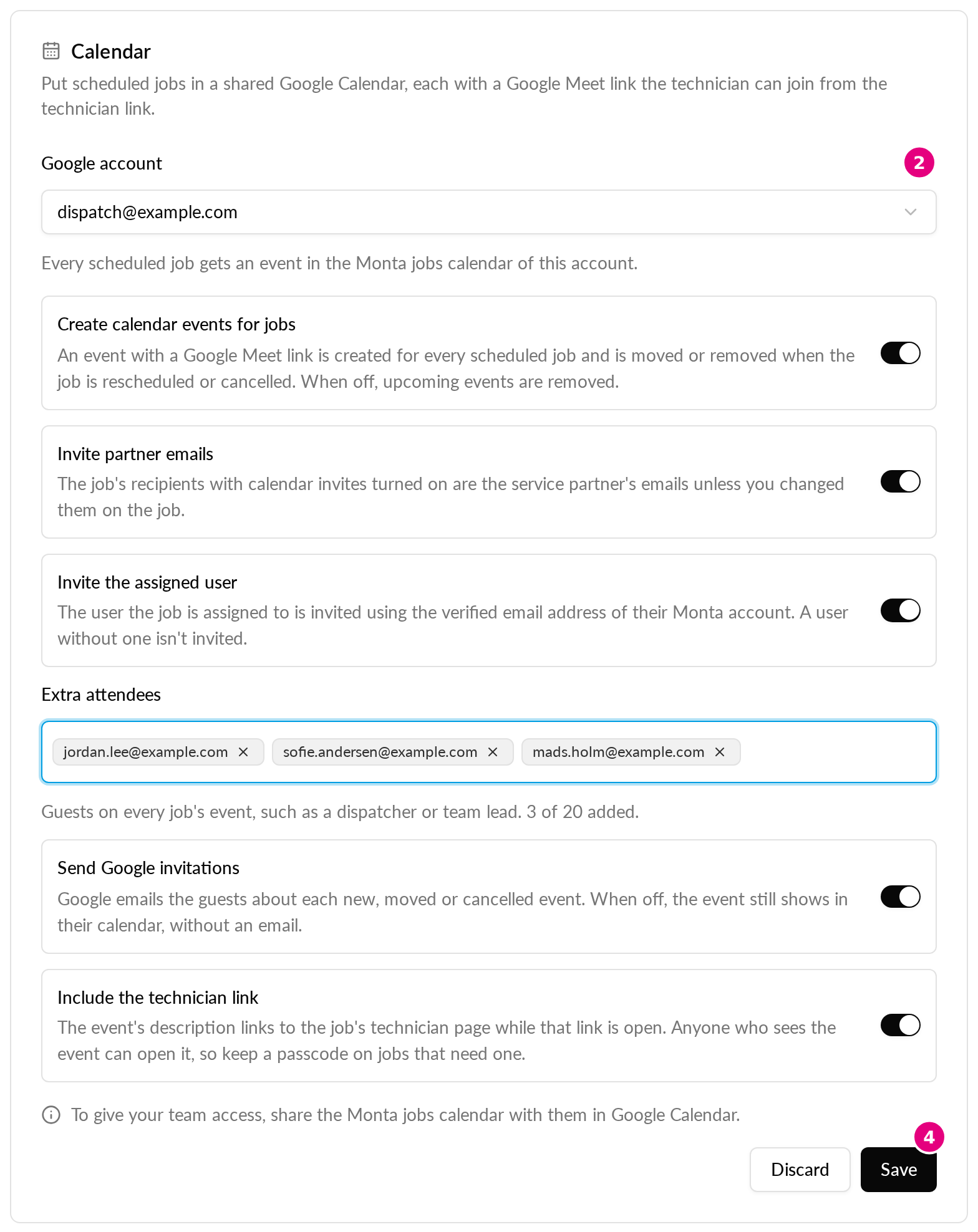
In the Calendar card, choose an account under Google account. No job goes to the calendar until you choose an account and save.
-
Set the options below.
-
Select Save.
If no account is connected, the card offers Connect Google Calendar, which opens the app page.
| Option | What it does | Default |
|---|---|---|
| Create calendar events for jobs | Turns the sync on or off. Turning it off removes the events of upcoming jobs. | On |
| Invite partner emails | Invites the job's recipients that have calendar invites turned on. These are the service partner's addresses unless you changed them on the job. | On |
| Invite the assigned user | Invites the Monta user the job is assigned to, using the verified email address of their account. A user without one is not invited. | On |
| Extra attendees | Invites up to 20 addresses to every job's event, such as a dispatcher or team lead. Type or paste addresses, and each becomes a chip. | Empty |
| Send Google invitations | Google emails guests about each new, moved or cancelled event. When off, guests still see the event in their calendar, without an email. | On |
| Include the technician link | Adds the job's technician link to the event description while the link is open. | On |
Anyone who can see an event can open the technician link in it. Keep a passcode on jobs that need one.
When you change these settings, Monta updates the events of open jobs to match. If you choose another account, the events move to the new account. Turning events on, or choosing an account, also adds an event for every upcoming job that has none.
In the New job and Edit job dialogs, a line under Scheduled start and Scheduled end tells you what will happen. It says whether Monta will create an event, or asks you to add a scheduled start.
Check a job's calendar event
Open a job in Field service. The Calendar row shows the state of the event:
- Synced: the event is up to date. Select Open in Google Calendar to open it.
- Syncing: Monta is creating or changing the event.
- Failed: Monta could not change the event. It tries again after 1, 2, 4 and 8 minutes. Select Retry to try again at once.
- Reconnect needed: Google stopped accepting the account. Select Reconnect. The job syncs by itself afterwards.
- Not configured or Removed from calendar: the job has no event, for example because calendar events are off or no account is chosen.
The Video call row shows the Meet code as a link, with Copy. While Google is still creating the meeting, it shows "Creating Meet link...". This usually takes a few seconds.
The job's activity log records each change, for example Added to Google Calendar, Google Calendar event updated, Removed from Google Calendar and Couldn't sync to Google Calendar.
What the technician sees
On the technician page, Join video call appears next to Open directions, with the meeting code. It appears once Google has created the meeting. If the link has a passcode, the technician sees it after unlocking the job.
Share the Monta jobs calendar with your team
The Monta jobs calendar belongs to the connected account. To give colleagues access, share it with them in Google Calendar, the same way you share any calendar. Monta does not manage this sharing.
Disconnect Google Calendar
- In Hub, open Admin > Developers > Application Marketplace, then Google Calendar.
- Find the account under Connected accounts and select Disconnect.
- If this is the account Field Service uses, choose whether to keep Remove upcoming events from Google Calendar selected. It is selected by default.
- Confirm.
With the option selected, Monta deletes the events of upcoming jobs. Google tells guests about the removal when invitations are on. With it cleared, the events stay in the calendar but no longer change with the job. Events of past jobs always stay.
After you disconnect the account Field Service uses, the Calendar card has no account until you choose another.
If Google does not remove Monta's access at that moment, the account stays connected and a message says so. Try again. If it keeps failing, remove Monta from the third-party apps in the Google account, then disconnect it in Hub.
Your Google data
Monta only sees the calendar it creates and the email address of the connected account. It never reads your other calendars or their events.