
Zaptec Integration Guide
Integration guide for Zaptec charge points. Covers connecting with Zaptec Credentials or native OCPP in the Monta app and completing the pairing flow.
Updated 12 November 2026
When you connect your charge point to Monta, Monta becomes the operator of the charge point. You must use Monta to control the charging process.
Notes:
- If connecting via Monta Hub, select the Cloud connection method when adding the charge point.
- If you have a Zaptec Go and encounter issues during the verification process, contact Monta support for assistance.
Select your team in the Chargers section
In the Monta app, go to Chargers and select the team you want to add the charge point to. Tap the three-dot menu and choose + Connect a charger.
Tell us about your charge point
Select the brand, model, charge point effect, and connector type.
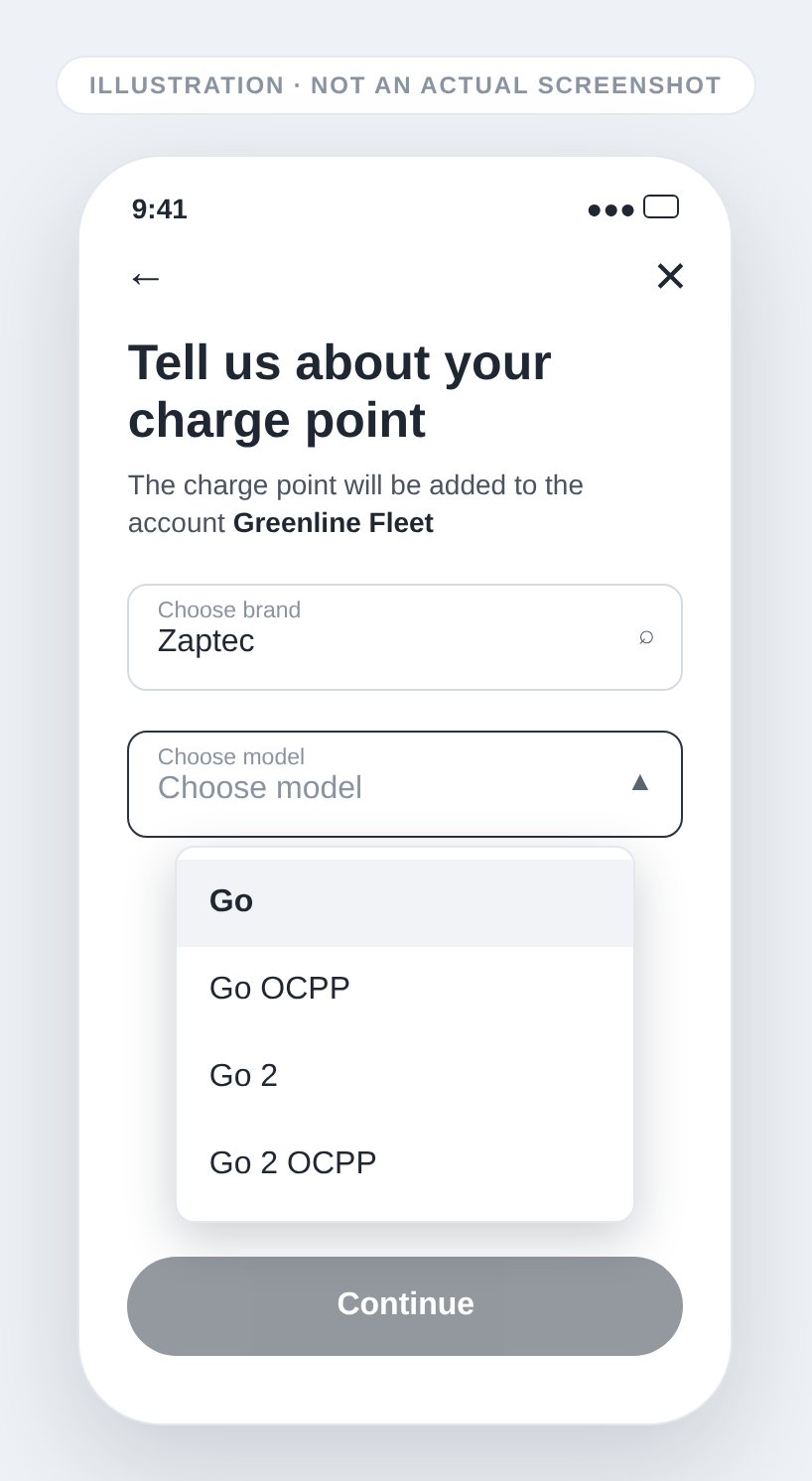
Zaptec models are listed with and without an OCPP suffix, for example Go and Go OCPP, or Go 2 and Go 2 OCPP. The model and the integration method you pick together decide how the charge point connects. With Zaptec Credentials, Go and Go 2 connect through Zaptec Cloud, and Go OCPP and Go 2 OCPP connect through native OCPP, which Monta sets up for you. With OCPP, every Zaptec model connects through native OCPP and you set the Monta URL in the Zaptec Portal yourself (step 4B).
| Model | With Zaptec Credentials | What to expect |
|---|---|---|
| Without suffix (for example Go) | Through Zaptec Cloud | You can use Zaptec-side settings and meters. |
| With OCPP suffix (for example Go OCPP) | Native OCPP | You cannot use Zaptec-side settings and meters. The connection is more stable, and the charge point can take part in grid services. |
Fill in the details
- Give the charge point a name and specify the location.
- Tap Continue. You can always update these settings later.
Select the integration method
You can choose Zaptec Credentials or OCPP as the integration method. We recommend Zaptec Credentials.
- If you chose Zaptec Credentials, go on with step 4A.
- If you chose OCPP, go on with step 4B.
4A. Log in with your Zaptec account and pair the charge point
- Log in with your Zaptec account so Monta can pair the charge point.
- Select your charge point.
- Tap Yes, pair charge point.
4B. Connect the charge point with OCPP
Native OCPP 1.6J is set up in the Zaptec Portal. Before you start, check with Zaptec that your charge point and account support it.
-
In the Monta app, enter the serial number of the charge point as the Charge point identifier.
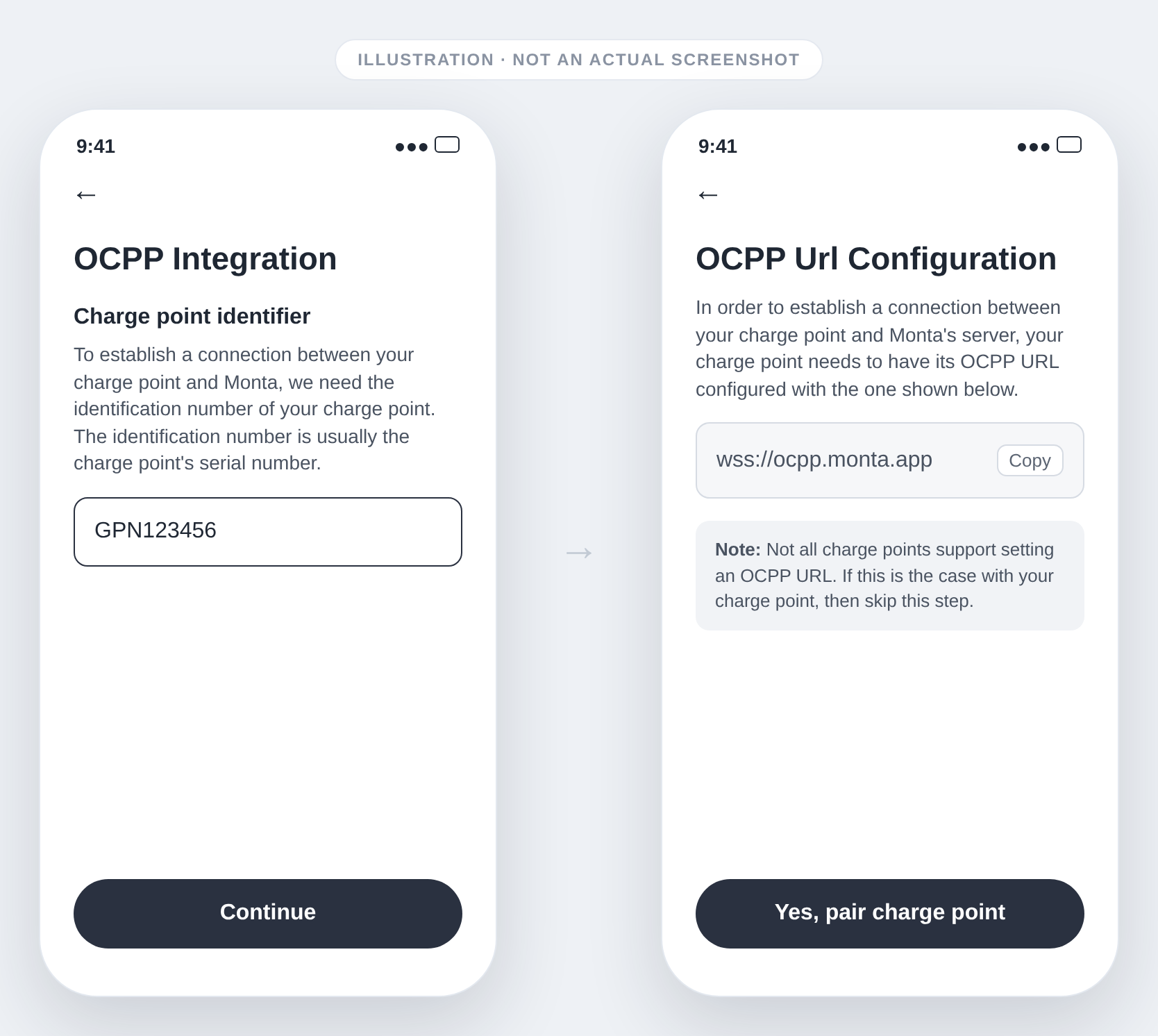
-
Copy the URL
wss://ocpp.monta.app. -
In the Zaptec Portal, open your installation and find the OCPP settings.
-
Paste the URL as the OCPP Central System URL and save.
-
Go back to the Monta app and tap Yes, pair charge point.
Wait for verification
Monta verifies the connection between the system and your charge point. This should take a few seconds.
Confirm the charge point is available
Once connected, the charge point will show a status of Available.