
Send monthly charging revenue to Fortnox
Connect your Fortnox company from the Application Marketplace in Hub, so last month's charging revenue arrives in Fortnox as a draft sales invoice.
Updated 13 November 2026
This article is for operators who use Fortnox for their accounting. You will connect your Fortnox company to Hub, choose the revenue account to post to, and receive last month's charging revenue as a draft sales invoice.
What the Fortnox app does
Each month, the app adds up your completed charges and creates a draft sales invoice in Fortnox.
- It creates one draft invoice per currency.
- The invoice is for a customer named
Monta, dated the last day of the month, with one row on the revenue account you choose. - The reference is
Monta charging <YYYY-MM> <currency>, for exampleMonta charging 2026-10 SEK. - Data goes one way, from Monta to Fortnox. There are no fields to map.
- The draft waits in Fortnox until someone, for example your accountant, approves it.
A month with no completed charges that have a price creates no invoice.
What you need first
- Access to the Application Marketplace page in Hub (Admin > Developers > Application Marketplace). If Connect is disabled on the Fortnox page, ask an operator admin to connect it.
- A Fortnox user who can create an integration at developer.fortnox.se and approve its connection.
- The number of the revenue account in Fortnox that the invoice should post to.
- Your own Fortnox integration. Monta does not provide one, so you create it once in Fortnox and paste its credentials into Hub.
Create your Fortnox integration
- Sign in at developer.fortnox.se and create a New integration.
- Add the redirect URI from the Your Fortnox app panel in Hub (see the next section). For the production environment it is
https://fortnox.apps.monta.app/oauth/callback. - Give the integration these scopes:
invoice,customerandcompanyinformation. - Copy the Client ID and the Client Secret.
Connect Fortnox in Hub
-
In Hub, select Admin > Developers > Application Marketplace.
-
Open the Fortnox app.
-
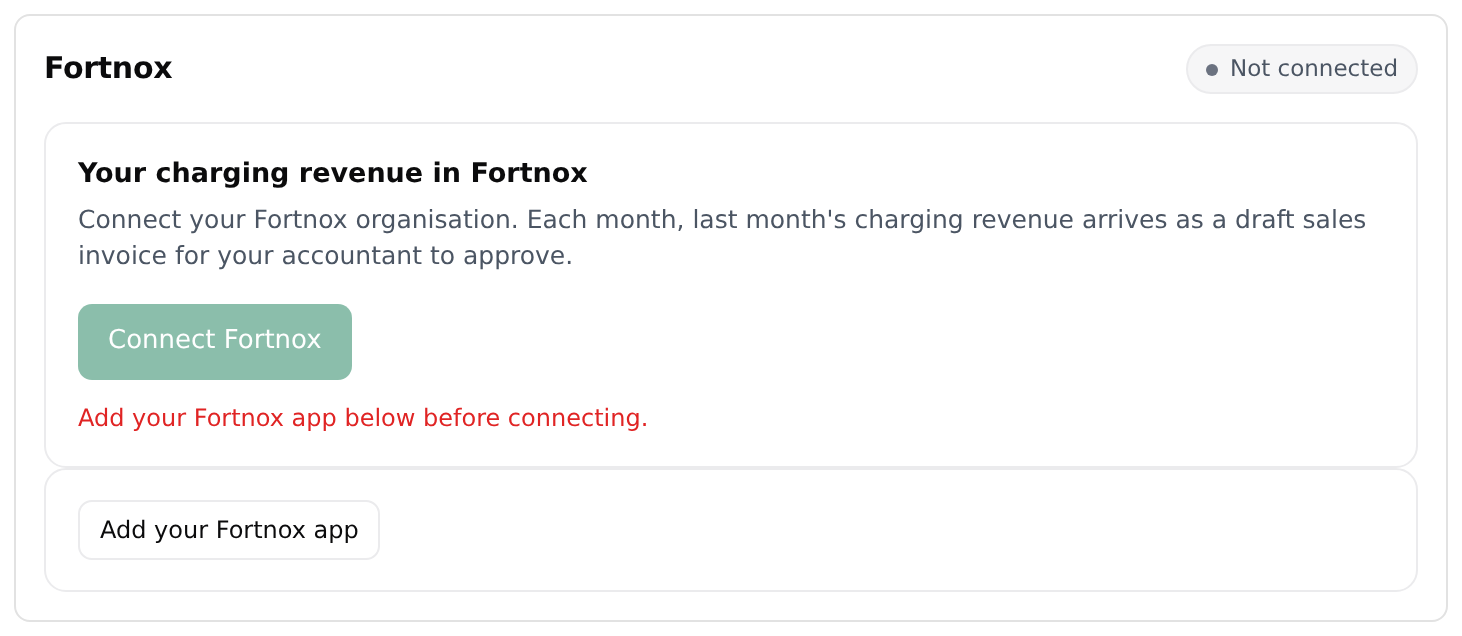
Select Add your Fortnox app.
-
Paste the Client ID and the Client Secret, then select Save.
-
Select Connect Fortnox. Allow pop-ups for Hub if your browser blocks the window.
-
In the Fortnox window, approve the connection.
-
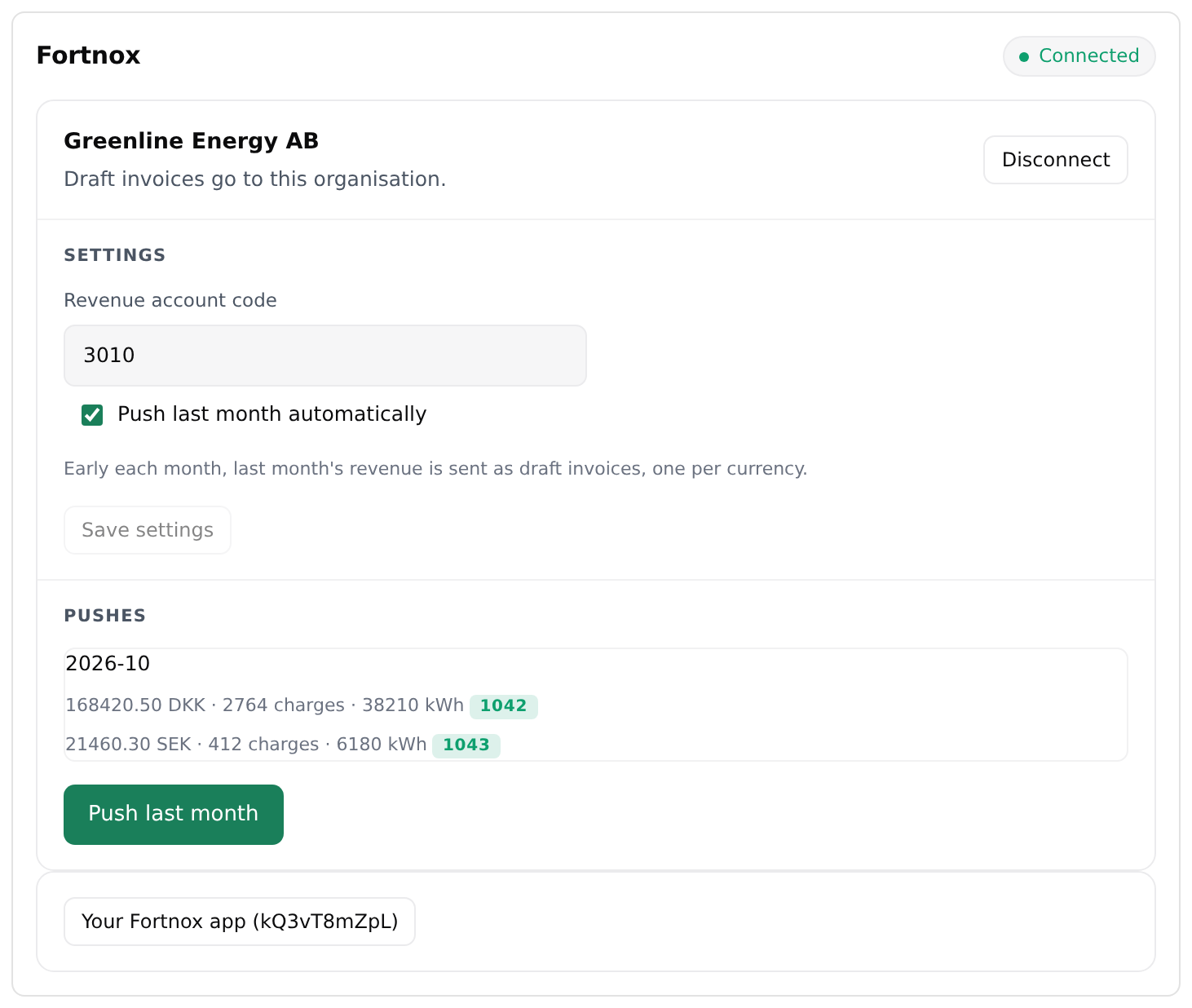
Return to Hub. Wait for the status at the top of the app to change from Not connected to Connected, and for your Fortnox company name to appear.
-
Under Settings, enter the Revenue account code. Use digits only, for example
200.
-
Select Save settings.
If Fortnox is not connected within 5 minutes, Hub shows "Fortnox wasn't connected in time. Try again." Select Connect Fortnox again.
What happens after you connect
Turn on Push last month automatically under Settings and select Save settings. Early each month, the app then sends last month's revenue as draft invoices. With the option off, nothing is sent until you push it yourself.
To send last month now:
- Open the Fortnox app in Hub.
- Select Push last month. The button is available once you have saved a revenue account code.
The Pushes list shows each month, with the amount, currency, number of charges and kWh. A tag shows the Fortnox invoice number. The tag already in Fortnox means an invoice with the same reference exists, so the app left it alone.
Pushing the same month twice never creates a duplicate. If someone cancels the draft in Fortnox, a new push can create it again.
To review and approve the invoice, open it in Fortnox. The invoice stays a draft until you do.
Disconnect Fortnox
- In Hub, select Admin > Developers > Application Marketplace.
- Open the Fortnox app.
- Select Disconnect.
The app removes the stored connection to your Fortnox company and stops sending revenue. To connect again, select Connect Fortnox.