
Fix CDR problems with roaming partners in Hub
Re-send, dispute or credit the charge detail records (CDRs) of your roaming sessions in Hub when a partner reports a missing or wrong CDR.
Updated 24 November 2026
This article is for operator admins and members who bill roaming partners. It shows how to re-send CDRs a partner says it is missing, how to record a dispute, and how to credit a CDR so it is left out of your exports.
A charge detail record (CDR) is the billing record for a roaming session. These actions apply to Self-managed roaming. On the Managed tabs, Monta handles CDR delivery for you.
Before you start
- Open Inbound roaming in the sidebar, choose Self-managed, then open the Sessions tab.
- Dispute also works on Outbound roaming > Self-managed > Sessions.
- If you don't see these actions, you may not have the permission for them. See who can do what.
Check whether a partner received a CDR
The CDR column on the Sessions table shows what happened when Monta sent the CDR:
| State | Meaning |
|---|---|
| Delivered | The partner accepted the CDR. |
| Retrying | The send failed in a way that may clear by itself. Monta tries again on a schedule. |
| Gave up | Monta will not retry. The partner rejected the CDR, or the retries ran out. |
Open a session to see why a CDR failed: the HTTP status, the partner message and the last reason.
Re-send CDRs to a partner
Use this when a partner says it is missing CDRs. The partner gets the same CDR again, with the same price. It is not a new CDR.
To re-send CDRs for sessions you can see in the table:
-
On Inbound roaming > Self-managed > Sessions, tick the sessions to re-send.
-
To take every session that matches your filters, tick a page and select Select all matching.
-
Select Re-send CDRs in the selection bar.
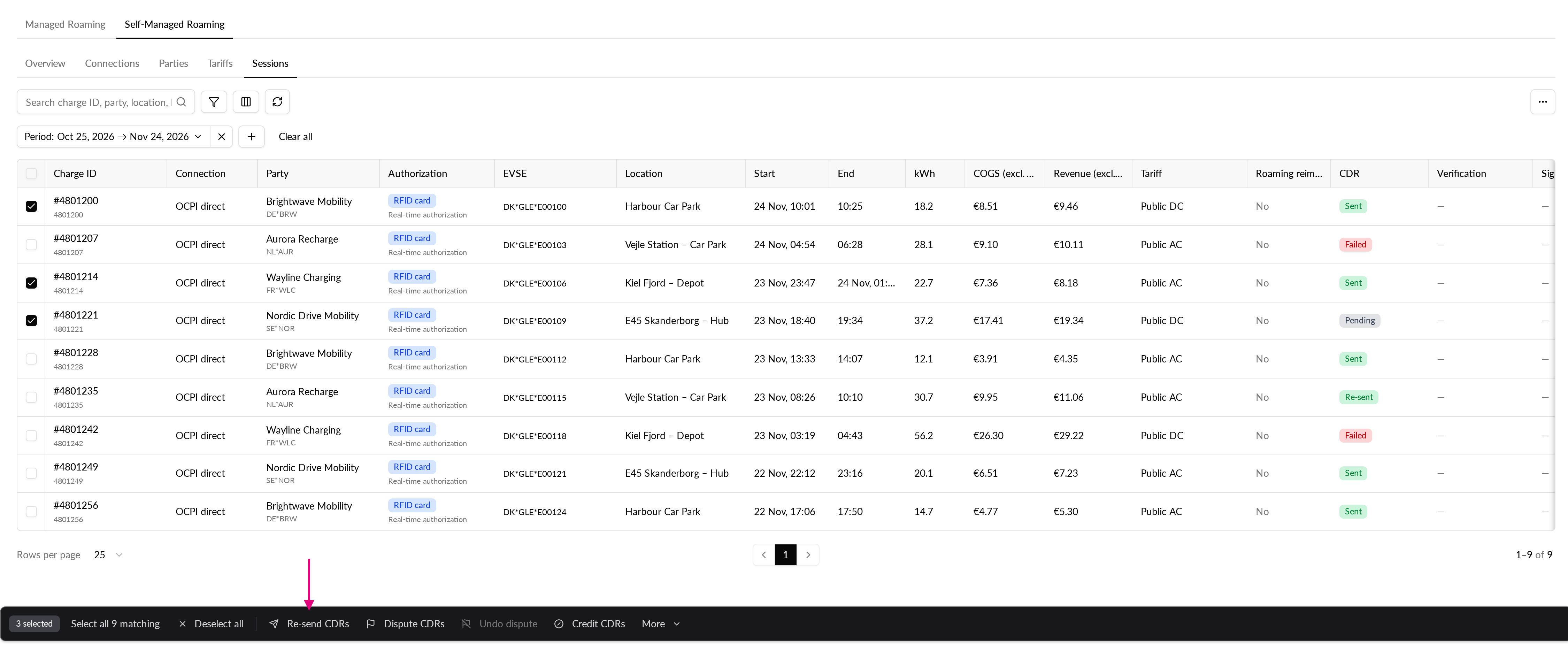
-
Confirm in the dialog.
To re-send a single CDR, tick only that session and select Re-send CDRs. This also works when the partner already accepted the CDR.
One re-send covers up to 10,000 CDRs. If more sessions match, narrow the filters first. Changing a filter clears your selection.
Nothing is sent while the dialog is open. The CDRs are queued and sent in the background within a few minutes. When the dialog closes, it shows how many CDRs were queued and how many were skipped, with the reason. The partner's answer then appears in the CDR column.
CDRs the partner already accepted are sent again too. That is intended, for a partner that lost them.
Re-send from a partner's list
If the partner sent you a list of charges, you don't need to tick anything.
- Select the ... (More actions) button in the toolbar of the Sessions table.
- Select Resend by charge IDs.
- Paste the partner's session IDs or Monta charge numbers. Put one on each line, or separate them with commas, semicolons or spaces.
- Send them.
You can paste up to 10,000 IDs. Duplicates are dropped. An entry longer than 100 characters, such as a pasted header row, is flagged before you send.
This search only looks at the sessions in the table's period and the operators in view. It ignores the table's search and other filters. For an older list, widen the period first.
Review earlier re-sends
Select ... > View resend history to see your last 50 re-sends, newest first. Each row shows when it started, how many CDRs it queued, and how many are waiting, accepted, rejected or skipped. The status reads In progress until every CDR has had its attempt, then Finished.
Why a CDR is skipped
- Registered to another party: you picked a party, and the CDR belongs to a different one.
- No party found: Monta cannot tell which partner the CDR belongs to.
- Already being sent: a delivery attempt for the CDR is running.
- Not in these sessions, or no CDR yet: the session is outside the table's scope, or it has no CDR yet.
Dispute a CDR
A dispute records in Hub that you contest a CDR. It works on inbound and outbound self-managed sessions.
- Tick the sessions to dispute.
- Select Dispute CDRs in the selection bar.
- Pick a reason in Reason you are disputing. Dispute CDR stays unavailable until you pick one.
- Select Dispute CDR.
The reason applies to every ticked session that has a CDR and is not already disputed. The CDR column then shows Disputed. A message reports how many CDRs were updated, skipped and failed.
To clear a dispute, tick the sessions and select Undo dispute.
Credit CDRs
Credit a CDR when a session should not be billed, for example a faulty charge. A credited CDR is left out of every CDR export you run afterwards.
- On Inbound roaming > Self-managed > Sessions, tick the sessions to credit one by one.
- Select Credit CDRs in the selection bar.
- Check the number in the dialog, then confirm.
A credited CDR shows a Credited badge. Only sessions that have a CDR, belong to the selected operator and are not credited yet count. Credit CDRs is not available after Select all matching. Select Deselect all first, then tick the sessions yourself.
Who can do what
| Action | Who |
|---|---|
| Re-send CDRs, Resend by charge IDs | Members who can view the charges of the operators in view |
| Dispute CDRs, Undo dispute | Operator admins |
| Credit CDRs | Operator admins of the operator, or of its direct parent operator |
In an account view that includes sub-operators, sessions of a sub-operator are skipped for Credit CDRs. Switch to that operator to credit them.
What this article does not cover
- Partners connected through Hubject.
- Changing the price of a CDR.
- Managed roaming tabs, where Monta handles CDR delivery.
See also CPO: Self-Managed Inbound Roaming and EMSP: Self-Managed Outbound Roaming.