
Make Hub easier to read with high contrast
Turn on the high contrast appearance in Monta Hub to get a darker sidebar, clearer borders and bolder labels that are easier to read.
Updated 3 November 2026
This article is for anyone who uses Monta Hub and finds the default look hard to read. You will turn on the high contrast appearance for your own login.
High contrast is a personal setting. It changes how Hub looks for you and for no one else in your account.
What changes in high contrast
- The sidebar is black with white text.
- The page background is light grey, so white cards and tables stand out.
- Borders, input outlines and secondary text are darker.
- Links in tables and lists are underlined, so you can tell them from plain text without relying on colour.
- Chart series that are normally grey use a colour.
- Labels, buttons, menu items and headings are one weight heavier. Body text keeps its regular weight.
- Buttons stay black. In dark mode they are white.
Secondary text and borders meet WCAG AA contrast levels.
Turn on high contrast
-
At the bottom of the sidebar, open the account menu.
-
Select Appearance.
-
Select High contrast.
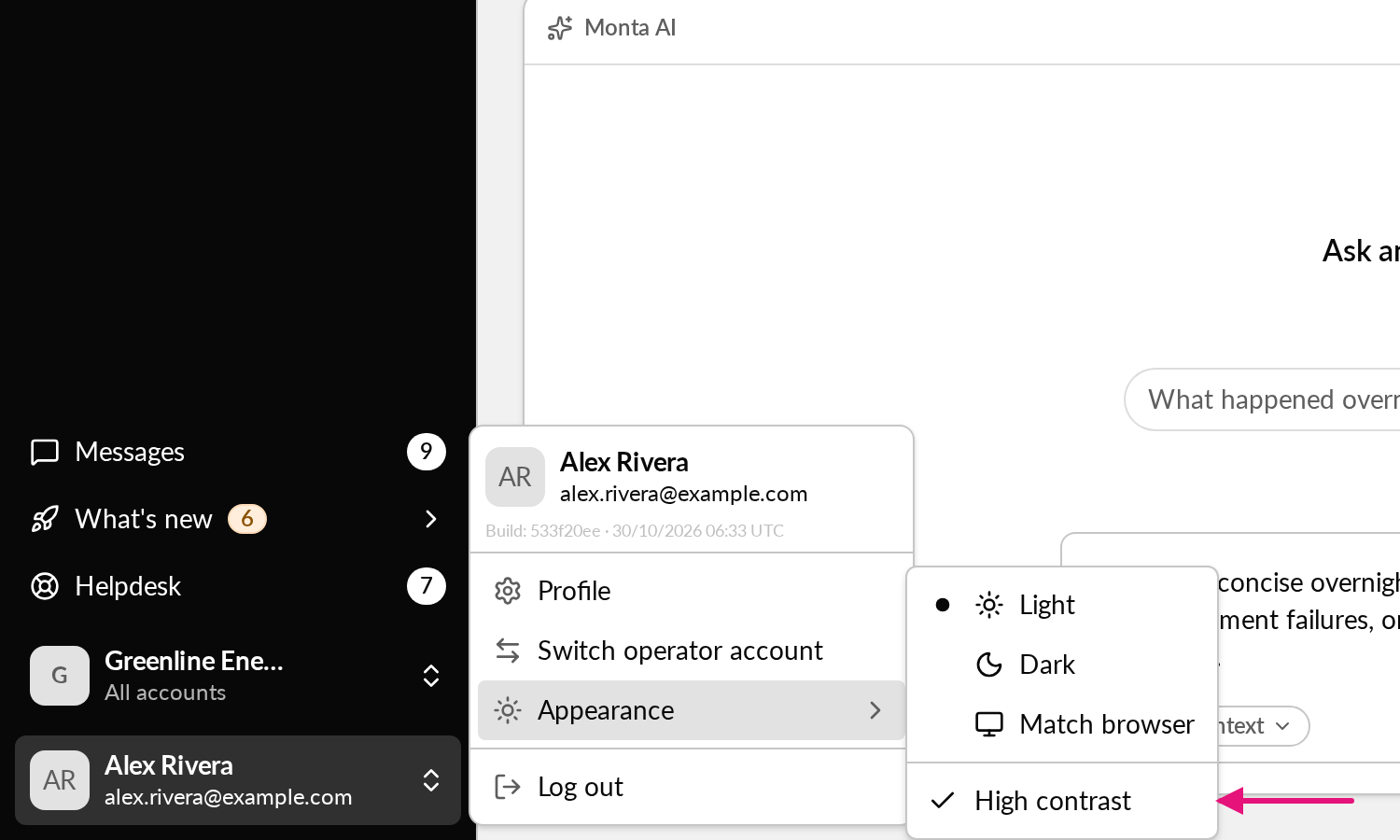
The menu stays open, so you see Hub change straight away. To turn it off, select High contrast again.
Use it with light and dark mode
High contrast works on top of your light or dark choice. Under Appearance, select Light, Dark or Match browser. Each one has its own high contrast colours.
Automatic high contrast
If you have never set this option, Hub turns high contrast on when your operating system or browser asks for more contrast. On macOS this is the Increase contrast setting.
Once you select or clear High contrast, your choice wins over the operating system setting. Hub reads the operating system setting when a page loads, so a change takes effect after you reload.
What Hub remembers
- Hub stores your choice in your browser, not in your user profile. On another browser or device, you set it again.
- The choice applies to every operator account you open in that browser. Switching operator keeps it.
- Hub applies it before the page appears, so you don't see the standard look first.
What stays the same
- Other users in your account see the standard look unless they turn on high contrast themselves.
- If your operator has set a custom sidebar colour in its theme, the sidebar keeps that colour in high contrast.
- Charts drawn in black or grey stay as they are.
To change the colours and logo for your whole account, see How do I brand Hub with my own theme (colours, logo, favicon)?.