
Set up two-factor authentication (2FA) for your Hub sign-in
Add a code from an authenticator app to your Hub password sign-in, create recovery codes, sign in with either, turn 2FA off, and get help if you lose your phone.
Updated 11 November 2026
This article is for anyone who signs in to Monta Hub with a password or a sign-in code sent by email or SMS. You will turn on two-factor authentication (2FA), create recovery codes as a backup, learn what the sign-in looks like afterwards, and find out how to turn it off.
With 2FA on, Hub asks for a 6-digit code from an authenticator app after your password. If someone gets your password, they still cannot sign in without your phone.
Before you start
- Install an authenticator app on your phone, for example Google Authenticator, 1Password or Authy.
- Make sure you sign in to Hub with a password or a sign-in code sent by email or SMS. If you sign in with Google, Microsoft, Apple or company single sign-on (SSO), see Sign in with Google, Microsoft, Apple or SSO.
Turn on 2FA
- In Hub, open your Profile.
- Under Two-factor authentication (2FA), select Enable 2FA.
- Scan the QR code with your authenticator app. If you cannot scan it, enter the key shown under Or enter this key manually: instead.
- Enter the 6-digit code from the app in Verification code.
- Select Verify and enable.
When it worked, Hub shows "Two-factor authentication enabled." and the badge next to Two-factor authentication (2FA) changes to Enabled.
If the code is not accepted, check the code in your authenticator app and try again.
Create recovery codes
Recovery codes are a backup for your authenticator app. You get 12 one-time codes. Each code works once, in place of the 6-digit code from the app. You need 2FA turned on first.
-
In Hub, open your Profile.
-
Next to Recovery codes, select Create codes.
-
Save the codes. Select Copy or Download, or write them down.
-
Select Confirm you've saved your codes.
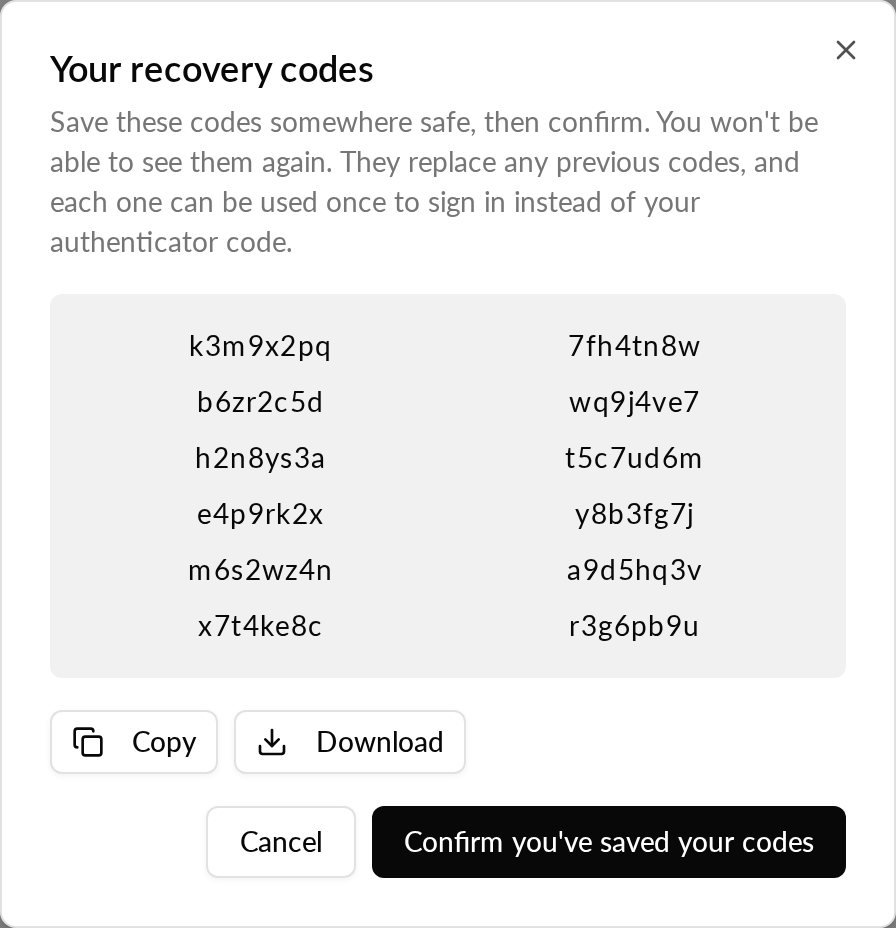
When it worked, Hub shows "Recovery codes saved."
Keep the codes somewhere safe, such as a password manager, and away from your phone.
If Hub shows "Couldn't load your recovery codes. Try again." or "Couldn't save your recovery codes. Try again.", repeat the steps.
Replace your recovery codes
Create new codes if you lost your codes, used most of them, or think someone else saw them.
- In Hub, open your Profile.
- Next to Recovery codes, select Create new codes.
- Save the new codes, then select Confirm you've saved your codes.
The new codes replace all your earlier codes. The old codes stop working as soon as you confirm. If you signed in a while ago, Hub asks you to sign in again first.
Sign in with 2FA
- Sign in to Hub with your email and password.
- When Hub asks for a code, open your authenticator app and enter the current 6-digit code.
Hub then opens the page you were going to. If you cannot get a code, the same page has Log out and Need help? Contact Support.
Sign in with a recovery code
Use a recovery code when you cannot open your authenticator app, for example after you lose or replace your phone.
- Sign in to Hub with your email and password.
- On the page that asks for a code, select Use a recovery code instead.
- Enter one of your recovery codes.
- Continue.
Each code works once. To go back to the app code, select Use your authenticator app instead. If you have not created recovery codes, Hub does not show Use a recovery code instead.
Turn off 2FA
- In Hub, open your Profile.
- Under Two-factor authentication (2FA), select Disable 2FA.
- In the dialog Disable two-factor authentication?, select Disable 2FA.
Hub shows "Two-factor authentication disabled" and the badge changes to Disabled. You can turn 2FA on again at any time. Turning off 2FA also deletes your recovery codes, so create new codes if you turn it on again.
If you signed in a while ago, Hub shows Sign in again instead of the button. Select it, sign in, and Hub brings you back to the page you were on. This also applies when you turn 2FA on.
Sign in with Google, Microsoft, Apple or SSO
Your identity provider handles the extra security step for these sign-ins, and Hub never asks you for an authenticator code. The 2FA setting in Hub is visible but read-only for you. Set up 2-step verification with your provider instead.
If you lose your phone
If you saved recovery codes, sign in with one: see Sign in with a recovery code. Then create new codes, and set up your authenticator app again on the new phone if you want to.
If you lost your phone and have no recovery code, contact Monta support. After they confirm it is you, they remove 2FA and your recovery codes from your account. You can then sign in with your password and set up 2FA again on a new device.
If something does not work
- If Hub shows "Couldn't load your two-factor authentication settings.", select Retry. The rest of your Profile is not affected.
- While a staff member impersonates a customer, the 2FA row is hidden.