
Sign in to Hub with an emailed 6-digit code
Sign in to Hub with a one-time code sent to your email address, so you do not need to enter your password.
Updated 9 November 2026
This article is for operators who sign in to Monta Hub. You will learn how to sign in with a 6-digit code sent to your email address instead of your password.
What you need first
• A Hub user with an email address you can open. • Access to that inbox while you sign in.
Sign in with a code
-
Open the Hub sign-in page.
-
Enter your email address.
-
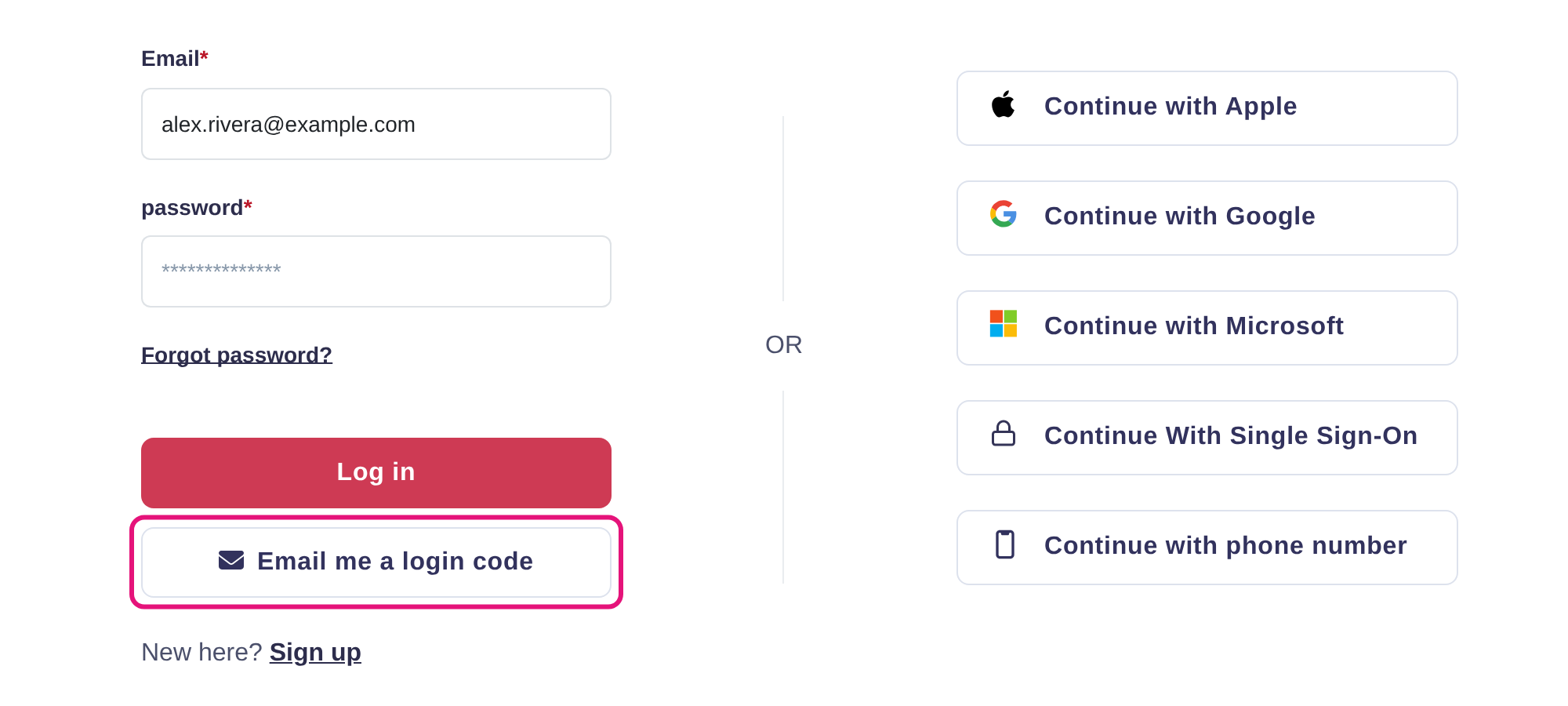
Select Email me a login code. Leave the password field empty.
-
Open the email from Monta and copy the 6-digit code.
-
Enter the code on the sign-in page and confirm. If your account has two-factor authentication set up, Hub then asks for your authenticator code.
When it works, Hub opens and you are signed in.
If you do not see the option
If you don't see Email me a login code, sign in with your password as usual. The option is not shown while you enter a two-factor authentication code, or after a code has already been sent.
If the code does not arrive
- Check your spam folder.
- Check that you entered the email address you use for Hub.
- Return to the sign-in page and select Email me a login code again to get a new code.