
1. Pairing charge point with Bluetooth
- Download app Teltonika Energy (App Store / Google Play)
- Add new device, you will need Bluetooth enabled
- Device is only in pairing mode 5 minutes after startup. Power cycle the unit to enter pairing mode again.
- After a few seconds a pairing table will pop up requiring a code to complete the pairing process.
- Insert last 6 digits of the security code found behind the front cover plate, to pair a phone with the EV charger. Example: here bluetooth pairing code would be 999999
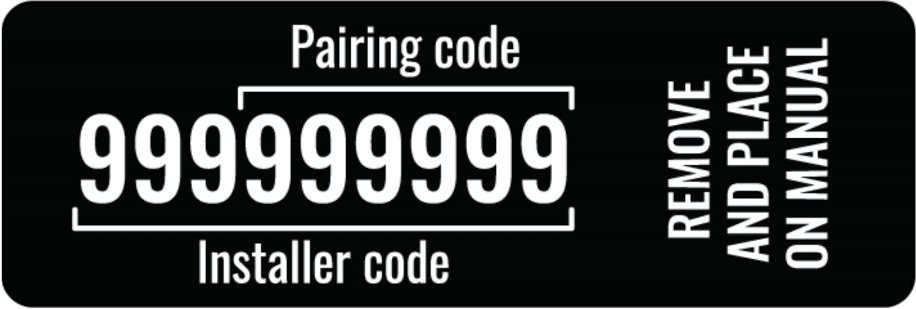
If pairing doesn’t work, restart the app and power cycle the charge point, then try again.
Click on the device, top right corner, settings wheel:
Select Installer menu
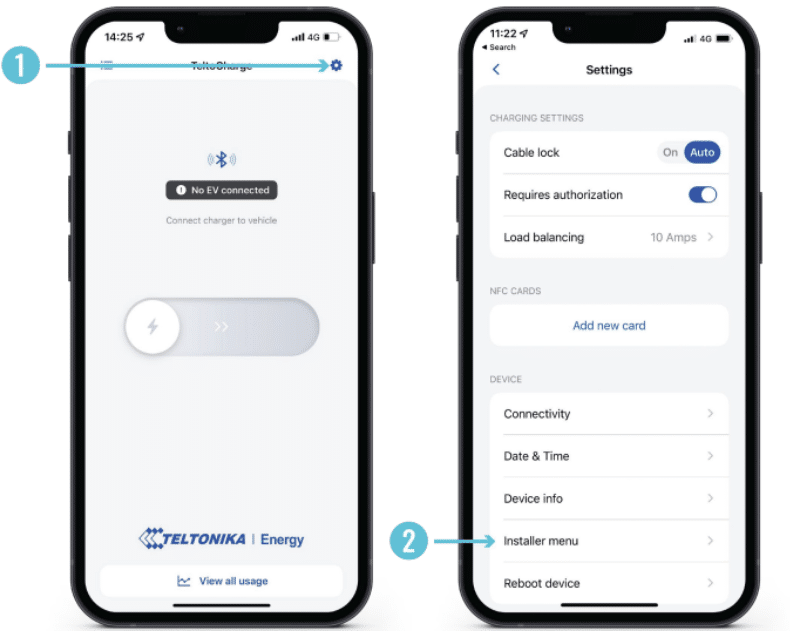
Enter security code found in the middle plate of the device:
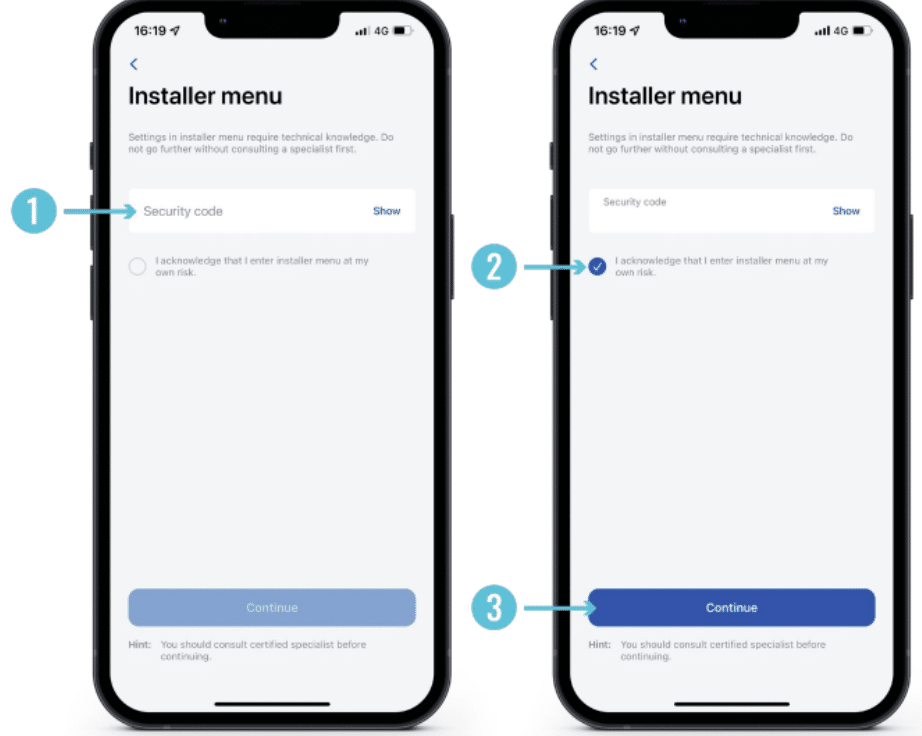
Check the acknowledgement and continue
- Connectivitity:
TeltoCharge can be connected to the Internet in three different ways.
1. WiFi – select your network from the list, insert the password and connect.
2. Mobile – to use cellular data, first of all, you need to insert a nano sim card inside the EV charger and then you can configure settings inside app.
3. Ethernet – plug in your cable and the Internet should start working (if you want to configure settings, turn off the DHCP feature and make the changes).
- OCPP configuration:
TeltoCharge also has the ability to connect to the 3rd party charge point management servers.
1. URL: wss://ocpp.monta.app/
2. Charge point identity: serial of charge point
3. Enable the OCPP feature
4. Press “Save” button.