
Run a service campaign across many EVSEs in Field service
Use a service campaign to carry one programme, such as a SIM card swap or an inspection round, across many EVSEs without raising a job for each one up front.
Updated 19 November 2026
This article is for operators and service managers who use Field service and run one programme across many EVSEs over weeks or months. Examples are a SIM card swap, a migration onto Monta, a rollout or an inspection round. You need Field service access on the account.
What a service campaign is
A service campaign applies one purpose to many EVSEs across many Locations. Instead of raising hundreds of jobs up front, it keeps a list of target EVSEs. It adds their tasks to work a technician is already sent to do at that Location.
One visit can carry tasks from several campaigns, so the technician does everything due at a Location in one go. A job is created only when a service run or a visit includes the target's Location. The Jobs list never fills with work nobody has planned.
Create a campaign
- Open CPO / Network > Field service and select the Campaigns tab.
- Select Create service campaign.
- Enter a Name, then choose the Type: Migration, Hardware swap and upgrade, Rollout, Inspection and audit, Decommission and redeploy, Recall and safety or Other.
- Choose the Mode (see "Choose a mode" below). For a Deadline campaign, enter the Due date and the Lead days.
- Optional: choose a Default service partner and a Checklist template.
- Save the campaign. You add the EVSEs after you save.
The type sets which checklist templates are offered first and how reports group campaigns. There is no maintenance type. Repairs are jobs and service runs, and preventive maintenance stays in recurring maintenance. A one-off fleet check is an Inspection and audit campaign.
Add EVSEs to a campaign
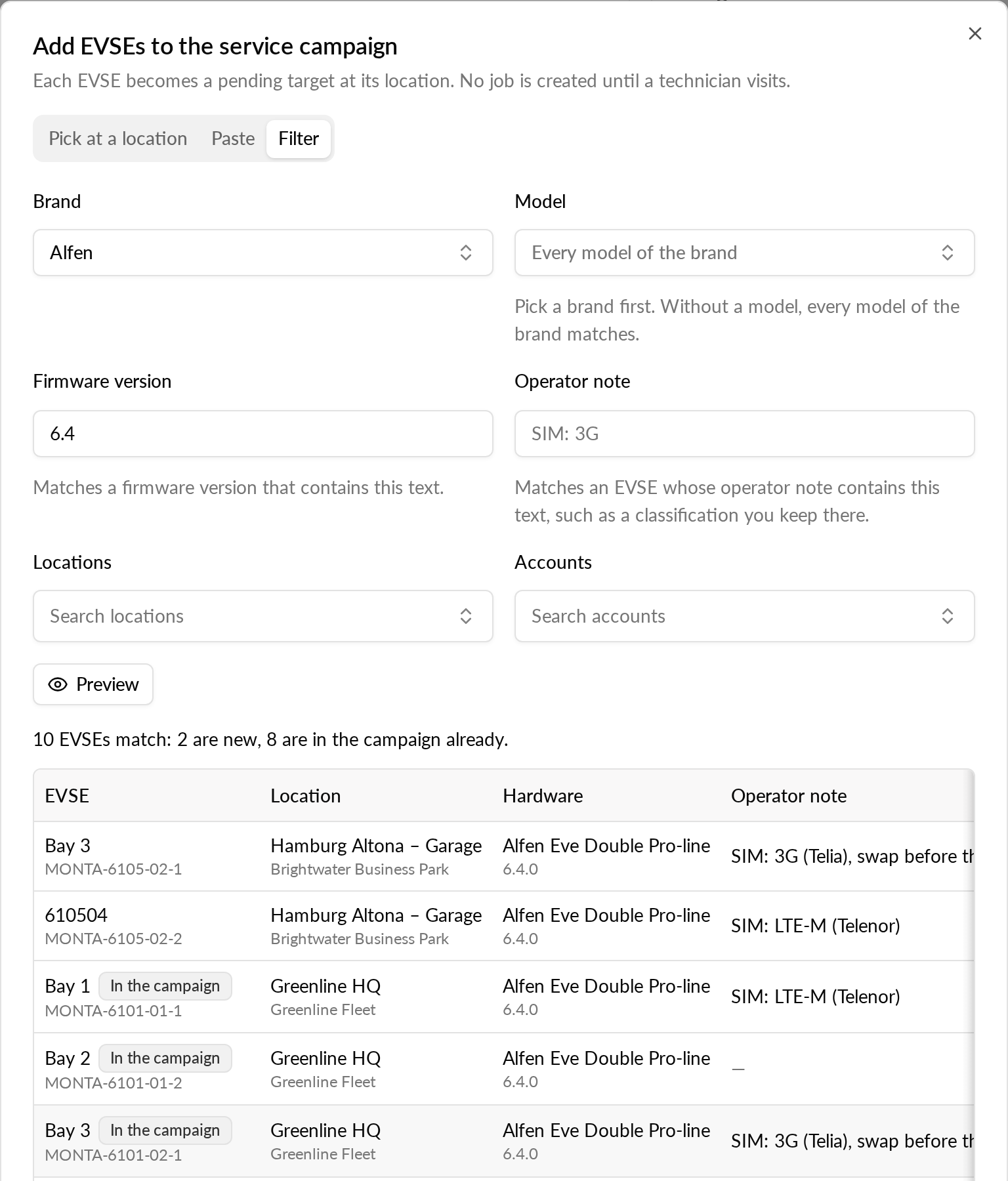
Open the campaign and select Add EVSEs. A campaign takes EVSEs of its own operator, at the Location each stands at today. An EVSE the campaign already holds is left as it is. A campaign holds at most 2,000 EVSEs. Choose one of three tabs:
- Pick at a location: choose a Location, tick its EVSEs, then choose another Location to add more.
- Paste: paste a column of EVSE IDs, OCPP identities, serial numbers or roaming EVSE IDs, then select Find EVSEs. An OCPP identity finds every EVSE of that charging station. Entries that match nothing are listed.
- Filter: filter by Brand, Model, Firmware version, Operator note, Locations and Accounts, then select Preview. The preview shows how many EVSEs match, how many are new and how many the campaign holds already. Then select Add EVSEs.
A filter that covers too many EVSEs is refused until you narrow it by Location, Account or model. The same applies when the result would take the campaign past 2,000 EVSEs.
Follow the targets
Each EVSE in a campaign is a target with a status:
- Pending: waiting for a technician to be at its Location.
- Planned: on a service run or a visit.
- Done: finished on a job that was approved.
- Skipped: left out, with a reason.
On the campaign page, select Skip and enter a reason to leave an EVSE out. Restore puts a skipped EVSE back to pending. Remove takes it out of the campaign.
Send targets to a technician
Add to run: on the campaign page, select pending targets and choose Add to run. Pick an open run or create a new one. You can also add them from a run: its Nearby work card and Plan on map list each Location's pending targets, with a campaign filter. Campaign Locations show as diamonds on the map.
Add to a visit: to send targets without a run, select them and choose Add to a visit. For each Location, pick one of its open jobs or a new job.
Where the run or Location already has an open job, the targets join it. Otherwise one new job is created at the Location. The targets become Planned. A job holds at most 200 EVSEs, so any targets past that go on another new job. Targets that are not pending are left out of the selection, and the dialog says how many.
What the job and the technician see
The campaign's checklist steps are added to the job. Each step is labelled with its campaign, on the job page and on the technician page. The Service campaign work card on the job lists the EVSEs by campaign.
If a task can't be done on this visit, for example when there is no access, select Can't be done and enter a reason. The task then no longer holds up submitting or approving the job. On the job page, Confirm it can be done takes the reason back.
When the job is approved or completed, each target follows its outcome:
- Done, if the EVSE was attended and accepted and its required tasks are done.
- Skipped, with the reason, if one was recorded.
- Back to Pending, for a later visit, in all other cases.
If the job is cancelled or taken off its run, its targets go back to Pending.
Choose a mode
Opportunistic has no deadline. Targets wait until a technician is at the Location anyway. Two optional views help you keep track:
- Waiting too long after (days): targets pending longer than this are marked on the campaign page and counted on the Campaigns list.
- Missed opportunities: finished visits where a technician was at a Location while the campaign had pending targets there, and the work was not added.
Deadline campaigns have a Due date and Lead days (14 unless you change it). From the due date minus the lead days, Monta creates one job at each Location with pending targets. You still send that job, or put it on a run, like any other job.
Close a campaign
When every EVSE is done or skipped, the campaign page suggests closing it. Monta never closes a campaign by itself. Select Close campaign to close it. A closed campaign takes no new EVSEs, and Reopen opens it again.