
Start a charge from the map with start suggestions
Start suggestions show a card on the map for the charge point you just plugged into, so you can start charging in one tap.
Updated 2 November 2026
This article is for drivers who use the Monta app, and for operators who want to know why a charge point does or does not appear as a suggestion. It explains how to start a charge from the map right after you plug in.
What start suggestions do
When you have just plugged in near a public charge point, the map can show a card. The card asks if that is the charge point you are using. You confirm it, and you start charging without scanning a QR code or searching the map.
What you need
- The Monta app with start suggestions available to you.
- Access to your phone's location. The app uses it to find charge points close to you.
- A cable plugged into a public charge point.
Start a charge from a suggestion
-
Plug the cable into the charge point and your vehicle.
-
Open the Monta app and go to the map. Select the location button, or Nearby chargers.
-
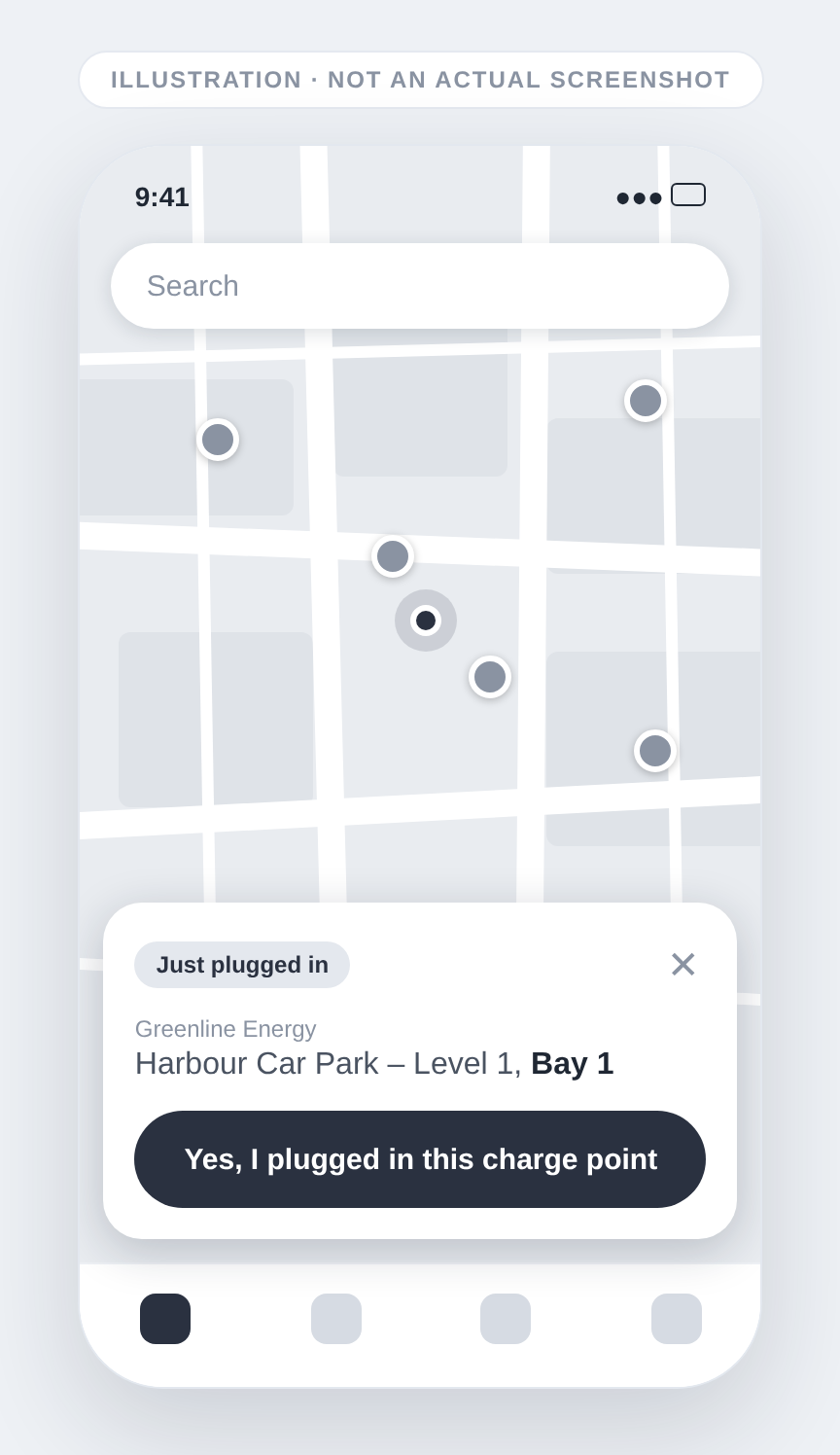
If a charge point matches, the card with the Just plugged in label appears.
-
Check that the charge point name on the card matches the one you plugged into.
-
Select Yes, I plugged in this charge point.
The app then opens the screen where you start the charge for that charge point.
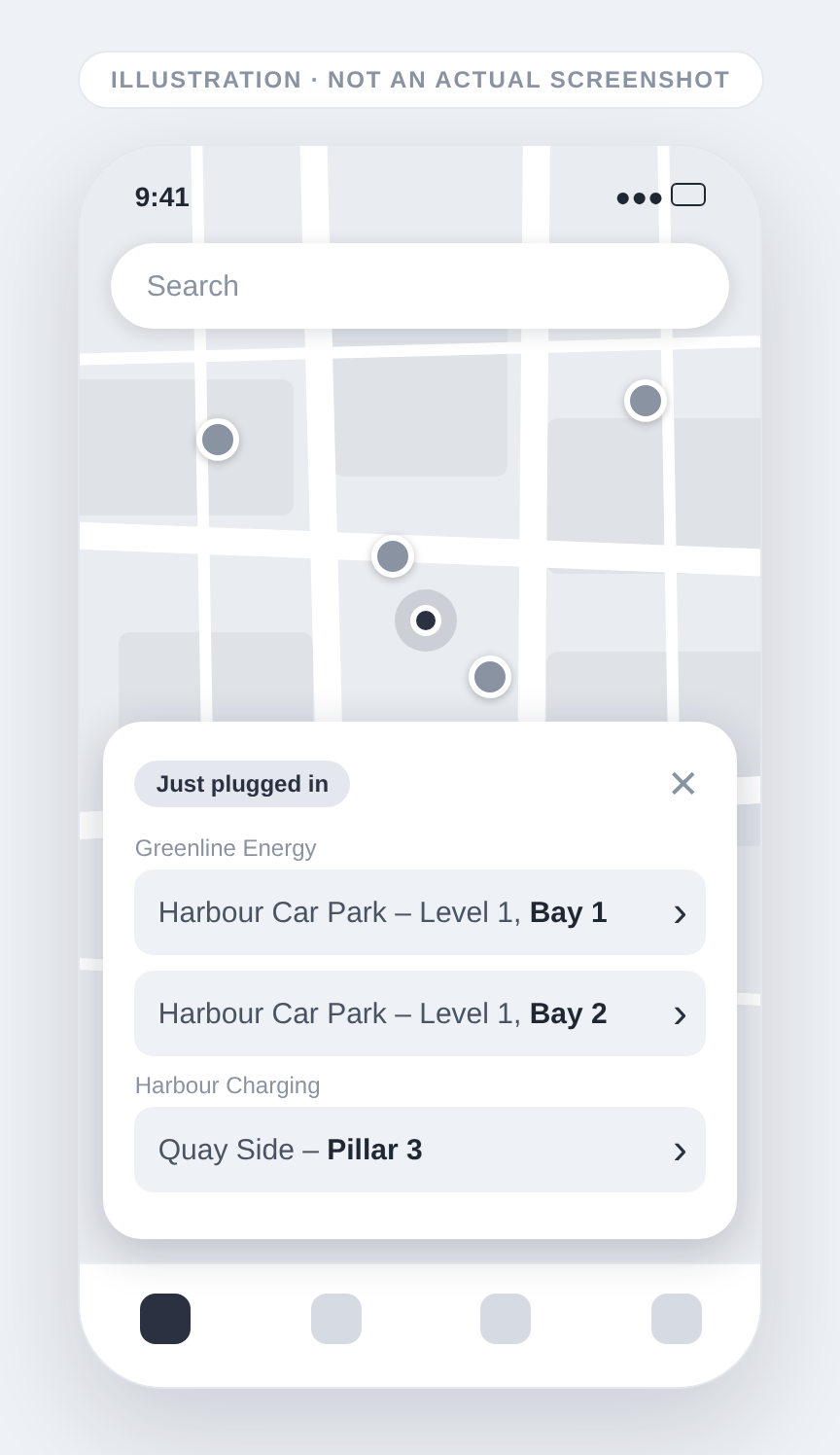
If the card shows more than one charge point
The card can list up to 3 charge points, grouped by operator. This happens when several people plugged in close to each other at the same time. Select the name of the charge point you plugged into.
Dismiss the card
Select the close button on the card. The app then opens the nearby charging sites list that your tap would have opened. You can also start a charge from the charge point's page or by scanning its QR code.
When a charge point appears as a suggestion
A charge point appears on the card only when all of these are true:
- It is public and shown on the map.
- It is available.
- It reports a plugged-in cable, and the cable connected within the last 30 seconds.
- It is within 75 metres of your position.
If you wait longer than 30 seconds after you plug in, the card does not show. Start the charge from the charge point's page or with its QR code instead.
If you don't see the card
- Check that the Monta app has access to your location.
- Check that you are within 75 metres of the charge point.
- Check that the charge point is public. Private charge points do not appear as suggestions.
- Start suggestions are not available yet.