
Hand an account, EVSEs or locations over to another operator with a migration request in the Helpdesk, and accept, schedule or follow the move.
For: Operator users in Monta Hub
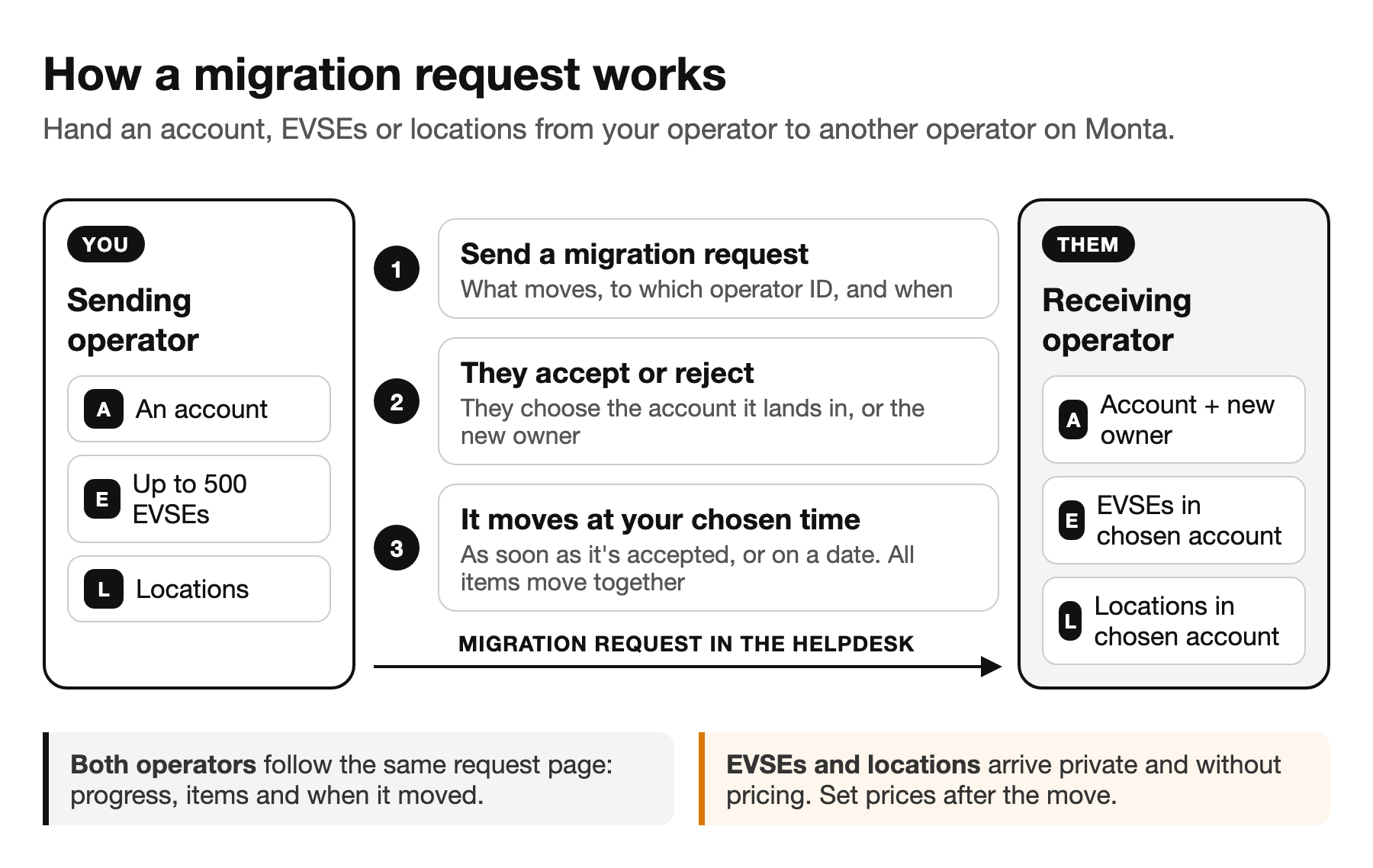
When a customer, charging stations or sites need to move from your operator to another operator on Monta, you can hand them over with a migration request in the Helpdesk. The other operator accepts and chooses where the items land, you choose when the move happens, and Monta Hub carries out the move for you. Both operators can follow every step on the same page.
Note: Migration requests are being rolled out. If you don't see Migration request when you create a new ticket, it isn't available for your operator yet.
How it works
- You send a migration request from the Helpdesk: what moves, to which operator, and when.
- The receiving operator is told. The request appears in their Helpdesk inbox, and their admins get a message in Monta Hub and by email.
- They accept or reject it. When they accept, they choose which of their accounts the charging stations or sites move into, or who owns the account after the move. If they reject it, they tell you why.
- The move happens at the time you chose: as soon as it's accepted, or on a date you picked.
- You are told when it's done. Both operators can follow the request's progress until then.
Before you start
- What you can move: one account, or up to 500 EVSEs, or locations with up to 500 EVSEs in total. One request moves one kind of item.
- You can only move what your operator holds. To take over something another operator holds, ask them to send the request, or contact Monta through the Helpdesk.
- You need the receiving operator's ID. Monta Hub doesn't list other operators, so ask the receiving operator for their operator ID before you start.
- You need to be able to edit your operator's settings to send, change or withdraw a request. The receiving operator needs the same rights on their side to accept it.
- Moving items between accounts within your own operator doesn't need a migration request.
Send a migration request
- In Monta Hub, select Helpdesk in the sidebar, then New.
- Choose to send it to Monta and select Migration request.
- Under What do you want to move?, select An account, EVSEs or Locations.
- Pick the items. For EVSEs and locations, search and add them to Selected. Each EVSE shows its ID, its location and address, so you can tell stations with the same name apart.
- Enter the Receiving operator ID.
- Under When, keep As soon as it's accepted, or select On a date and pick a date and time up to 90 days ahead. Times are in your account's time zone.
- Optionally add a Background, for example "The customer has changed operator". The receiving operator sees it.
- Select Send.
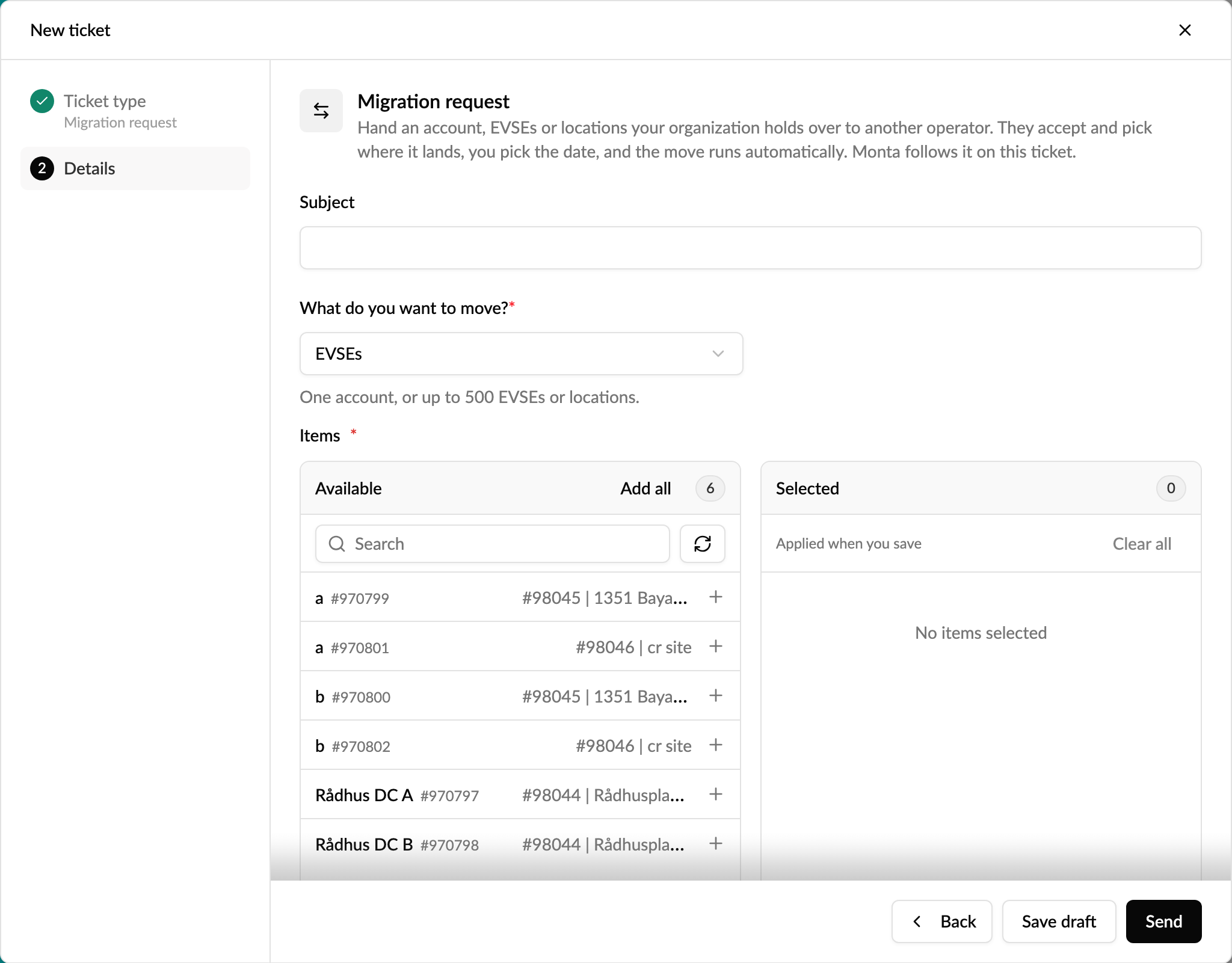
The request now appears under Sent in your Helpdesk, and Monta can follow it too.
Accept or reject a request
When another operator sends you a request, it appears in your Helpdesk Inbox as a ticket from Monta. Your admins also get a message in Monta Hub and an email.
- Open the ticket and select Open migration request. The page shows what moves, from which operator, when it's due to move, the background they gave, and when the request expires.
- To accept:
- EVSEs or locations: under Lands in account, choose which of your accounts they move into. You can search for a personal account by its owner's name.
- An account: under New owner, choose the person who will own the account. This must be an active member of your own operator.
- Select Accept. If the move is due, it happens straight away.
- To refuse, select Reject and give a reason. The sending operator sees your reason.
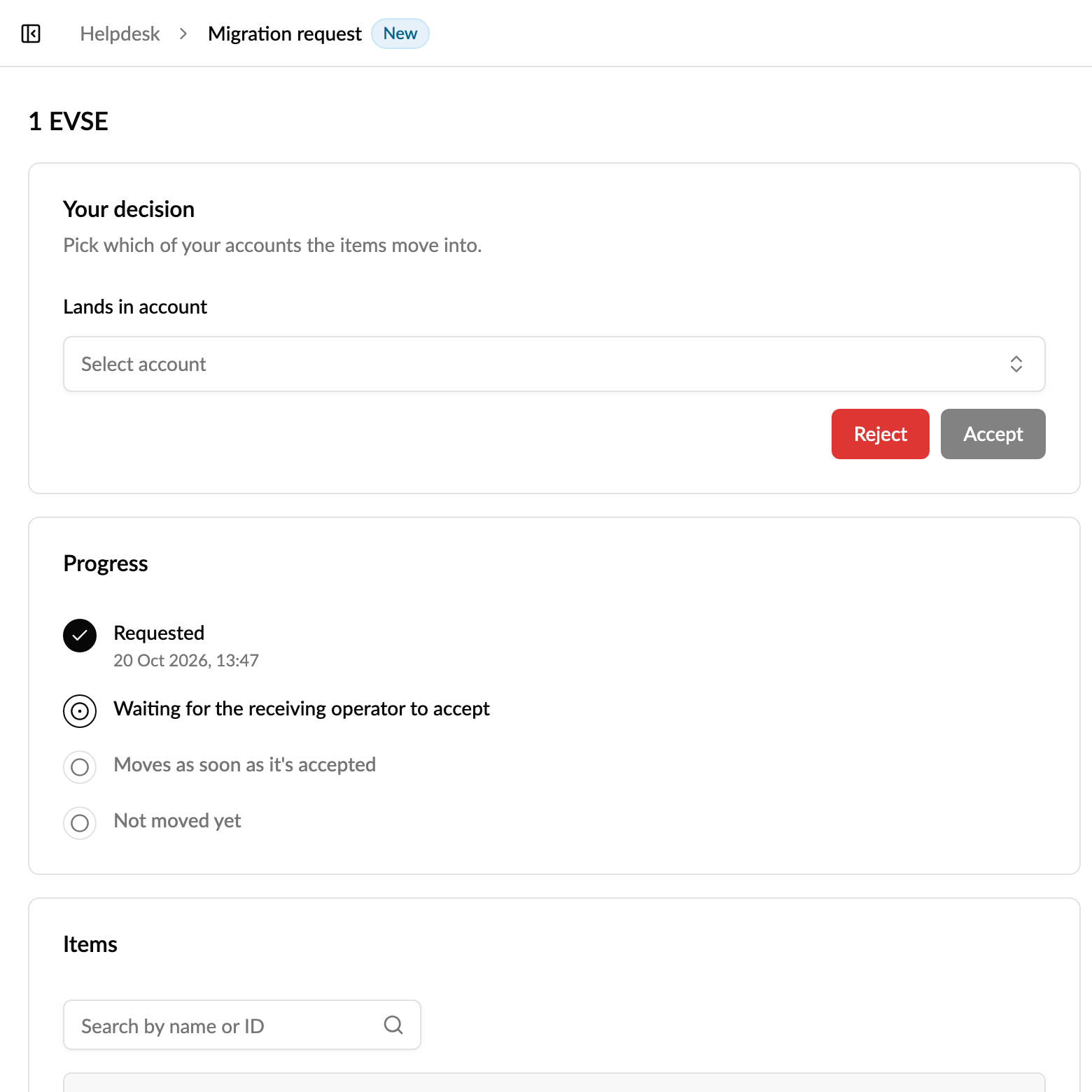
A request you don't answer within 14 days expires, and the sender has to raise it again.
Change the time or withdraw
Until the move has happened, the sending operator can open the request and:
- Change the time, before or after it's accepted. Once it's accepted, you can also choose Right away.
- Withdraw the request. Nothing moves, and the receiving operator can no longer accept it. To move the items later, send a new request.
The receiving operator can't choose a different time. If the time doesn't suit them, they can reject the request and ask you to send a new one.
What moves, and what to check afterwards
Everything in a request moves together: either all items move, or none do. Past charging sessions, invoices and payouts stay with the operator they were made under.
Moving an account
The account moves to the receiving operator, owned by the person they chose. Almost everything stays attached to it:
- Members and their roles, and member groups
- Charge keys
- The account wallet and its balance
- The account's own price groups
- Its charging stations, with their pricing and visibility
- Sponsored and reimbursed charging stations
- Nested accounts and parent accounts
Subscriptions are cancelled. Subscriptions billed by the operator the account leaves end when the account moves. They end straight away, and the rest of a paid period isn't refunded. Subscriptions billed by the receiving operator stay. After the move, the receiving operator sets up the account's subscriptions on their own plans.
Cost centres on the account, its members, vehicles and charge keys are cleared.
Moving EVSEs or locations
Each EVSE moves into the account the receiving operator chose. Its price groups and schedule are cleared, it's set to private, any payment terminal is unlinked, and members' access to it is removed. When you move a location, all its EVSEs move with it and are handled the same way.
Check these after the move
If you received the items, go through them straight after the move:
- Subscriptions: put the account on the right plan with your operator.
- Pricing and access: set price groups and access on moved EVSEs and locations, so drivers can charge again. For a moved account, check the price groups its members charge with.
- Sponsored and reimbursed charging stations: check that sponsorships and home charging reimbursements still match how you want to run them.
- Members and member groups: check roles, wallet permissions and where members can pay.
- Nested and parent accounts: links to accounts that stayed with the other operator are kept. Decide whether they should stay.
- Charge keys: check their restrictions still fit.
- Cost centres: set them up again if you use them.
Some accounts can't be moved, for example a personal account, your operator's own account, or an account with an active subscription billed by an operator that is neither the sending nor the receiving operator. If a move can't go ahead, the request page says it was blocked. Contact Monta through the Helpdesk to find out why, then choose a new time.
Follow a request
Both operators see the same request page. Nobody else can open it. It shows:
- Progress: requested, accepted (or how it ended), when it moves, and when it moved, each with its time.
- Items: everything in the request, with IDs and links.
- Request details: from, to, where it lands, the new owner and the background.
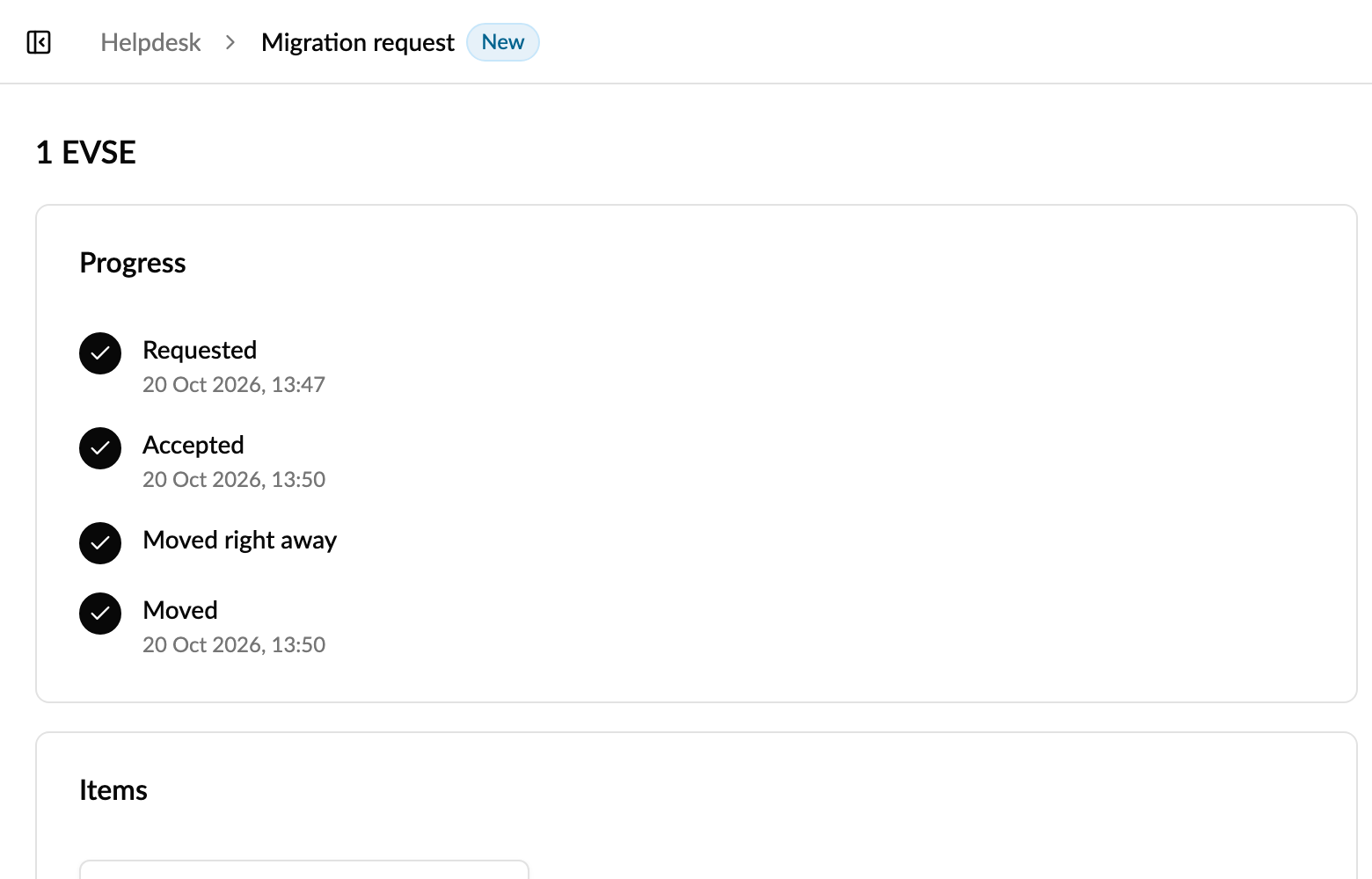
Each operator also has a ticket for the request: the sender under Sent, the receiver in the Inbox. These tickets update on their own and close when the request ends.
| Status | What it means |
|---|---|
| Awaiting operator approval | Waiting for the receiving operator to accept or reject. |
| Accepted | Accepted. It moves at the chosen time. |
| Moved | The items now belong to the receiving operator. |
| Rejected | The receiving operator refused it. Their reason is on the request page. |
| Expired | Nobody decided within 14 days. |
| Withdrawn | The sending operator withdrew it. |
| Cancelled | Monta cancelled it. |
Frequently asked questions
Who is told when the move has happened?
The person who sent the request gets a message in Monta Hub and by email. For moved EVSEs, the receiving account's admins are also told. The request page and both tickets show Moved for everyone.
Can we move a whole sub-operator?
No. Migration requests move accounts, EVSEs and locations. Contact Monta through the Helpdesk about moving a sub-operator.
The new owner list is empty. What do I do?
The new owner must be an active member of the receiving operator itself. Invite the person to your operator first, then accept the request.
Is anything moved before the receiving operator accepts?
No. Nothing moves until the request is accepted and its time has come.