
Save a list's filters, sort and columns as a view, switch to it in one click, and share it with everyone in your operator.
For: Operator users who work in the lists in Monta Hub, such as EVSEs, charging sessions, accounts or charge keys. Saved views are part of the operator view of Monta Hub; account owners and account admins working in their own account don't see the Views button.
A saved view stores how you've set up a list: its filters, search, sort, rows per page, the tab you're on, and which columns show in which order and width. Pick the view later and the list goes straight back to that set-up. Keep a view to yourself, or share it with everyone in your operator so the whole team works from the same list.
How do I save a view?
- Open a list and set it up the way you want: add filters, search, sort, change rows per page, and show, hide or move columns.
- Click Views in the toolbar, next to the search box.
- Click Save as new view.
- Enter a name. To let everyone in your operator use it, turn on Share with everyone in this operator.
- Click Save view.
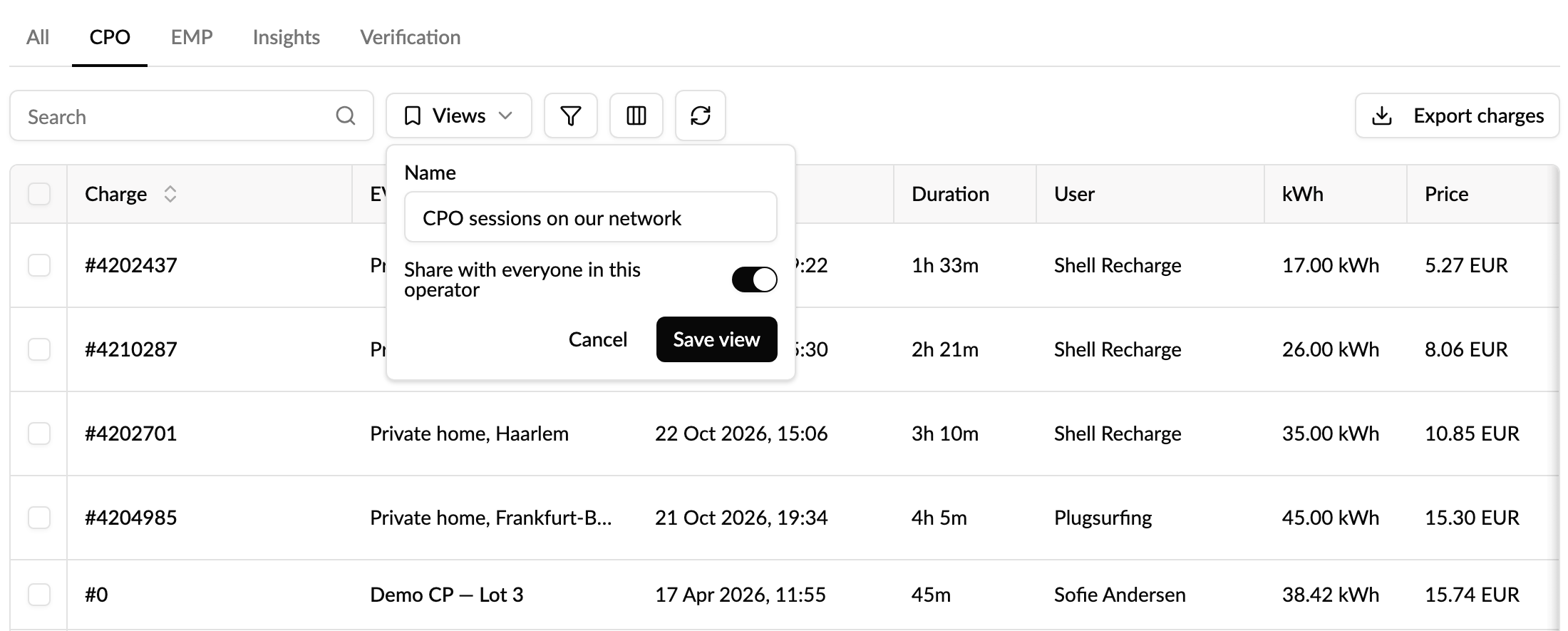
The Views button now shows the name of your view.
How do I use a saved view?
Click Views and pick a view by name. Views shared with your operator have a people icon. The list switches to the view's filters, sort, columns and so on, and the page address changes with it, so you can still copy the link and send it to a colleague.
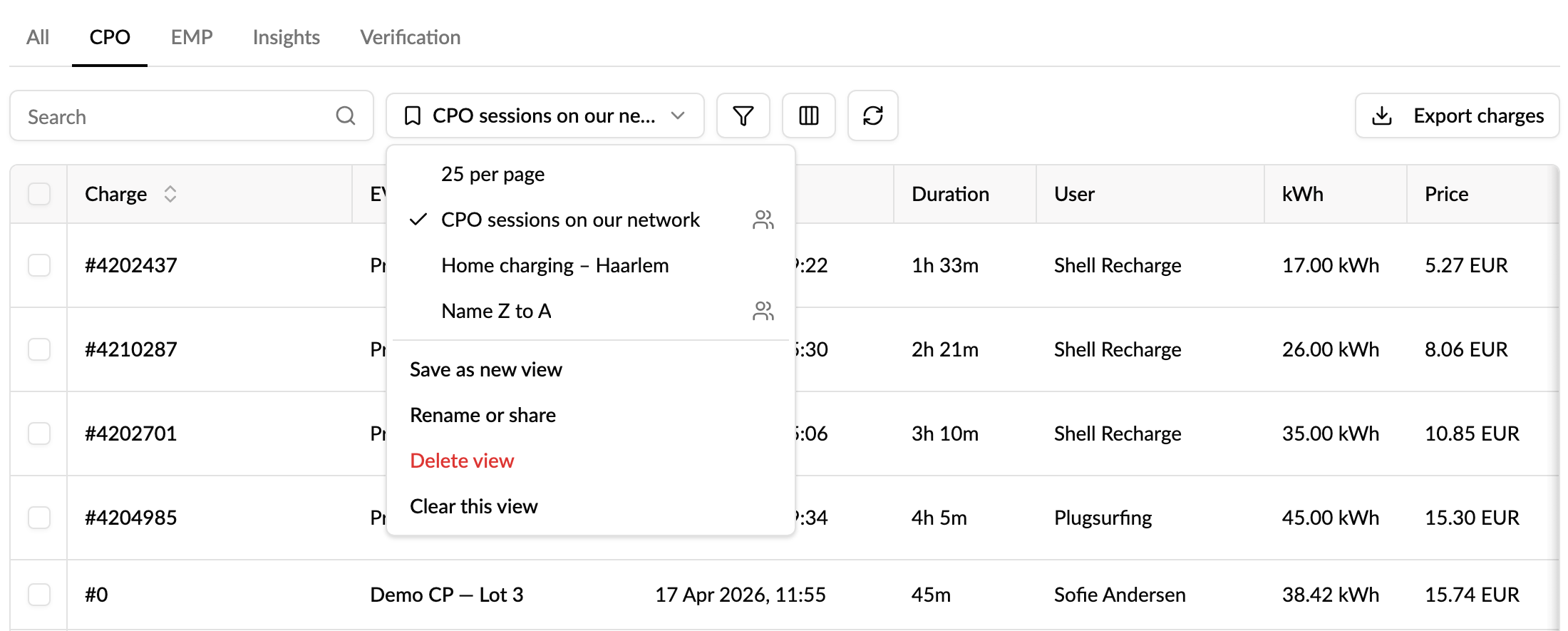
The view stays chosen while you work in that browser tab, also if you reload the page or go to another page and come back. A new browser tab starts without a view.
To stop using the view, click Views → Clear this view. The list stays as it is.
How do I change a saved view?
When you change the list after picking a view, for example add a filter, sort differently or hide a column, a dot appears on the Views button. Column widths don't count as a change. Click Views to choose what to do:
- Save changes: update the view with what's on screen.
- Revert changes: put the list back the way the view has it.
- Save as new view: keep the original and save your changes as a new view.
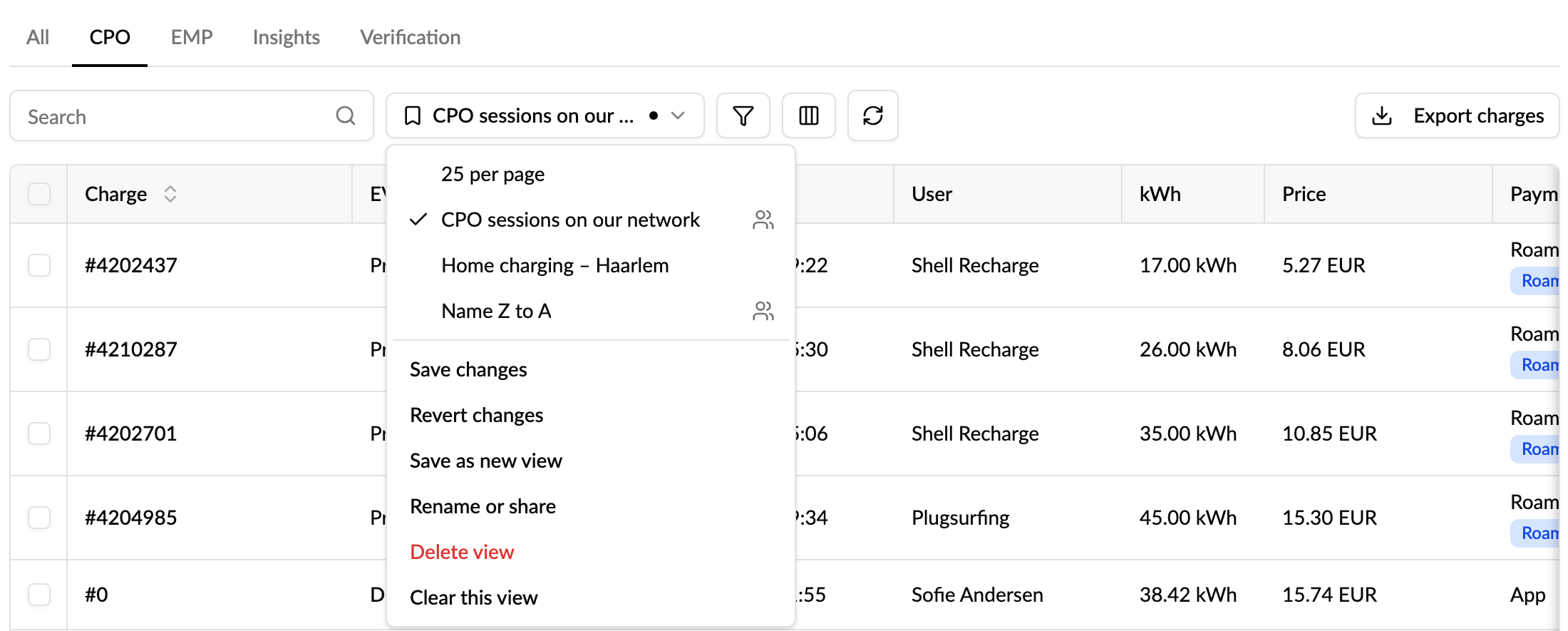
To rename a view or change whether it's shared, click Views → Rename or share. To remove it, click Delete view. Deleting a shared view removes it for everyone.
Who can see and change a view?
- A private view is only visible to you, and only you can change it.
- A shared view is visible to everyone in your operator. The person who made it, and the operator's admins and managers, can rename, share or unshare, save changes to and delete it. Everyone else can use it, or save their own copy with Save as new view.
- Views belong to one operator. If you switch operator, you see that operator's views.
- Only members of the operator can use saved views. Account owners and account admins don't have them.
Which lists have saved views?
- Network: EVSEs, Locations, Installer jobs, Firmware updates (charging stations), Deep links, Payment terminals.
- Operations: Charging sessions, Alerts, Alert monitoring (alerts and issues), Lists, Change requests, Charge ratings.
- Energy: Energy sites, Homes.
- Customers: Accounts, Users, Charge keys, Vehicles, Reimbursements.
- Money: Subscriptions, Plans, Price groups, Spending limits, Invoices, Shop orders.
- Other: Audit log, EMP network (EVSEs and locations), Bilateral agreements.
Each list has its own views. A view saved on Charging sessions only shows on Charging sessions.
Lists inside an account's or a user's page, such as an account's members or a user's charge keys, don't have saved views, because one view would apply to every account. Use the main list instead, for example Charge keys rather than an account's charge keys tab.
Good to know
- You can have up to 50 views of your own per list.
- If a list no longer has a filter that a view uses, that filter is skipped when you pick the view.
- If views can't be loaded, the Views button is hidden and the list works as normal.
- Monta Hub can't open a view by default for everyone yet. Each person picks the view they want.