
Build your own sidebar menus for Monta Hub and choose which menu each operator and sub-operator uses.
For: Operator admins in Monta Hub, and admins of a parent operator who manage sub-operators.
A sidebar menu is a shorter version of the Monta Hub sidebar that shows only the pages a team needs, optionally under names your team knows. For example, a fleet operator that never uses the charge point pages, or a finance sub-operator that only works with invoices. You build sidebar menus once, give each a name such as "Finance team" or "Network crew", and pick one for your operator, for each of your sub-operators, and if you like for each role.
A sidebar menu only hides pages; it doesn't change what anyone has access to. People see a page in the menu only if they already have access to it, and a hidden page still opens from a link, a bookmark or search.
How do I build a sidebar menu?
Sidebar menus are built by the top-level operator. Sub-operators pick from their parent's menus but can't build their own.
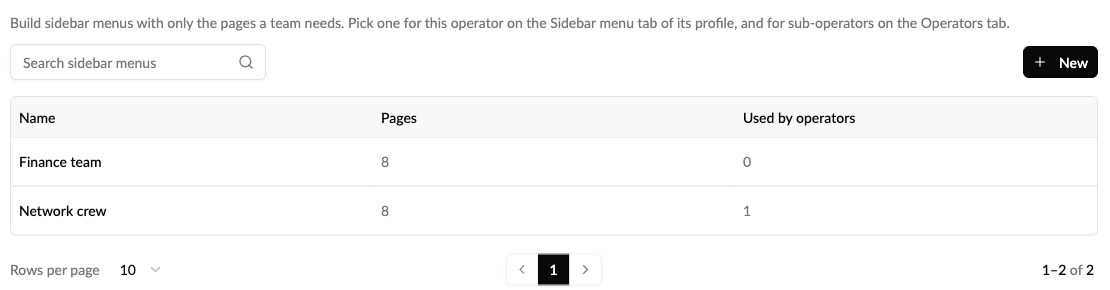
- Go to Admin → Settings and open the Sidebar menu tab, then select Manage sidebar menus. The Sidebar menus page lists your menus, how many pages each shows and how many operators use it.
- Select New.
- Enter a Name.
- Under Pages, tick the pages to show. Pages are grouped the way the sidebar groups them (Home, Accounts, CPO / Network, EMP / Fleet, Operations, Pricing & Growth, Finance, Analytics, Admin, Shop). Tick a group to show all its pages, or open it and tick single pages. Use the search to find a page by name.
- Check the Preview on the right: it shows the sidebar the menu gives.
- Select Save.
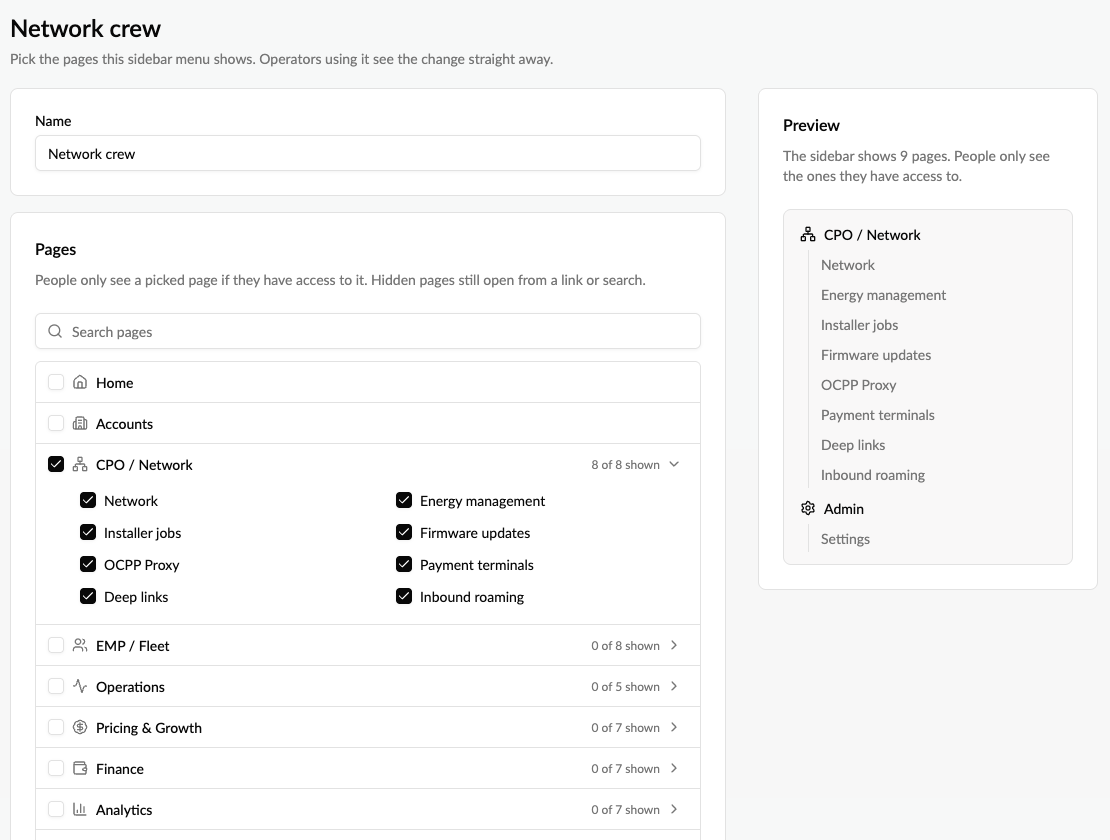
Settings is always included, so admins can always get back to the Sidebar menu tab. The breadcrumb at the top (Operator profile › Sidebar menu › Sidebar menus) takes you back to the tab where you pick a menu, and the ? next to the page title explains how sidebar menus work.
Can I rename the pages in a sidebar menu?
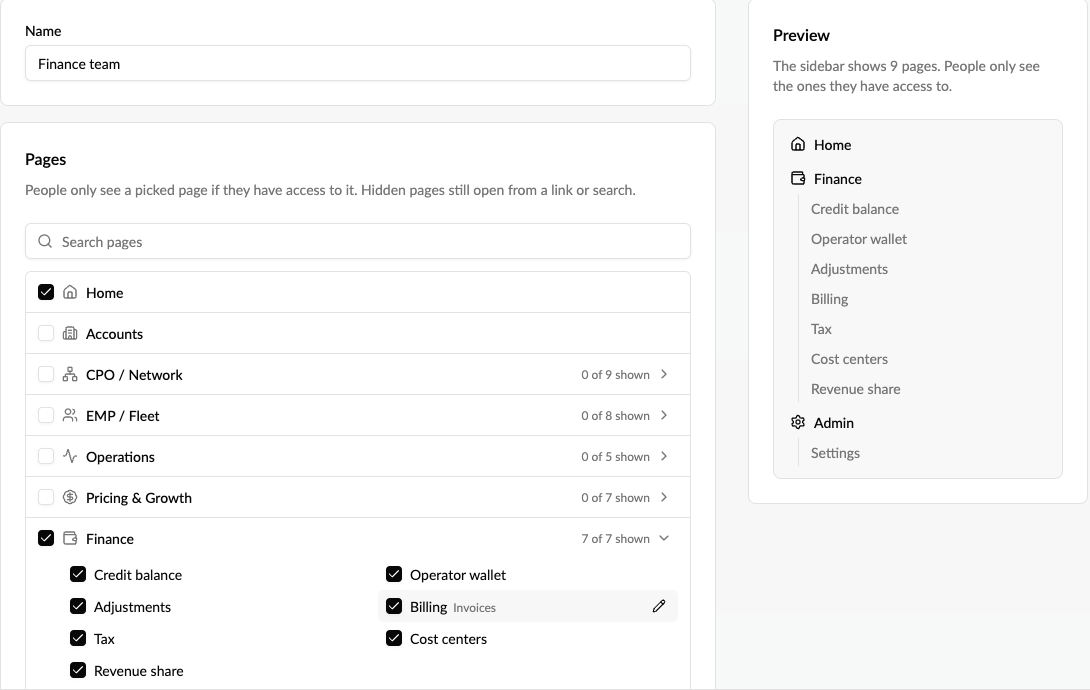
Yes. A sidebar menu can show a page under another name, for example Billing instead of Invoices, or Start instead of Home.
- Open the sidebar menu and tick the page.
- Hover over the page, select the pencil and type the new name (up to 60 characters). Press Enter to keep it, or Escape to cancel.
- Select Save.
The page list shows the new name with the page's own name beside it, and the preview and the sidebar use the new name. Leave the field empty to go back to the page's own name. Unticking a page removes its custom name. The name belongs to the sidebar menu, so every operator and role using it sees it. Group headings such as CPO / Network or Finance, and Settings, keep their names. The page search finds pages by their own names.
How do I pick the sidebar menu for my operator?
- Go to Admin → Settings and open the Sidebar menu tab.
- Choose Standard menu or one of your sidebar menus. Menus built by your parent operator are marked From parent operator.
- Save. The sidebar changes straight away for everyone at the operator.
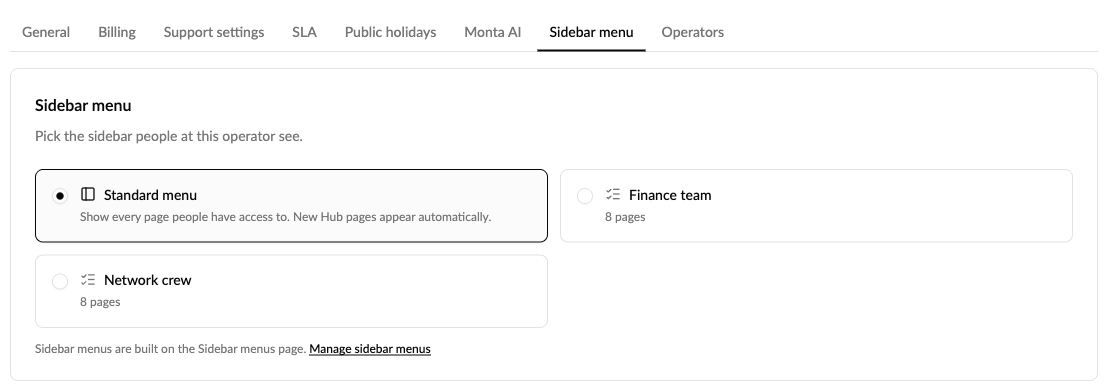
- Standard menu shows every page people have access to. New Monta Hub pages appear automatically.
- A sidebar menu shows only its pages. New Monta Hub pages stay hidden until you add them to the menu.
Can each role get its own sidebar menu?
Yes. Under By role on the Sidebar menu tab, pick a sidebar menu for each operator role: Admin, Operations manager, Support agent, Supporter light and Bookkeeper. For example, bookkeepers see only the finance pages while admins keep everything. The change is saved as soon as you pick.
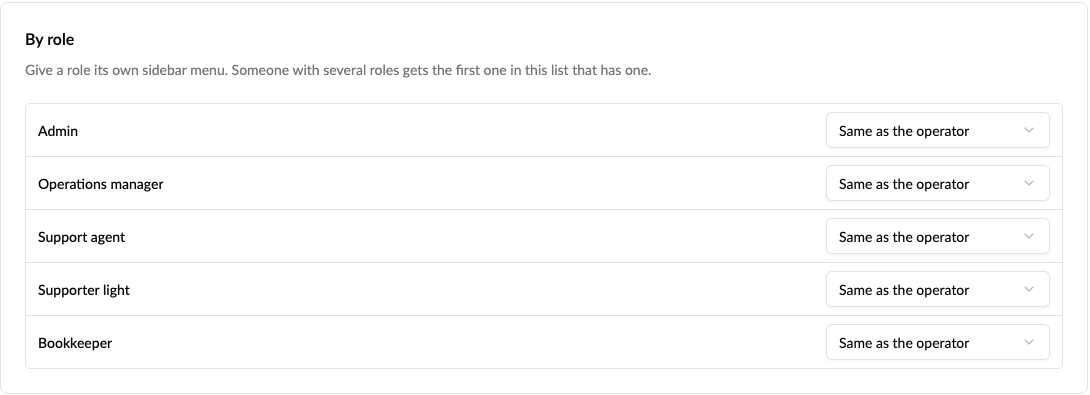
- Same as the operator means people with that role get the operator's sidebar menu.
- Someone with several roles gets the menu of the first role in the list that has one. People without a role at the operator get the operator's menu.
- A role keeps its menu even when the operator itself is on the standard menu.
- If a menu used for a role is deleted, that role goes back to the operator's menu.
- For a sub-operator, set role menus on the sub-operator's own Sidebar menu tab.
How do I pick a sidebar menu for a sub-operator?
- Go to Admin → Settings and open the Operators tab.
- On the sub-operator's row, open the ⋯ menu and select Edit sidebar menu.
- Choose a menu and select Save. You don't need to switch into the sub-operator.
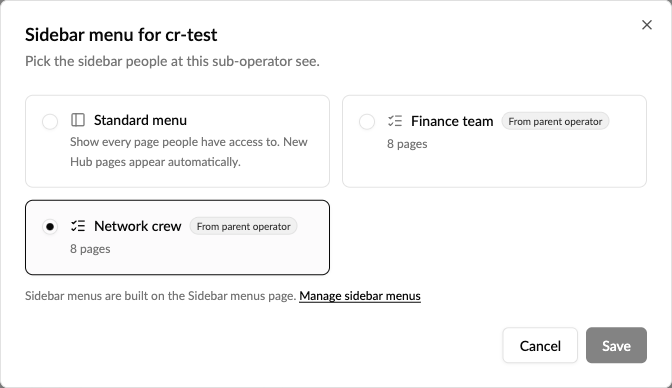
Each sub-operator starts on the standard sidebar. It doesn't follow its parent's pick, so pick a menu for each sub-operator that needs one.
How do I see the full sidebar as an admin?
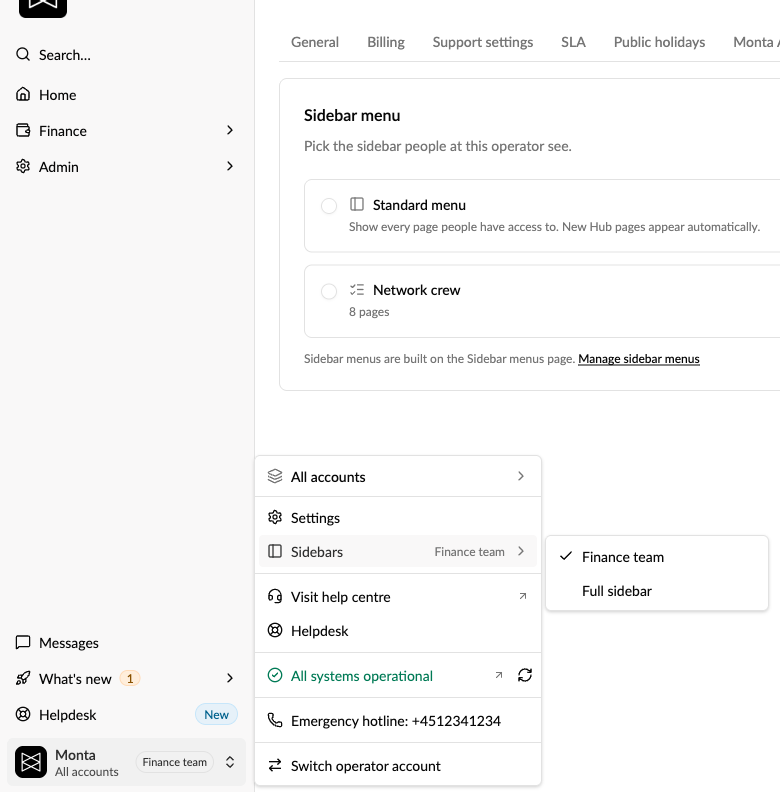
When a sidebar menu is active, admins see its name next to the operator name at the bottom of the sidebar. To see every page without changing the operator's menu:
- Select the operator at the bottom of the sidebar.
- Open Sidebars and choose Full sidebar.
This only changes your own view. Monta Hub remembers it, also in other browsers, until the operator picks a different menu. Choose the menu again to go back. Members who aren't admins always see the operator's sidebar menu.
How do I change or delete a sidebar menu?
- Edit: open the menu on the Sidebar menus page, change the pages and save. Every operator using it gets the change straight away.
- Delete: Monta Hub tells you how many operators use the menu before you confirm. Those operators go back to the standard sidebar, and roles using it go back to the operator's menu.
- Delete a sub-operator: its menu choices are released, so it no longer counts as using a menu.
Good to know
- A sidebar menu applies to everyone at the operator, or to everyone with a role if you set one under By role. There are no menus per person.
- You can rename pages, but not group headings. You can't reorder entries or add your own links.
- Messages, What's new and Helpdesk at the bottom of the sidebar always show.
- The sidebar that account members see in their account view isn't affected.
- Building and editing menus needs permission to manage the operator.