
Preview app onboarding with test mode in Hub
Turn on test mode for an account to see its app onboarding again on every app launch, so you can check your setup without inviting members again.
Updated 3 November 2026
This article is for operators who set up app onboarding for an account in Hub. You will turn on test mode, check your onboarding in the Monta app, and turn test mode off again.
Test mode is a testing aid. Without it, a member sees onboarding once and it does not return. With test mode on, you can check changes without inviting and removing members.
Before you start
- App onboarding is set up for the account, in the App onboarding tab of the account's settings.
- You are a member of the account, and you have the Monta app on your phone.
- You can see the Test mode card. If you don't see the Test mode card, test mode may not be available to your operator yet.
Turn on test mode
-
In Hub, select Accounts and open the account you want to test.
-
Select the Settings tab, then the App onboarding tab.
-
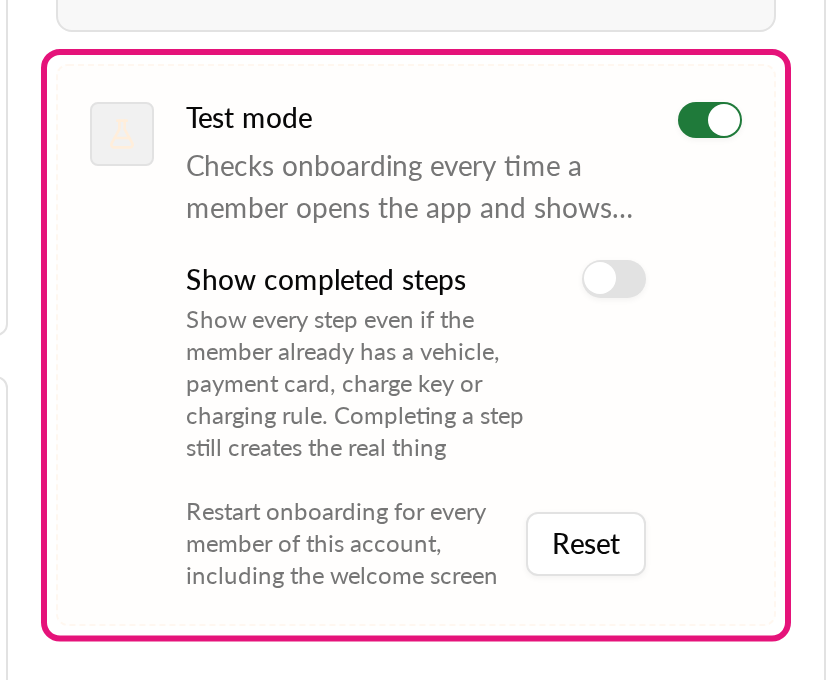
Find the Test mode card and turn on its switch.
-
Open the Monta app with a member of this account.
Onboarding appears when you open the app. Test mode applies to the whole account, not to one member.
What happens on each app launch
With test mode on, the app checks onboarding every time a member opens it. It shows any step the member has not done yet.
A member who finishes onboarding reaches the app as normal. Onboarding appears again the next time they open the app. A member who is part way through onboarding keeps the step they are on. On the next launch, every step their account data does not yet satisfy is offered again, including steps they skipped.
If a member belongs to more than one account, onboarding goes through their accounts one at a time, starting with their default account. To test one account in isolation, use a member who belongs only to that account.
Show steps that are already done
By default, the app skips a step the member has already completed. To see every step anyway:
- Turn on test mode.
- In the Test mode card, turn on Show completed steps.
The app then shows each step, even if the member already has a vehicle, payment card, charging key or charging rule. Completing a step still creates the real item, so use a test member.
Restart onboarding for all members
Use Reset to start onboarding from the beginning, including the welcome screen.
- With test mode on, select Reset in the Test mode card.
- In the Reset onboarding for all members? dialog, select Reset onboarding.
Hub shows "Onboarding restarted. Members see it the next time they open the app." Every accepted member of the account gets their steps rebuilt from the current setup.
Turn off test mode
Turn off the Test mode switch when you finish testing. While it is on, members of the account see onboarding on every app launch.
Check the welcome screen preview
The welcome text editor in Hub shows a phone-shaped preview of the welcome screen. The button in the preview reads Continue for every welcome state and welcome type, the same as in the app.