
Compare EVSE settings side by side in Hub
Compare the settings and OCPP configuration of up to 8 EVSEs on one charging station or location, and align the ones that differ.
Updated 16 November 2026
For: Operators using Monta Hub.
Use configuration compare to find the EVSE that is set up differently from the others on a charging station or at a location. You see the settings Monta keeps for each EVSE and the Open Charge Point Protocol (OCPP) configuration its charger reports. You can then align the settings that differ.
Open the compare page
-
Open Monta Hub and select Network in the sidebar.
-
Open the charging station or the location you want to check.
-
Select Compare in the top right of the page.

The Configuration comparison page opens with two tabs: General and OCPP.
Choose the EVSEs
One picker above both tabs sets which EVSEs you compare, so both tabs show the same columns.
- Select Choose EVSEs.
- Search for an EVSE with Search EVSEs and select the ones you want.
You can compare up to 8 EVSEs at a time. When more are available, the page first shows the ones that differ. Remove one to make room for another. The page keeps your choice, the open tab and any open edit dialog in the address, so you can share the link.
Compare settings on the General tab
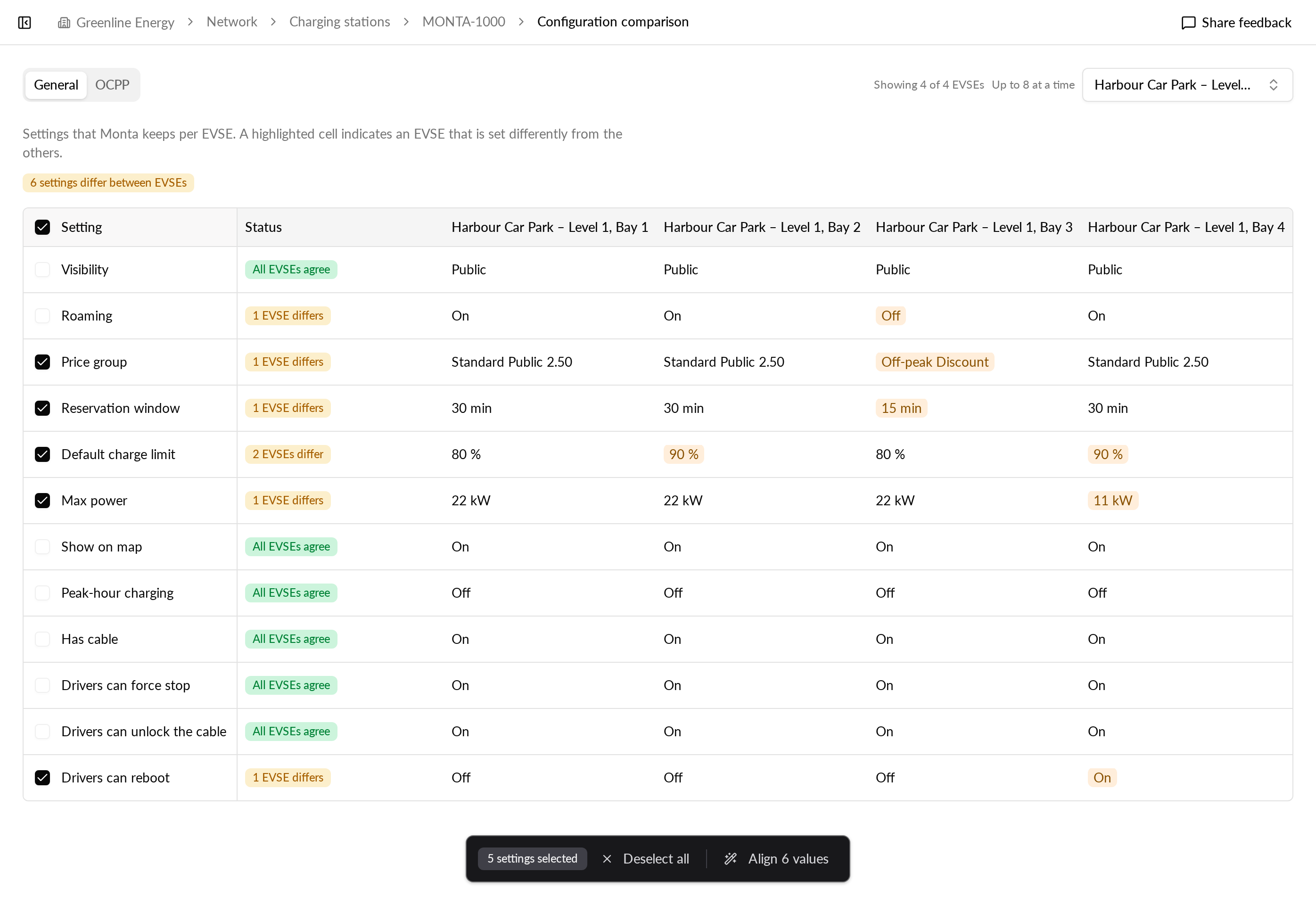
The General tab has one row per setting and one column per EVSE. It covers Visibility, Roaming, Price group, Reservation window, Default charge limit, Max power, Show on map, Peak-hour charging, Has cable, Drivers can force stop, Drivers can unlock the cable and Drivers can reboot.
A highlighted cell means that EVSE is set differently from most of the compared EVSEs. The page also shows how many EVSEs and settings differ.
Align settings that differ
- Tick the rows you want to align, or select every setting the EVSEs disagree on.
- Select Align (the button shows how many values it changes).
- In the Review alignment dialog, check each change. Nothing is written until you apply.
- Select Apply to save.
Every EVSE that differs moves to the value most EVSEs have.
Change one setting for chosen EVSEs
- Select Edit on a setting row.
- Under New value, pick a value.
- Under Apply to, choose the EVSEs to change, or select Apply to every EVSE.
- Check the table: Now shows each current value, Becomes the new one. EVSEs that stay the same read No change.
- Confirm to save.
Changes save to the EVSEs straight away, one EVSE at a time. If a save fails for an EVSE, it keeps its old value and a message tells you how many changes saved.
Roaming is shown but cannot be changed here. Turning roaming on also needs a roaming price group, so change it on the EVSE itself.
Check OCPP configuration
The OCPP tab lists every OCPP configuration key the chargers report, one row per key. Each EVSE is held to the value Monta sets for its own station: the station's override for the key if it has one, otherwise the station's brand profile.
- When all compared EVSEs share one target, a Monta target column shows it and where it comes from, such as Station override or Brand profile.
- When targets differ, for example at a location with different charger brands, each EVSE's target appears under its value.
Each row has a status: Off target, Differs between EVSEs, Matches target or Not managed. Off-target keys come first.
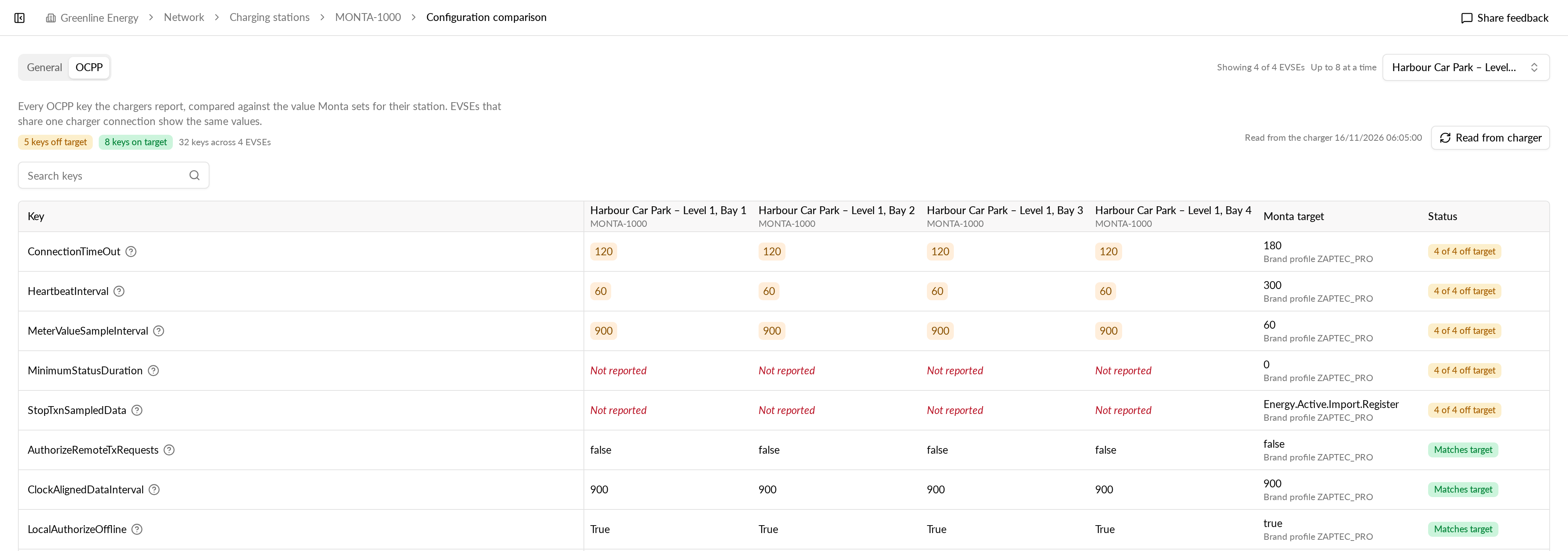
Select Read from charger to ask the connected chargers for their current values. EVSEs on the same charger share one connection, so they show the same values.
You cannot change OCPP keys from this tab. An EVSE whose charger has no OCPP configuration to read is left out, and a note says how many.