
Select EVSEs or locations and change them together in a spreadsheet-style grid: names, price groups, roaming, location, addresses, IDs and more.
For: Operators who manage many EVSEs or locations in Monta Hub.
Bulk edit opens your selected EVSEs or locations in a spreadsheet-style grid. Change any cell, copy a value down a column, fix anything the grid flags, then save every row in one go.
How do I bulk edit EVSEs?
- Go to CPO / Network → Network and open the EVSE tab. To edit the EVSEs of one account only, open Accounts → [account] → EVSE instead.
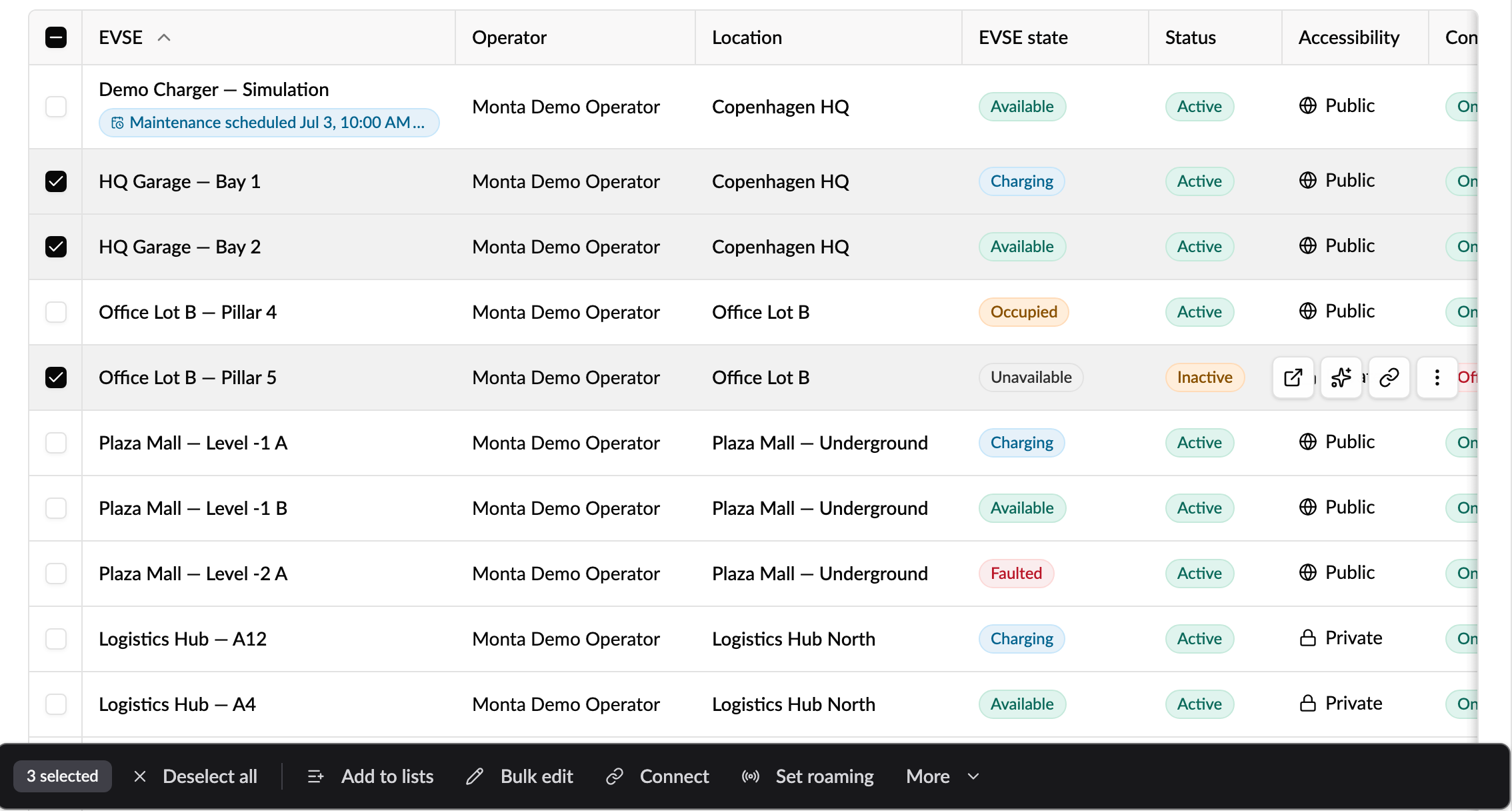
- Tick the EVSEs you want to change. Use filters first to narrow the list, then the checkbox in the header to select every row on the page.
- In the bar at the bottom of the page, click Bulk edit.
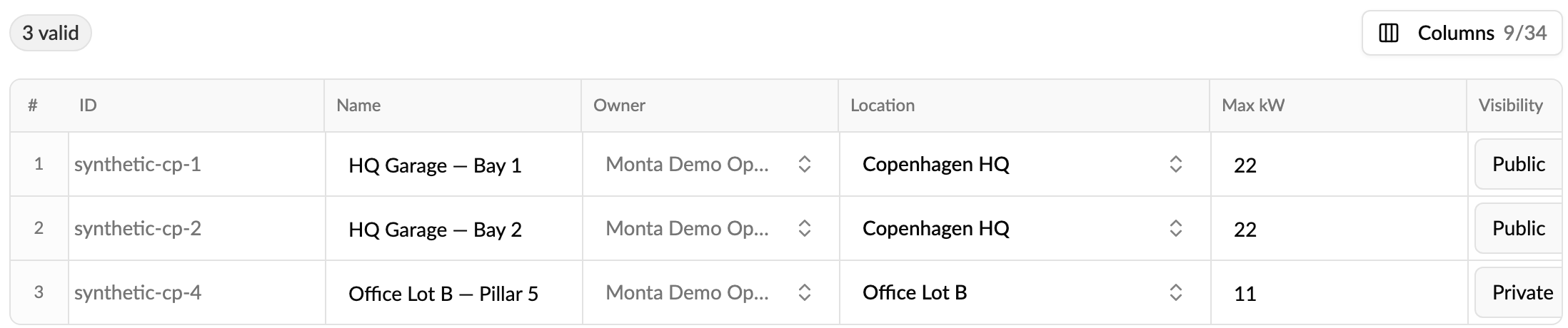
The grid opens with one row per EVSE, showing its current values.
How do I edit in the grid?
- Change a cell: type in a text or number cell, or pick a value from the dropdown. Only the cells you change are saved. Everything else stays as it is.
- Copy a value down a column: click a cell and drag the small handle in its bottom-right corner down over the rows below, like in a spreadsheet.
- Show more fields: click Columns at the top right to add or hide columns. Only the most-used columns are shown at first.
- Leave an EVSE out: remove its row from the batch. This doesn't delete the EVSE.
- Resize a column: drag the edge of its header.
Which EVSE fields can I bulk edit?
- Shown by default: Name, Owner, Location, Max kW, Visibility, Active, Roaming and Public price group.
- Pricing: Cost price group and Roaming price group.
- Charging: Default SoC limit (%), Smart charge, Peak-hour charging, Reservable and Reservation minutes.
- Driver app: Show on map, Public note, Chat enabled, Has cable, and the driver actions Allow user: force stop, unlock cable and reboot.
- Address: Address line 1 and 2, City and Postal code.
- IDs and integration: EVSE ID, OCPP identifier, Connector ID, Meter ID, Partner external ID and Internal note.
When you open bulk edit from an account, the price group columns list that account's price groups. From Network, they list your operator's price groups.
What does the grid check before saving?
Each row is checked as you edit. The counters at the top show how many rows are valid and how many have errors, and a row with an error explains what to fix in the cell itself.
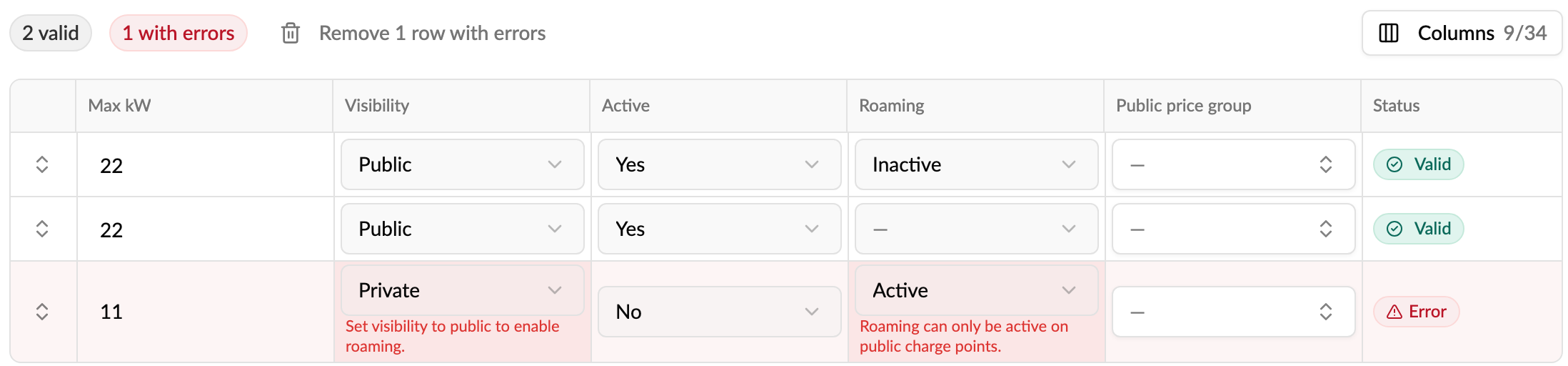
- Roaming can only be active on a public EVSE, and needs a roaming price group. If an EVSE already has roaming on without a roaming price group, its row opens with this error. Pick a roaming price group or turn roaming off.
- Reservable needs a reservation duration in minutes.
- Location: moving an EVSE to another location gives it that location's address, so you can't change the address in the same row. Undo the address edits, or keep the current location.
-
EVSE ID must follow the standard format, for example
DK*MON*E12345. -
OCPP identifier: letters, digits and
. : _ -only, up to 64 characters. - Connector ID: a whole number from 1 to 99.
To save the valid rows and skip the rest, click Remove rows with errors.
How do I save the changes?
- Click Update at the bottom right. The button shows how many rows will be updated.
- If you changed an OCPP identifier, confirm it by typing the number of EVSEs affected. Each charger disconnects until it reconnects under its new identifier.
- Wait while the rows are updated. The results list each row as updated, unchanged or failed, with the reason for any failure.
Changes apply straight away. Rows you didn't change are skipped.
How do I bulk edit locations?
- Go to CPO / Network → Network and open the Locations tab.
- Tick the locations you want to change and click Bulk edit in the bar at the bottom.
- Edit the cells, then click Update.
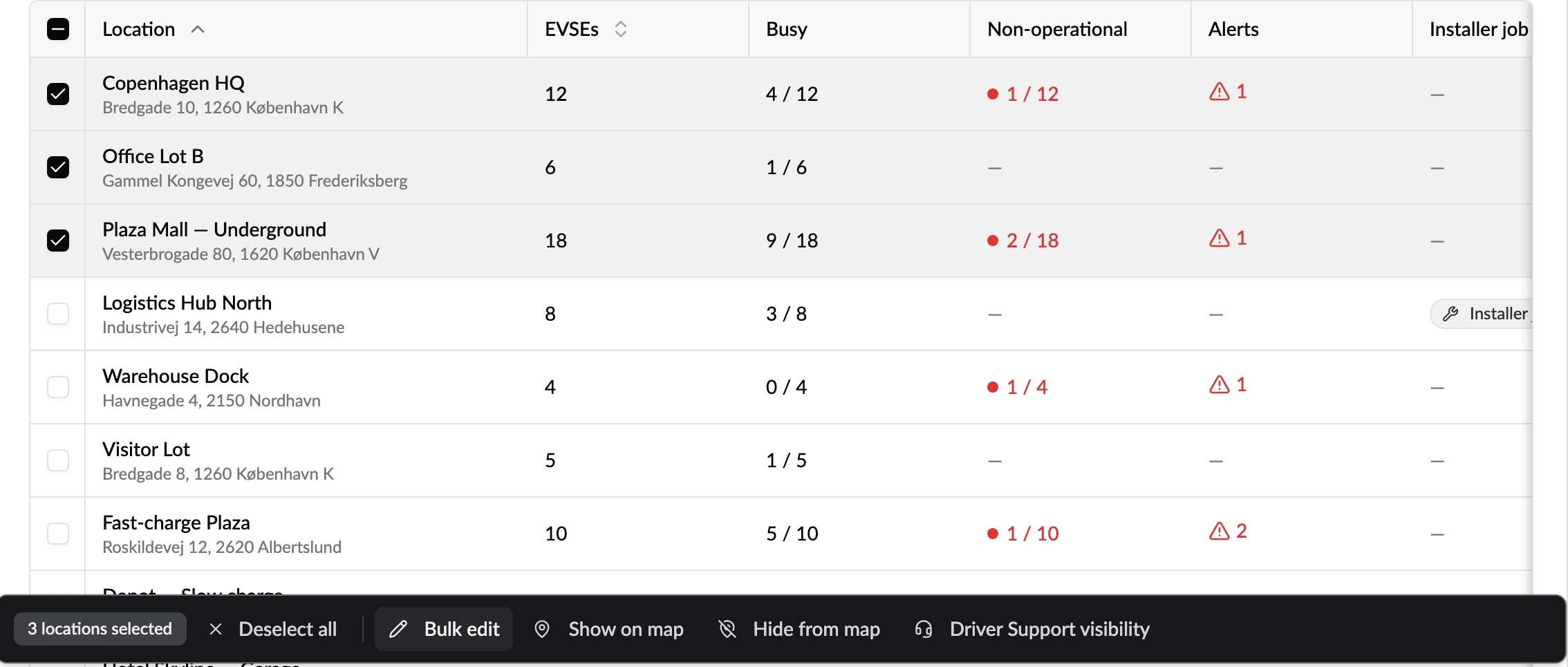
You can change a location's Name, Address (lines 1 to 3), Postal code, City, Show on map and Note to drivers. The same bar also has Show on map, Hide from map and Driver Support visibility for quick changes without opening the grid.
Location bulk edit is only available from Network, not from an account's page.
Good to know
- A bulk edit lives in your current browser tab. If you reload the page much later or open the link elsewhere, you'll see "Bulk edit session expired". Select the EVSEs or locations again and start over.
- You need permission to edit EVSEs or locations to see Bulk edit.
- To give many EVSEs or accounts the same price group, bulk apply is quicker than editing each row.
- For a single EVSE, edit it from its detail page. See How do I configure charge point pricing and access? and How do I set a default charge limit for a charge point?
- Other lists have their own bulk actions: charge keys, vehicles, account features, cost centers, alerts and tax rates. They're described in each feature's article.