
Set the price your drivers pay on partner networks in Hub
Apply a percentage or one of your price groups to partners' tariffs in Hub to set what your drivers pay on partner networks in managed outbound roaming.
Updated 16 November 2026
This article is for operators who resell roaming. Your drivers charge on partner networks, and the partner sets the price. You apply a price adjustment to set what your drivers pay instead. For the other direction, where partners charge at your EVSEs, see Set the price roaming partners pay at your EVSEs in Hub.
Before you start
You need:
- Permission to view and create bilateral agreements in Hub.
- Managed outbound roaming on your operator account.
- If you want to use a price group, at least one price group of your own.
Read the partners' tariffs
- In Hub, open Outbound roaming.
- Make sure Managed Roaming is selected.
- Select the Tariffs tab.
- Select the Received view.
The Received view lists the tariffs your roaming partners publish. You cannot edit them. The Priced by column names the agreements of yours that cover a tariff's partner. A tariff that no agreement covers reads Not priced.
Apply a price adjustment
-
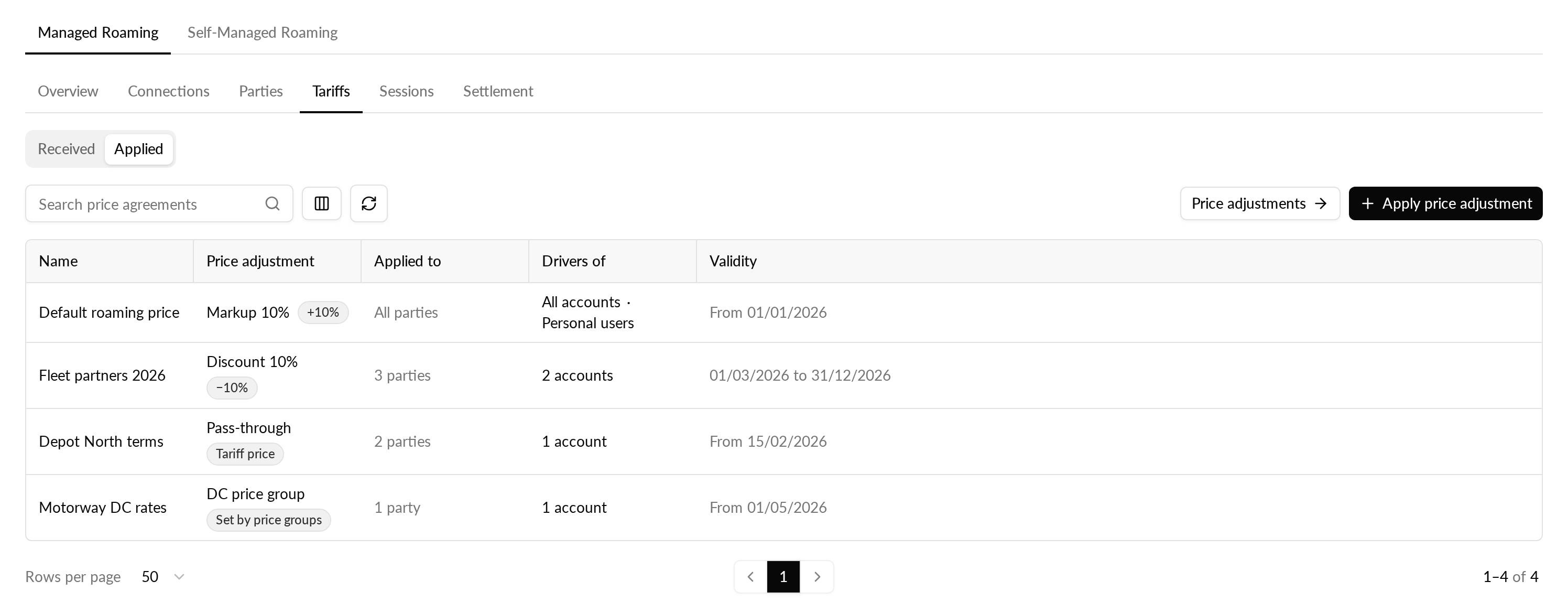
In the Tariffs tab, select the Applied view.
-
Select Apply price adjustment.
-
In Name, enter a name for the agreement.
-
Choose the price (see the next section).
-
Under Validity, enter a start date. The start date cannot be empty. An end date is optional.
-
Select Apply to.
-
In the first step of the dialog, pick the roaming partners the price applies to, or turn on All parties.
-
In the second step, pick the accounts whose drivers pay this price, or turn on All accounts.
-
Turn on Personal drivers to include drivers who charge as individuals instead of through an account. You need at least one account or Personal drivers.
-
Confirm to save the agreement.
When it worked, the agreement appears in the Applied view with its price, the partners and accounts it covers, and its dates.
Choose the price
The price is set from a list. You can choose one of these:
- Use a saved price adjustment: reuse an adjustment you made before.
- Pass-through: your drivers pay what the partner charges.
- Markup %: your drivers pay the partner's price plus a percentage.
- Discount %: your drivers pay the partner's price minus a percentage.
- Price group: the rates of one of your own price groups replace the partner's price.
A percentage changes the whole price: energy, charging time, session fee and idle fee. For a markup, a discount or a price group, the Different value per connector switch decides the split. With it off, one value covers AC and DC. With it on, you enter one value for AC and one for DC.
With Price group, a group in a different currency than the charge point's is skipped at that charge point. Hub warns you about this when you save, and the save still goes through.
Accounts, partners and dates
All parties covers every roaming partner, including ones that connect later. All accounts covers every account you own, including ones added later. When you turn either on, the list for that step is hidden.
When agreements overlap
The newest agreement wins where two agreements cover the same drivers at the same partner. Before you save, the dialog names each older agreement the new one takes over, with the partners and accounts they share. The message is a warning only, and you can still save.
Change or remove an agreement
In the Applied view, select a row to open its edit page. You can change the name, the price and the dates. Select Edit apply to change the partners and accounts. Select Delete and confirm to remove the agreement.