
Add and verify your organisation's email domain, choose a member group, and Monta invites colleagues who already use Monta. You only see counts until someone accepts.
For: Owners and admins of an account in Monta Hub, for example a company, fleet or housing association, and operators who manage accounts for them.
This feature is in early access. If you don't see Email domains on your account, ask your Monta contact.
Add your organisation's email domain, such as acme.com, to an account, and Monta invites everyone who already uses Monta with a verified email address on that domain. Each person gets a normal invitation and only joins if they accept, unless you choose to add them as members directly. You choose the member group they join, so their role and price group are set from the start.
How does it work?
- You add a domain and pick a member group.
- You prove your organisation owns the domain. Until then, nobody is invited.
- Monta invites Monta users with a verified email on that domain, now and whenever someone new signs up or verifies their email.
- They accept or decline, like any account invitation. If the domain adds people directly, they join straight away instead.
To protect people's privacy, you only see counts until someone accepts. You never see who uses Monta at your domain before they choose to join. The exception is a domain that adds people directly: they become members straight away, so you see them by name in the member list.
How do I add a domain?
- Open the account and go to Members & access → Email domains.
- Click New.
- Enter the Domain, for example
acme.com. If you type an email address orwww.acme.com, Monta Hub uses just the domain. - Pick the Member group new people join. The group sets the role and price group shown on the invitation.
- Click Add domain. The verification window opens.
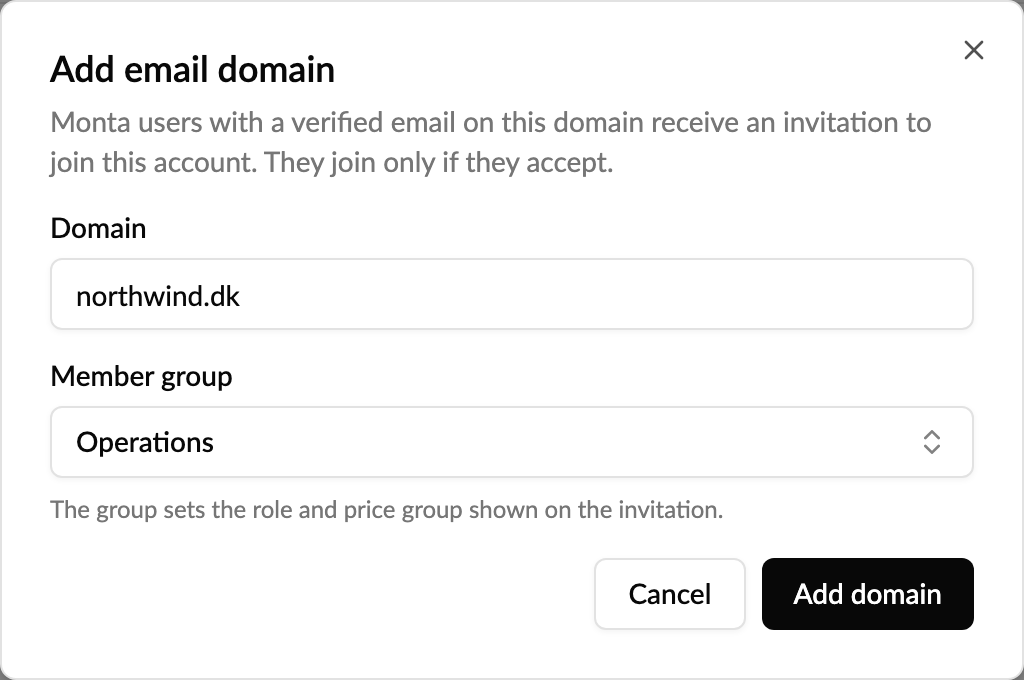
Some domains can't be added: public email providers such as gmail.com or outlook.com, addresses that look like them, and domains another account has already verified. Matching is exact, so acme.com doesn't include sales.acme.com; add each domain you use.
How do I verify the domain?
Use either option in the Verify window. You can close it and come back later: select Verify on the domain's row.
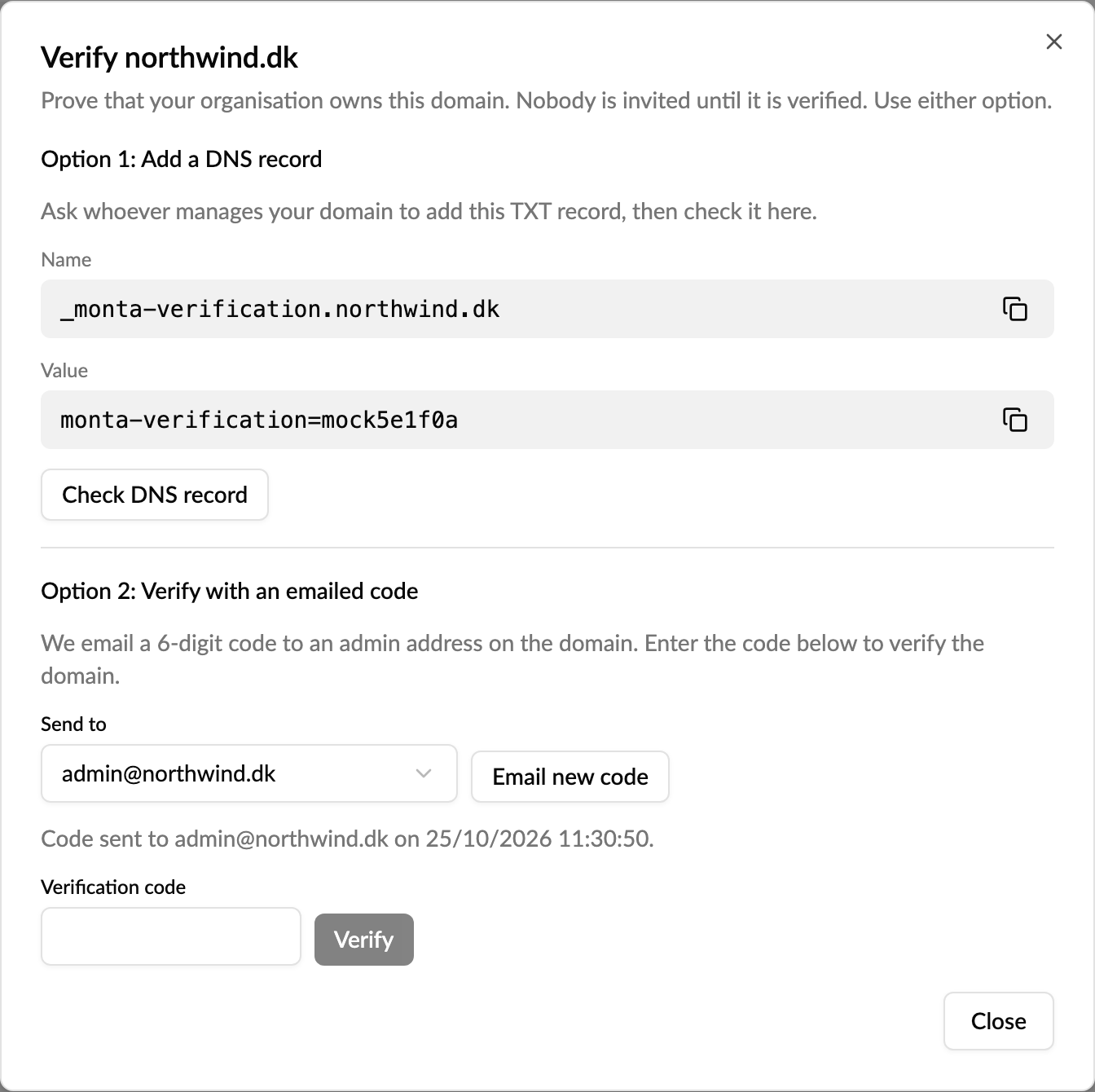
- Option 1: Add a DNS record. Ask whoever manages your domain to add the TXT record shown (copy the Name and Value), then click Check DNS record. DNS changes can take a while to appear; try again later if it isn't found yet.
-
Option 2: Verify with an emailed code. Choose one of the addresses
admin@,postmaster@,hostmaster@orwebmaster@on your domain and click Send the code. Whoever reads that mailbox gets a 6-digit code. Enter it under Verification code and click Verify. The code is valid for 60 minutes. If it has expired, click Email new code.
Once verified, the domain shows Verified, and invitations start going out.
What do the numbers mean?
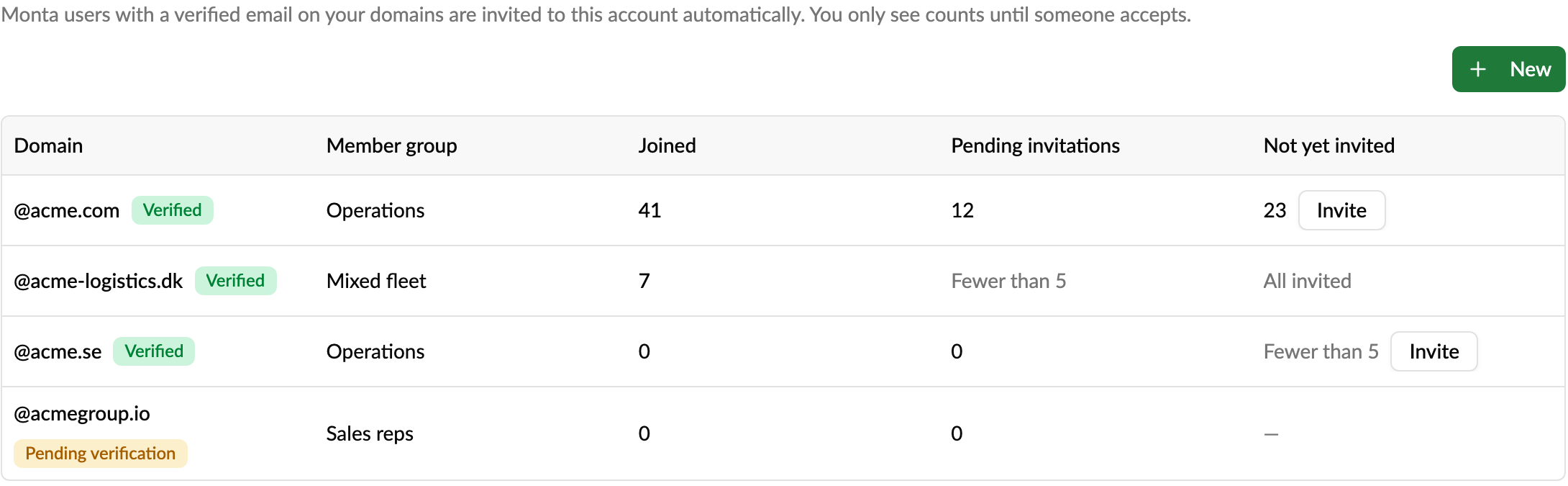
- Joined: people who accepted an invitation from this domain. Click the number to see them in the members list.
- Pending invitations: invitations that haven't been answered yet.
- Not yet invited: Monta users with a verified email on the domain who aren't members and haven't been invited yet.
- Fewer than 5 is shown instead of 1, 2, 3 or 4, so a number never points to one person.
In the Members list, the Joined via column shows which domain each person joined through, and you can filter by it.
How do I invite people who are already on Monta?
New sign-ups are invited automatically. People who were already on Monta before you added the domain are listed under Not yet invited. Click Invite and confirm with Send invitations. Everyone gets an invitation email to join in the domain's member group.
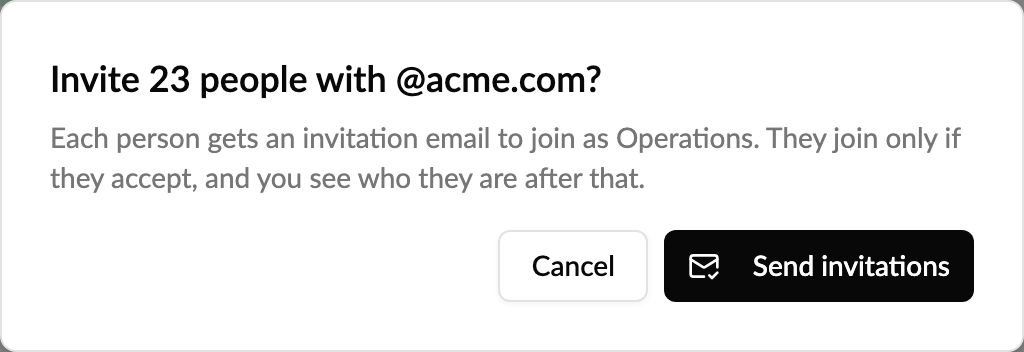
Each person is only invited once per domain. When everyone has been invited, the column reads All invited.
Can people join without accepting an invitation?
Yes, if you switch on Add as members without an invitation when you add or edit a domain. The domain then shows Joins directly, and Monta users on the domain become members in the domain's member group straight away:
- New sign-ups and people who verify their email on the domain join automatically.
- For people already on Monta, the button under Not yet invited reads Add. Confirm with Add as members.
- They don't get an invitation email and aren't asked first. The admin who switched the setting on is recorded as accepting on their behalf.
Only use this when your organisation may add these people without asking, for example employees who expect to be on the company account. Their name and email show in the member list straight away. To switch it on, you also need permission to add members to the account. Switching it off again doesn't remove anyone who has already joined.
How do I change or remove a domain?
- Change member group: new invitations use the new group. Invitations already sent keep the group they were sent with.
- Remove: stops new invitations and withdraws the ones still pending. People who already joined stay members.
Who can manage email domains?
Anyone who can manage the account's member groups, usually the account owner and admins. Others don't see New, Invite or the row actions. Switching on Add as members without an invitation also needs permission to add members.
Good to know
- Unless the domain adds people directly, nobody joins automatically. Everyone accepts an invitation first.
- Choose the member group carefully: the invitation uses the group's role. If you pick a group with an admin role, everyone on the domain is invited as an admin, or, if the domain adds people directly, becomes an admin straight away. Avoid that combination.
- People who leave your organisation aren't removed automatically. Remove them from the account as usual.
- A domain is linked to one account. To invite the same people to another account, use a different domain or invite them directly.