
Invite colleagues to your account by email domain
Add and verify your organisation's email domain in Hub so colleagues with a Monta account are invited to your account automatically.
Updated 9 November 2026
This article is for account admins who manage members in Monta Hub. You will add an email domain, verify that you own it, and invite colleagues who already use Monta. You need permission to manage the account's member groups.
People with a verified Monta email on your domain get an invitation to join your account in the member group you choose. They join only if they accept.
Add a domain
-
In Hub, select Accounts and open your account.
-
Select Members & access, then Email domains.
-
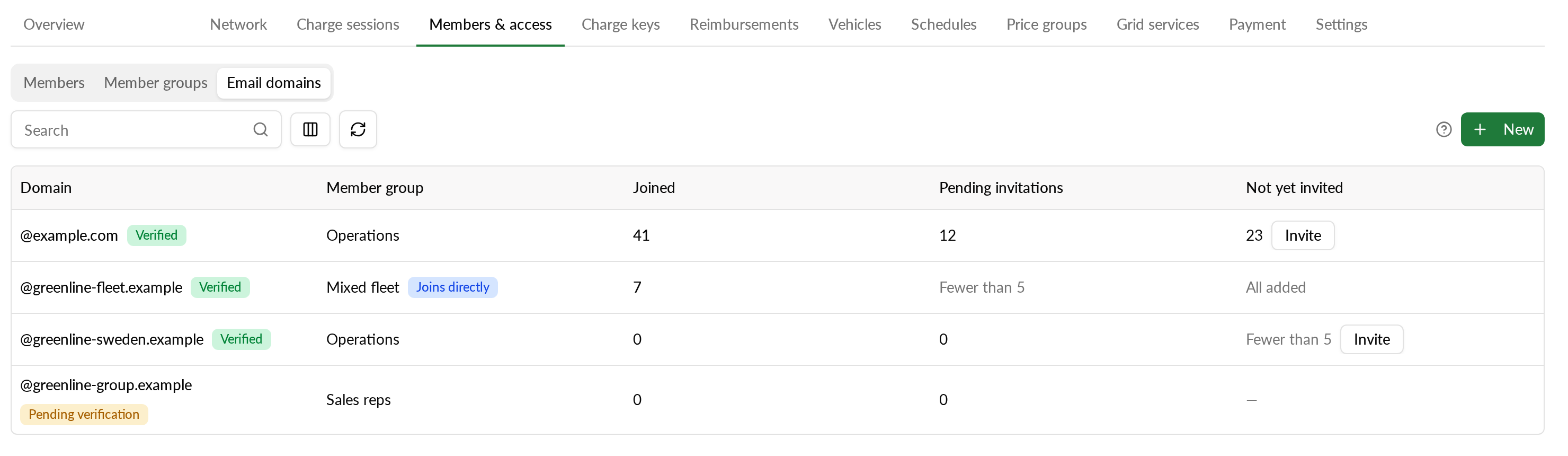
Select New.
-
Enter your domain, for example
acme.com. If you typejane@acme.comorwww.acme.com, Hub cleans it up toacme.com. -
Choose a Member group. The group sets the role and price group shown on the invitation.
-
Select Add domain.
Matching is exact. Subdomains and wildcards don't match. Public email providers such as gmail.com and domains that look like a well-known domain can't be added.
The new domain shows Pending verification. Nobody is invited until you verify it.
Verify the domain
Select Verify on the domain row, then use one of two options.
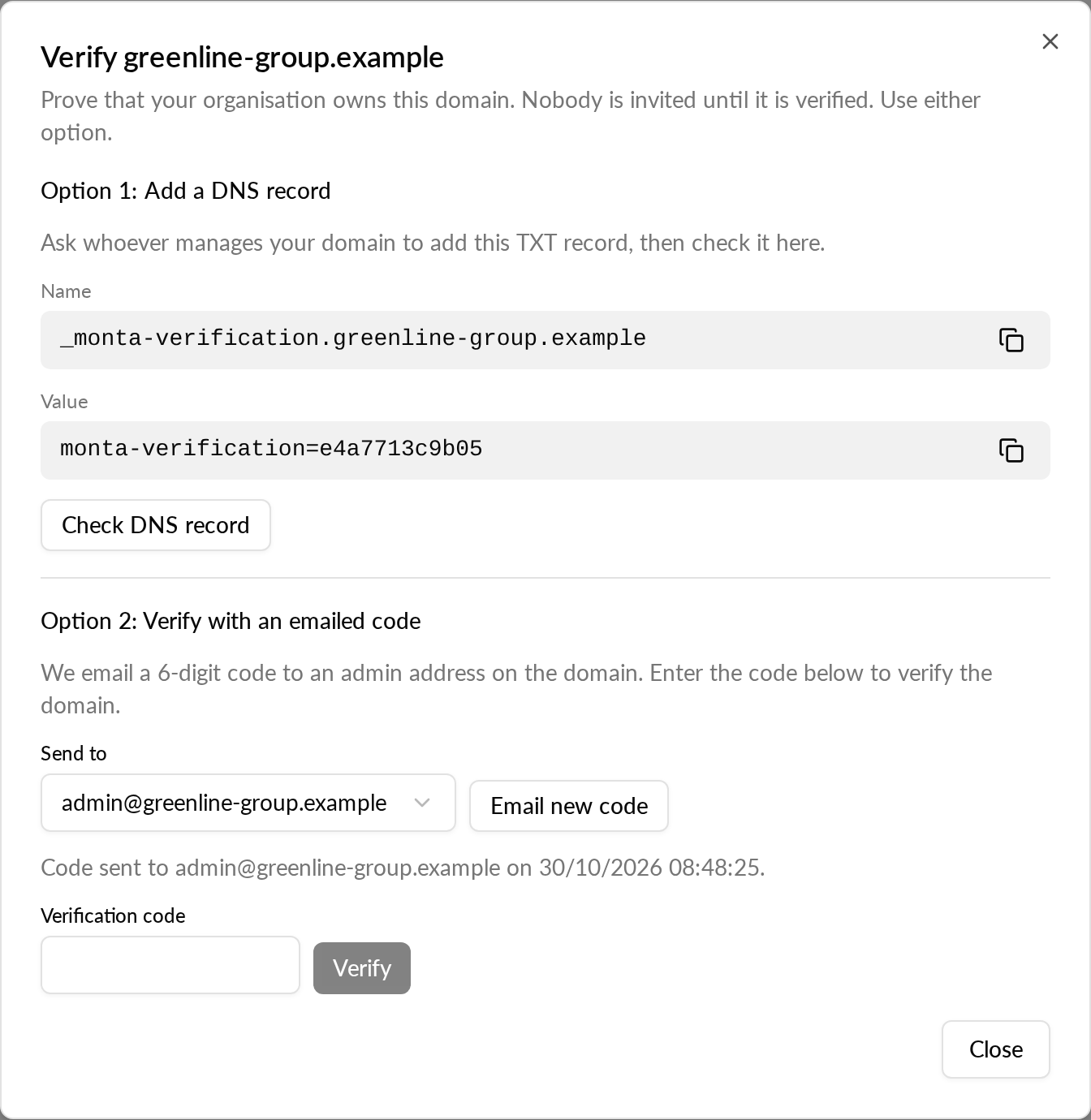
Option 1: Add a DNS record
- Copy the Name and Value shown in the dialog.
- Ask whoever manages your domain to add them as a TXT record.
- Select Check DNS record.
If Hub can't find the record, wait and try again. DNS changes can take up to 48 hours to show up.
Option 2: Verify with an emailed code
- Choose an admin address on your domain:
admin@,postmaster@,hostmaster@orwebmaster@. - Select Send the code.
- Open the email sent to that address and copy the 6-digit code.
- Enter the code in Verification code, then select Verify.
The code works for 60 minutes. If it is wrong or has expired, Hub says so. Select Email new code to get a new one.
When verification works, the domain shows Verified.
Invite people who already use Monta
People who sign up with a verified email on your domain later are invited automatically. To reach people who already use Monta:
- Find your domain in the Email domains list.
- In the Not yet invited column, select Invite.
- Check the number of people and the member group, then select Send invitations.
Each person gets an invitation email. A large domain takes a few minutes, and the invitations continue if you leave the page. When all invitations are out, the column shows All invited.
What you see about invited people
Until someone accepts, you see counts only, never names or email addresses. A count of 1 to 4 shows as Fewer than 5.
The list shows these counts for each domain:
| Column | What it counts |
|---|---|
| Joined | People who joined through the domain |
| Pending invitations | Invitations not yet answered |
| Not yet invited | Monta users on the domain you haven't invited and who haven't opted out |
Select the number under Joined to open the Members list filtered to that domain. The Members list also has a Joined via column.
Add people without an invitation
If you own the domain, you can add matching people as members straight away, with no invitation to accept.
- Select New to add a domain, or Edit on an existing domain.
- Turn on Add as members without an invitation.
- Select Add domain or save your change.
The domain shows Joins directly. For people already on Monta, Add replaces Invite. You need permission to add members to the account.
Change or remove a domain
- To change the member group, select Edit. Only future invitations use the new group. Pending invitations keep the role and price group they were sent with.
- To remove a domain, select Remove, then Remove domain. No new invitations are sent, and pending invitations from that domain are withdrawn. People who already joined stay members.