
How do I report a bug or request a feature in Monta Hub?
Send bug reports and feature requests to Monta from the Helpdesk in Monta Hub, choose the right ticket type, see all your tickets in one place and follow their status.
Updated 6 November 2026
The Helpdesk in Monta Hub is where your organisation sends bug reports and feature requests to Monta. Every ticket has a status that Monta keeps up to date, so you always have an overview of what you've reported and where each ticket stands, without chasing emails.
See all your tickets in one place
Select Helpdesk in the sidebar. The list shows every ticket your organisation has sent to Monta that you can see: your own tickets and the ones colleagues shared with the organisation.
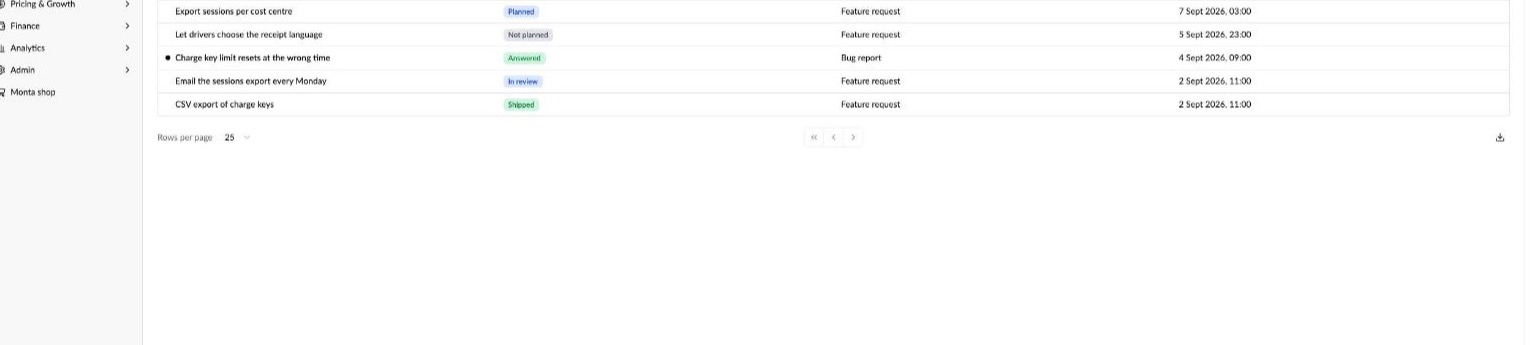
- Each row shows the Subject, Status, Ticket type and Last activity.
- Tickets with news you haven't read yet are marked with a dot, and the number next to Helpdesk in the sidebar counts them.
- Search by subject, filter the list, for example by status, and export it as a CSV file.
- Closed tickets with unread news are counted at the top of the list. Select Show to see them.
What each status means
| Status | What it means |
|---|---|
| Received | Monta has your ticket and hasn't looked at it yet. |
| In review | Monta is looking into it. |
| Needs your input | Monta needs more information from you. Open the ticket and reply. |
| Confirmed | Bug reports only: Monta agrees it's a bug, and it's waiting to be planned or fixed. |
| Planned | The fix or feature is planned. |
| In progress | Monta is working on it. |
| Shipped | The fix or feature is live. |
| Answered | Monta has answered, for example because it turned out not to be a bug. The answer is in the ticket. |
| Not planned | Monta has decided not to build or change this. The reason is in the ticket. |
| Withdrawn | You withdrew the ticket. |
Follow a ticket
Select a ticket to open it. The ticket page shows the description and files, the conversation with Monta, the details, and a Timeline of every status change.
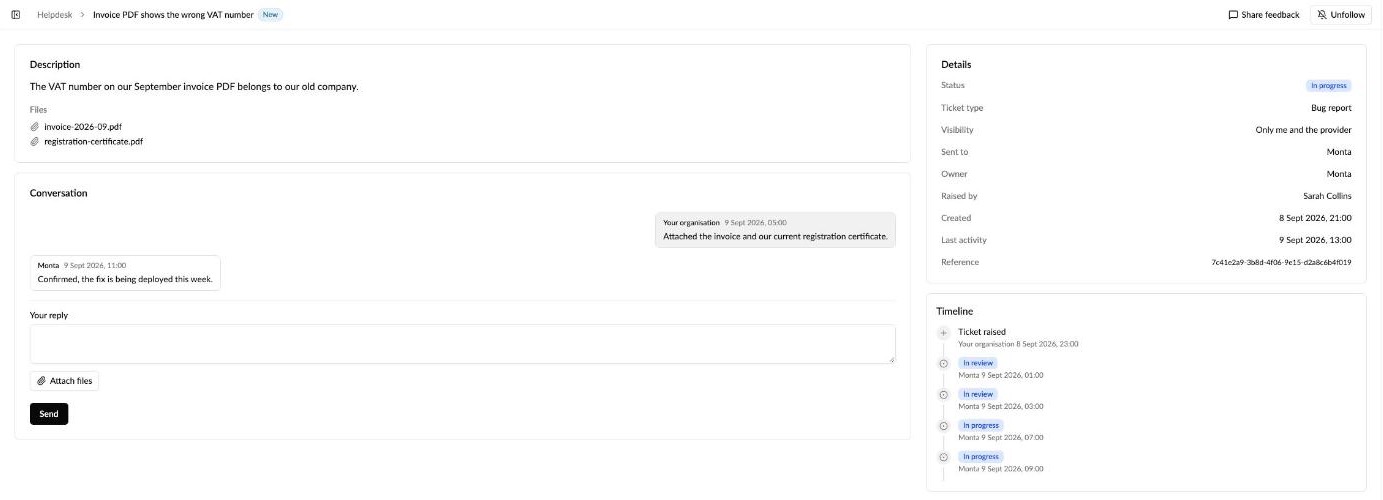
- Get updates: you follow the tickets you raise automatically. When Monta replies or changes the status, you get an email and a message in Hub. To follow a ticket a colleague shared, open it and select Follow. Select Unfollow to stop the updates.
- Reply: write in Your reply, attach files if needed and select Send. When a ticket says Needs your input, this is how you answer.
- Withdraw: if you no longer need it, select Withdraw ticket.
- Closed tickets: you can't reply to a closed ticket. Raise a new ticket if the problem comes back.
Choose the right ticket type
When you select New, Hub shows a card for each type of ticket you can raise, grouped by what you want to do. Select the ? on a card to see when to use it and what to include. The right type sends your ticket to the right people at Monta.
Something's not working
| Ticket type | Use it when |
|---|---|
| Incident | An outage or disruption affects your operations right now, for example many charging stations going offline or payments failing. Incidents are handled before other tickets. |
| Bug report | Something doesn't work as it should, but it isn't stopping your operations. |
Ask or suggest
| Ticket type | Use it when |
|---|---|
| Formal questionnaire | You need answers Monta stands behind, for a bid, a contract or a customer's security questionnaire. Monta answers each question yes or no, with a comment. |
| Question | You want to know how something in Hub works, or need help with your setup or data. |
| Feature request | You want to suggest something new or a change to how something works. |
| Feedback | You want to rate the Monta products you use from 1 to 10 and say what works and what to improve. |
| Commercial | You have a question about pricing, contracts, your plan or billing. |
Set something up
Use these when you need Monta to set something up for you, for example a roaming ID, an OCPI connection, data warehouse access, MQTT credentials, a single sign-on connection or a new charging station model. Each type has its own form with the details Monta needs.
Driver Support
Use Change custom instructions to ask Monta to add, correct or remove an instruction for your Driver Support AI agent.
Which types you see depends on who receives the ticket. Some types, such as Change custom instructions, only go to Monta, and some set-up types are only for operators.
Report a bug
If something is down right now, raise an Incident instead of a bug report.
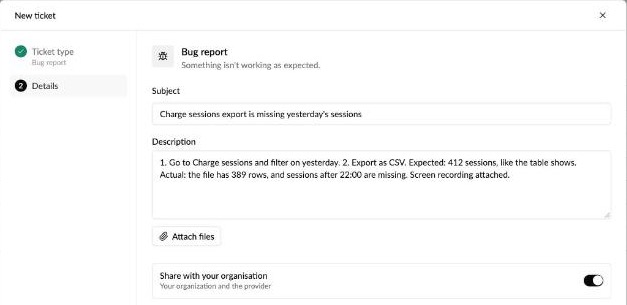
- In Helpdesk, select New, or select Share feedback on any page in Hub.
- Select Bug report.
- Enter a Subject and a Description: what you did, what you expected and what happened instead.
- Select Attach files to add screenshots or a short screen recording (PNG, JPG, GIF, MP4, WebM or MOV, up to 10 MB each). Images and videos preview in the ticket.
- Choose whether to share the ticket with your organisation, then select Send.
Request a feature
- In Helpdesk, select New, or select Share feedback.
- Select Feature request.
- Fill in the Summary, Why (the business problem and its impact), What (the specific ask) and When (when you need it, and why then).
- Optionally add the Product area, the Impact and your Current workaround, then select Send.
Monta's product team reviews every feature request. It's either added to an existing request or becomes a new one, and requests that apply to many customers are published on the Feature requests board under What's New, where operators vote and follow them. Your ticket then shows the request's status. See How do feature requests and voting work in Monta Hub?
Good to know
- Private or shared: a ticket you share with your organisation shows in your colleagues' Helpdesk list too. A private ticket is only visible to you and Monta.
- One problem per ticket makes it faster for Monta to triage and fix.