
Find and manage charging stations on the Network page
Use the Charging stations tab on the Network page to find a charging station, see its status and EVSEs, and restart it or set maintenance on its EVSEs.
Updated 3 November 2026
This article is for operators who run a charging network in Hub. You will find a charging station, check its status, see which EVSEs it hosts, and run actions on several stations at once.
A charging station is the physical unit at a location that hosts one or more EVSEs. One charging station with two outlets is one charging station with two EVSEs.
What you need
- A role that can view charge points in Hub. Without it, Network does not appear in the menu.
- For bulk actions: a role that can update the operator. Each action can also need its own permission on the station.
Open the Charging stations tab
-
In the Hub menu, under CPO / Network, select Network.
-
Select the Charging stations tab.
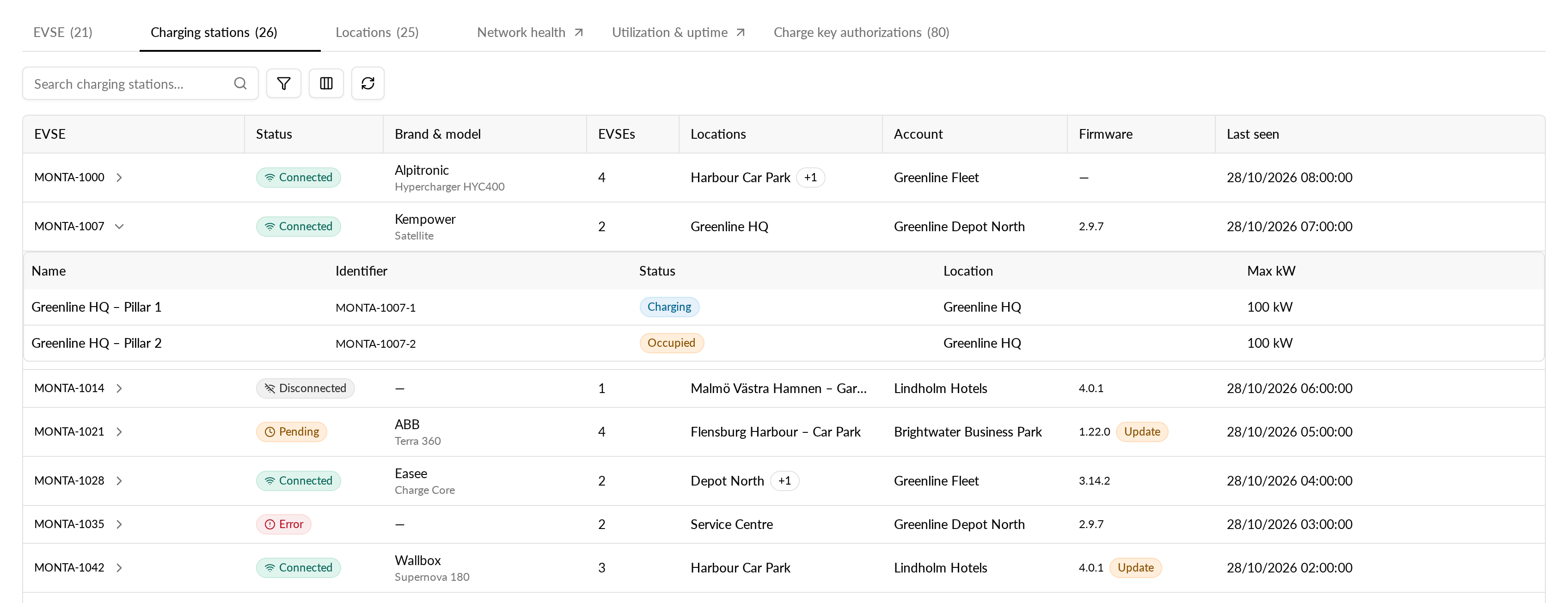
The tab shows the number of charging stations next to its name. The Network page also has tabs for EVSEs, locations and insights. See How do I use the EVSE detail page in Monta Hub? for the EVSE level.
Read the table
Each row is one charging station. The first column shows the station's identifier, which is the identity the station reports to Monta. A station has no name of its own, so the identifier is its label. Select it to open the station's page.
| Column | What it shows |
|---|---|
| Status | Connected, Disconnected, Pending or Error |
| Brand & model | The brand and model the station reports. A dash means the station does not report them |
| EVSEs | How many EVSEs the station hosts |
| Locations | The location of the station's EVSEs. If they are spread over several locations, you see the first one and a count such as +2 |
| Account | The account that owns the station |
| Firmware | The installed firmware version, with an Update badge when a newer version is available |
| Last seen | When the station last reported to Monta |
Show the EVSEs of a station
- In the row of a charging station, select the arrow next to its identifier (Show EVSEs).
- Read the EVSEs listed under the row.
- Select the arrow again (Hide EVSEs) to close the list.
The arrow is disabled when the station has no EVSEs.
Search and filter
- Type in Search charging stations… to find a station by its identifier.
- Add a filter to narrow the list. You can filter by:
- Status
- Firmware update, for stations with an update available
- EVSEs, the number of EVSEs: is, is at least, is at most, or is between
- Location
- Account
- Operator, if your account has operators below it
- List, if you can use Lists
The table shows only the stations that match.
Open a charging station
Select a row to open the station's page. It has these tabs:
- Overview
- EVSEs
- Charge sessions
- Control, only if you may view the station's integration
Run an action on several stations
- Select the checkbox of each charging station you want to change.
- In the bar that shows the number selected, choose an action.
- Read the confirmation and confirm.
The actions are:
- Restart: each station reboots its software. Charging sessions in progress may be interrupted.
- Hard restart: each station power-cycles. Every charging session in progress is stopped.
- Maintenance on: every EVSE on the selected stations stops accepting new charging sessions.
- Maintenance off: every EVSE on the selected stations accepts charging sessions again.
The maintenance actions are not available when a selected station has no EVSEs. The checkboxes do not appear if your role cannot update the operator.
If you don't see the tab
- If you open a shared link to the tab without access, Hub takes you to the EVSE tab.