
Find sessions that delivered energy but billed 0 kWh
Learn how Hub flags charging sessions where a charging station delivered energy but the meter recorded almost none, so you can find the lost revenue and the faulty meter.
Updated 5 November 2026
This article is for operators who review charging sessions in Monta Hub. It explains how Hub flags sessions that delivered energy but billed 0 kWh, and how to review and tune that check.
Why these sessions happen
Some charging stations deliver energy but report 0 kWh to Monta. The meter start and stop values are both 0, or the meter register never moves. The session is then billed at €0 and you lose the revenue.
The Energy delivered but not metered check catches these sessions. It does not fix the meter. The cause is usually the charging station itself, such as its firmware or meter configuration.
When a session is flagged
Hub flags a session when all of these are true:
- The billed energy is 0.1 kWh or less.
- The session lasted at least 2 minutes.
- The charging station reported a state of charge (SoC) rise of at least 5 percentage points, or it measured power of at least 1 kW.
Only SoC that the charging station reports counts. SoC from the vehicle does not.
A session where the car took no energy, such as a failed start, is not flagged. Hub also leaves it out when there is no SoC rise and no measured power.
The check applies to the charging stations of your operator.
Review a flagged session
- In the menu, select Charging sessions.
- Open the Verification tab.
- Under Needs attention, select Energy delivered but not metered. Hub lists the sessions with this finding.
- Open a session, then open its Verification tab.
- Find Energy delivered but not metered under Detector flags.
The flag shows that energy was delivered while the meter recorded none. Use the session's SoC and duration to see how much energy the car likely received. Then check the charging station's meter.
The check does not give a driver grounds for rejection, because a failed meter is not the driver's fault.
Change the check
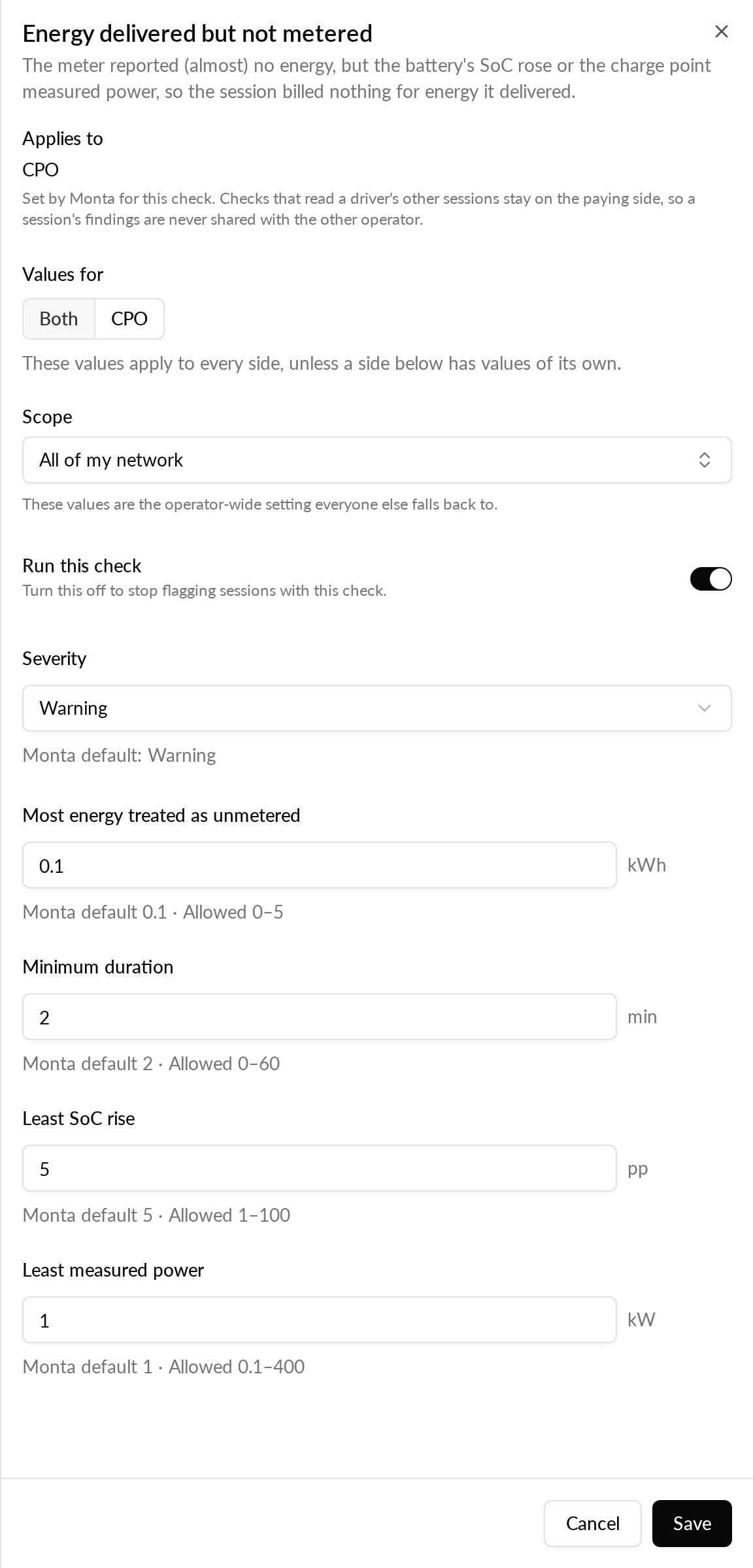
By default the check runs for your operator and has the severity Critical. You can switch it off, lower its severity or change its thresholds.
-
In the menu, select Charging sessions, then open the Verification tab.
-
Select Configure rules.
-
Search for Energy delivered but not metered, or search for "0 kwh".
-
Open the rule.
-
Change Severity, turn Run this check off, or change the thresholds.
-
Save the rule.
The thresholds are:
| Threshold | Default | Allowed range |
|---|---|---|
| Most energy treated as unmetered | 0.1 kWh | 0 to 5 kWh |
| Minimum duration | 2 min | 0 to 60 min |
| Least SoC rise | 5 pp | 1 to 100 pp |
| Least measured power | 1 kW | 0.1 to 400 kW |
A new severity applies to sessions checked from then on. Findings already recorded keep their earlier severity until the session is checked again.
If you don't see the check
If you don't see Energy delivered but not metered in Configure rules, the check may not be available to your operator yet.