
Schedule maintenance for many EVSEs and follow it while it runs
Put many EVSEs into maintenance at a planned time as one group, follow the group while it runs, and end it early if the work finishes sooner.
Updated 3 November 2026
This article is for operators who plan site-wide work, such as new asphalt or a road closure. You will schedule maintenance on many EVSEs in one step, follow the group while it runs, and end it early if you need to.
EVSEs in maintenance don't accept new charging sessions. Maintenance turns on at the start time and off again at the end time.
Before you start
- Make sure you can see the EVSEs you want to include.
- If you are an operator admin, the window applies at the start time. If you can't edit directly, your window waits for an admin to approve it. See How do I schedule changes or request approvals in Monta Hub?.
Schedule maintenance on many EVSEs
- In the left menu, select Network.
- Select the EVSEs you want to include.
- In the action bar, select Schedule maintenance. If you don't see it, open More first.
- Optional: enter a Name, for example "Roskilde Festival".
- Optional: enter a Description of why the work is happening, up to 500 characters.
- Set Start. The start must be in the future.
- Optional: set End. The end must be after the start. If you leave it empty, the EVSEs stay in maintenance until you turn maintenance off.
- Select Schedule.
A message confirms how many EVSEs were scheduled. Each EVSE now shows a Maintenance scheduled badge. Hover over the badge to read the window's name and description.
If some EVSEs can't be scheduled, the dialog lists them with the reason. Select Retry failed to add them to the same window.
You can also schedule maintenance from an account's EVSE tab, a location's EVSE tab, a single EVSE page, or a whole location.
Follow a window while it runs
Every EVSE in the window belongs to one group. The group shares the same name, description and times.
-
In the left menu, select Change requests.
-
Select the In progress tab.
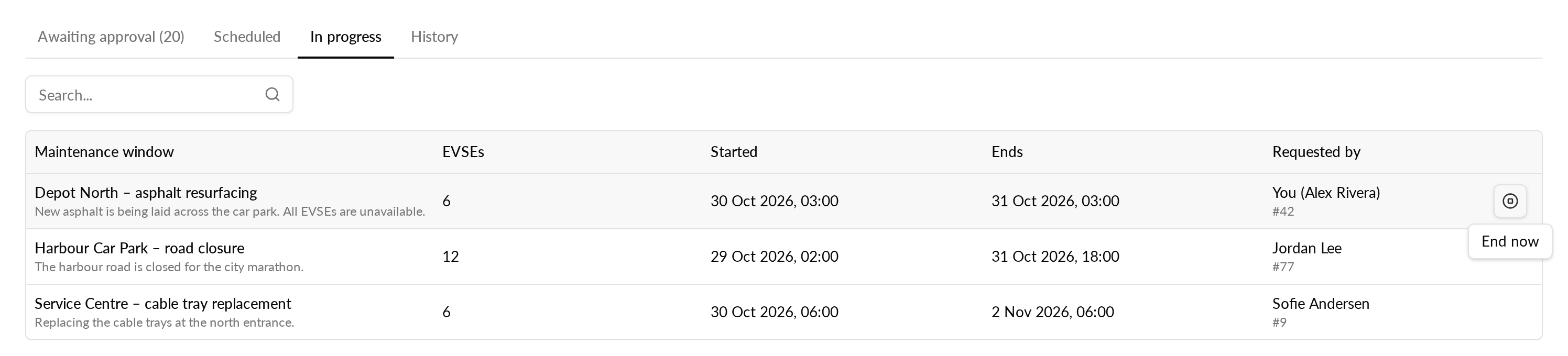
The tab lists each window that has started and has an end still pending. For each window you see:
- its name and description
- how many EVSEs it covers
- when it started and when it ends
- who requested it
A window that started on only some of its EVSEs also appears here.
The Scheduled and History tabs show a Target status column. It shows whether the change turns maintenance on or off.
End a window early
If you can edit the operator, you can end a running window before its planned end. If you do not see End now, you cannot edit the operator.
- Open Change requests and select the In progress tab.
- Find the window and select End now.
- Confirm in the End maintenance window now? dialog.
Maintenance turns off straight away on every EVSE the window had started. Their scheduled ends are cancelled. A message confirms that the window ended.
An EVSE whose start has not applied yet is not touched. Its scheduled start is cancelled.
Cancel a window
- Open the page of an EVSE in the window. An alert at the top shows the window.
- Select Cancel for this EVSE to cancel only that EVSE. Select Cancel for all with the number of EVSEs to cancel the rest of the window.
Cancelling only affects EVSEs that have not started. An EVSE already in maintenance keeps its scheduled end, so it still leaves maintenance on time. To end it sooner, use End now on the In progress tab.
Who sees what
Users without operator edit rights, such as support, see everyone's scheduled changes under Change requests on the Scheduled and History tabs. Each EVSE row shows the EVSE name, its location, its charging station and its connector.
Requested by and Approved by show a name. A change that Monta approved shows Monta as the approver.
Limits
- You can't edit the description after you schedule the window.
- A window scheduled before groups existed doesn't appear under In progress.
- The In progress tab shows only windows that have a scheduled end.