
Covers Eaton AC (Green Motion) charge points. This guide explains how to access the configuration page via Wi-Fi hotspot, configure OCPP settings, and connect the charge point to Monta.
For: Installers and charge point operators setting up Eaton AC with Monta.
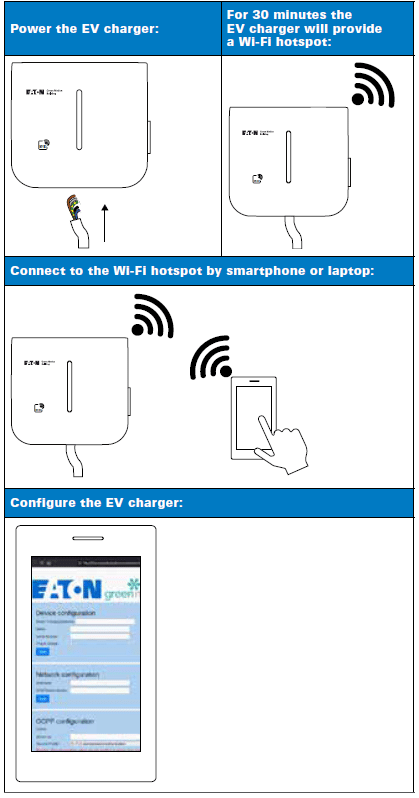
1. Accessing the configuration page using WiFi Hotspot
Note: The configuration page is active for 30 minutes. After 30 minutes, you will need to switch the EV charger off and on to reactivate the configuration page.
To connect, follow the steps below:
- Step 1. Switch the EV charger off and on by switching the circuit breaker off and on.
- Step 2. Turn on the Wi-Fi on your phone or computer.
- Step 3. Display all the EV chargers that are detected by your phone or your computer.
- Step 4. Select the EV charger unit on the list under the name GM_MXXXX, XXXX being the last four digits of the EV charger’s serial number.
- Step 5. Connect to the EV charger unit with the password: GreenMotion!1052
- Step 6. Go to the address: http://192.168.53.1. The configuration page for the selected EV charger appears.
- Step 7. You might have a warning message before accessing the configuration page. Click on Continue.
2. OCPP configuration
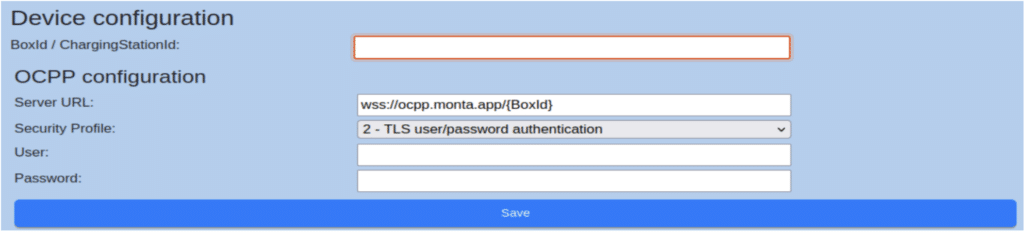
Go to the OCPP configuration section.
- Step 1. In the BoxId/ChargingStationId text box, enter the Serial Number of the charger.
- Step 2. In the “Server URL” text box, enter the URL: wss://ocpp.monta.app/{BoxId}.
- Step 3. This {BoxId} in the URL should be replaced with the actual BoxId of the charger.
- Step 4. In the Security Profile drop-down menu select “2 - TLS user/password authentication”.
- Step 5. Username must be the same as the BoxId, leave password blank.
- Step 6. Click “Save” and “Restart App” in the Reboot and Apply section at the bottom of the configuration page.
3. Connect the charge point to your Monta Account
Now you need to add and connect your charge point to your Monta account.
You can do this through either Monta Charge or Monta Hub.