
Configuration guide for EVE charge points, covering Bluetooth pairing via the EVE app, password entry, Monta server selection, and WiFi connection.
Please note that when you connect your charge point to Monta, we become the operator of the charge point. This means that you need to use Monta to control the charging process.
1. Download the EVE app on your phone
Download and install the EVE app on your phone using App Store of Google Play Store.
You will be prompted to enable Bluetooth or location permissions. This is required for Bluetooth scanning.
2. Open the app and search for your charge point
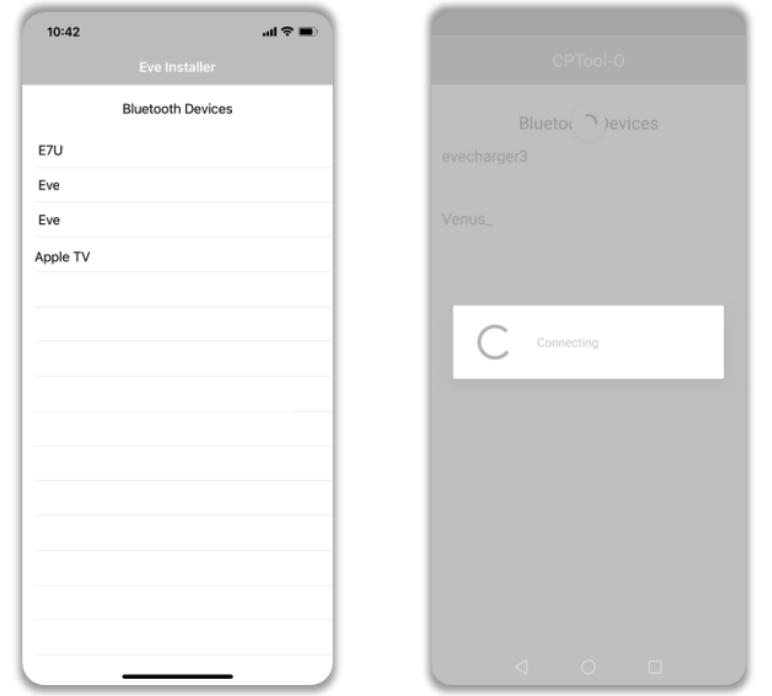
Once you open the app, you will see the available Bluetooth devices. Connect to your charge point (ESxxxxx).
Notes:
Before the network parameters are set correctly, the connection time may take more than 10 seconds.
If the connection attempt times out before connecting, wait and select the charge point again once visible.
3. Enter the password
After the connection is successful, you are prompted to enter the login password, please enter the password in the input box, and then click OK.
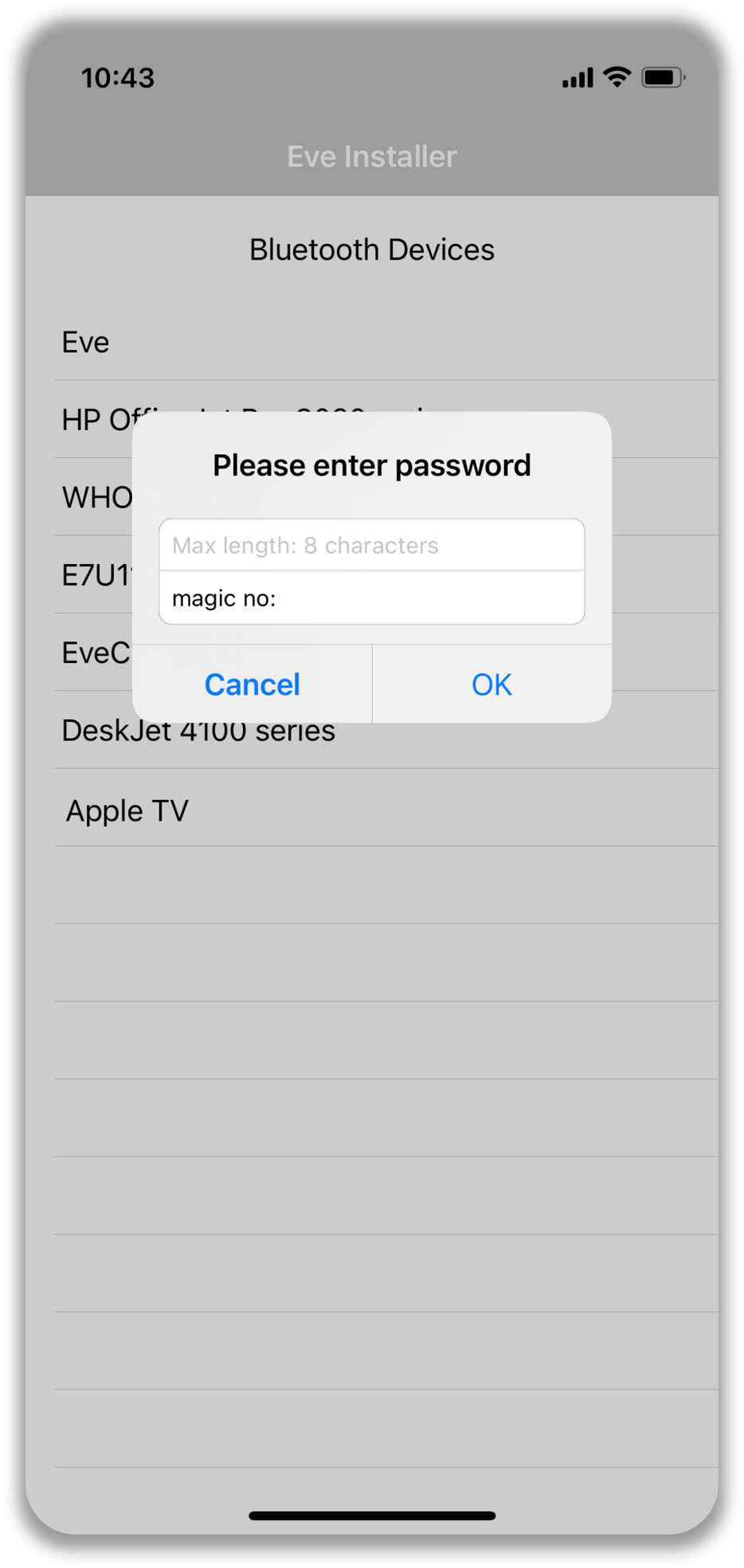
The initial password is 12345678, and the user can modify it after logging in. The installer will be prompted to change the password from default. Note this password for future maintenance.
EVE Chargers are able to recover your password if the installer didn’t tell you at the time of installation. Please note that the charger password is different from your 4 Digit PIN or APP ID. To recover your password, contact EVE and quote the Magic No.
4. Connect to Monta
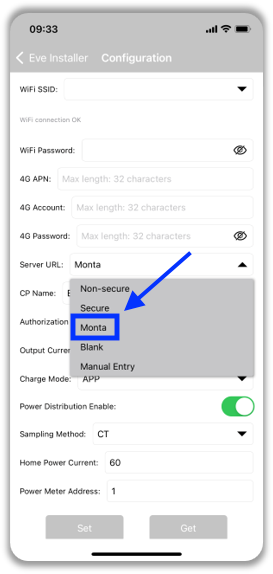
Select Monta from the Server URL dropdown list. If the charge point has been configured and installed previously, then do not change any other settings.
5. Connect your charge point to your local WiFi
Please note that the charge point will need to be connected to your WiFi in order to link to Monta. You can check the charge point WiFi connection at the top of the configuration page.
If you do not have a reliable WiFi connection to the charge point, then you may require a range-extender.
6. Connecting the charge point to your Monta account
Now you need to add and connect your charge point to your Monta account.
You can do this through either Monta Charge or Monta Hub.