
This guide covers the Sinexcel Interstellar charge point and walks you through configuring the network settings and OCPP URL via the on-screen administrator interface to connect it to Monta.
Please note that when you connect your charge point to Monta, we become the operator of the charge point. This means that you need to use Monta to control the charging process.
1. Tap the charge point screen
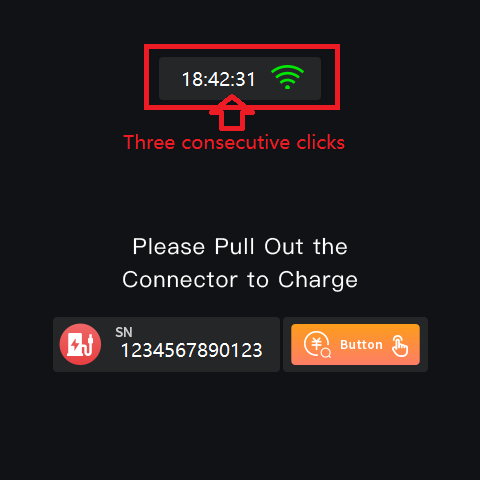
First quickly tap screen three times on the top of the charge point to enter the administrator interface.
2. Enter the password
Now you will be prompted to enter a password to access the administrator interface.
In case you cannot find the password - contact Sinexcel.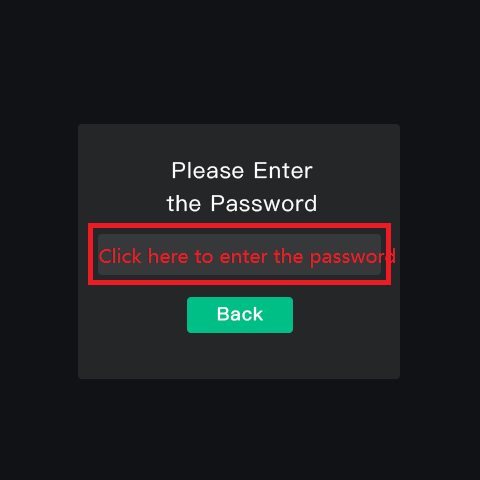
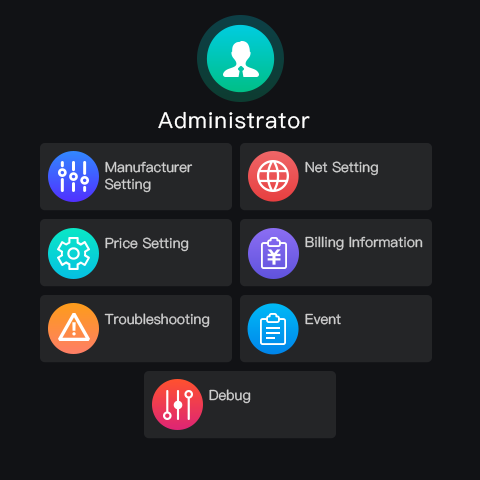
3. Navigate to Net Setting
In the administrator interface navigate to "Net Setting"
4. Configure the Network
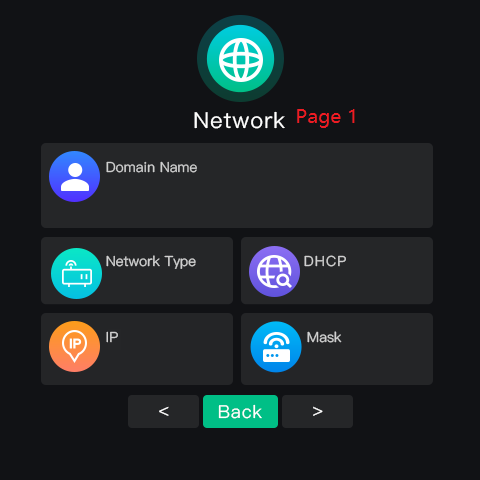
Network Type: 0 stands for wired network connection
1 stands for wireless network connectio
DHCP: 0 stands for turning off
1 stands for turning on
If you are using WiFi connection, make sure Network type and DHCP values are set to 1.
Domain Name: ws://ocpp.monta.app:80/SINEXCELnnnn
The domain is the Monta address, ws://ocpp.monta.app:80/, followed by your charge point serial number. The serial number can only contain numbers and letters.
5. Open the Internet settings
On the screen, press the right arrow in the bottom of the screen. This will open the internet settings of your charge point.
Fill in your WiFi credentials.
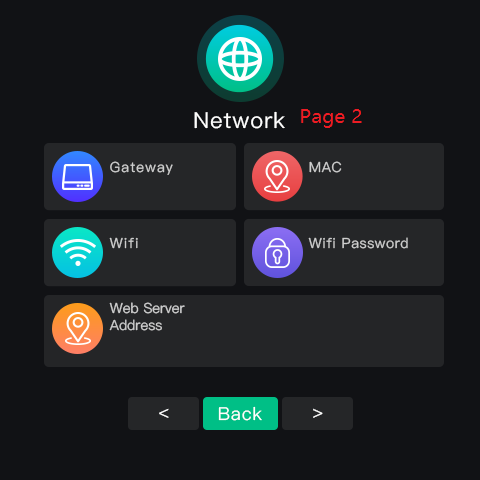
Wifi: *your WiFi name*
Wifi Password: *your WiFi password*
4G connection
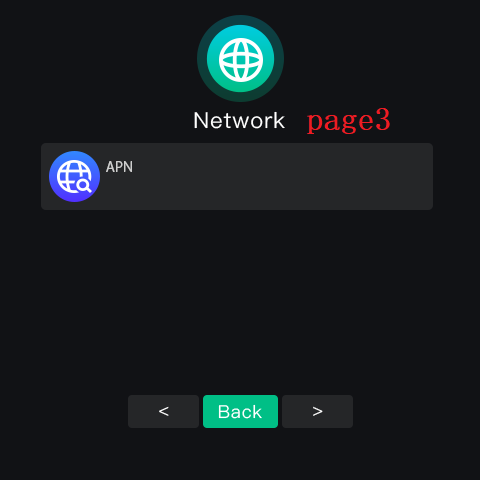
If you are using 4G connection, press the right arrow below once more and there you will see the APN settings.
6. Reboot the charge point
After the settings are saved, please reboot the charge point so the changes can take place.
7. Connecting the charge point to your Monta account
Now you need to add and connect your charge point to your Monta account.
You can do this through either Monta Charge or Monta Hub.