
Configuration guide for Alfen charge points, covering ACE Service Installer setup, firmware upload, Monta preset selection, and optional third-party SIM card APN configuration.
Please note that when you connect your charge point to Monta, we become the operator of the charge point. This means that you need to use Monta to control the charging process.
1. Prerequisites
Before installing the charge point, make sure that
-
You have a user account and are using the newest version of the Service Installer application. You can request an account at: http://support.alfen.com. Click on 'Sign up for an account'. Note that new account creation may take several working days
-
Your charging station is already connected to internet via Wifi or with an Ethernet cable. The charge point and the computer you are using for the installation must be connected to the same network.
2. Download the ACE service installer
Download the installer onhttps://alfen.com/downloadsand log into it.
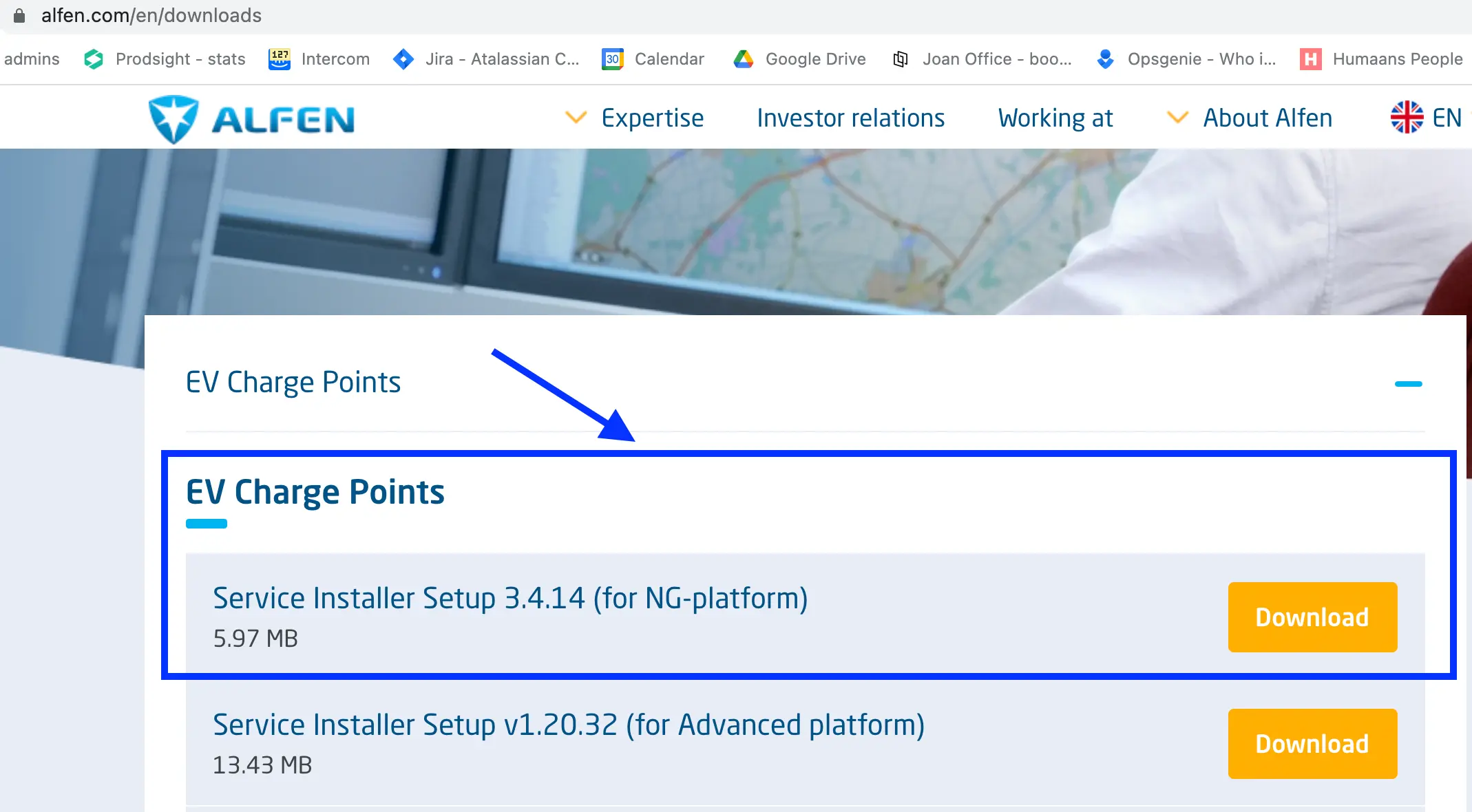
Please note that the ACE service installer must be updated before you proceed. The available updates should pop up as soon as you open the installer.
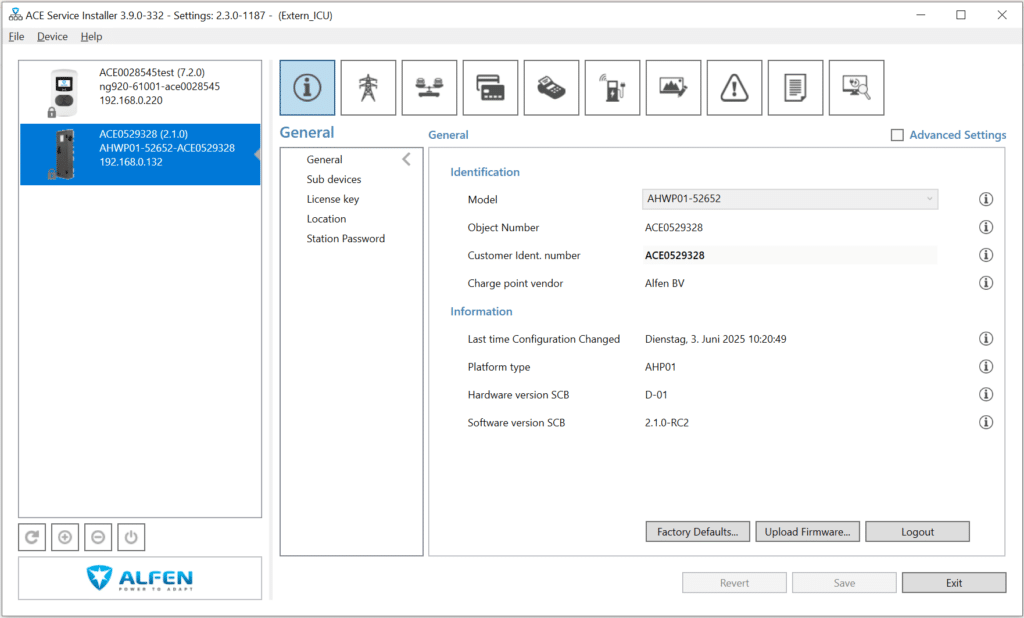
3. Find the identifier number and copy it
You will need this later, when you connect the charge point to Monta. Note: This number might differ from the serial number.
4. Select the Monta preset from the Alfen installer app
Follow the guidelines:
-
Firmware Monta-A.fwi should be uploaded if lower than 4.14
-
Firmware Monta-B.fwi should be uploaded if higher than 4.14+
-
Please note that we always recommend to update to the latest version, so Monta-B. fwi should be the one to use by default.
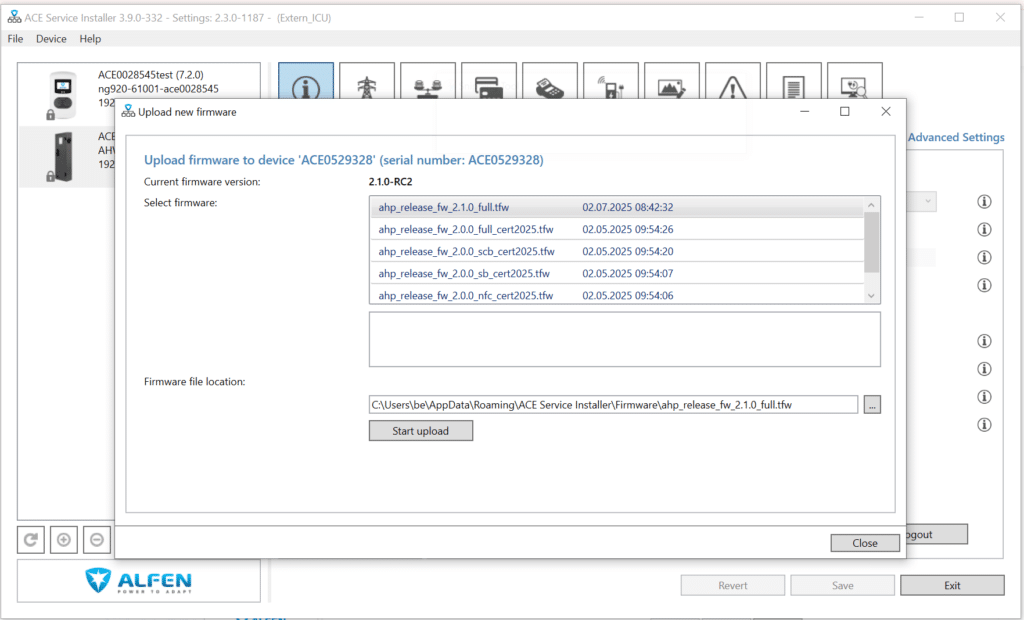
5. Upload the firmware file
1. Begin by clicking on "Update Firmware" in the bottom right corner.2. When the window pops up, click on the three dots ...
3. Select to upload Monta-A.fwi or Monta-B.fwi.
4. Click on Start upload and update the firmware. You should get a message that the firmware was uploaded successfully, then close.
6. Select your charge point
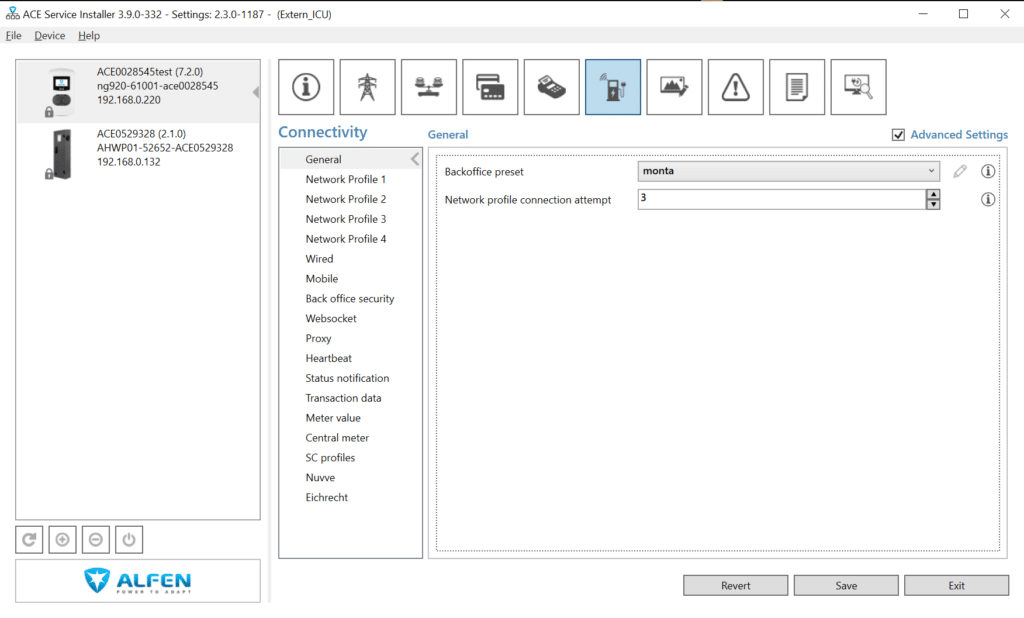
1. Click on your charge point on the left side of the screen (ID ACExxxxxxx)
2. Make sure to check the following settings:
Backoffice preset: Monta
Protocol: OCPP 1.6
 Note: When using a SIM card, the connection to backoffice might take up to an hour.
SIM cards
- Select the Backoffice preset <Manually enter backend settings>
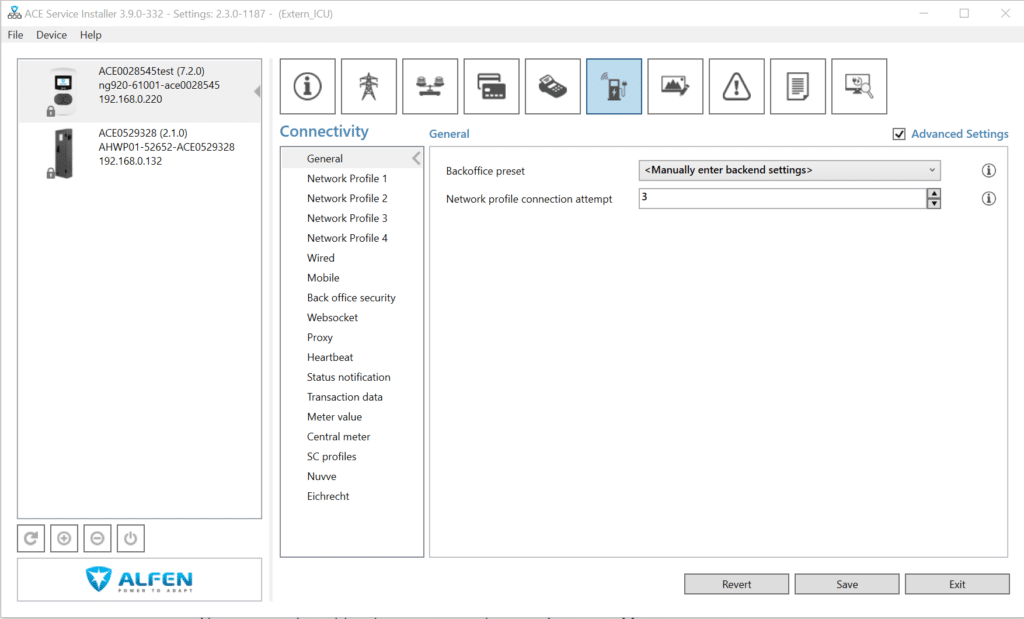
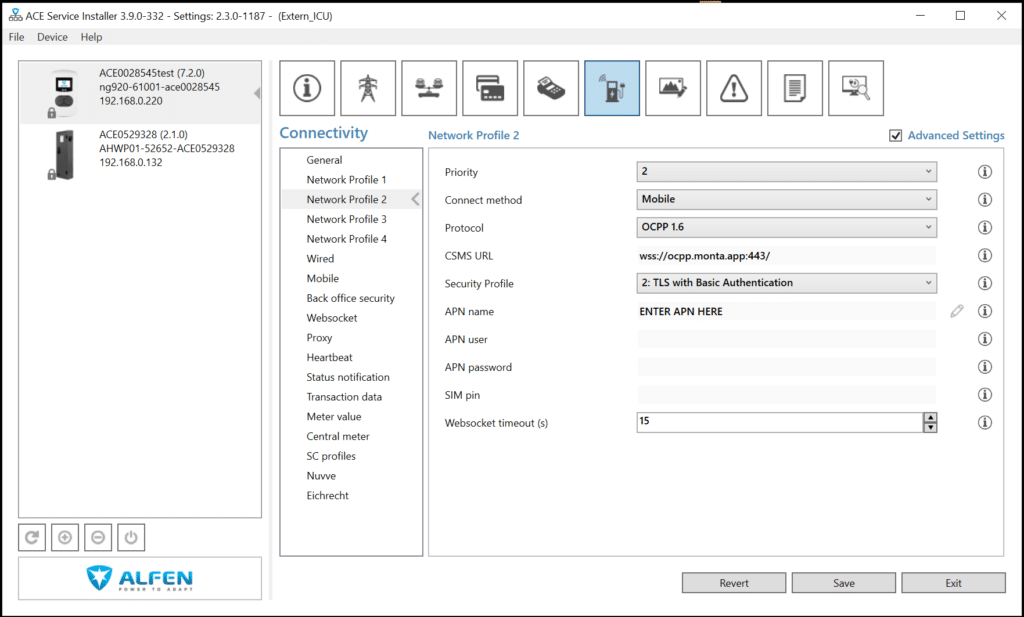
- Enter the APN in the APN name field
- Enter APN name and user if applicable
7. Connecting the charge point to your Monta account
Now you need to add and connect your charge point to your Monta account.
You can do this through either Monta Charge or Monta Hub.