
Covers Go-E charge points using OCPP. Connect to the charge point via the Go-E app, configure Wi-Fi and OCPP settings, and connect to Monta.
Please note that when you connect your charge point to Monta, we become the operator of the charge point. This means that you need to use Monta to control the charging process.
1. Notes
Before you begin the installation process, please update the firmware version of your Go-E unit. For installing Monta on your charge point, you will need the following things:
go-eCharger reset card
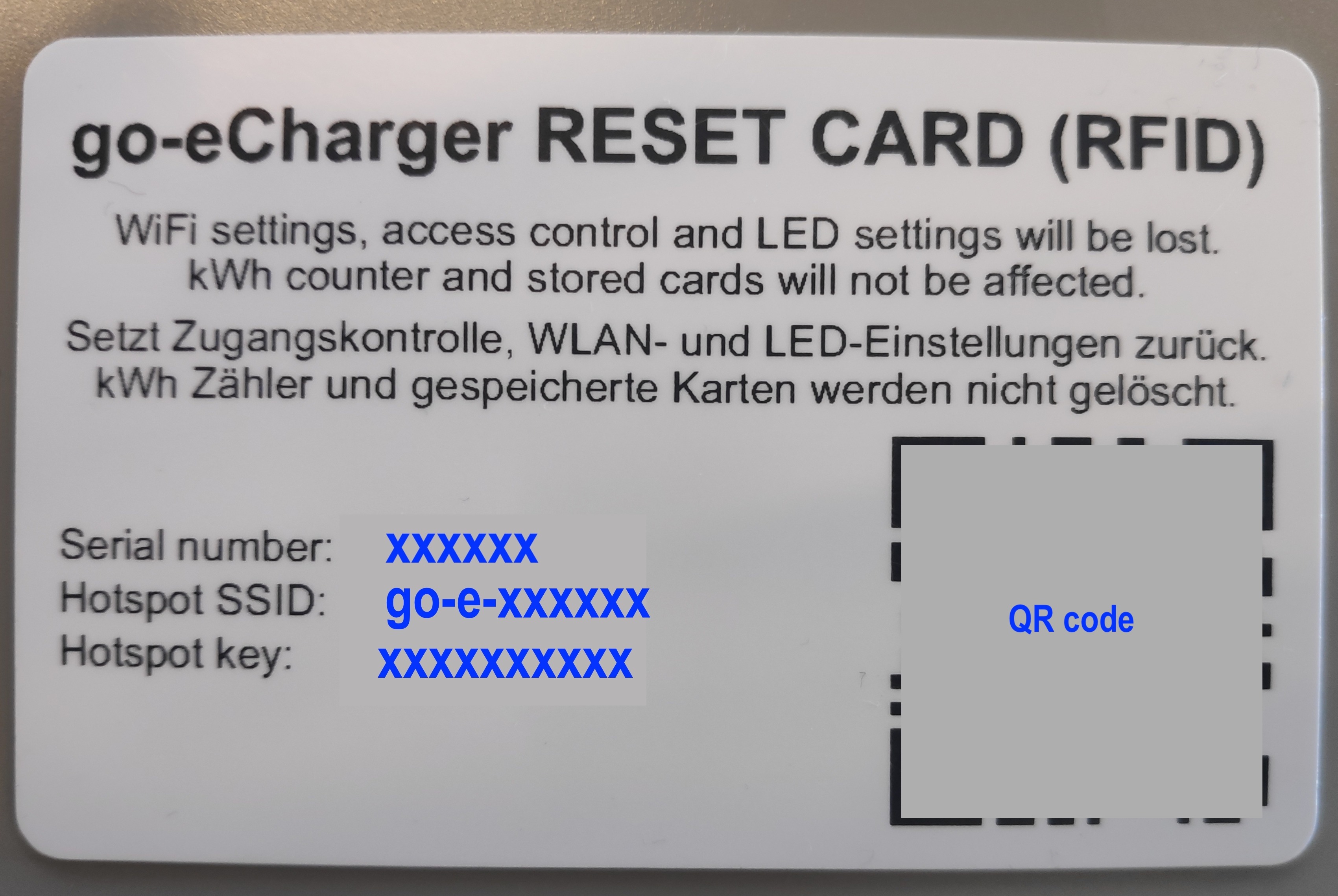
This card should be supplied with the charge point. You will need it to read the QR code, as well as the charge point details.
The Go-E mobile app
You will also need to install the mobile app on your device: Google Play / App store
Please read the guide until the end and take note of the last step, as it is important for the connecting with Monta process.
2. Connect your device to your charge point
Begin the process by connecting your phone to the charge point. Please note that some devices require you to switch off mobile data and disconnect from any WiFi networks for this to work.
There are two ways to connect to the charge point:
a. Scan QR code - Scan the QR code that is on the reset card.
b. Search for the charge point's hotspot manually - In the settings of the device, search for the hotspot that the charge point is emitting. The details are on the reset card.
Hotspot name is "Hotspot SSID" (go-e-######)
Hotspot password is "Hotspot key" (##########)
3. Open the Go-E app
If you can see the charge point in the app, proceed to configure it.
If you do not see your charge point, add it in the app.
4. Connect the charge point to your local WiFi
In the bottom of the screen, select the "Internet" tab.
Then, select the "WiFi" bar and connect the charge point to your local WiFi.
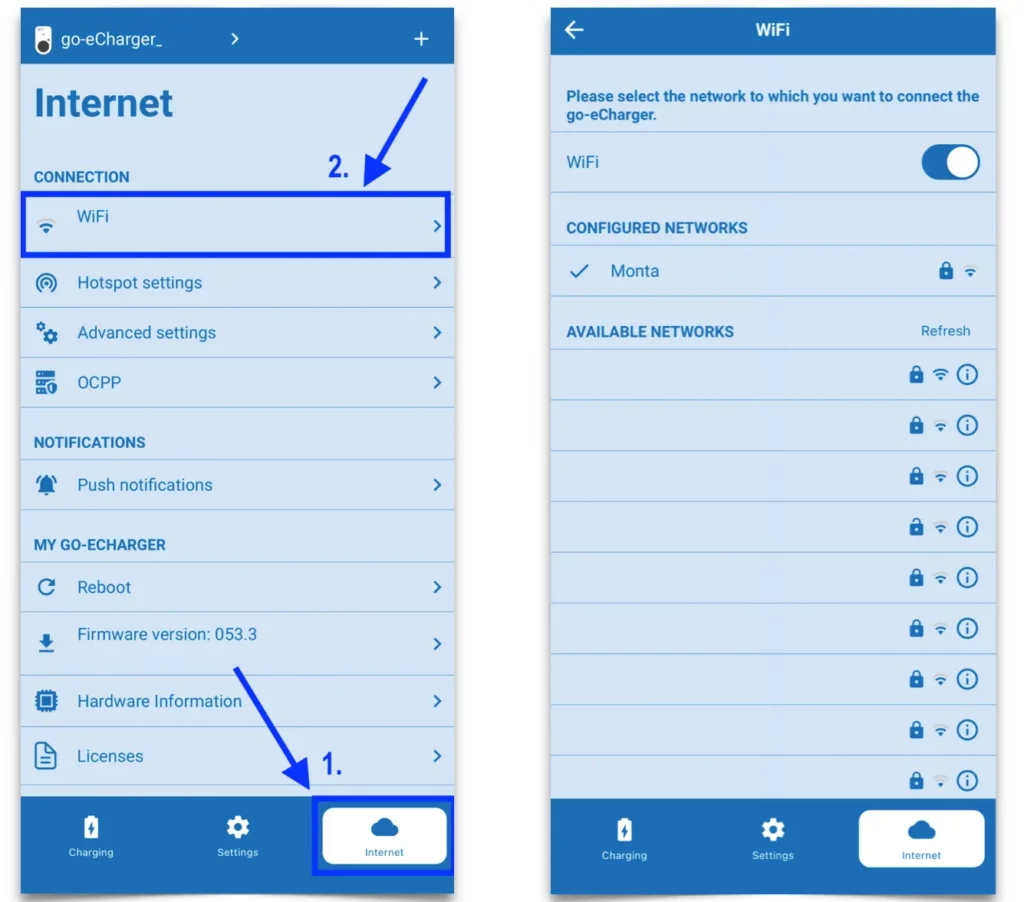
5. Configure the OCPP settings
Open the "Internet" tab and go to "OCPP".
Enable OCPP 1.6 with the toggle.
Change the OCPP Server URL to wss://ocpp.monta.app/goe######
The numbers (#) are the same as the ones in Hotspot SSID.
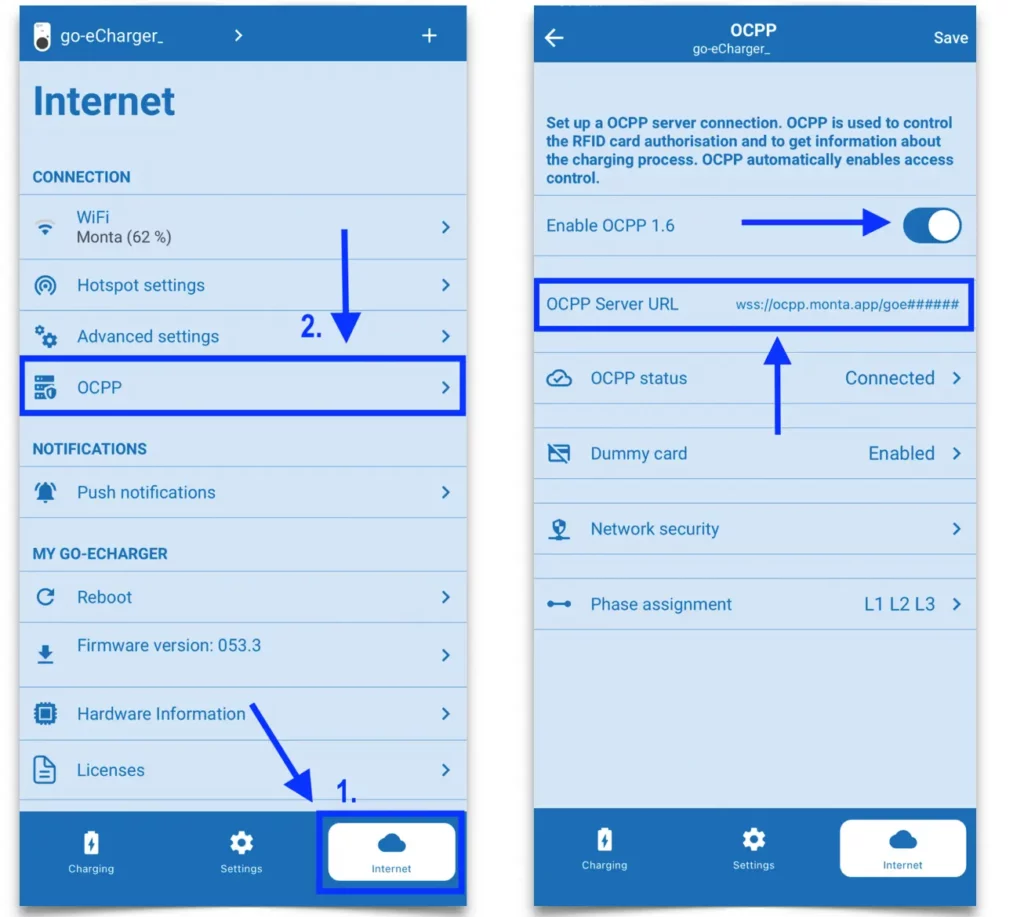
6. Reboot the charge point
Click on the "Internet" tab again and click on "Reboot".
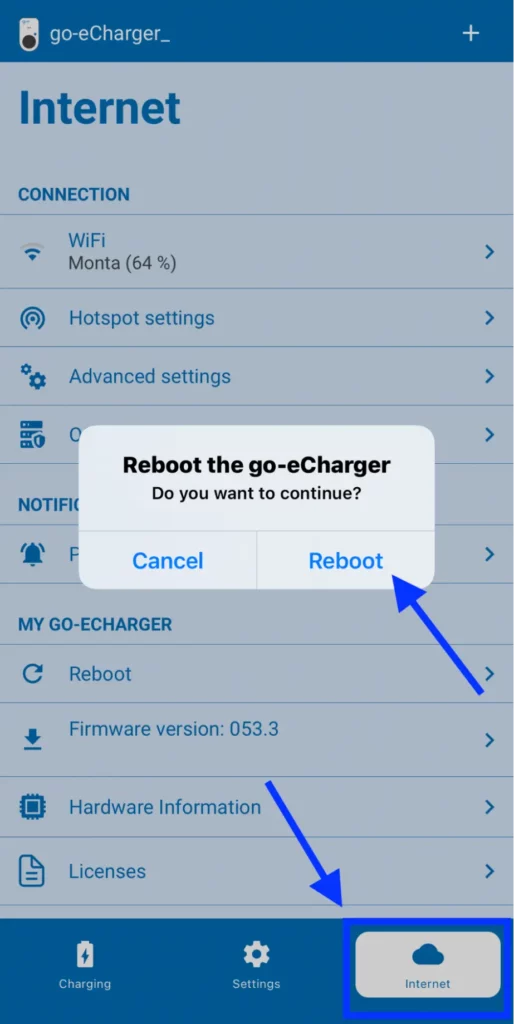
7. Connecting the charge point to your Monta account
Now you need to add and connect your charge point to your Monta account.
You can do this through either Monta Charge or Monta Hub.