
Integration guide for Vestel EVC04-series charge points. Covers connecting to the charge point hotspot, accessing the web user interface, configuring Open Charge Point Protocol (OCPP) and Wi-Fi settings, and connecting the unit to Monta.
Please note that when you connect your charge point to Monta, we become the operator of the charge point. This means that you need to use Monta to control the charging process.
1. Preparation
You will need to connect to the WiFi (hotspot), which is emitted from your charge point. All EVC04-Models have a WiFi hotspot feature which is enabled by default.
The credentials for the access of the internet signal of your charge point is standardly:
WiFi name or SSID: Serial number of your charge point
Password: Chargebox-ID
2. Open your browser to 192.168.1.1
After connecting to the "Wi-Fi Hotspot” network, you can open your web browser from a computer or mobile device.
In the URL section, enter 192.168.1.1, which is IP address of the charging station.

3. Login to the Web User Interface
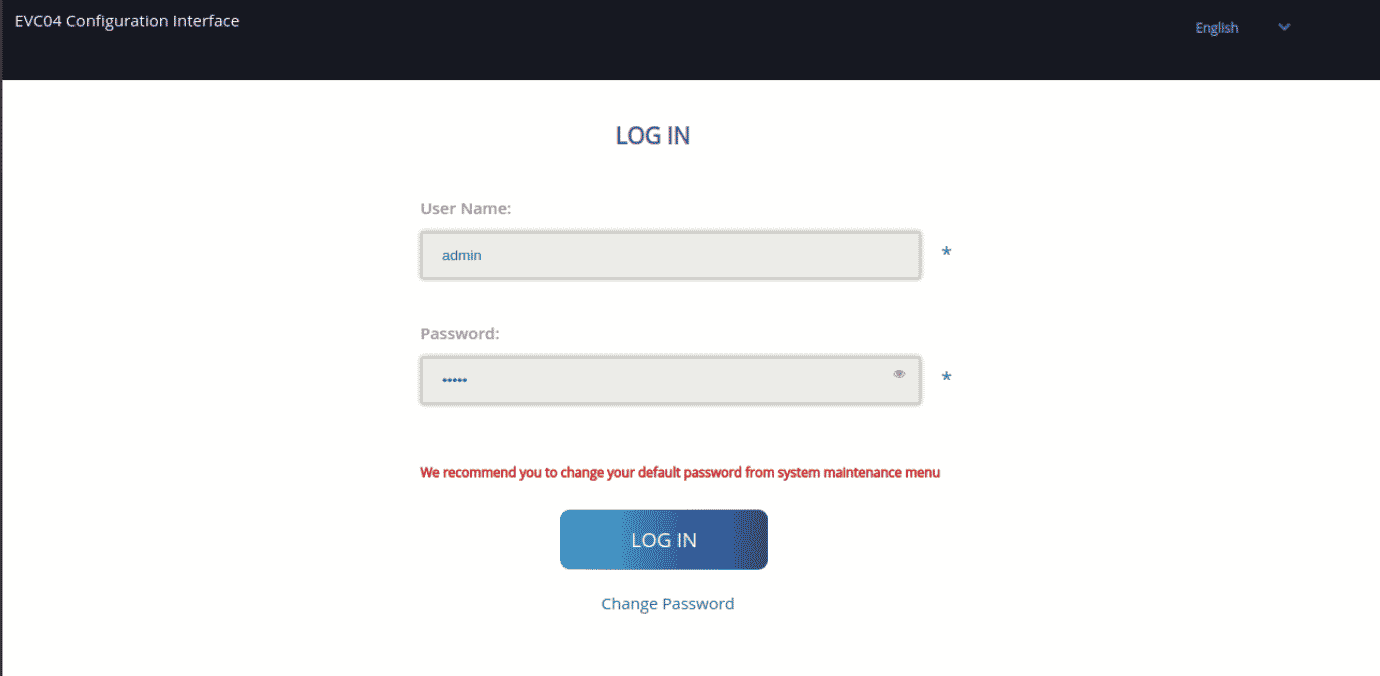
Once you enter the URL, you will go to the WebUI login page. The credentials are the following:
User Name: admin
Password: admin
4. Go to "OCPP settings" and enable "OCPP connection"
Once in the WebUI, go to "OCPP settings" and enable the "OCPP connection". After that you have to fill in the following details:
Central system address: ws://ocpp.monta.app
Charge Point ID: *your charge point ID here*
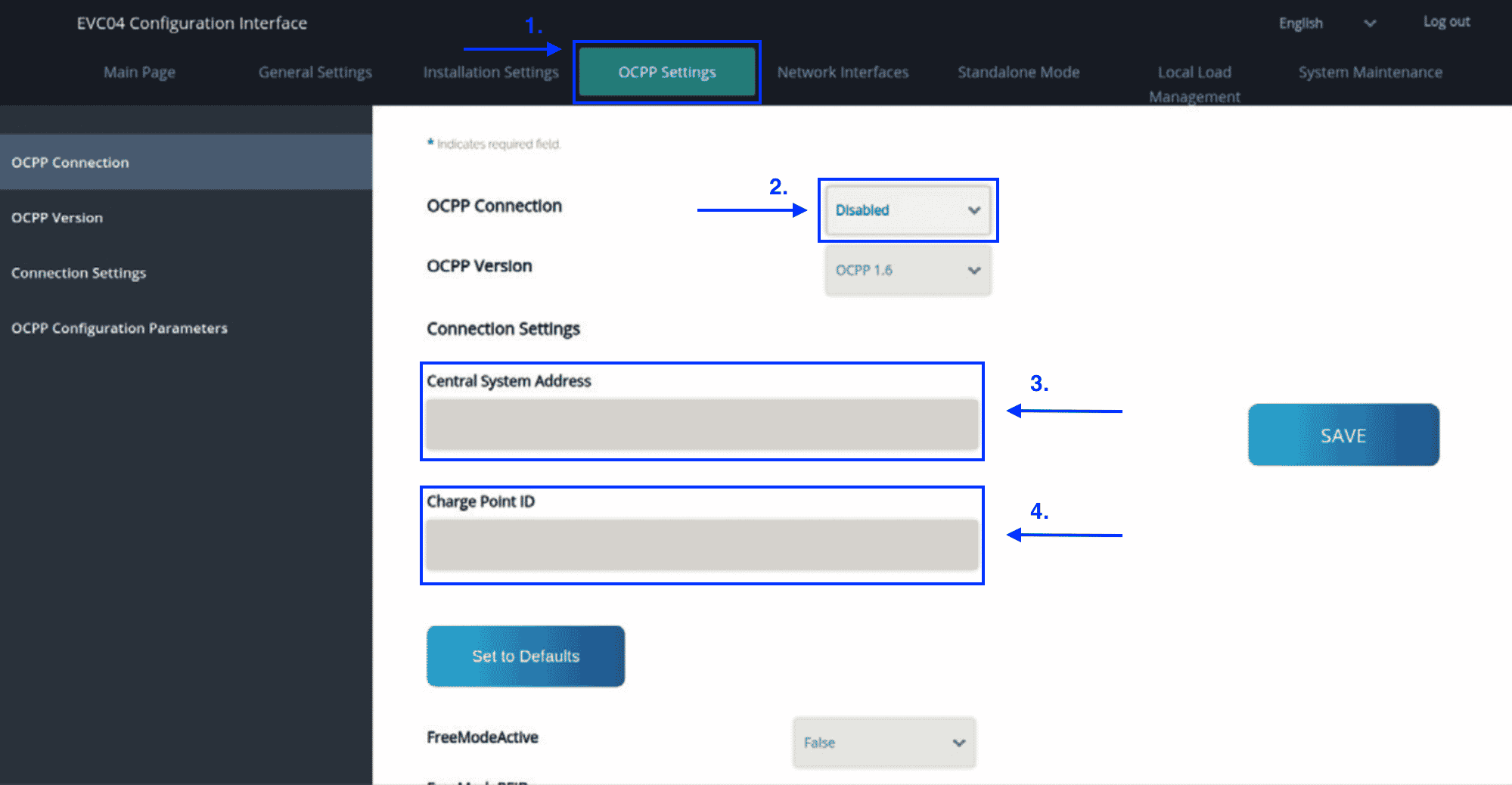
After this, scroll down until you can see the field called "FreeModeRFID". There, input eight times the letter F, as shown in the example: FFFFFFFF

Finally, press on "Save".
5. Connect your charge point to the Internet
Now it is time to connect your charge point to the Internet. To do so, navigate to the "Network interfaces" section and select "WLAN".
SSID: *your WiFi’s exact name*
Password: *your WiFi's password*
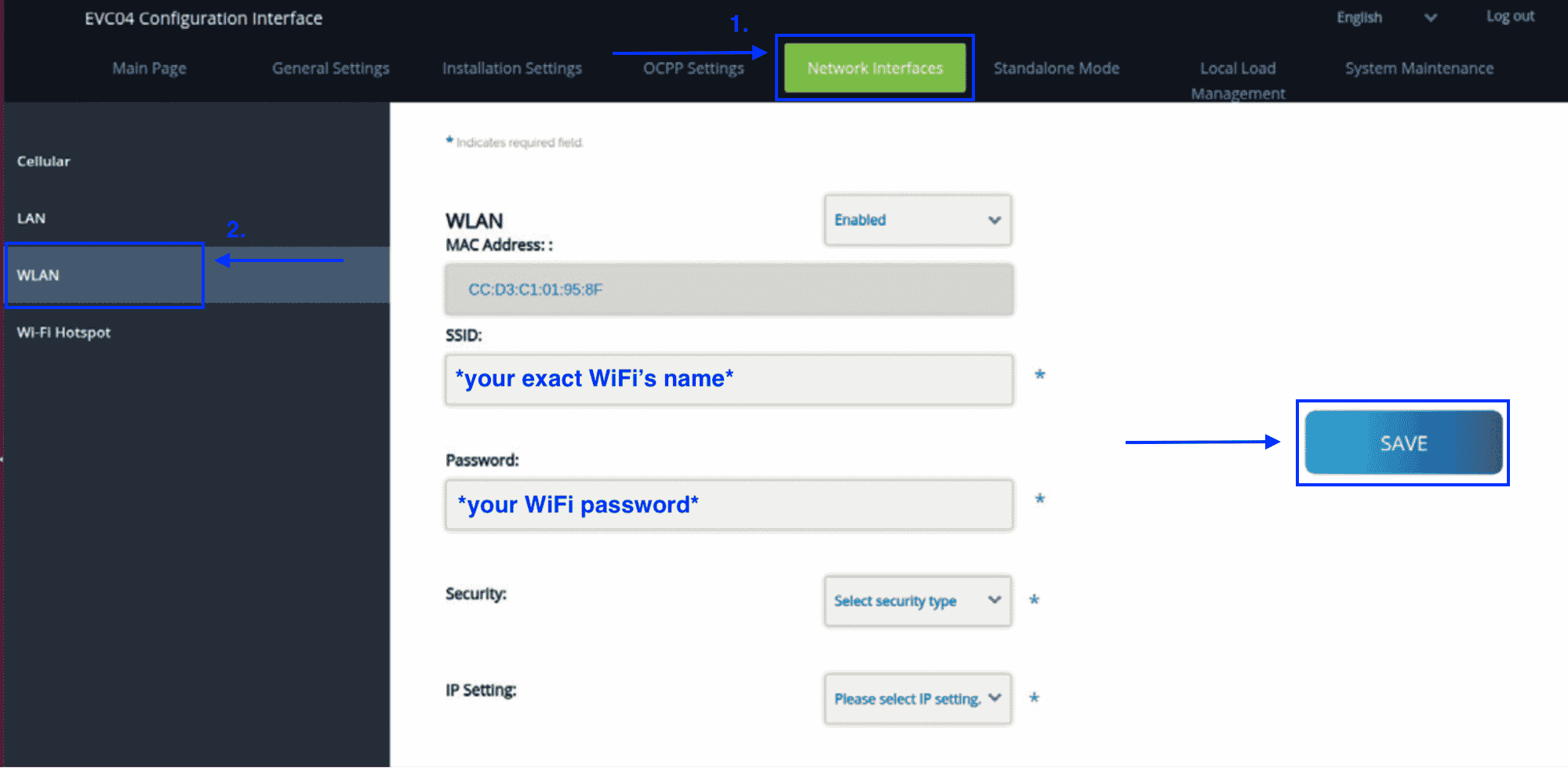
After you have filled the information, please click on "Save".
6. Connecting the charge point to your Monta account
Now you need to add and connect your charge point to your Monta account.
You can do this through either Monta Charge or Monta Hub.