
This guide covers the LinkCharging charge point and walks you through configuring it via the LINCHR app and connecting it to Monta using Open Charge Point Protocol (OCPP).
Please note that when you connect your charge point to Monta, we become the operator of the charge point. This means that you need to use Monta to control the charging process.
1. Download the LINCHR app
Download the LINCHR app on your phone from here.
Turn on the Bluetooth on your phone and open the app.
2. Select your charge point
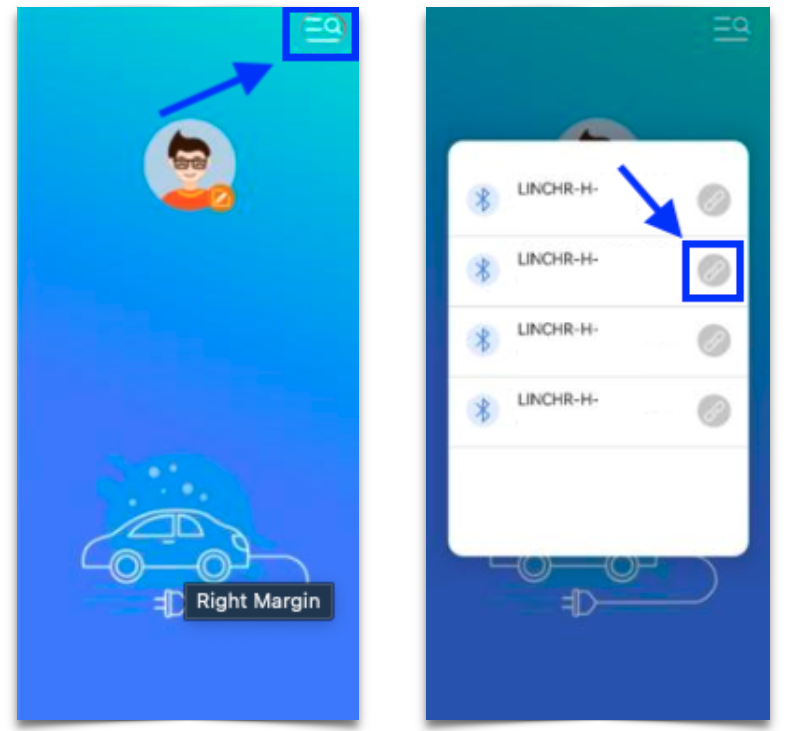
To select your charge point, click in the search icon in the top right corner.
Once you do this, the available change points will appear.
Click on the connect button to select it.
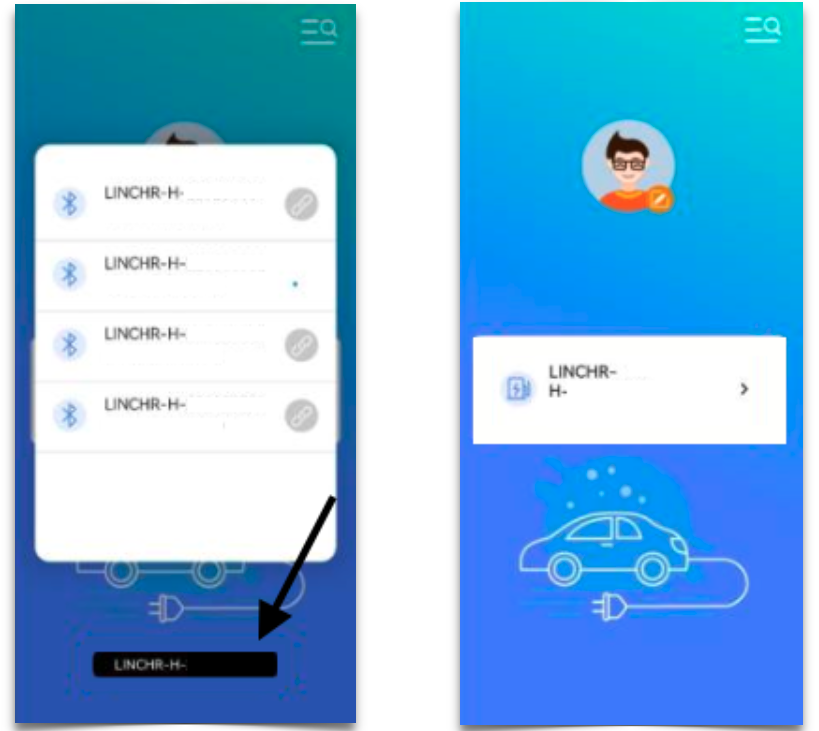
3. Click on the charge point name
The currently connected charge point will be displayed below. Click on the charge point name again and it will open the operations interface.
4. Create a password and confirm
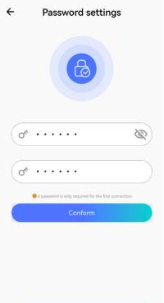
Here, you need to create a password.
Enter it twice and click on "Confirm".
5. Adjust network settings
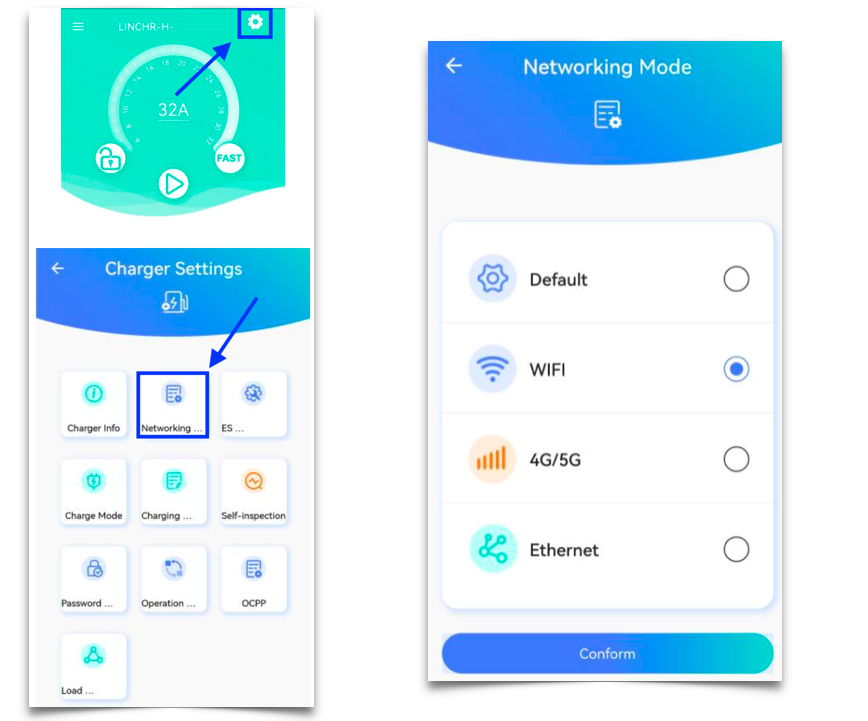
In the operations interface, click the settings button on top right corner.
After this, click on "Networking mode" to set up an internet connection.
Select the method you would like to use and enter the required information. For WiFi connection, you have to enter SSID (WiFi name) and your WiFi Password.
Click on "Confirm".
6. Adjust OCPP settings
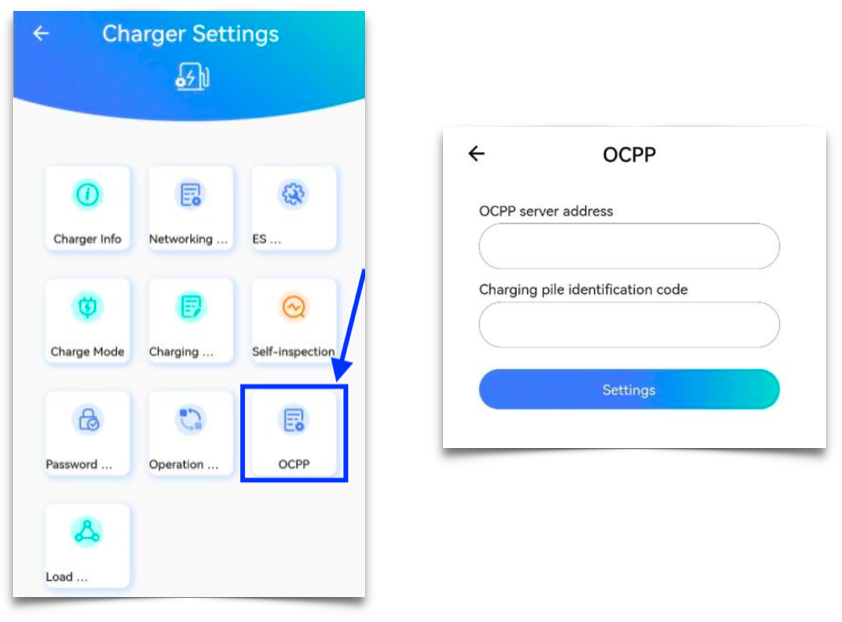
In the "Charger Settings" select "OCPP".
OCPP server address: wss://ocpp.monta.app
Charging pile identification code: enter charge point serial number (LINCHRXXXXXXXXXXXXXXXXX)
Click on "Settings" to confirm.
Finish this section by rebooting the charge point.
7. Connecting the charge point to your Monta account
Now you need to add and connect your charge point to your Monta account.
You can do this through either Monta Charge or Monta Hub.