
For: Charge point operators and operator admins using Monta Hub.
When one of your charge keys is used on another network, the roaming partner checks it against a copy of the key that Monta sent them. A charging station only reads a card's radio-frequency identification (RFID) UID, so each network can link a UID to just one e-mobility service provider (eMSP). When another eMSP has a token with the same RFID UID as your key, that is a roaming conflict. The key may then be declined on partner networks, and before now nothing in Hub explained why.
Roaming conflicts answers the questions that used to need a support ticket: which of my keys did this partner reject? and which of my keys are not being sent to partners at all?
A charge key is also known as an RFID card, RFID tag, charge card, key fob, or token. They all refer to the same thing.
Early access. Charge key roaming conflicts is an Early access feature. Accounts on the Early access release track get it automatically. On any other track, an operator admin can turn it on from Release channel. See How do I turn it on? below.
Where do I find roaming conflicts?
There are two places to look: one for all your keys, one for a single key.
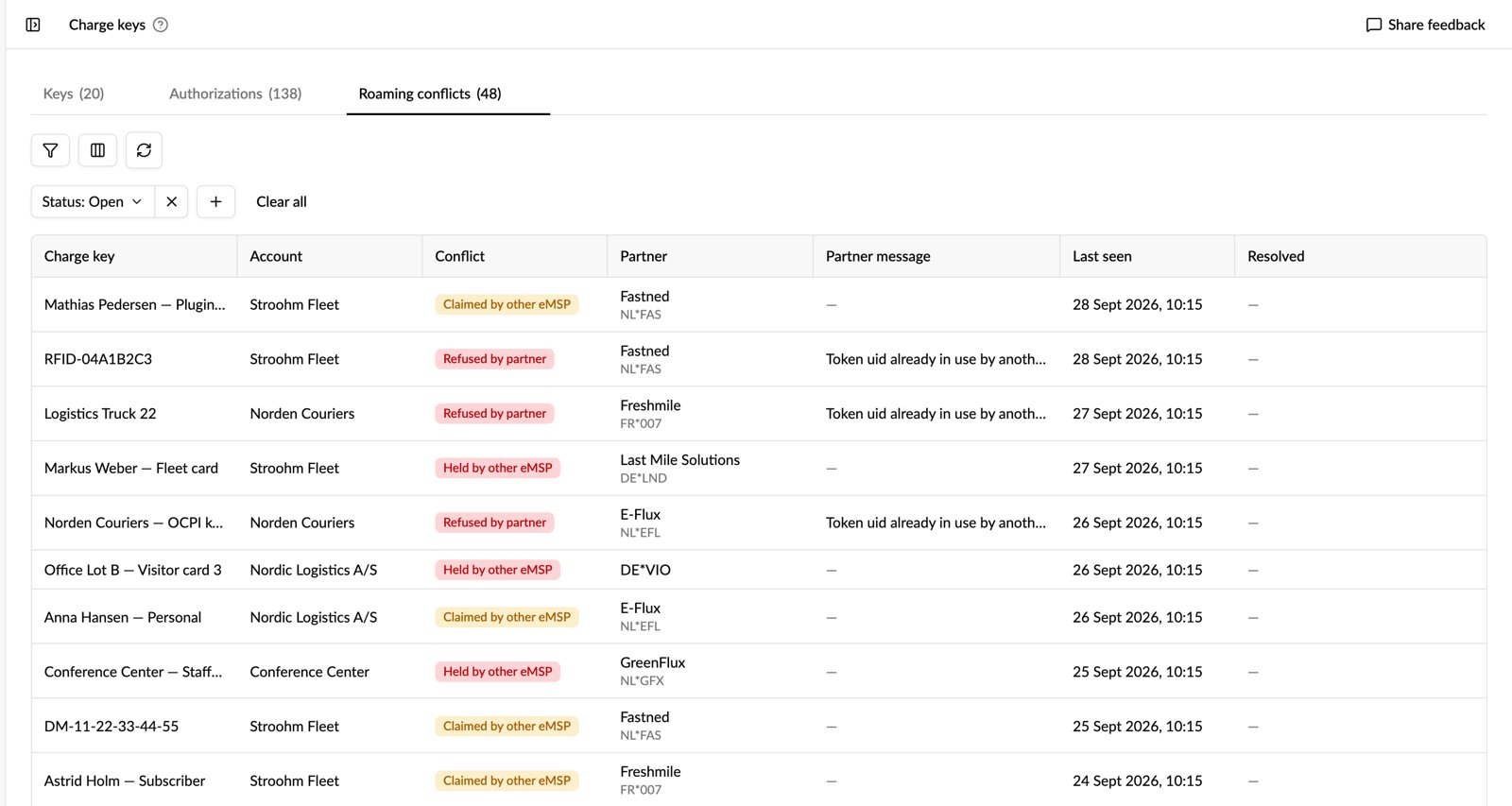
Across all your keys: every open conflict on the keys in the accounts you have selected:
- Open Charge keys (EMP / Fleet).
- Open the Roaming conflicts tab, beside Keys and Authorizations. The tab shows how many conflicts are open.
One charge key: every roaming partner and whether it accepted this key:
- Open Accounts → [account] → Charge keys.
- Select the charge key.
- Open the Roaming partners tab, beside Network.
Selecting a row on the Roaming conflicts tab opens that key's Roaming partners tab.
What do the conflict types mean?
Each conflict is named after who holds the RFID UID, and where:
| Conflict | What happened | Effect on your key |
|---|---|---|
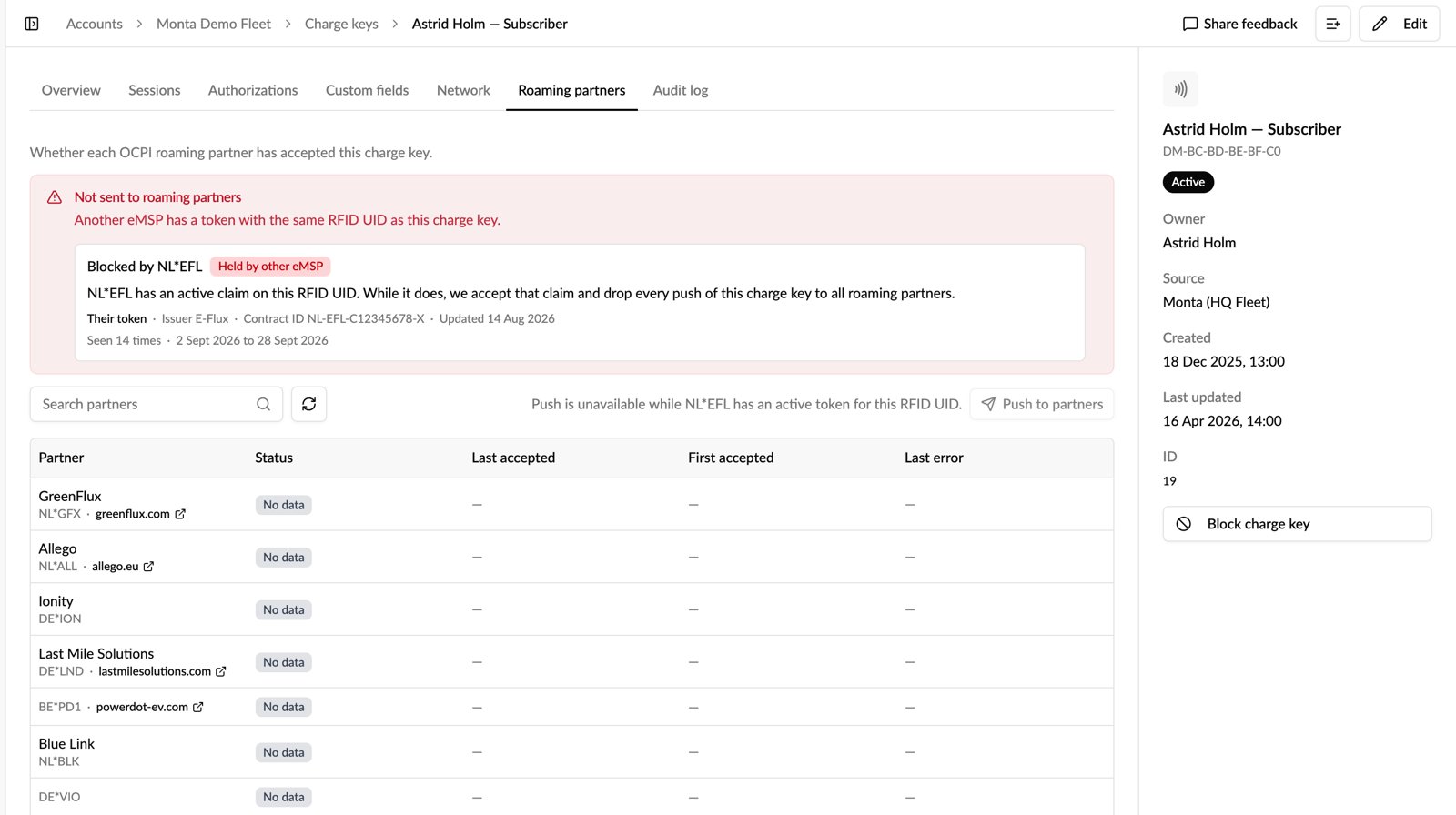
| Held by other eMSP | Another eMSP holds this RFID UID on Monta's roaming network, and your key collided with it. | Your key is not sent to any roaming partner. Push to partners is disabled while the conflict is open. |
| Refused by partner | A roaming partner refused your key because it already has the RFID UID registered to another eMSP. The partner doesn't say which one. | That partner won't accept your key. |
| Claimed by other eMSP | Your key holds the RFID UID, and another eMSP sent Monta a token with the same UID. | Your key is still sent to partners, but it may not work on every part of their networks. |
| Between other eMSPs | Two other eMSPs both sent Monta a token with this RFID UID. | Your key is still sent to partners, but it may not work on every part of their networks. |
The two red conflicts, Held by other eMSP and Refused by partner, stop the key from being sent to roaming partners, or stop one partner accepting it. With the two yellow ones the key is still sent to every partner, but because another eMSP also uses the RFID UID, it may not work on every part of a partner's network.
What does each row show?
On the Roaming conflicts tab, each row is one conflict on one key, so a key that two partners refused appears twice.
| Column | What it means |
|---|---|
| Charge key | The key in conflict. |
| Account | The account the key belongs to. |
| Conflict | The conflict type (see above). |
| Partner | The other party, by company name and party code (for example NL*LMS). For Refused by partner it is the partner that refused the key. For Claimed by other eMSP it is the eMSP that also claims the UID. Otherwise it is the eMSP that holds the UID. |
| Partner message | What a refusing partner sent back. |
| Last seen | When Monta last saw the conflict. |
| Resolved | When the conflict was resolved. Empty while it is open. |
You can add more columns from the column menu: Token UID (the RFID UID in conflict), Operator, Partner contract ID (the contract ID on the other eMSP's token), Partner response (the status code a refusing partner answered with), Occurrences, and First seen.
How do I filter and search?
The toolbar above the table gives you:
- Status: open (the default), resolved, or all.
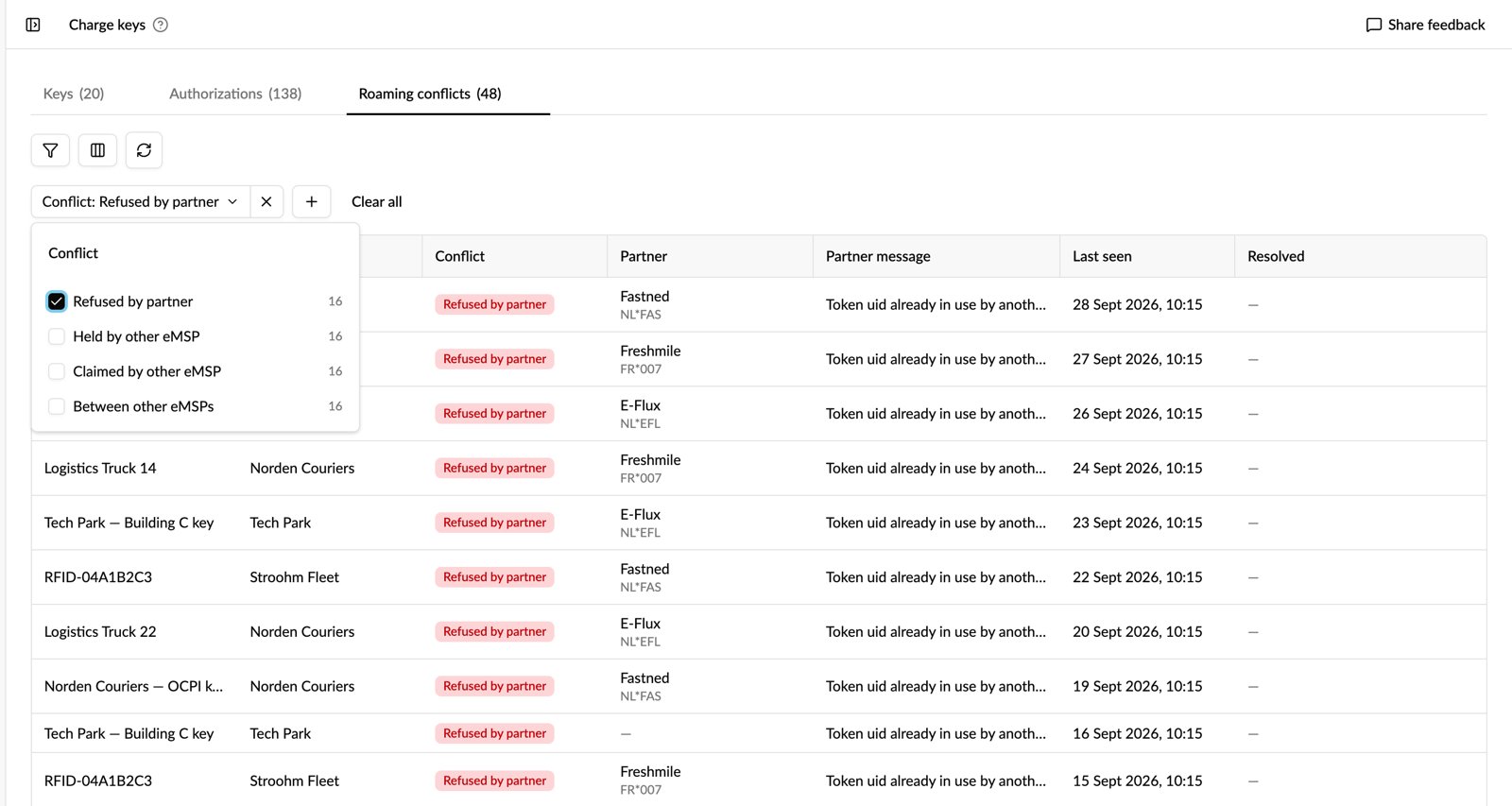
- Conflict: the conflict type, with the number of conflicts of each type.
- Partner: search by company name or party code, with the number of conflicts per partner.
- Account: search the selected accounts by name. The accounts with the most conflicts are listed first.
Your filters are saved in the page address, so you can bookmark a view or paste the link into a ticket.
What does the Roaming partners tab show?
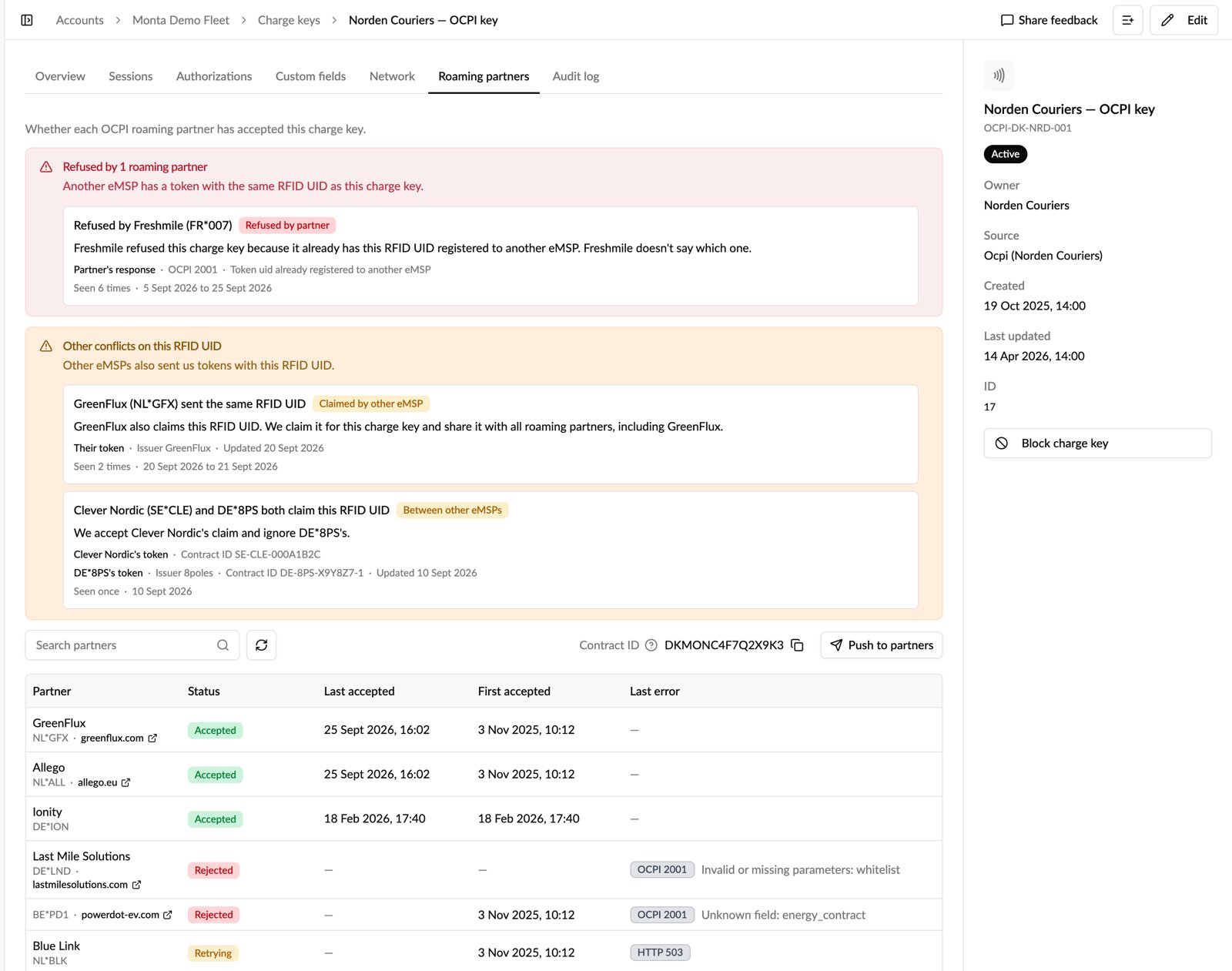
On a single key, the Roaming partners tab lists every roaming partner Monta sends keys to, and for each one the partner's latest answer:
- Accepted: the partner accepted the latest push.
- Retrying: the last push failed on the partner's side or in transit. Monta retries it automatically.
- Rejected: the partner refused the key, and retries have stopped.
- UID conflict: the partner refused the key because it already has the RFID UID registered to another eMSP.
- No data: Monta has no record of sending this key to this partner.
The tab also shows when each partner first and last accepted the key, the partner's last error, and the key's Contract ID. Above the table, any open conflicts on the key are listed with what they mean. Past conflicts are in a collapsed Resolved RFID UID conflicts section below the table.
Push to partners sends the key to every roaming partner again, for example after you have blocked, renewed, or changed it. Only users who can edit the charge key see the button.
Export the data
The same conflicts are available as the Charge Key Roaming Conflicts dataset in Data exports (Analytics → Data exports), so you can work through them offline. Choose your columns, add filters, preview the result, and download it. To export only open conflicts, filter on Resolved being empty. The dataset is offered for operator-wide exports, not for a single account.
How do I turn it on?
Charge key roaming conflicts is an Early access feature. If your account is on the Early access release track, you already have it. Otherwise:
- Open Release channel.
- Find Charge key roaming conflicts in the feature list.
- Turn it on for the whole account, or use Try myself to try it on your own login first.
Only operator admins and managers can change Release channel settings.
What can I see, and what is hidden?
- The Roaming conflicts tab needs view access to every charge key of the operator. It covers the accounts you have selected, and it is hidden while you are viewing Hub as an account member.
- The Roaming partners tab is available to anyone who can view the charge key. Pushing the key to partners needs edit access to it.
Frequently asked questions
Why is a new conflict not on the Roaming conflicts tab yet?
The Roaming conflicts tab is updated after the key's own Roaming partners tab, so a new conflict can show on the key before it shows in the list. Open the key's Roaming partners tab for its latest state.
A conflict says "Held by other eMSP". When will my key be sent again?
Once the other eMSP's token is no longer active, Monta marks the conflict resolved and Push to partners becomes available again.
Why doesn't "Refused by partner" name the other eMSP?
The partner doesn't tell Monta which eMSP holds the RFID UID. The row shows the partner's own message and response code instead.
My key is still sent to partners. Why does it show a conflict?
Claimed by other eMSP and Between other eMSPs mean another eMSP also uses this RFID UID. Monta still sends your key to every partner, but where a network links the UID to the other eMSP, your key may not work.
Related: How do I see charge key authorizations in Monta Hub? · How do I fix issues with charge keys? · Control how new features roll out with Release channel