
See your AFIREV session success, start-failure and abnormal interruption rates per period and per EVSE on the Charge verification dashboard, and export them as CSV.
For: Charge point operators who report on charging quality
AFIREV (Association Française pour l'Itinérance de la Recharge Électrique Automobile) defines three KPIs for charging quality. The Charge verification dashboard in Monta Hub calculates them for you, for any period and for every EVSE, so you don't need to export sessions and build them in a spreadsheet.
Where do I find the AFIREV KPIs?
- In Monta Hub, go to Analytics → Dashboards.
- Open the Charge verification dashboard. It's a Monta-curated dashboard, so it's ready to use.
- Pick a period at the top: Today, 7 days, 14 days, 30 days, 90 days, 1 year or Custom.
The dashboard is part of Charge Verification and is available to account owners and admins on operators that have charge verification. If you don't see it, contact Monta through the Helpdesk.
The three KPIs
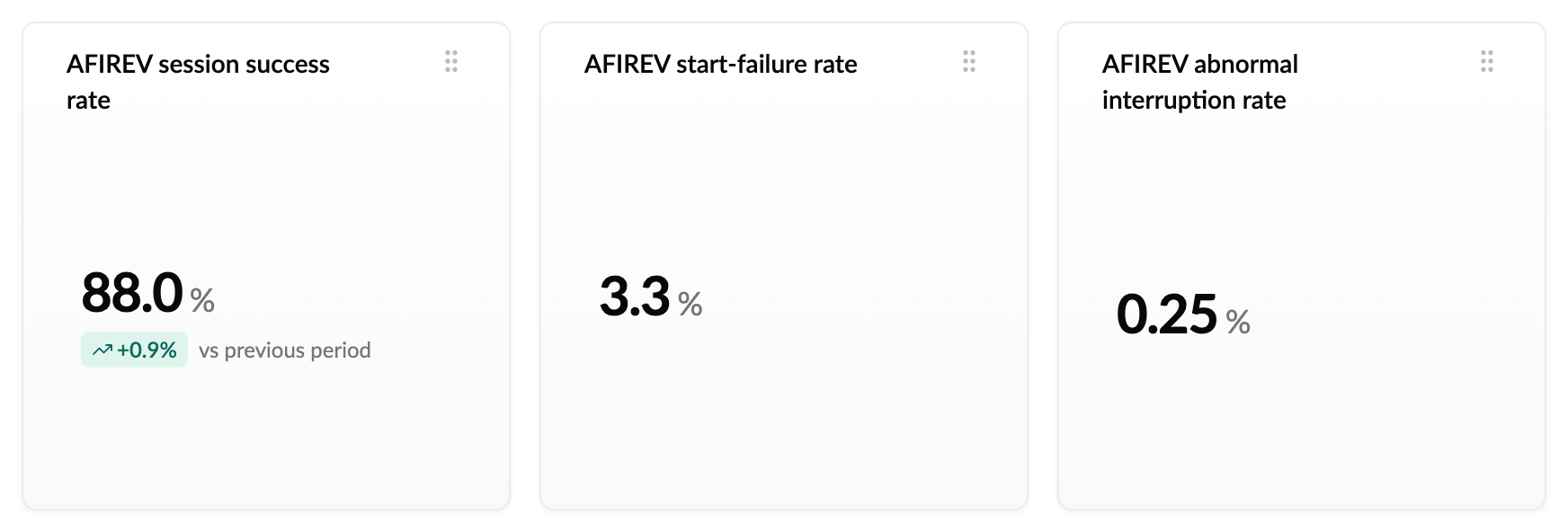
| KPI | What it tells you | Formula |
|---|---|---|
| AFIREV session success rate | How many charging attempts at your EVSEs ended in a valid charging session. Higher is better. The tile compares it with the previous period of the same length. | successful sessions ÷ attempts |
| AFIREV start-failure rate | How many attempts your EVSEs failed to start. Lower is better. | start failures ÷ attempts |
| AFIREV abnormal interruption rate | How many sessions that started were ended by the EVSE itself rather than by the driver. Lower is better. | abnormal interruptions ÷ started sessions |
How are they calculated?
The KPIs count only sessions on EVSEs your operator owns, because AFIREV reporting is the charge point operator's responsibility. Sessions you only paid for elsewhere are left out. They work from the charging sessions themselves, so you don't need to switch on a verification rule.
- Attempt: a session that has ended, whether it completed or failed. A payment or authorisation refusal is down to the driver, not the EVSE, so it isn't counted. Sessions still in progress are counted once they end.
- Start failure: an attempt that failed for any other reason, for example the EVSE timed out, reported an error, was misconfigured or never started.
- Started session: an attempt that didn't fail and delivered power.
- Valid session: a started session lasting at least 2 minutes and less than 24 hours, delivering between 0.5 and 350 kWh.
- Abnormal interruption: a started session the EVSE ended itself, for example after a power loss, emergency stop, reset or reboot, an unlock command, or a ground, overcurrent or power-quality fault. Normal stops, such as the driver unplugging or stopping the session in the app or at the EVSE, don't count.
- Successful session: a valid session that wasn't abnormally interrupted.
See which EVSEs pull the KPIs down
The AFIREV KPIs by EVSE table lists every EVSE with at least one attempt in the period, with its attempts and the three KPIs. It starts with the lowest success rate, so the EVSEs that need attention come first.
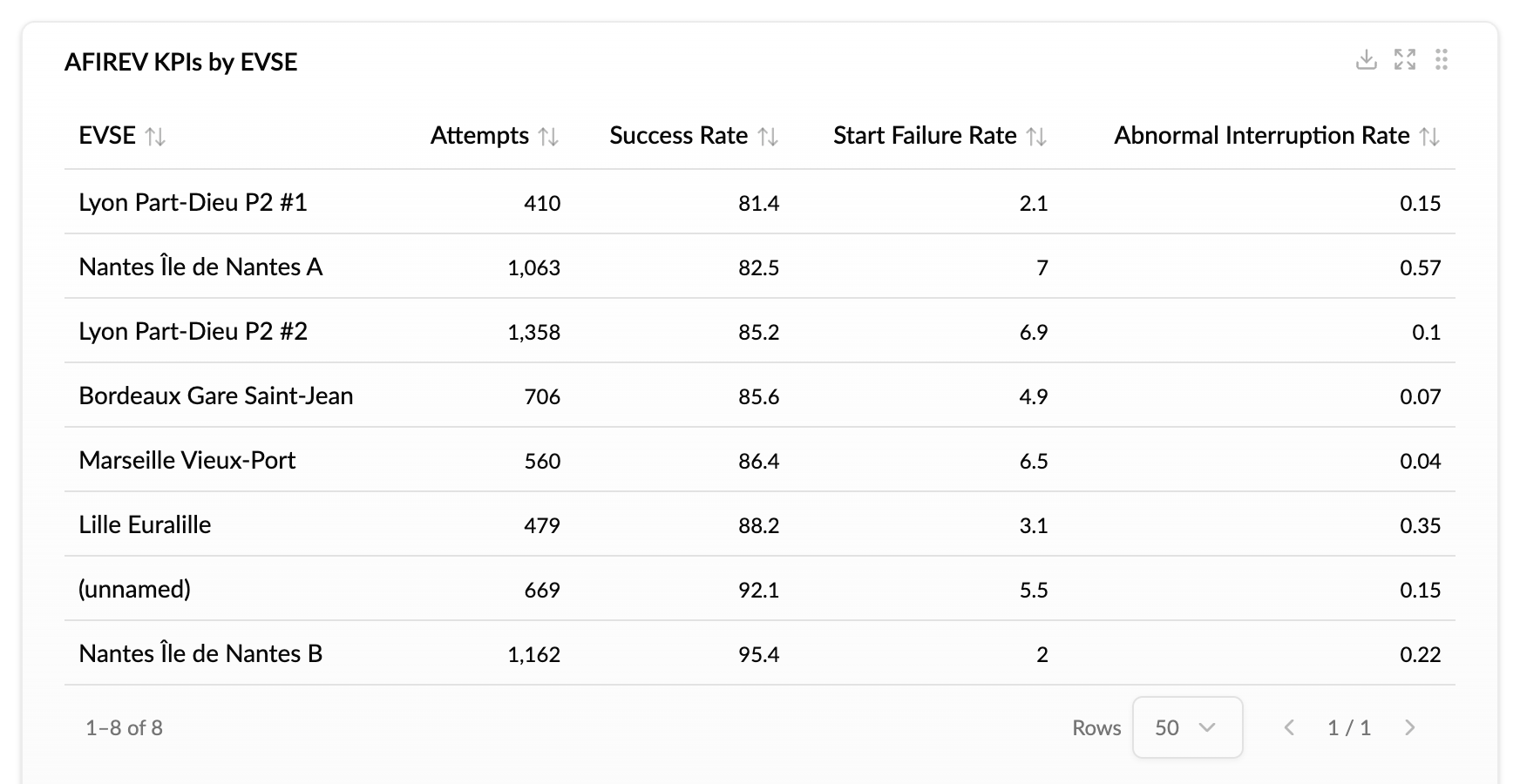
To use the numbers elsewhere, select the download icon on the table to get a CSV file. An export holds up to 10,000 rows. If your network has more active EVSEs than that in the period, choose a shorter period or a filter and export again.
Set up the AFIREV check
Besides the three KPIs, Charge Verification has a check called Not a valid AFIREV session. It flags each charging session on your EVSEs that falls outside the AFIREV definition of a valid session, so you can see it per charge. The check is off by default.
- In Monta Hub, go to Operations → Charging sessions, open the Verification tab and select Configure rules.
- On System rules, search for AFIREV and select Edit on Not a valid AFIREV session.
- Turn on Run this check.
- Keep the default limits, or change them: Minimum duration (2 minutes), Minimum energy (0.5 kWh), Maximum energy (350 kWh) and Maximum duration (24 hours).
- Select Save.
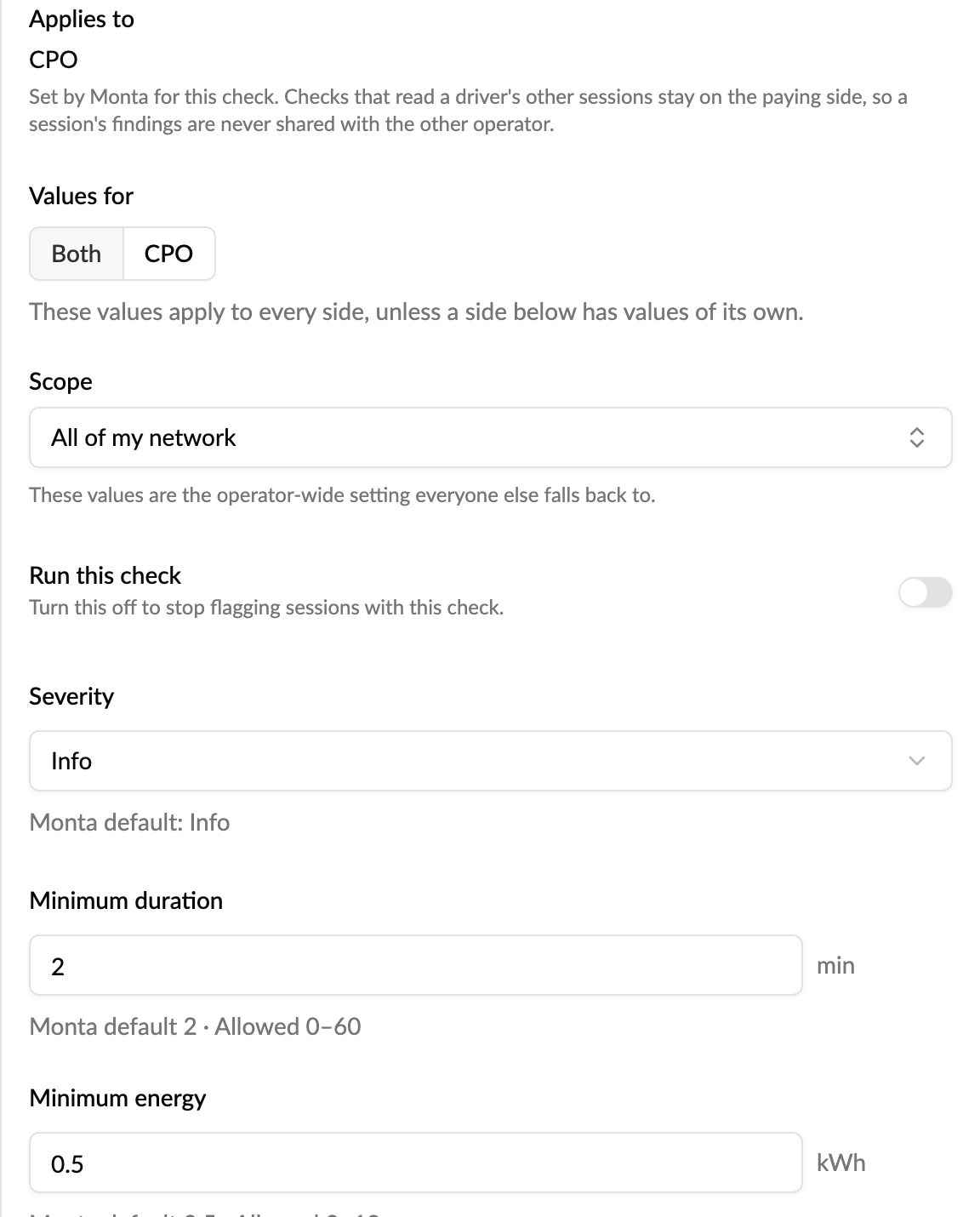
The check runs on your charging stations, including sessions another operator's driver paid for. Its severity is Info by default, so flagged sessions are recorded but don't go into your review queue. Use Scope to set it for your whole network or to make an exception for a single account. It only checks new sessions from the moment you turn it on.
The three KPIs above don't need the check: they are always calculated with the standard AFIREV limits, whatever you set here.
See it on a single charge
Open a charging session from Operations → Charging sessions:
- On the Overview tab, the verification line shows Noted, no action needed when the only finding is an informational one, such as this check.
- On the Verification tab, Not a valid AFIREV session appears among the findings with what was measured, for example a session that was too short or delivered too little energy. You can Resolve it with a note if you've looked into it.
See every session that failed the check
- On Operations → Charging sessions → Verification, open Not a valid AFIREV session from the findings list to see every session it flagged in the period.
- On the Charge verification dashboard, AFIREV valid sessions shows the share of checked sessions that passed, and AFIREV invalid sessions by reason shows why the others failed: too short, too little energy, too much energy, or 24 hours or longer.
These two tiles only fill once the check is switched on, and they can differ from the three KPIs: they use your own limits, count only the sessions the check ran on, and skip free sessions. For reporting on charging quality, use the three KPIs.