
Set restrictions on where the Team Wallet can be used for charging, by country or operator, at the team, member group, member, or charge key level.
Operators, Account Owners, and Admins can define where members can use the Account Wallet to start charging sessions. Restrictions can be applied at multiple levels and are inherited downward by default.
How does inheritance work?
Restrictions cascade from top to bottom:
- Operator: Organisation-wide defaults.
- Account: Default for all account members and charge keys.
- Member Group: Narrower rules for specific groups.
- Member: Individual restrictions.
- Charge key: Can only narrow the scope further, not expand it.
When applying new account settings, you can choose to update all lower levels or keep current settings.
What do members see?
If a member tries to charge at a location outside the allowed countries or operators, the session will not start. They will see a message that the Account Wallet cannot be used at that charge point.
Where can members pay with the account wallet?
Wallet payment restrictions have two parts:
- Countries: the countries where the wallet can be used. Leave it on No restrictions (all countries) to allow every country.
- Networks: which charging stations the wallet can be used at.
| Networks option | Members can pay at |
|---|---|
| All EVSEs, including roaming | Any charging station, including other networks through roaming. |
| Only EVSEs from selected operators | Charging stations of the operators you pick. |
| Only EVSEs from this account's operator | Charging stations of the operator the account belongs to. |
| Only EVSEs owned by this account or its parent account | Charging stations owned by the account itself or by the parent account it is nested under. Available for members and member groups only. |
| Only EVSEs owned by this account | Only the account's own charging stations. |
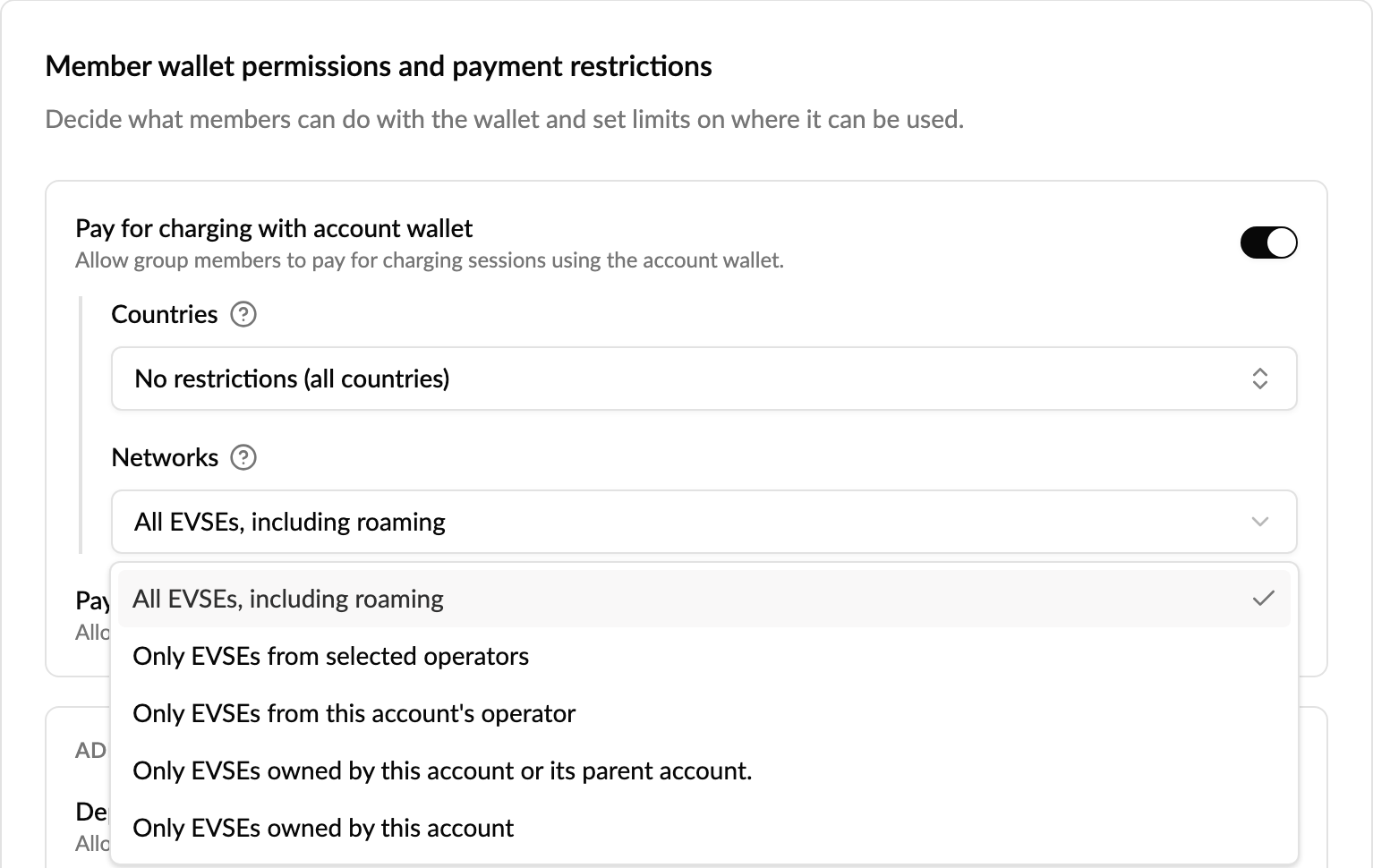
Using nested accounts? Choose Only EVSEs owned by this account or its parent account on the nested account's members or member groups. They can then pay with their account wallet at their own account's chargers and at the parent account's chargers, but not elsewhere. It covers the direct parent account only. See What are nested accounts?
How do I restrict wallet payments by country or operator (account level)?
- In the new Monta Hub, open the left sidebar and go to Admin → Operator → Account settings (Templates tab). In the old Hub, this is under Settings → Team settings.
- Click + New account setting or click an existing setting to edit it.
- Fill in the Basic information and Member permissions.
- In the Wallet payment restrictions section, select one or more:
- Countries
- Networks (see the options above)
- Optional: under Roaming parties, block named charge point operators or allow only the ones you list. See How do I block or allow specific charge point operators?
- Click Apply account settings.
- In the confirmation, choose:
- Apply account settings — updates all members and charge keys, or
- Keep current settings — no changes.
How do I block or allow specific charge point operators?
An account template can list charge point operators (parties) to block, or the only ones to allow. It applies to the members and charge keys of every account that uses the template, whenever they pay with the account.
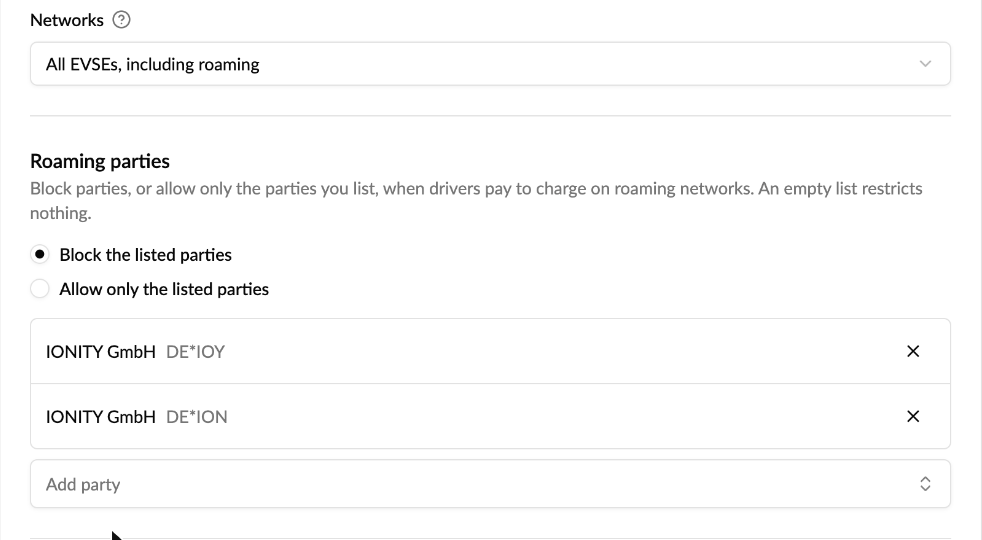
- Go to Admin → Operator → Account settings (Templates tab) and open the template.
- Go to the Wallet & restrictions step and find Roaming parties.
- Choose a mode:
- Block the listed parties: members and charge keys can pay to charge everywhere except at the operators you list.
- Allow only the listed parties: they can only pay to charge at the operators you list, plus your own network (see below).
- Click Add party and search for the operator. Repeat for each one.
- Save the template.
The list is read from the template each time a charge starts, so you don't need to re-apply the template to your accounts. Changes take effect within about a minute.
Which operators can I list?
- Roaming partners: charge point operators your drivers reach through roaming, for example through Hubject or an OCPI hub such as Gireve.
-
Monta operators with their own operator ID, including Monta itself (
DK*MON).
Each operator is listed by its ID, such as NL*LMS. One entry covers that operator everywhere: on every roaming network and on the Monta network.
What does the list never restrict?
- Your own network. Your own operator, your parent operator (unless that is Monta) and your sub-operators are always allowed, in both modes.
- Operators without their own operator ID. Most Monta operators use Monta's ID or their parent's. They can't be listed, and the list never refuses their charging stations, in either mode. To restrict charging on the Monta network more broadly, use Networks on the same step.
- Paying another way. The list covers the account wallet and the account's charge keys. A driver who pays with their own card or personal wallet is not restricted.
- Charges already running. Only new charges are checked.
- Accounts without a template. The list is set on account templates, not on member groups, members or charge keys.
Good to know
- An empty list restricts nothing, in either mode.
- The strictest restriction wins. The list works on top of Countries, Networks and any restrictions on member groups, members or charge keys.
- Allow mode is strict: a roaming charging station whose operator Monta can't identify is refused in allow mode.
- Charge keys used offline: at a roaming partner's charging station, a key that is allowed offline can be approved by the operator without asking Monta, so the list isn't checked and the charge is billed to the account. Keys are only shared for offline use when the account pays by invoice and offline use is turned on for the key.
- What drivers see: the charge doesn't start and the app says payment isn't allowed with this account. It doesn't name the list as the reason, and listed operators still show on the map.
- A refused charge key shows as denied in that key's Authorizations tab. See How do I see charge key authorizations in Hub?
- When you reopen a saved template, listed operators show by their ID rather than their name.
- The list is only available in the new Monta Hub. The old Hub doesn't show it, but saving a template there keeps the list.
- This is in early access. If you don't see Roaming parties, ask your Monta contact to turn it on for your operator.
How do I apply restrictions to a Member Group?
- Open your account (via Accounts in the left sidebar) and go to Members & Access → Member Groups.
- Select a group and open Member wallet permissions and payment restrictions.
- Turn on Pay for charging with account wallet, then choose Countries and Networks.
- Save changes.
How do I apply restrictions to a specific member?
- In your account, go to Members & Access, select [Member name], then open the Access tab.
- Under Member wallet permissions and payment restrictions, turn on Pay for charging with account wallet, then choose Countries and Networks.
- Save changes.
If account settings are applied globally, you will see a note that "Operator or Account restrictions are applied."
How do I restrict a charge key?
- In your account, go to Payment → Charge keys → [Key name] → Edit.
- Under Wallet payment restrictions, choose Countries and Networks. Charge keys can't use the parent account option.
- Save.
If the charge key has no member owner, it follows the account's restrictions. If it has an owner, it inherits from that member and can be narrowed further.